All draw.io Fundamentals Articles

This page presents draw.io fundamentals. Draw.io visualizes complex ideas. It designs workflows and architectures. Flowcharts and UML are supported. The tool is free online. It runs directly in browsers. Articles explain core draw.io features. They show versatility for professionals. Processes and ideas become visual. Essential features drive strong adoption. Articles here deepen draw.io knowledge.

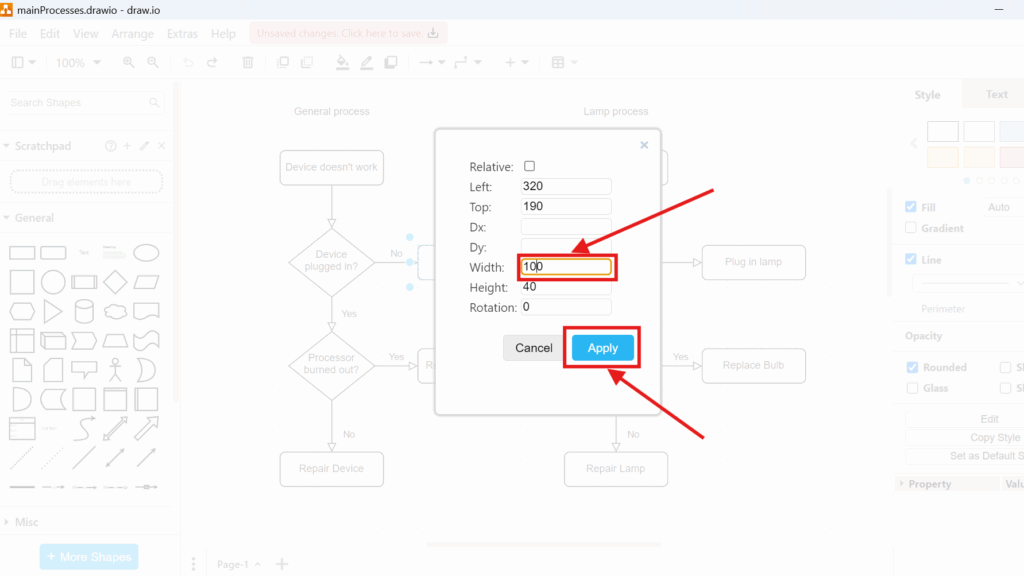
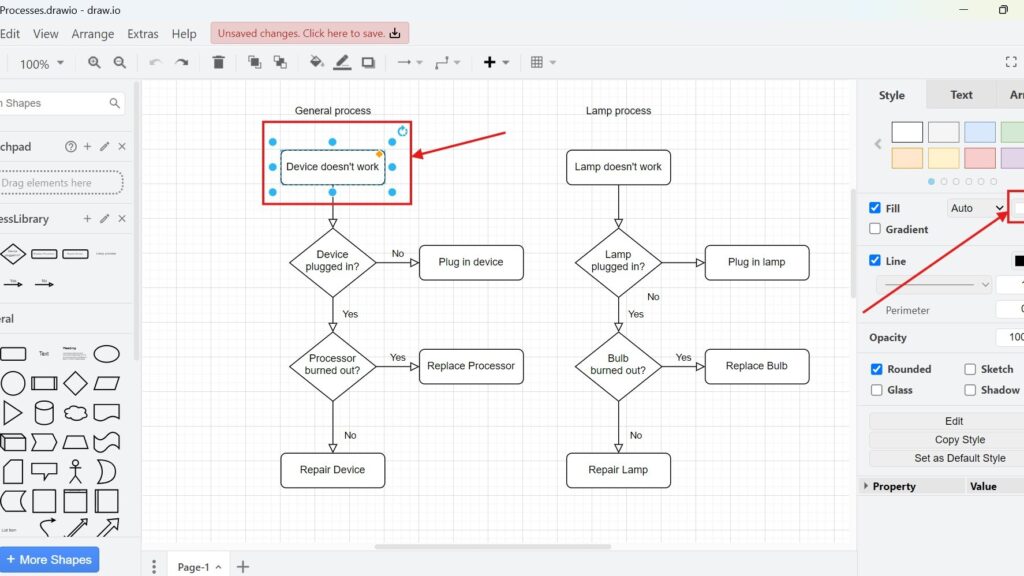
Draw.io geometry dialog showing fields for Left/Top and size, with “Width: 100” highlighted and the “Apply” button highlighted.

How to Change Geometry in draw.io

Object geometry helps me create precise diagrams. I adjust size, position, and shape dimensions when I need a cleaner layout. In this guide, I explain how to change geometry in Draw.io. You’ll learn how geometry settings help you fine-tune objects, improve alignment, and create clearer diagrams with a more professional look.

How to Change Geometry in draw.io Read More »
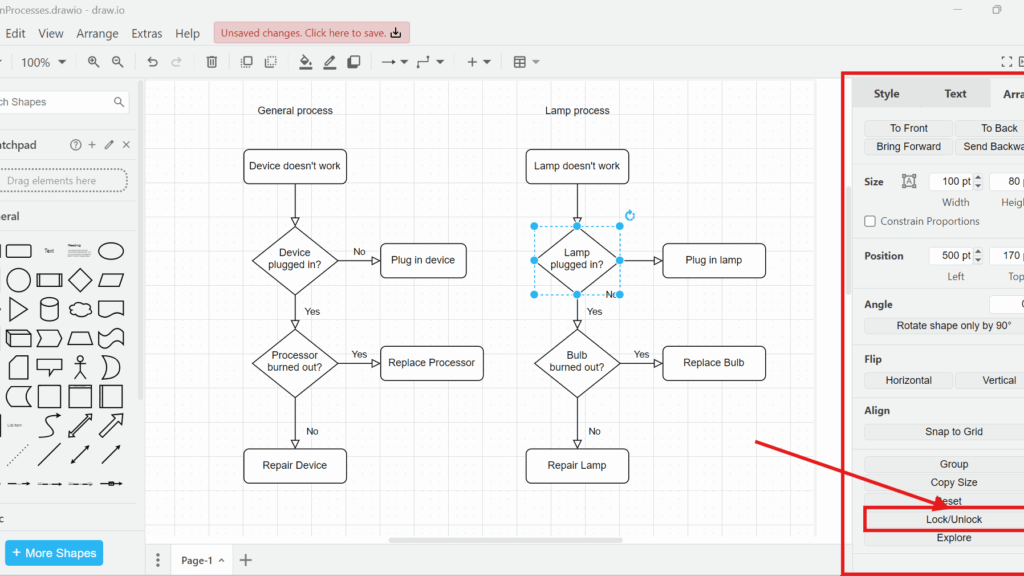
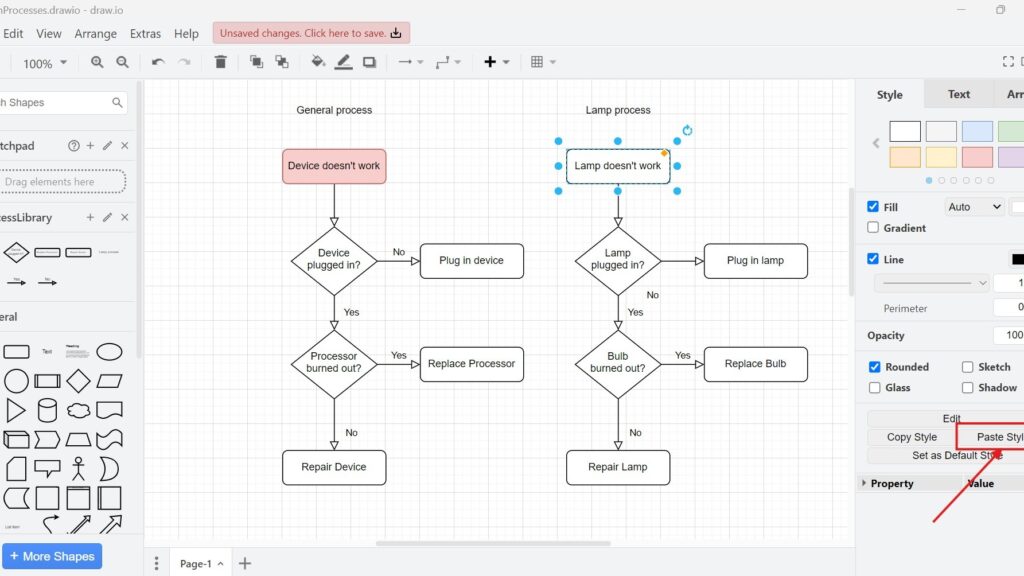
draw.io editor screenshot with two flowcharts (“General process” and “Lamp process”); “Lamp doesn’t work” is selected and “Paste Style” is pointed to by a red arrow.

Mastering Styles in Draw.io

Styles in draw.io can turn simple diagrams into clear and professional visuals. I use them to control colors, lines, text, and shape design. In this guide, I show how style management works and why it matters. As a result, you can make diagrams more consistent, engaging, and easier to understand.

Mastering Styles in Draw.io Read More »

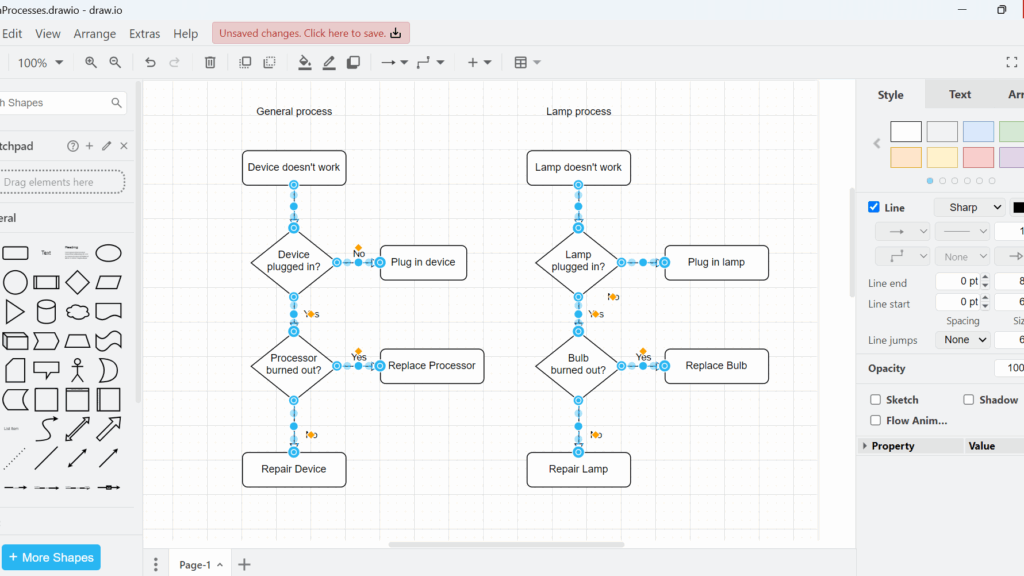
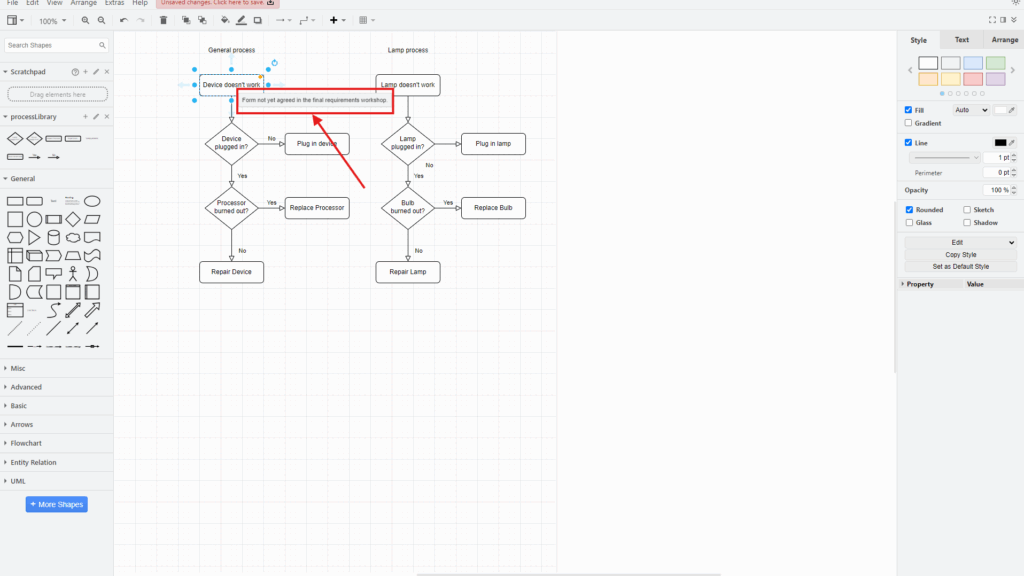
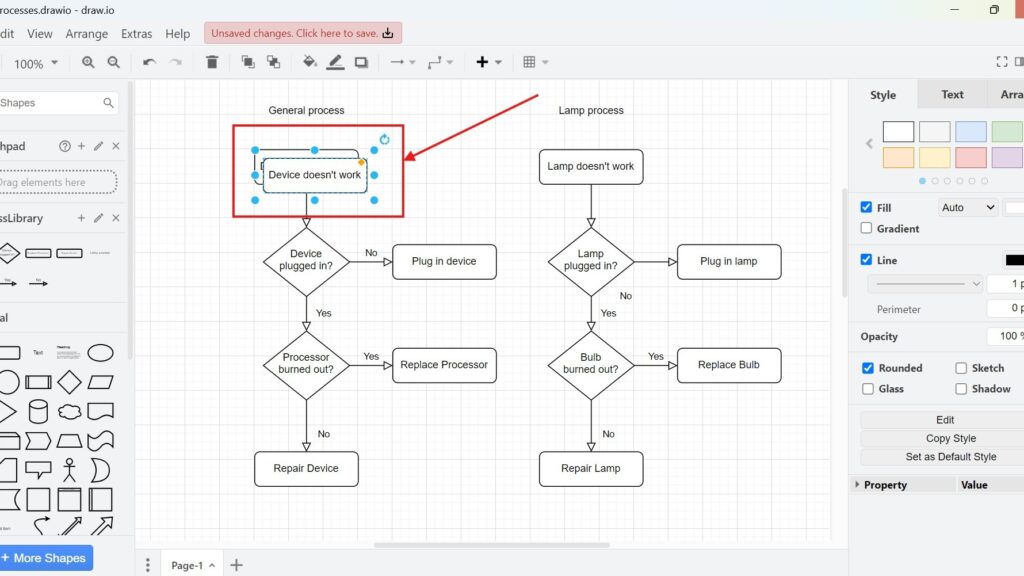
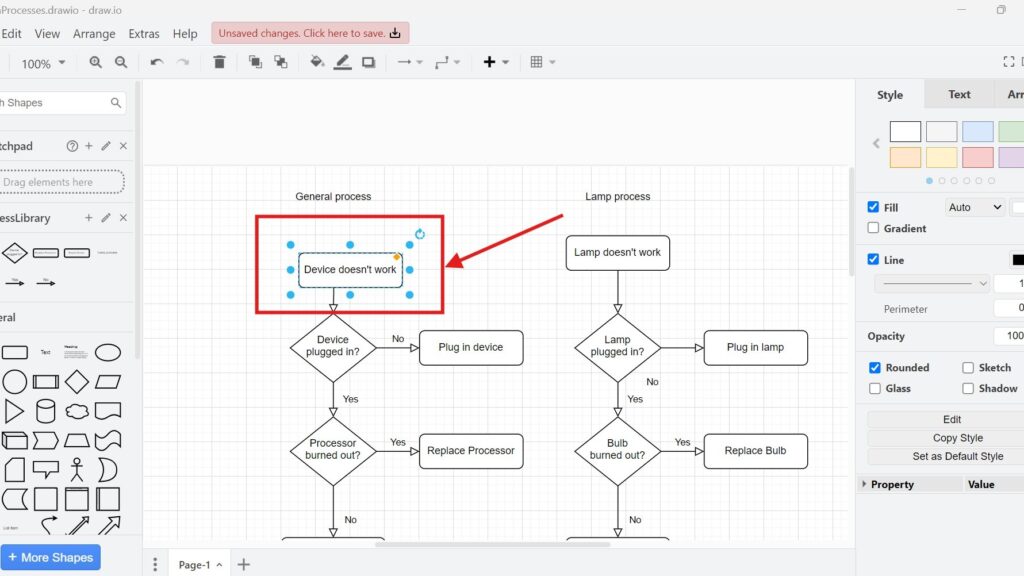
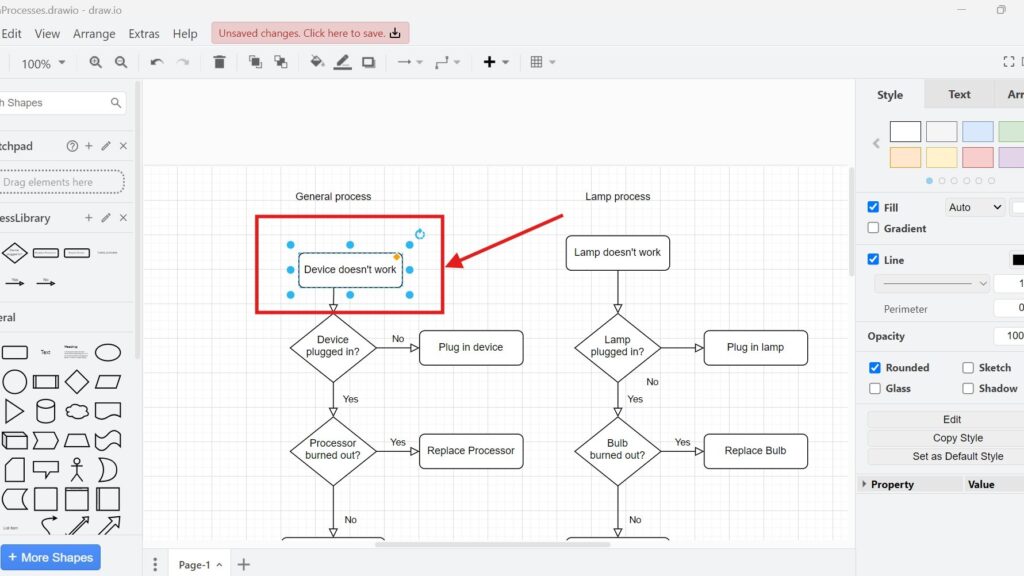
draw.io editor showing two flowcharts; the “Device doesn’t work” box is selected and outlined in red with a red arrow pointing at it.

How to Duplicate in draw.io

Duplicating saves time when I build diagrams in draw.io. It lets me reuse shapes, labels, and layouts without copying and pasting in separate steps. In this article, I explain How to duplicate in draw.io in a clear and practical way. You’ll learn how duplication works and why it helps you create diagrams faster, especially under tight deadlines.

How to Duplicate in draw.io Read More »

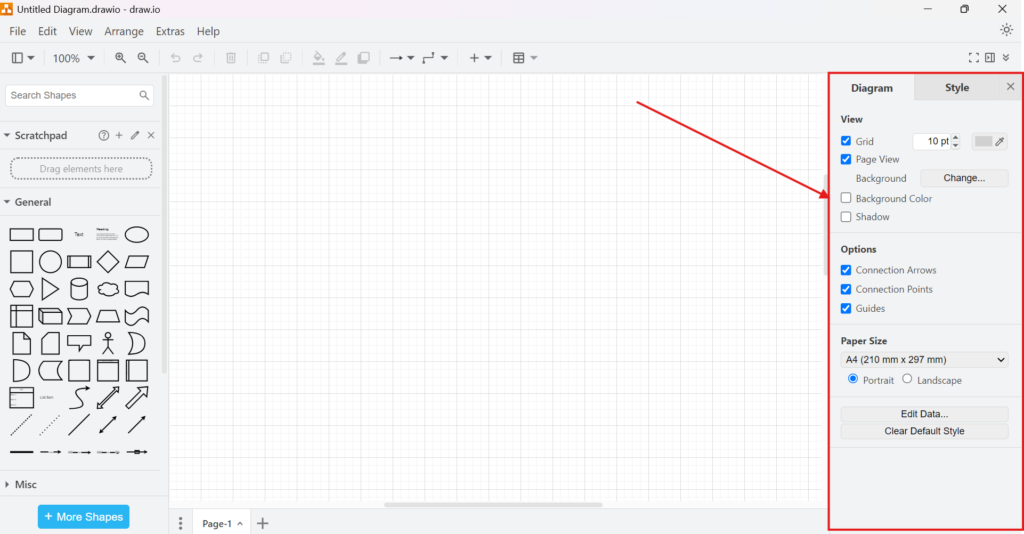
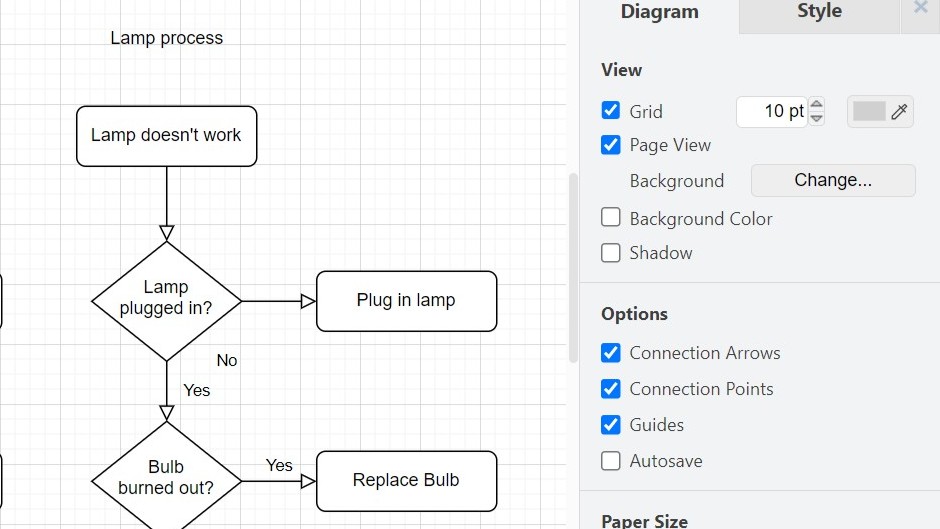
Cropped view of a “Lamp process” flowchart with the draw.io “Diagram” options panel visible on the right.

How to Exit draw.io

When I finish working on a diagram, I need to leave the tool safely. That is why I want to know How to exit draw.io properly. In this guide, I explain what to check before closing the session, why saving matters, and how a clear exit routine helps me keep my diagram workflow efficient and ready for the next session.

How to Exit draw.io Read More »

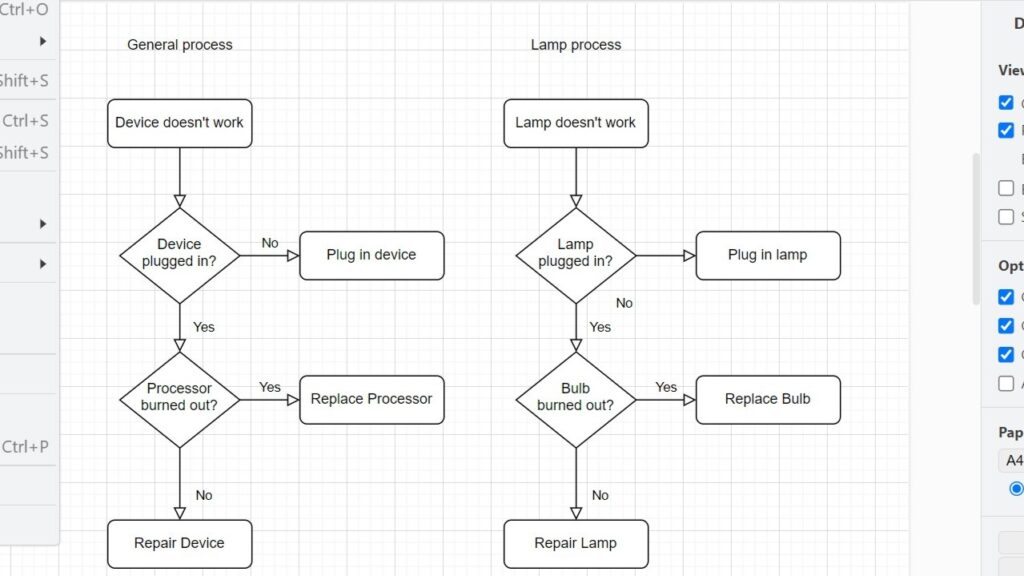
Draw.io diagram with a dropdown menu open showing keyboard shortcuts (e.g., Ctrl+O, Ctrl+S, Ctrl+P).

How to Close a Draw.io Diagram

Closing a diagram correctly helps me keep my draw.io workflow clean and safe. Before I leave the editor, I want to protect my changes and avoid confusion later. In this post, I explain how to close a Draw.io diagram step by step. You’ll learn what to check first and why a proper closing routine supports better diagram management.

How to Close a Draw.io Diagram Read More »

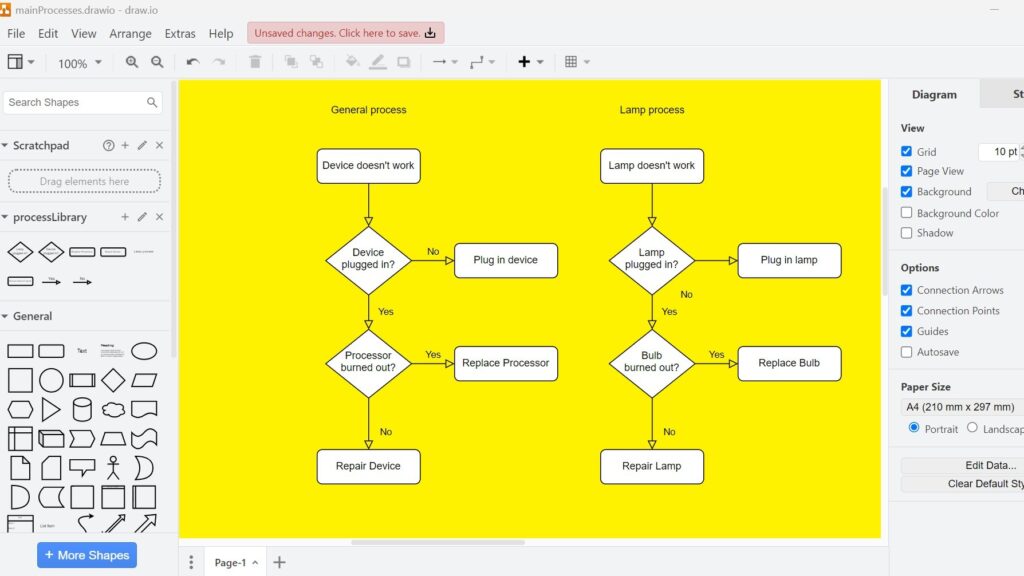
draw.io canvas with a bright yellow background behind two flowcharts and the Diagram panel visible on the right.

How to Change the Draw.io Page Setup

Learning to create a blog post in Confluence is a simple way to boost team communication and manage content in one place. Blog posts let you share updates, insights, and progress directly in your workspace. In this step-by-step guide, I’ll show you how to draft, edit, and publish posts efficiently, so you can build a smooth workflow and use Confluence’s collaboration features to the fullest.

How to Change the Draw.io Page Setup Read More »

Scroll to Top
WordPress Cookie Plugin by Real Cookie Banner