
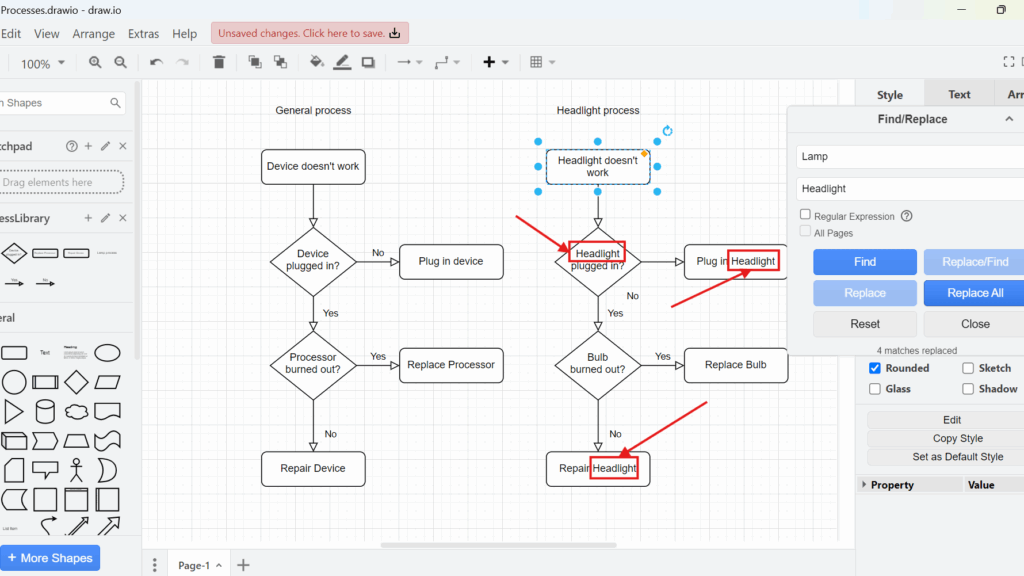
Quick text updates can save a lot of time in large diagrams. In this guide, I show how to find and replace in draw.io. You’ll learn how to search for labels, replace terms, and keep diagram text consistent. As a result, you can update your diagrams faster and avoid manual editing mistakes.
What is draw.io?
draw.io is a powerful tool for creating diagrams, flowcharts, and more. It’s straightforward to use and packed with helpful features. Businesses rely on it for project management, process mapping, and design tasks. I personally use it to document workflows and update diagrams efficiently. One feature I frequently use is “Find and Replace,” which simplifies updates in large diagrams.
Find in draw.io
Step 1: Access the Find/Replace Tool
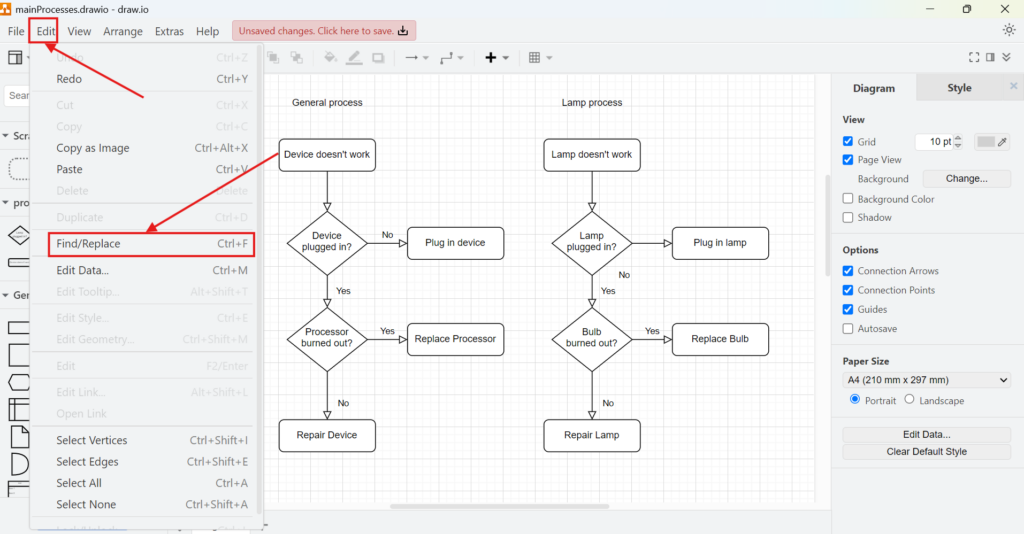
First, I open Edit and select Find/Replace.
Alternatively, I use Ctrl+F.
This opens the same search function more quickly.
I use Find when I want to locate a specific word or phrase without changing the diagram.
Step 2: Open the Find/Replace Window
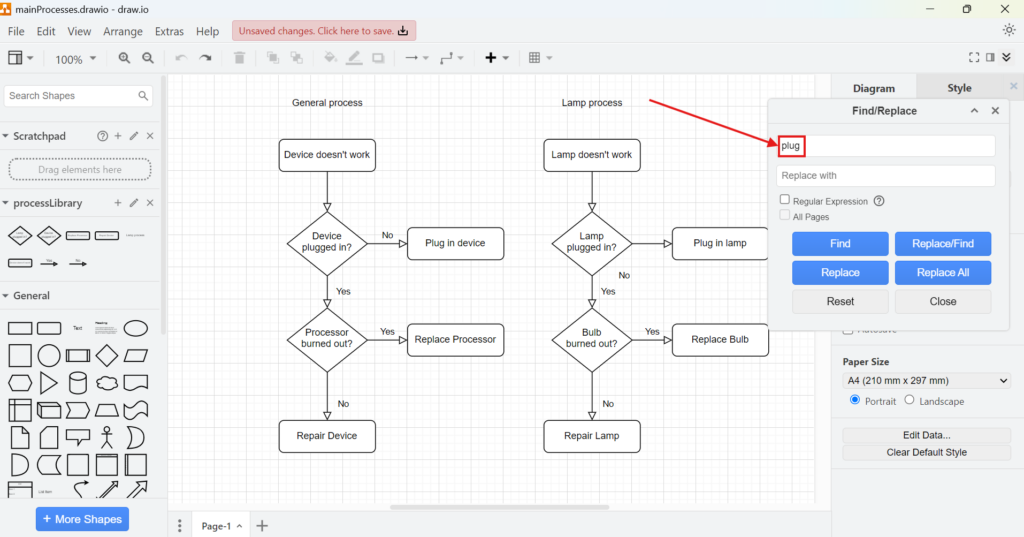
Next, the Find/Replace window appears.
I enter the text that I want to locate in the Find field.
For example, I can search for the word “plug.”
Step 3: Click Find
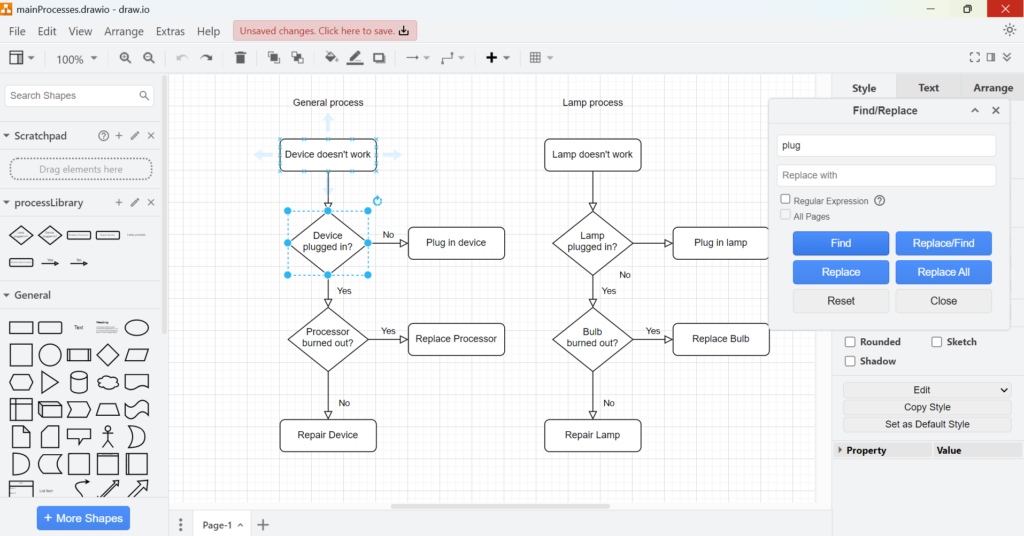
Then, I click Find.
Draw.io locates the first matching occurrence in the diagram.
Therefore, I can identify the relevant label or element without scanning the complete model manually.
Step 4: Click Find Again
If the term appears several times, I click Find again.
Draw.io then moves to the next matching occurrence.
I repeat this action until I reach the item that I need.
Repeated searches help me review every occurrence before I decide whether I need to change anything.

Replace in draw.io
Step 1: Enter Text to Replace
To replace text, I enter the existing term in the Find field.
Then, I enter the new term in the Replace field.
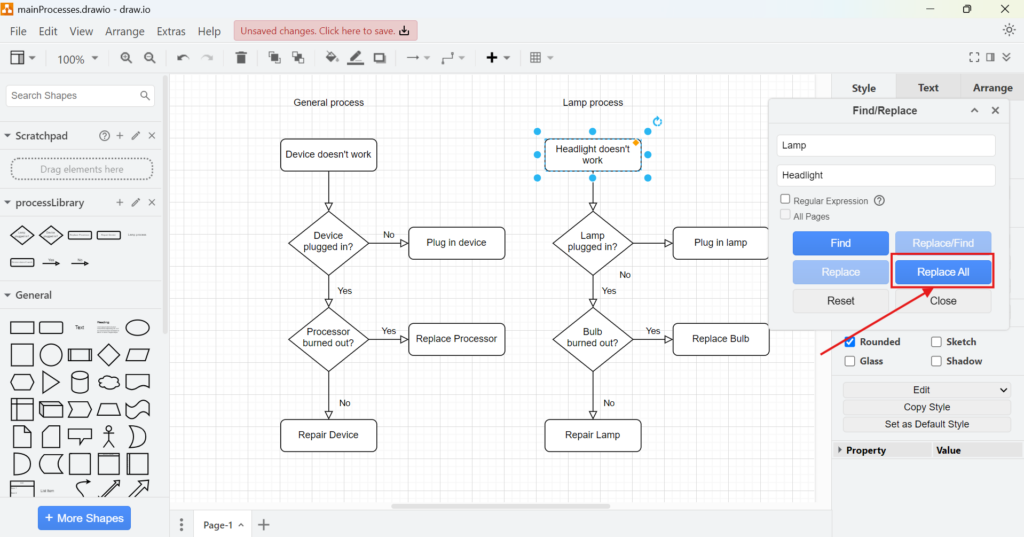
For example, I can search for “Lamp” and replace it with “Headlight.”
Before I continue, I check the spelling and capitalization of both terms.

Step 2: Replace Individual Occurrences
Next, I click Replace.
Draw.io changes the current matching occurrence.
I use this option when the same word appears in different contexts and I do not want to change every instance automatically.
Replacing occurrences individually gives me the most control over larger or more complex diagrams.

Step 3: Replace All Instances
If I want to change every matching occurrence, I click Replace All.
Draw.io then updates all matches in one action.
This method works well when the old term should disappear completely from the diagram.
However, I review the diagram afterwards because the same word may appear in places where a different meaning applies.
I use Replace All only when I am confident that every matching occurrence should receive the same replacement.

Final Thoughts
To find and replace in draw.io, I open Edit > Find/Replace or use Ctrl+F.
I use Find to move through matching text. In contrast, I use Replace for individual changes and Replace All for consistent changes across the complete diagram.
Find and Replace helps me update repeated terminology quickly while keeping labels consistent throughout a draw.io diagram.
What’s Next?
Now that I know how to find and replace in draw.io, I can update diagram text much faster. However, I can speed up my whole workflow even more with shortcuts. In the next article, I’ll explain Mastering Keyboard Shortcuts in draw.io. You’ll learn which shortcuts matter most and how they help you edit, move, format, and manage diagrams with less effort. Click below to continue and work faster in draw.io.
Connect Requirements Engineering Tools into One Workflow
Requirements engineering becomes stronger when I use tools that support each part of the work. Therefore, I use draw.io to visualize ideas, Confluence to document knowledge, Jira to manage tasks, and Camunda to model business processes. Each tool helps me create more clarity in a different way. As a result, I can move from early ideas to structured requirements, traceable work, and understandable process models. In the main article on Requirements Engineering Tools, I show how these tools work together and support a more reliable requirements workflow.