
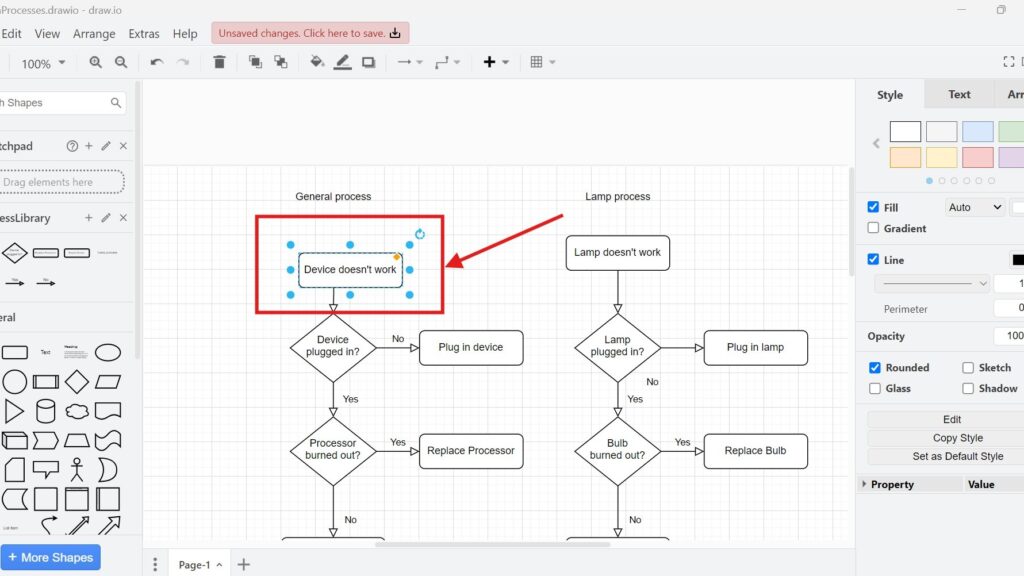
When I want to create diagrams faster, I use keyboard shortcuts in draw.io. They help me edit, move, format, and manage elements with less effort. In this guide, I show how shortcuts can speed up your workflow. As a result, you can build flowcharts and diagrams more efficiently.
How I Open Keyboard Shortcuts in draw.io
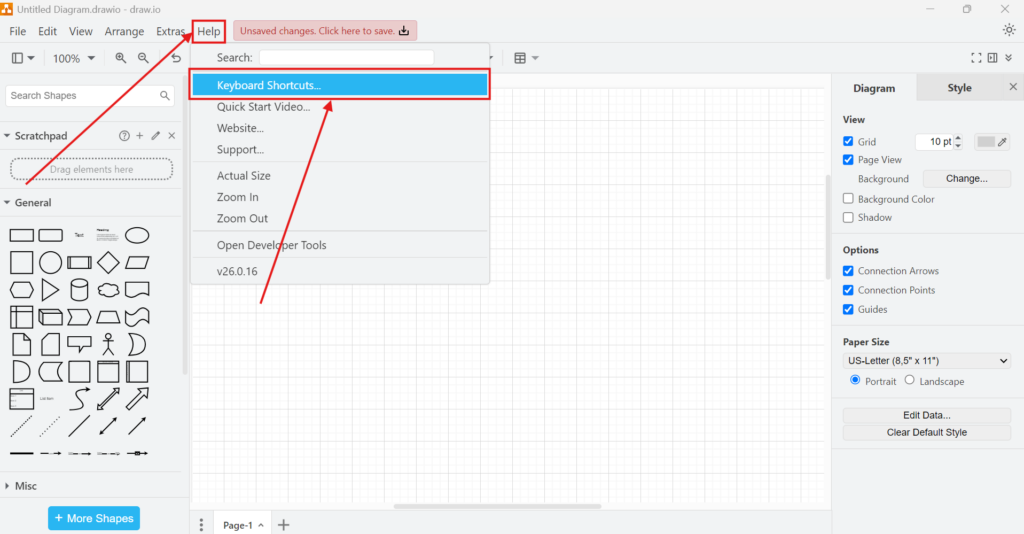
I open the shortcut reference directly from the draw.io editor. First, I select Help in the main menu. Then, I select Keyboard Shortcuts.
This gives me direct access to the complete shortcut reference.
The reference opens as an overview with several categories. These categories separate shortcuts by function. Therefore, I can quickly find the commands I need.
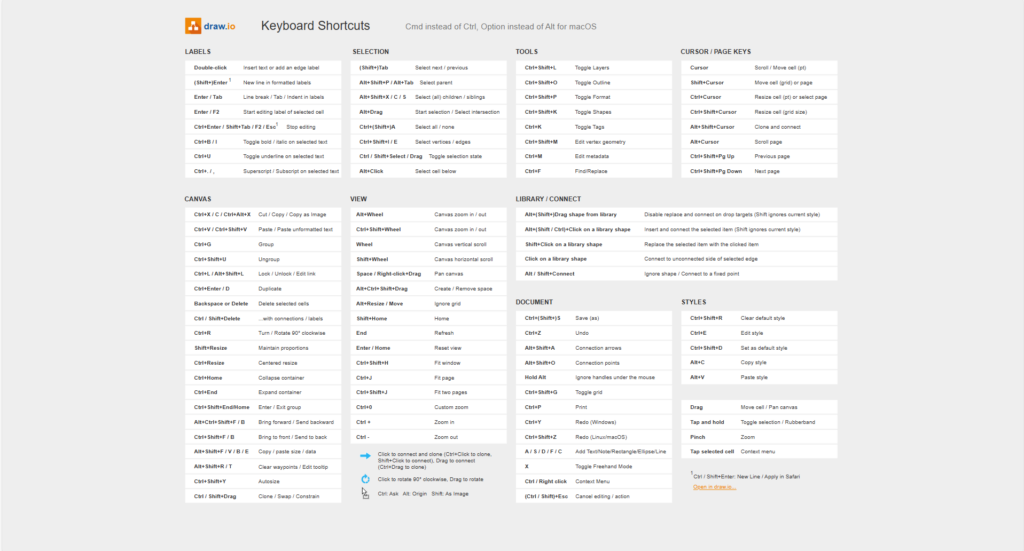
On macOS, I generally use Command instead of Ctrl and Option instead of Alt. However, some combinations can depend on the browser, operating system, and draw.io version.
Labels
Label shortcuts help me create and edit text without interrupting my workflow.
| Shortcut | Action |
|---|---|
| Double-click | Insert text or add an edge label |
| Shift+Enter | Add a new line in a formatted label |
| Enter / Tab | Add a line break, tab, or indent |
| Enter / F2 | Start editing the selected label |
| Ctrl+Enter / Shift+Tab / F2 / Esc | Stop editing |
| Ctrl+B / I | Toggle bold or italic formatting |
| Ctrl+U | Toggle underline |
| Ctrl+. / , | Apply superscript or subscript |
I use Enter or F2 frequently because they let me move from selection to text editing immediately.
Selection
Selection becomes more important when diagrams contain overlapping objects, groups, containers, or many connectors.
| Shortcut | Action |
|---|---|
| Tab / Shift+Tab | Select the next or previous element |
| Alt+Shift+P / Alt+Tab | Select the parent |
| Alt+Shift+X / C / S | Select children or siblings |
| Alt+Drag | Start a selection or select intersecting elements |
| Ctrl+A / Ctrl+Shift+A | Select all or select none |
| Ctrl+Shift+I / E | Select vertices or edges |
| Ctrl / Shift+Select / Drag | Toggle selection |
| Alt+Click | Select the cell below |
Alt+Click is especially useful when several elements overlap.
Instead of moving objects temporarily, I can select the element underneath them.
Tools
Several shortcuts open important editor panels and functions directly.
| Shortcut | Action |
|---|---|
| Ctrl+Shift+L | Toggle Layers |
| Ctrl+Shift+O | Toggle Outline |
| Ctrl+Shift+P | Toggle Format |
| Ctrl+Shift+K | Toggle Shapes |
| Ctrl+K | Toggle Tags |
| Ctrl+Shift+M | Edit vertex geometry |
| Ctrl+M | Edit metadata |
| Ctrl+F | Find and Replace |
These commands become particularly useful in larger diagrams. For example, I can manage layers, inspect metadata, or edit geometry without searching through menus.
Tool shortcuts give me faster access to structural editing functions, not only basic drawing commands.
Cursor and Page Keys
The cursor keys can do much more than move around the page. Modifier keys turn them into precise editing controls.
| Shortcut | Action |
|---|---|
| Cursor keys | Scroll or move a selected cell |
| Shift+Cursor | Move a cell by grid increments or move the page |
| Ctrl+Cursor | Resize a cell or select a page |
| Ctrl+Shift+Cursor | Resize a cell by grid size |
| Alt+Shift+Cursor | Clone and connect |
| Alt+Cursor | Scroll the page |
| Ctrl+Shift+Page Up | Go to the previous page |
| Ctrl+Shift+Page Down | Go to the next page |
I use these shortcuts when dragging with the mouse would be too imprecise. As a result, I can make small adjustments without disturbing the surrounding layout.
Canvas
Canvas shortcuts cover many of the actions I repeat most often.
| Shortcut | Action |
|---|---|
| Ctrl+X / C / Ctrl+Alt+X | Cut, copy, or copy as image |
| Ctrl+V / Ctrl+Shift+V | Paste or paste unformatted text |
| Ctrl+G | Group |
| Ctrl+Shift+U | Ungroup |
| Ctrl+L / Alt+Shift+L | Lock, unlock, or edit a link |
| Ctrl+Enter / D | Duplicate |
| Backspace / Delete | Delete selected cells |
| Ctrl / Shift+Delete | Delete with connections or labels |
| Ctrl+R | Rotate 90 degrees clockwise |
| Shift+Resize | Maintain proportions |
| Ctrl+Resize | Resize from the center |
| Ctrl+Home | Collapse a container |
| Ctrl+End | Expand a container |
| Ctrl+Shift+End / Home | Enter or exit a group |
| Alt+Ctrl+Shift+F / B | Bring forward or send backward |
| Ctrl+Shift+F / B | Bring to front or send to back |
| Alt+Shift+F / V / B / E | Copy or paste size and data |
| Alt+Shift+R / T | Clear waypoints or edit a tooltip |
| Ctrl+Shift+Y | Autosize |
| Ctrl / Shift+Drag | Clone, swap, or constrain |
Grouping and duplication save me a significant amount of time when I create repeated structures. In addition, ordering commands help me control overlapping objects.
Autosize is also useful. If a label becomes larger than its shape, I can resize the element automatically instead of adjusting it manually.
View
Large diagrams require efficient navigation. Therefore, I use view shortcuts to zoom, scroll, and reposition the canvas.
| Shortcut | Action |
|---|---|
| Alt+Wheel | Zoom in or out |
| Ctrl+Shift+Wheel | Zoom in or out |
| Wheel | Scroll vertically |
| Shift+Wheel | Scroll horizontally |
| Space / Right-click+Drag | Pan the canvas |
| Alt+Ctrl+Shift+Drag | Create or remove space |
| Alt+Resize / Move | Ignore the grid |
| Shift+Home | Home |
| End | Refresh |
| Enter / Home | Reset the view |
| Ctrl+Shift+H | Fit window |
| Ctrl+J | Fit page |
| Ctrl+Shift+J | Fit two pages |
| Ctrl+0 | Set custom zoom |
| Ctrl++ | Zoom in |
| Ctrl+- | Zoom out |
I often move between a detailed view and a complete overview. Therefore, Fit Page and Fit Window are among the most useful commands for large models.
Efficient navigation lets me inspect different parts of a diagram without changing the diagram itself.
Library and Connect
Library shortcuts control how new shapes interact with existing elements and connectors.
| Shortcut | Action |
|---|---|
| Alt+(Shift+)Drag a shape from the library | Disable replacement and connection on drop targets |
| Alt+(Shift / Ctrl)+Click a library shape | Insert and connect the selected item |
| Shift+Click a library shape | Replace the selected item |
| Click a library shape | Connect to the unconnected side of the selected edge |
| Alt / Shift+Connect | Ignore a shape or connect to a fixed point |
These commands help when I build repeated diagram structures. Instead of inserting a shape first and connecting it afterward, I can sometimes perform both actions together.
Document
Document shortcuts cover general editor actions and several drawing modes.
| Shortcut | Action |
|---|---|
| Ctrl+S / Ctrl+Shift+S | Save or Save As |
| Ctrl+Z | Undo |
| Alt+Shift+A | Toggle connection arrows |
| Alt+Shift+O | Toggle connection points |
| Hold Alt | Ignore handles under the mouse |
| Ctrl+Shift+G | Toggle the grid |
| Ctrl+P | |
| Ctrl+Y | Redo on Windows |
| Ctrl+Shift+Z | Redo on Linux or macOS |
| A / S / D / F / C | Add text, note, rectangle, ellipse, or line |
| X | Toggle Freehand Mode |
| Ctrl / Right-click | Open the context menu |
| Ctrl+Esc / Shift+Esc | Cancel editing or the current action |
The single-letter commands can be especially fast when I create a diagram from scratch. However, I only use shortcuts that I can remember without slowing myself down.
Styles
Style shortcuts help me keep visual formatting consistent.
| Shortcut | Action |
|---|---|
| Ctrl+Shift+R | Clear the default style |
| Ctrl+E | Edit the style |
| Ctrl+Shift+D | Set the selected style as the default |
| Alt+C | Copy a style |
| Alt+V | Paste a style |
I use Copy Style and Paste Style when several elements should follow the same visual convention.
Consistent styles improve readability because the same visual treatment can represent the same type of information throughout a diagram.
The shortcut reference also includes basic touch controls:
| Interaction | Action |
|---|---|
| Drag | Move a cell or pan the canvas |
| Tap and hold | Toggle selection or start a selection area |
| Pinch | Zoom |
| Tap a selected cell | Open the context menu |
Which draw.io Shortcuts Should I Learn First?
I do not try to memorize the complete list. Instead, I start with shortcuts for actions that I repeat frequently.
For most of my work, I would learn these first:
| Shortcut | Why I Use It |
|---|---|
| Ctrl+S | Save |
| Ctrl+Z | Undo |
| Ctrl+D or Ctrl+Enter | Duplicate |
| Ctrl+G | Group |
| Ctrl+Shift+U | Ungroup |
| Ctrl+F | Find and Replace |
| Ctrl+J | Fit page |
| Ctrl++ / Ctrl+- | Zoom |
| Delete | Remove selected elements |
| Alt+Click | Select an overlapping element |
After that, I add specialized commands when I need them. For example, geometry, metadata, layers, containers, or style shortcuts become more valuable in advanced diagrams.
I learn shortcuts most effectively when I connect them to a repeated task instead of trying to memorize the complete reference.
What I Keep in Mind
Keyboard shortcuts depend on context. For example, the same key can behave differently while I edit text, select a shape, work inside a group, or navigate the canvas.
In addition, the browser or operating system can already reserve certain key combinations. Therefore, a shortcut may sometimes behave differently from the reference.
Finally, draw.io can change over time. I therefore use the shortcut overview in my current editor version as the primary reference.
If a shortcut does not work as expected, I first check the current editing mode, selection, operating system, browser, and draw.io version.
Conclusion
Keyboard shortcuts in draw.io help me reduce repetitive mouse actions and keep my attention on the diagram. I can use them to edit labels, select objects, open tools, move shapes, navigate the canvas, control connections, manage documents, and reuse styles.
However, I do not need to memorize every shortcut. Instead, I focus on the commands that support my actual workflow.
The most useful keyboard shortcuts are the ones that remove repeated actions and let me concentrate on the structure and meaning of the diagram.
What’s Next?
Now that I know how keyboard shortcuts in draw.io can speed up my workflow, I can improve the shape of my diagrams next. Sometimes, I need more than standard shapes. I need to adjust geometry so elements fit my layout and explain my idea more clearly. In the next article, I’ll explain How to Change Geometry in draw.io. You’ll learn how geometry changes work and how they help you create more precise diagrams. Click below to continue and shape your draw.io elements with more control.
Use Tools That Make Requirements Work Clearer
Requirements engineering becomes more practical when I use tools that support the full workflow. Therefore, I use draw.io to visualize ideas, Confluence to document knowledge, Jira to organize work, and Camunda to model business processes. Each tool helps me create clarity in a different area. As a result, I can connect diagrams, documentation, tasks, and processes more effectively. In the main article on Requirements Engineering Tools, I show how these tools work together and help me build a stronger requirements engineering process.