
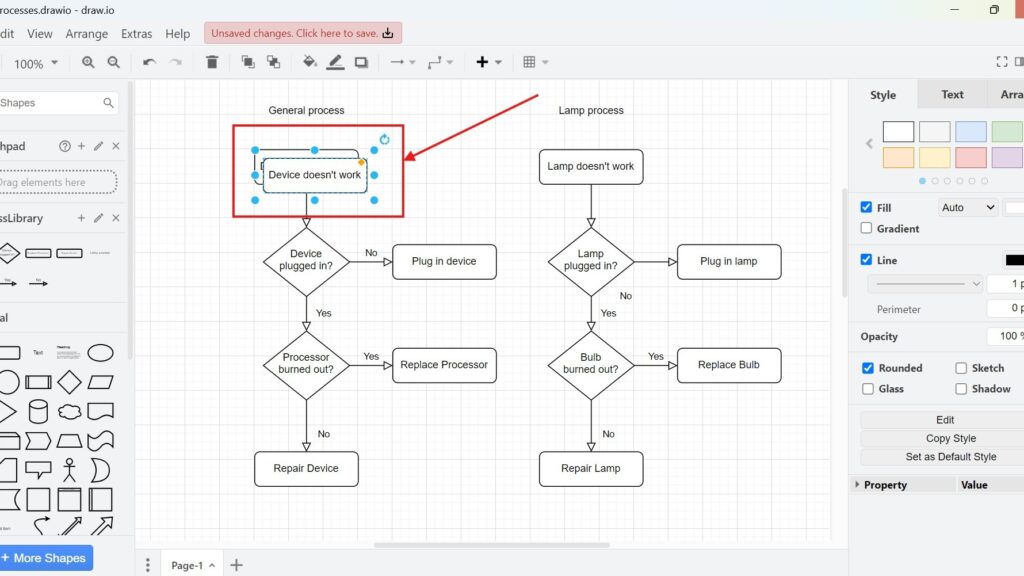
Duplicating saves time when I build diagrams in draw.io. It lets me reuse shapes, labels, and layouts without copying and pasting in separate steps. In this article, I explain How to duplicate in draw.io in a clear and practical way. You’ll learn how duplication works and why it helps you create diagrams faster, especially under tight deadlines.
What is draw.io?
draw.io is a diagramming tool for flowcharts, process models, UML diagrams, and other visual structures. I use it when I want to explain information in a clear visual way. It helps me create diagrams quickly and adjust them when my ideas change. Therefore, it works well for both simple diagrams and professional documentation.
Steps to Duplicate in draw.io
First, I click the element that I want to duplicate. This can be a shape, a connector, a text box, or a group of objects. If I want to duplicate several elements, I select them together.
Step 1: Select the Element to Duplicate
Start by clicking on the element you want to duplicate. It could be a shape, a line, or a group of objects. For instance, when designing an organizational chart, I often need multiple identical rectangles for different roles.
I always select the correct element before I use the duplicate command. This matters because draw.io duplicates exactly what I select. Therefore, I check the selection before I continue.
Step 2: Use the Duplicate Option
Next, I open the Edit menu and select Duplicate. As an alternative, I use the shortcut Ctrl+D. This creates a copy of the selected element directly on the canvas.

The duplicate option creates a copy in one direct step. As a result, I do not need to copy and paste separately. This makes repeated diagram work faster and cleaner.
Step 3: Use the Duplicated Element
After that, I move the duplicated element to the right place. Then I adjust the text, position, or connection if needed. The duplicated element keeps the style of the original element.
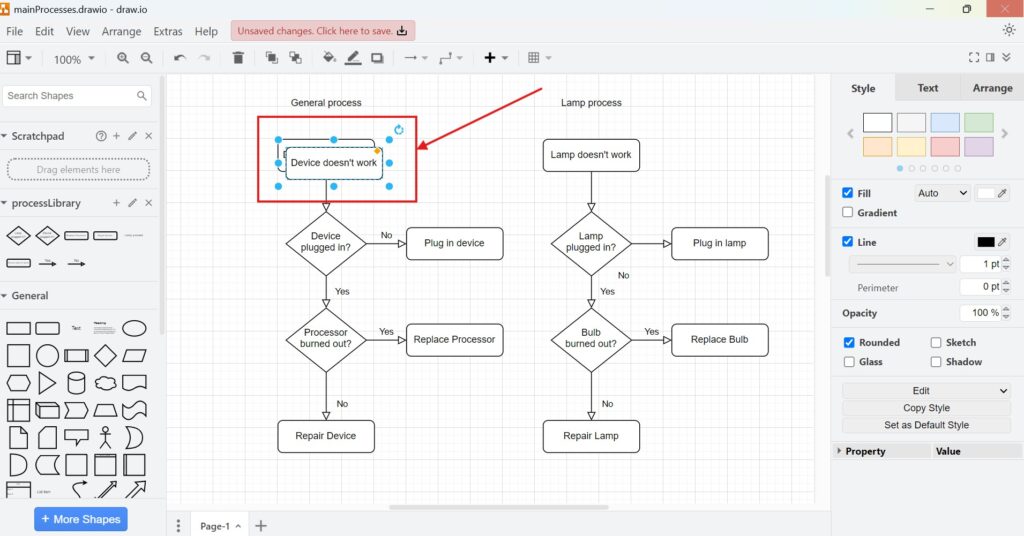
The duplicated element helps me keep the diagram visually consistent. However, I still review the copy before I continue. This helps me avoid wrong labels, misplaced shapes, or unclear connections.
Final Thoughts
Knowing how to duplicate in draw.io helps me create diagrams faster. I use it when I need the same element more than once. It saves time, keeps styles consistent, and reduces unnecessary manual work. Duplicating is a simple draw.io feature, but it improves everyday diagram editing immediately.
What’s Next?
Now that I know how to duplicate in draw.io, I can work even faster with diagram elements. However, before I change, move, or format objects, I need to select them correctly. In the next article, I’ll explain Selecting Options in draw.io. You’ll learn how selection works and how it helps you edit shapes, connectors, and diagram parts with more control. Click below to continue and improve your draw.io editing workflow.
Support Better Requirements Engineering with Practical Tools
Requirements engineering becomes easier when I use tools that give structure to complex work. Therefore, I use draw.io to visualize ideas, Confluence to document knowledge, Jira to manage requirements-related tasks, and Camunda to model business processes. Each tool supports a different part of the workflow. As a result, I can explain requirements more clearly, organize decisions, track progress, and connect processes with real project work. In the main article on Requirements Engineering Tools, I show how these tools work together and help me create a clearer requirements engineering workflow.
| Read mora about draw.io |
|---|
| Import PNG Export JPEG Export WebP Export SVG Export |