
Sharing diagrams in the right format matters. JPEG works well for presentations, documents, websites, and social media because it stays widely compatible. In this guide, I explain how to export a diagram as JPEG in draw.io. You’ll learn the basic steps and see why JPEG can make diagram sharing simple and practical.
Also, check the workflow in this video:
What is draw.io?
draw.io (opens in a new tab) is an intuitive, online diagramming tool. I’ve used it for everything from flowcharts to network diagrams. Its simplicity stands out, but it doesn’t skimp on advanced features. Best of all, it’s free and supports a wide range of file exports, including JPEG. Let me walk you through the steps to export your diagrams.
Exporting a Diagram as JPEG
I use JPEG when I need an image rather than an editable diagram file. Therefore, I can place the exported diagram in many common applications.
However, JPEG exports contain only the image. draw.io does not store the underlying diagram data inside a JPEG.
I keep my original draw.io file when I want to edit the diagram later.
1. Step: Open Your Diagram in draw.io
First, I open the diagram that I want to export. Then, I check its content and layout.
I also check labels, connectors, and spacing. The JPEG export reflects the visual content that I prepare in the editor.
2. Step: Open the Export Menu
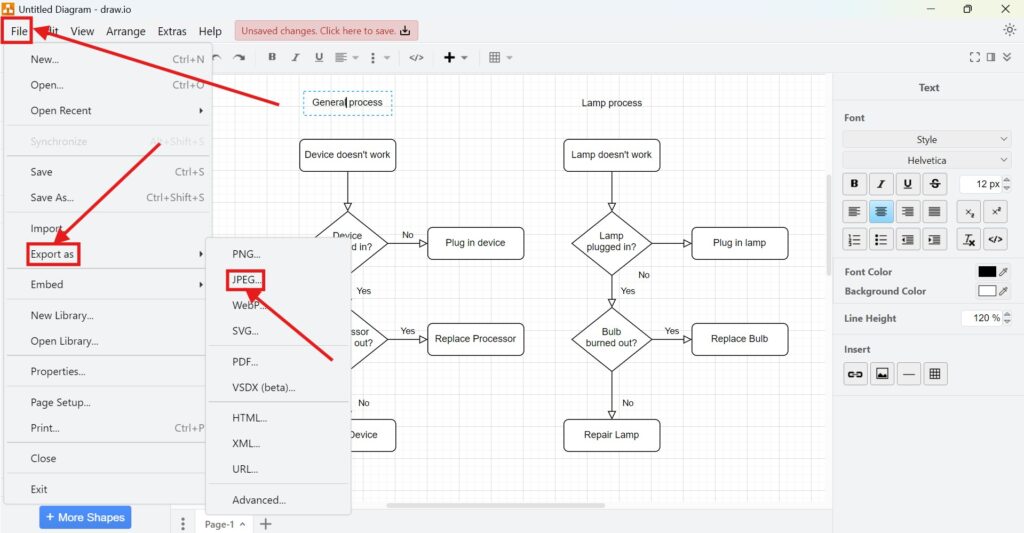
Next, I select File from the main menu. Then, I choose Export As.
This menu contains the available export formats. Therefore, I can choose the format that fits my intended use.
3. Step: Choose JPEG
I select JPEG from the available export formats. As a result, draw.io opens the JPEG export settings.
I can now adjust the image before I create the final JPEG file.
4. Step: Customize the JPEG Export
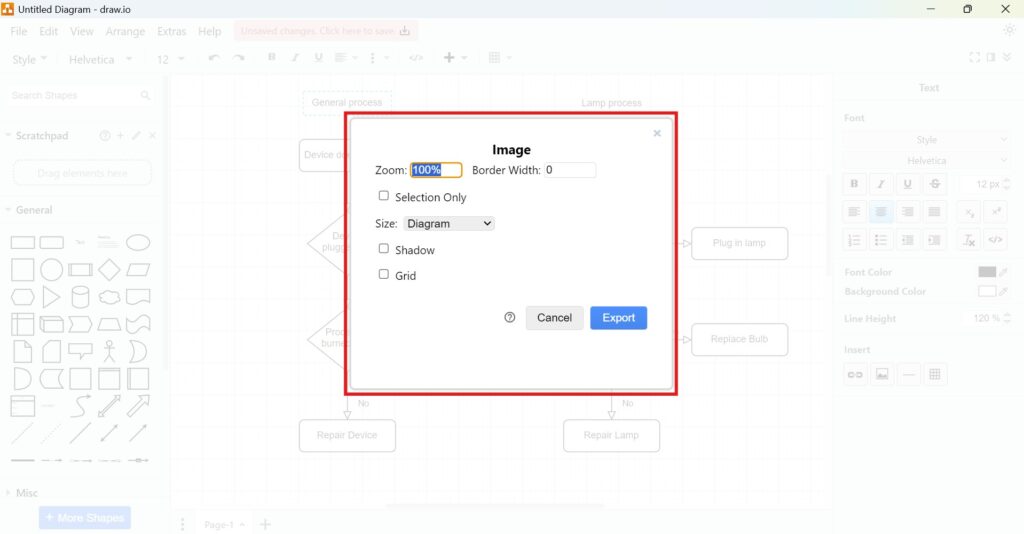
I adjust the available settings according to my intended output.
- Zoom: I change the scale of the exported image.
- Border Width: Define the margins around your diagram.
- Selection Only: I enable this option when I only want selected elements.
- Size: I choose how draw.io determines the area around my diagram.
- Shadow: Enable or disable shadows.
- Grid: Toggle grid visibility.
These settings control the main output before I export the JPEG.
I choose the export area and scale according to where I plan to use the image.
5. Step: Export and Save the JPEG
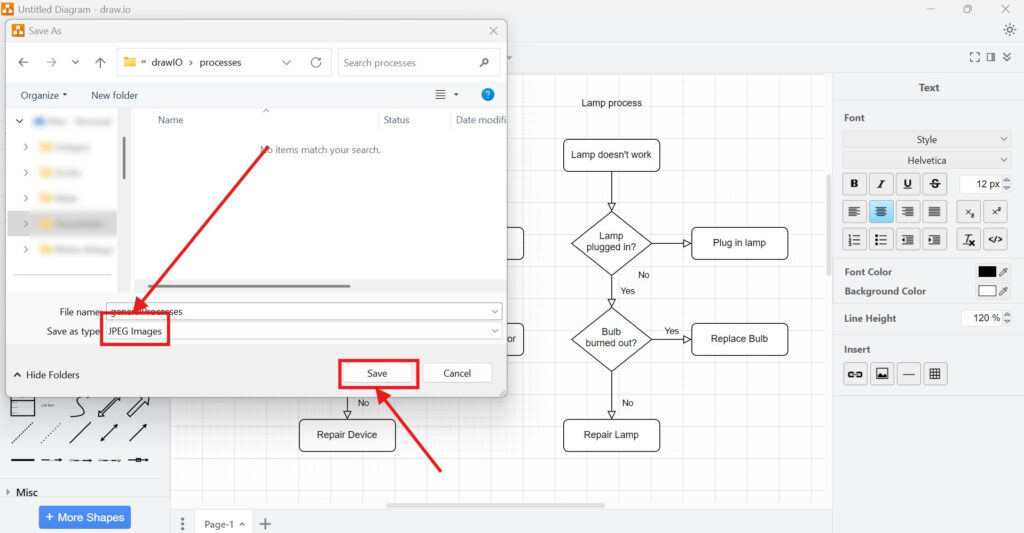
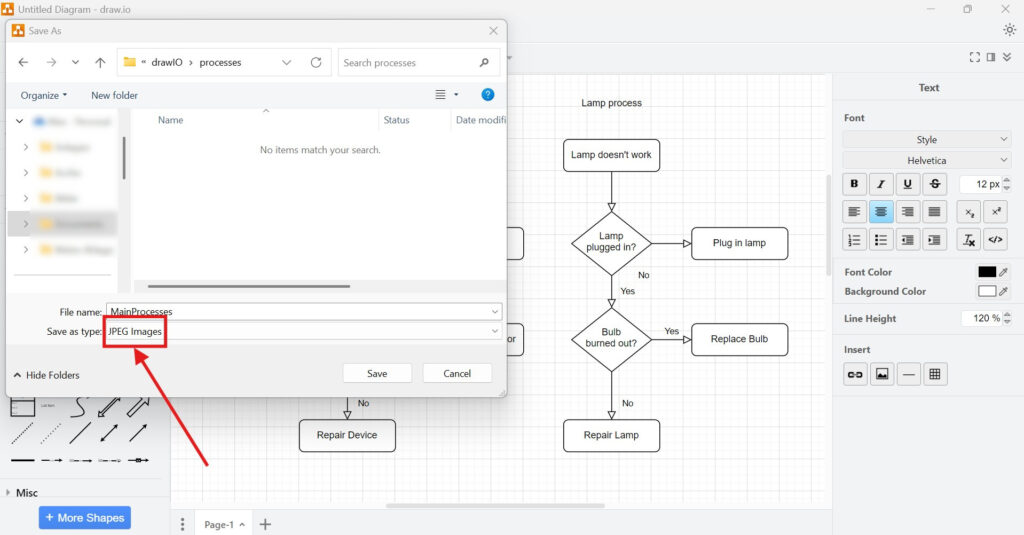
Finally, I click Export. Then, I choose the location where I want to save the JPEG.
I also give the image a clear filename. Therefore, I can identify it easily later.
The JPEG is now ready for use outside draw.io.
Advanced Export Options
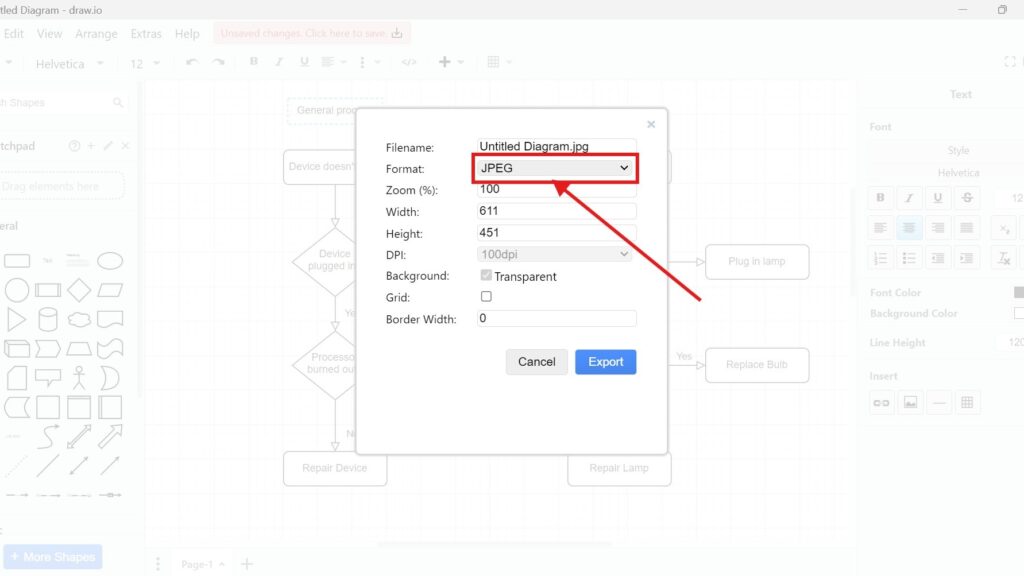
The current draw.io interface includes advanced options inside the JPEG export dialog. Therefore, I do not need a separate Advanced export format.
Instead, I expand the Advanced section when I need more detailed control.
The advanced settings let me control the dimensions and visual presentation of the JPEG more precisely.
1. Step: Open Your Diagram in draw.io
I open the diagram that I want to export. Then, I make sure its content is ready.
I correct any visual problems before I continue. As a result, I avoid unnecessary exports and later corrections.
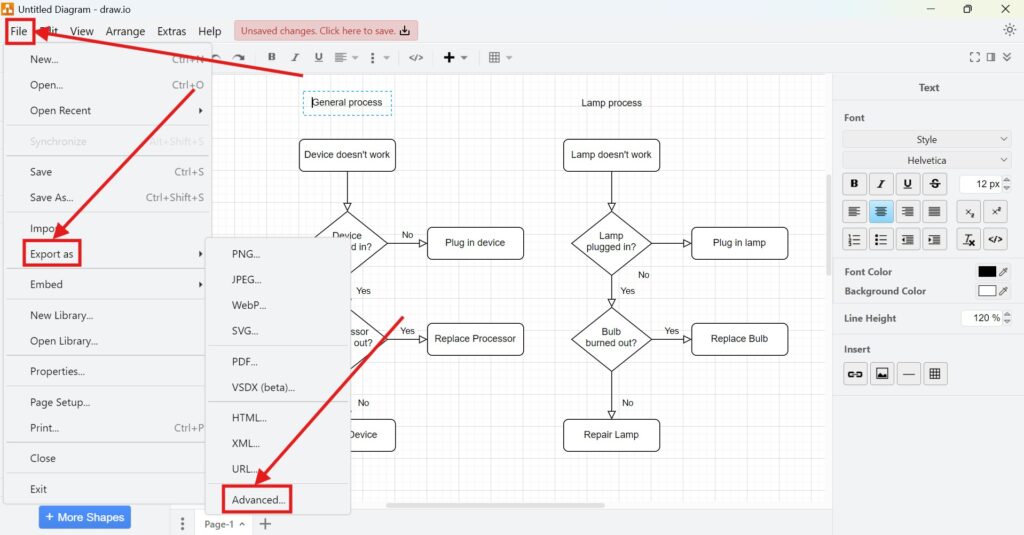
2. Step: Open JPEG and Expand Advanced
I select File > Export As > JPEG. Then, I expand the Advanced section in the export dialog.
I use this section when the standard settings do not give me enough control.
3. Step: Configure the Advanced Settings
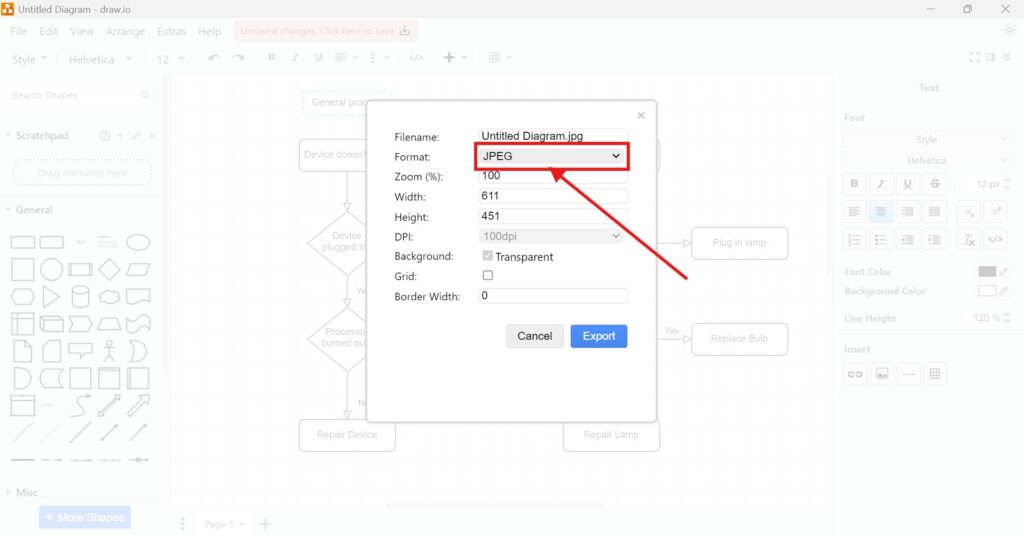
I can now adjust several additional options.
- Filename: Enter a descriptive name.
- Format: Ensure JPEG is selected.
- Zoom (%): Choose your desired level of detail.
- Width: I define a specific width for the JPEG.
- Height: I define a specific height for the JPEG.
- DPI: Adjust the dots per inch for higher quality.
- Background: Pick a background color or make it transparent.
- Grid: I include the drawing canvas grid when it adds useful visual information.
- Border Width: I add whitespace around the outside of the diagram.
I only enable visual options that improve the purpose and readability of my exported diagram.
4. Step: Finalize and Save
After I review the settings, I click Export. Then, I select the required save location.
I check the exported image afterward. In particular, I check whether labels remain readable at the intended display size.
A useful JPEG export should preserve the clarity of the original diagram at its final size.
Choosing the Right JPEG Settings
I do not use the same settings for every diagram. Instead, I consider how people will view the exported image.
For example, a detailed diagram may need a larger scale. However, a simple diagram may work well with the default dimensions.
I also use Selection Only when I need one part of a larger diagram. In addition, I use Border Width when the image needs more space around its content.
The right JPEG settings depend on the diagram, its level of detail, and its final use.
JPEG and Editability
JPEG works well as a finished image. However, it does not contain editable draw.io diagram data.
Therefore, I do not treat the JPEG as my source file. Instead, I keep the original draw.io diagram for future changes.
I use JPEG for distribution and keep the draw.io file for continued modeling.
Final Thoughts
Exporting a diagram as JPEG gives me a simple image that I can use outside draw.io. First, I open the export menu and choose JPEG. Then, I configure the standard or advanced options.
Finally, I export the image and check the result. How to Export a Diagram as JPEG in draw.io therefore comes down to choosing settings that preserve clarity for the intended use.
What’s Next?
Now that I know how to export a diagram as JPEG in draw.io, I can look at an even more modern web format. JPEG helps with compatibility, but WebP can support smaller file sizes and better web performance. In the next article, I’ll explain How to Export a Diagram to WebP in draw.io. You’ll learn when WebP makes sense, how the export works, and how it helps you use diagrams more efficiently online. Click below to continue and export your draw.io diagram as a WebP file.
Improve Requirements Engineering with the Right Tools
Requirements engineering becomes clearer when I use tools that support visual thinking, documentation, coordination, and process modeling. Therefore, I use draw.io to create diagrams, Confluence to organize knowledge, Jira to manage requirements-related work, and Camunda to model business processes. Each tool gives structure to a different part of the workflow. As a result, I can connect ideas, decisions, tasks, and processes more effectively. In the main article on Requirements Engineering Tools, I show how these tools work together and help me build a stronger requirements engineering process.
| Read more about draw.io |
|---|
| PDF Export VSDX Export HTML Export URL Export XML Export |