
PDF is a reliable format when I want to share, print, or review diagrams professionally. In this guide, I explain How to export a diagram to PDF in draw.io. You’ll learn the basic steps, useful export settings, and how PDF files help you send clean diagrams to others with confidence.
Prefer watching instead of reading? Here is the quick video walkthrough:
What is draw.io?
Before we proceed, let’s talk about draw.io (opens in a new tab). It’s a versatile, web-based diagramming tool that simplifies creating flowcharts, mind maps, and complex system designs. I’ve used it countless times for team collaborations, project overviews, and even personal planning. The best part? It’s free and integrates seamlessly with platforms like Google Drive and OneDrive. Whether you’re a project manager, a software developer, or a student, draw.io caters to your needs with ease. Now, let’s see how to make the most of its PDF export feature.
Step-by-Step: Exporting to PDF in draw.io
Exporting a diagram to PDF takes only a few steps. However, I review the settings before I save the file because they directly affect the final layout.
Step 1: Open the Menu
First, I open the diagram that I want to export.
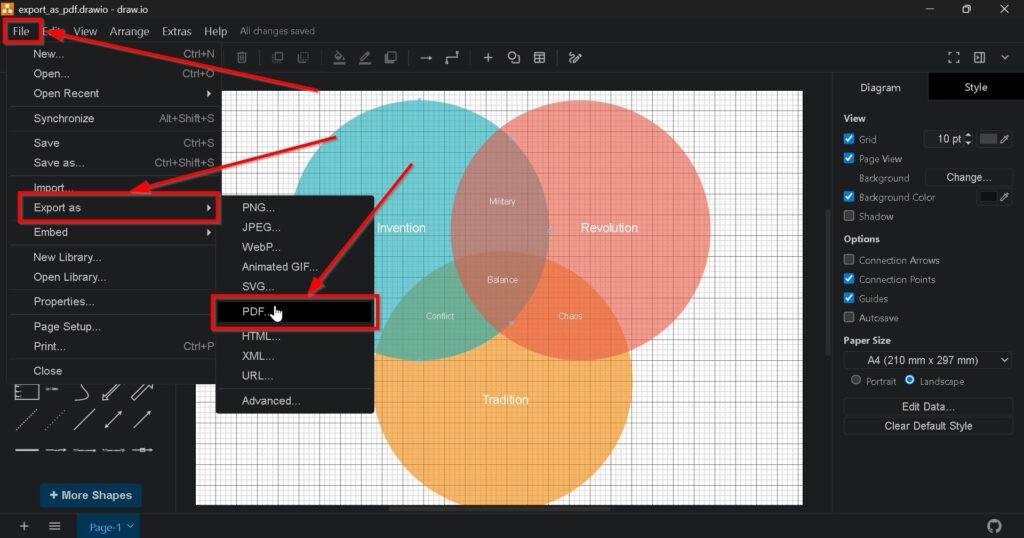
Then, I select File > Export as from the menu bar.
Draw.io shows the available export formats. Therefore, I can choose the format that fits my intended use.
Step 2: Choose PDF Format
Next, I select PDF from the export options.
Draw.io then opens the PDF export settings.
I use PDF when I need a document that I can distribute, print, archive, or include in project documentation.
PDF works especially well when I want to preserve a stable page layout across different devices and applications.
Step 3: Customize Your Export
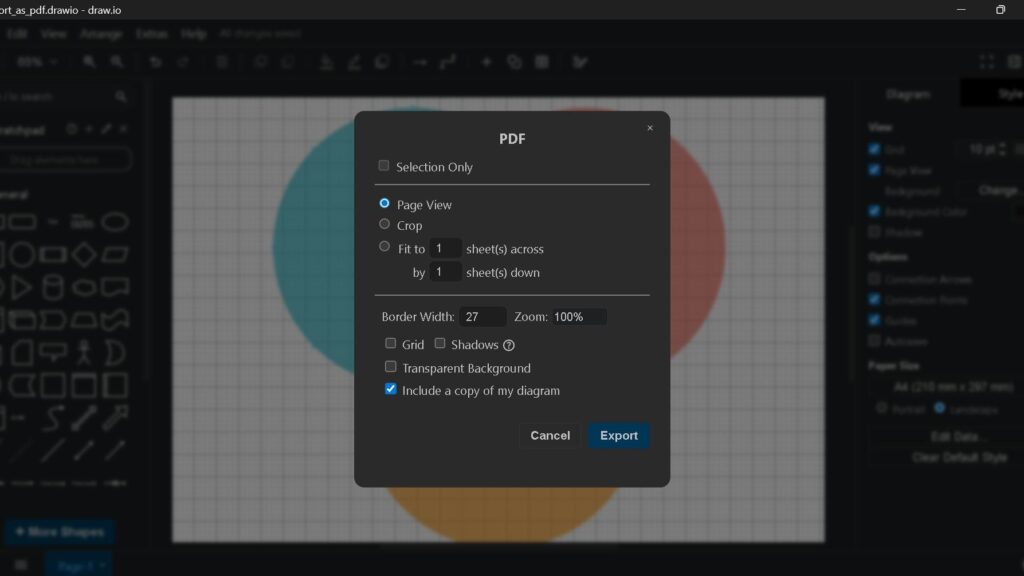
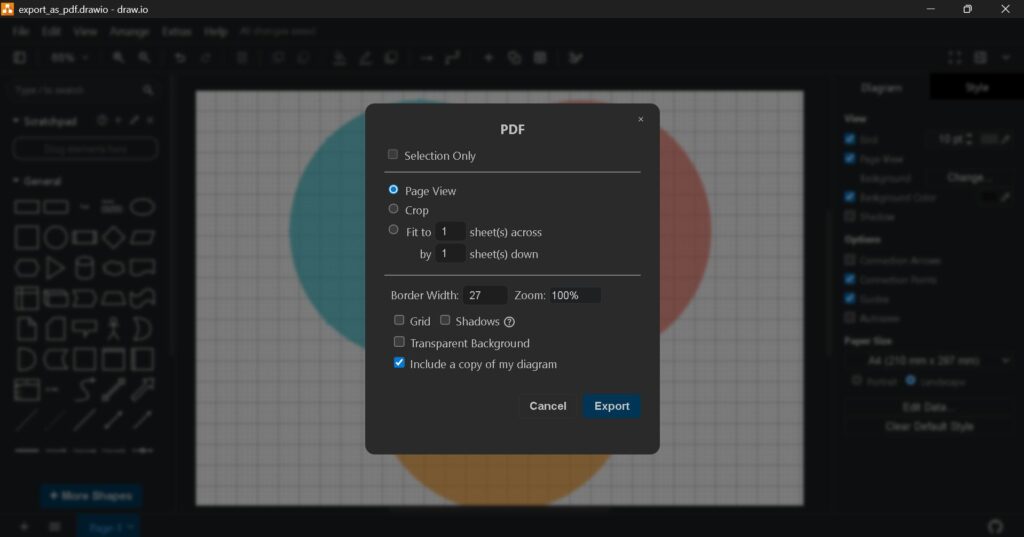
The PDF export dialog lets me control which content draw.io includes and how it fits on the page.
I adjust only the settings that support my intended result.
Selection Only
I activate Selection Only when I want to export only the elements that I selected before opening the export dialog.
This option helps when I need one section of a larger diagram. Therefore, I do not need to create a separate diagram first.
Page View
I use Page View when I want the PDF to follow the page structure of the diagram.
This option is useful when I already arranged the diagram for printing or documentation.
Crop
Crop removes unnecessary empty space around the diagram.
I use it when I want the exported page to follow the actual content closely. As a result, I avoid large blank areas around the model.
Fit
Fit scales the diagram across a defined number of pages.
For example, I can fit a large process model onto one page or distribute it across several sheets.
However, I check readability before I reduce a complex diagram too much.
I prefer a readable multi-page PDF over a single page with text that becomes too small.
Border Width
Border Width adds space around the exported content.
I normally use a small border because it prevents diagram elements from appearing too close to the page edge.
Zoom
Zoom changes the scale of the exported diagram.
A higher value increases the diagram size. In contrast, a lower value reduces it.
I use this setting together with the page options because both influence the final layout.
Grid
I normally exclude the grid from the PDF.
The grid supports alignment while I model. However, it usually adds no value to the final document.
Shadows
I include shadows only when they form part of the intended visual design.
Otherwise, I leave them out to keep technical diagrams simple and clear.
Transparent Background
A transparent background can help when I reuse the PDF in another design environment.
However, a normal solid background often provides more predictable results for printing and documentation.
Include a Copy of My Diagram
This option embeds the original diagram data in the exported PDF when draw.io supports the workflow.
As a result, the PDF can retain information that may allow later editing in draw.io.
I enable this option when I want the exported file to remain useful for later diagram editing as well as distribution.
However, I still keep the original draw.io file as my main editable source.
Step 4: Save Your File
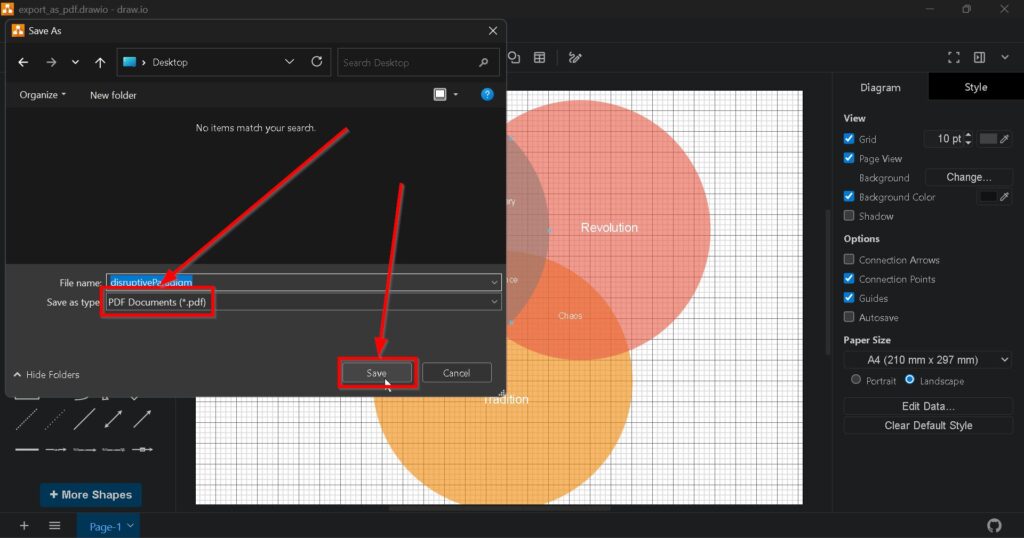
After I configure the export settings, I start the export.
Then, I enter a clear file name and choose the storage location.
For example, I may use:
I normally keep the same base name as the original diagram. Therefore, I can immediately see which source file belongs to the exported PDF.
Finally, I save the file.
When I Use PDF Instead of PNG or SVG
I choose PDF when page layout matters.
For example, PDF works well for specifications, project reports, review packages, formal documentation, and printed diagrams.
In contrast, I often choose SVG when I need a scalable graphic for a website or another digital document.
PNG works well when I need a simple fixed-size image.
Therefore, I select the format according to the final use rather than exporting every diagram in the same way.
How I Prepare Large Diagrams for PDF
Large diagrams need special attention because a technically correct export may still be difficult to read.
First, I check whether the diagram really needs to appear on one page.
If not, I let the PDF use several pages or split the model into meaningful views.
Moreover, I check text size after scaling. Labels that look clear inside draw.io may become too small after I fit a large model onto a single page.
I also remove unnecessary empty space before exporting.
A successful PDF export should preserve the meaning and readability of the diagram, not only its complete content.
I Keep the Original draw.io File
I treat the PDF as an output file.
Therefore, I continue to maintain the original draw.io diagram as the editable source.
For example:
- order-process.drawio
- order-process.pdf
When I change the process later, I update the draw.io file first. Then, I export a new PDF.
As a result, I avoid maintaining several independent versions of the same diagram.
Final Thoughts
To export a diagram to PDF in draw.io, I open File > Export as, select PDF, configure the relevant options, and save the file.
The most important settings control the exported area, page size, scaling, border, background, and included diagram data.
I also check the finished PDF before I distribute it. In particular, I review text size, page breaks, margins, and missing content.
A carefully configured PDF export gives me a stable, readable, and professional version of my draw.io diagram for sharing, printing, and documentation.
What’s Next?
If I do not want to share my diagram only as a PDF, I can also export it in a format that works better with Microsoft Visio. That is exactly why the next step makes sense. In my next guide, I show how to export a diagram to VSDX in draw.io. This is useful when I need better editing compatibility, collaboration, or handover to Visio users. Read the next tutorial here: How to export a diagram to VSDX in draw.io.
Strengthen Requirements Engineering with the Right Tools
Requirements engineering becomes clearer when I use tools that support visual thinking, documentation, coordination, and process modeling. Therefore, I use draw.io to create diagrams, Confluence to organize knowledge, Jira to manage requirements-related work, and Camunda to model business processes. Each tool helps me turn complexity into structure. As a result, I can connect ideas, decisions, tasks, and workflows more effectively. In the main article on Requirements Engineering Tools, I show how these tools work together and support a stronger requirements engineering workflow.