
VSDX export helps when I share diagrams with people who use Microsoft Visio. In draw.io, the process is simple and flexible. In this guide, I explain How to export a diagram to VSDX in draw.io. You’ll learn when this format makes sense, how the export works, and how it supports better collaboration across different diagramming tools.
What is draw.io?
draw.io is an intuitive diagramming tool. I use it frequently to create flowcharts, mind maps, and technical diagrams. It’s free, cloud-based, and works seamlessly across devices. Plus, it integrates well with platforms like Google Drive, OneDrive, and even local storage. The best part? You can export diagrams to formats that suit your needs. VSDX, for instance, is perfect if you’re collaborating with Visio users.
Step 1: Open the Diagram
First, I open the diagram that I want to export.
I make sure that the diagram contains the version I want to transfer to Visio.
Step 2: Open the Export Menu
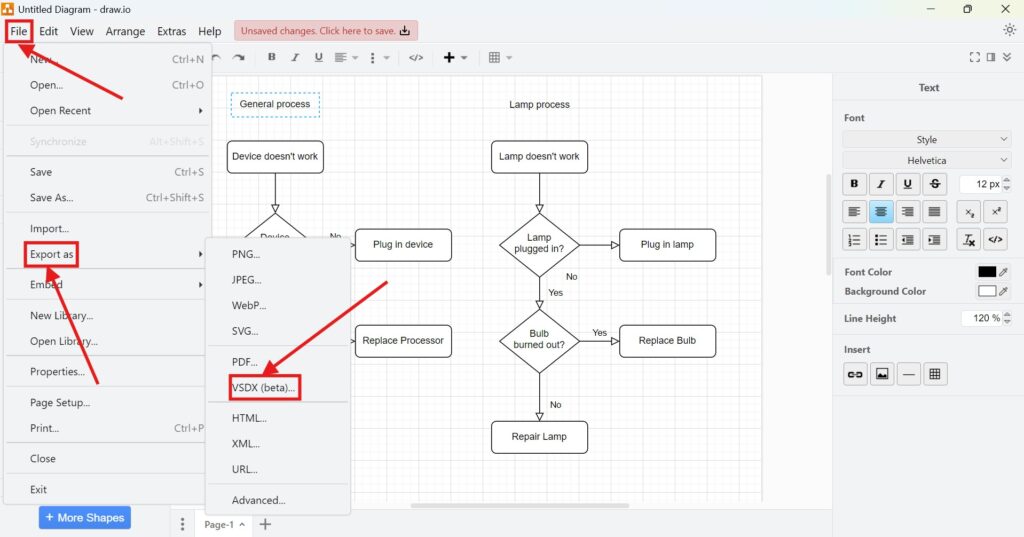
Next, I select File in the main menu.
Then, I choose Export as.
Finally, I select VSDX.
The menu path is File > Export as > VSDX.
Step 3: Choose the File Name and Location
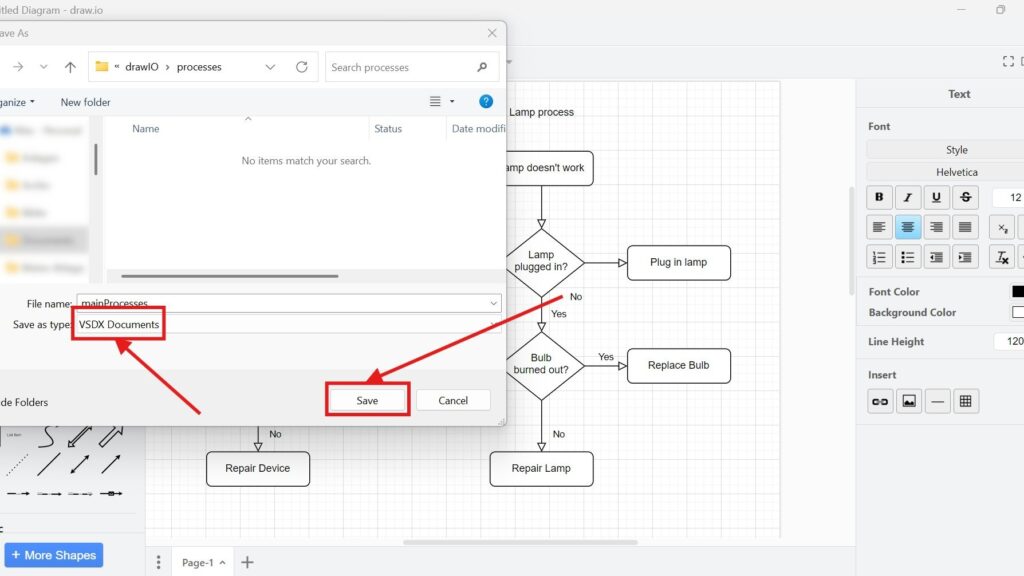
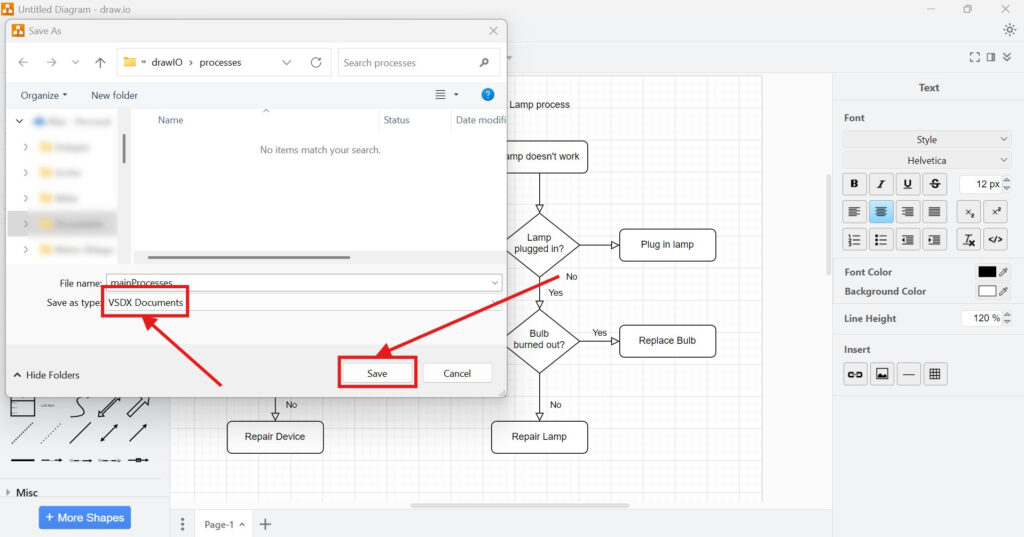
After I select VSDX, the Save As window opens.
First, I enter a suitable file name.
Next, I choose the location where I want to store the exported diagram.
The file type should show VSDX Documents.
Step 4: Save the VSDX File
Finally, I click Save.
draw.io then creates the VSDX file in the selected location.
The exported VSDX file is the version I can use in a Microsoft Visio workflow.
Why I Export to VSDX
I use VSDX when I create a diagram in draw.io but need to provide it to someone who works with Microsoft Visio.
Instead of recreating the diagram manually, I export a VSDX copy.
Therefore, I can keep working with my original draw.io diagram while also providing a Visio-compatible version.
Conclusion
Exporting a diagram to VSDX in draw.io requires only a few steps.
I open the diagram, select File > Export as > VSDX, enter the file name, and click Save.
VSDX export gives me a direct way to move a draw.io diagram into a Microsoft Visio workflow.
What’s Next?
Now that I know how to export a diagram to VSDX in draw.io, I can also explore a more web-focused format. VSDX helps with Visio compatibility, but HTML can make diagrams useful in browser-based contexts. In the next article, I’ll explain How to Export a Diagram to HTML in draw.io. You’ll learn how HTML export works, when it makes sense, and how it can support interactive or web-friendly diagram sharing.
Connect Requirements Engineering Tools into One Clear Workflow
Requirements engineering becomes more effective when I use tools that support visual thinking, documentation, coordination, and process modeling. Therefore, I use draw.io to create diagrams, Confluence to organize knowledge, Jira to manage requirements-related work, and Camunda to model business processes. Each tool helps me structure a different part of the workflow. As a result, I can connect ideas, decisions, tasks, and processes more clearly. In the main article on Requirements Engineering Tools, I show how these tools work together and help me create better requirements from start to finish.