
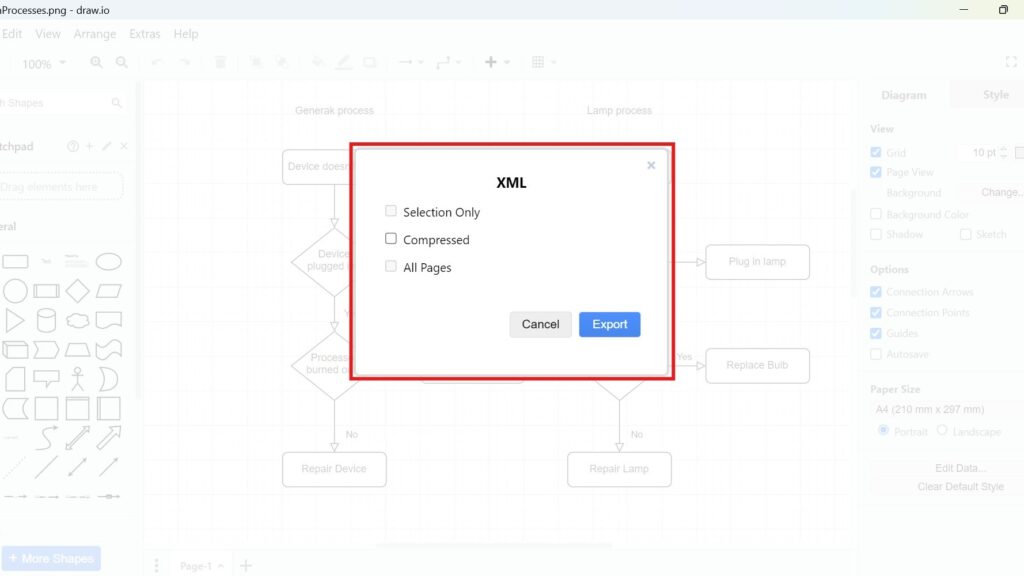
Diagrams help me visualize processes and ideas. draw.io makes sharing easier with flexible export options. In this guide, I explain how to export a diagram as XML in draw.io. You’ll learn why XML preserves diagram structure, supports backups, and helps when you need technical reuse or sharing across platforms.
Prefer a video format? Watch the quick walkthrough here:
What is draw.io?
draw.io is an intuitive diagramming tool. It’s perfect for creating flowcharts, network diagrams, and mind maps. You can use it online or download it for offline work. The interface is user-friendly, making it easy to create and export professional diagrams. One standout feature is its compatibility with different file formats, including XML.
Steps to Export a Diagram as XML
Exporting to XML requires only a few steps. However, I first decide whether I need the complete diagram, selected elements, or all pages.
Step 1: Open the Menu
First, I open the diagram that I want to export.
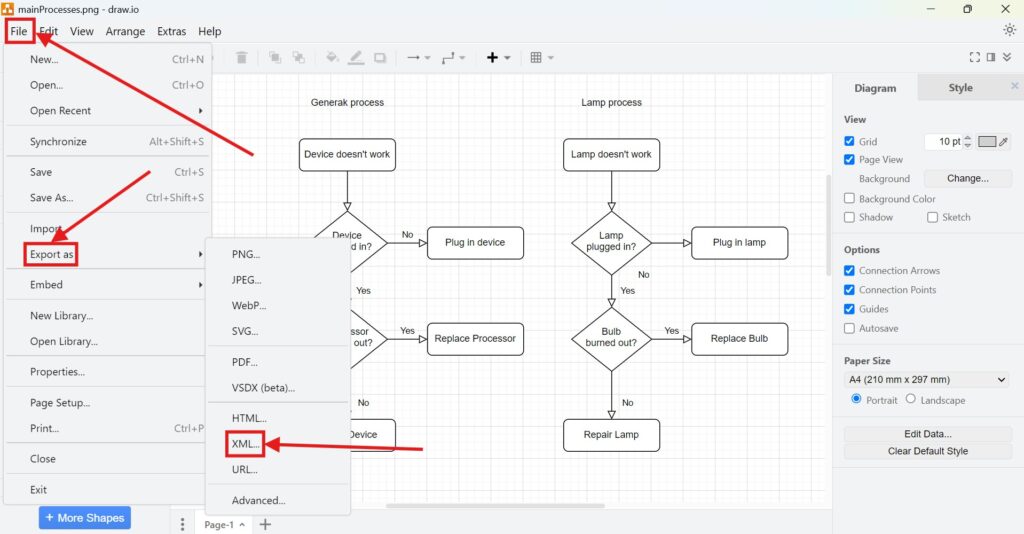
Then, I select File in the upper menu bar.
From there, I can access the available export options.
I check the diagram before exporting because the XML file stores the underlying diagram information that I want to preserve.
Step 2: Choose XML Format
Next, I select Export as and then XML.
Draw.io opens the XML export settings. Therefore, I can decide which diagram data I want to include before creating the file.
An XML export differs from PNG, SVG, or PDF. Those formats primarily provide a visual output. In contrast, XML stores structured diagram information.
I use XML when preserving the editable diagram structure matters more than creating a presentation or publication format.
Step 3: Adjust Configurations
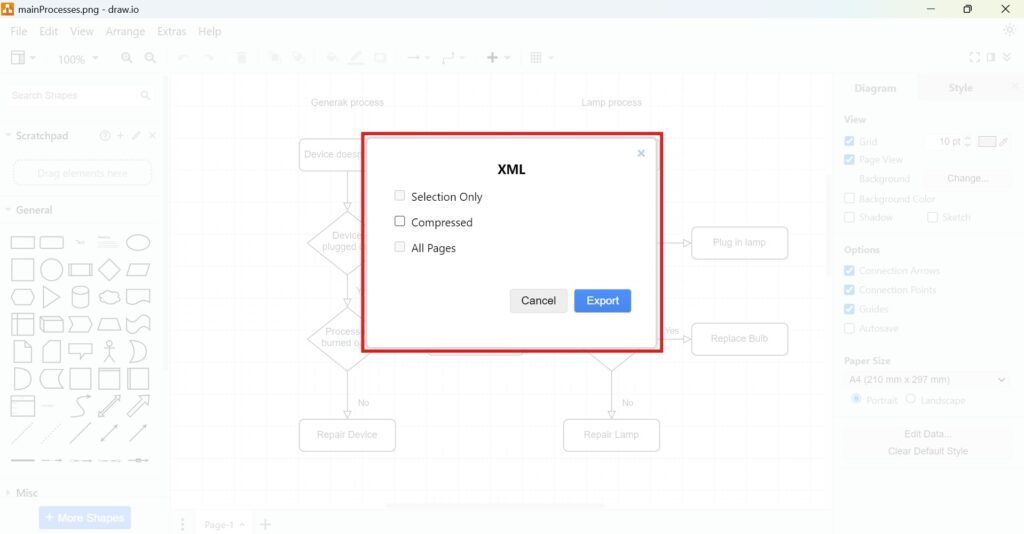
The XML export dialog contains only a few important options. Therefore, I can configure the export quickly.
Selection Only
I activate Selection Only when I want to export only the elements that I selected in the diagram.
For example, I may need one process section or a reusable group of shapes instead of the complete model.
If I need the entire diagram, I leave this option disabled.
Compressed
I enable Compressed when I want draw.io to store the diagram data in its compressed form.
This reduces the amount of directly readable XML content. Moreover, it can reduce the size of the stored diagram data.
If I need easier access to the XML structure outside draw.io, I may prefer the uncompressed form.
I choose between compressed and uncompressed XML according to whether compact storage or easier inspection matters more.
All Pages
I activate All Pages when my draw.io file contains several pages and I want to include all of them.
Otherwise, I export only the relevant page or content.
This option matters for multi-page models because separate pages may contain related process, architecture, or system views.
Step 4: Save the File
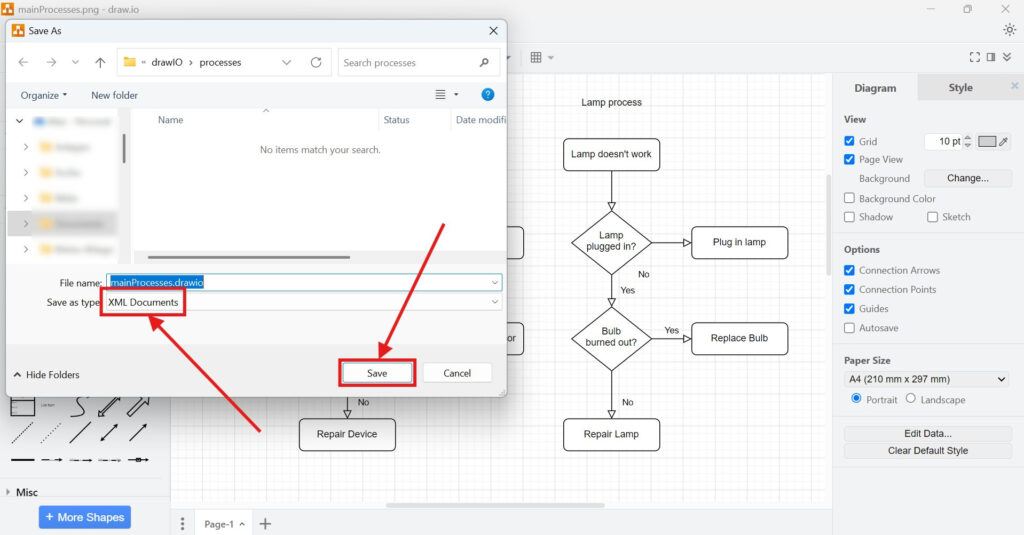
Finally, I start the export.
Then, I enter a clear file name and choose where I want to save the file.
For example, I may use:
- order-process.xml
- system-architecture.xml
- customer-onboarding.xml
I normally use the same base name as the original diagram. Therefore, I can associate the XML export with its source easily.
After saving, I keep the file in the appropriate project or documentation folder.
A consistent file name makes exported models easier to identify, exchange, and maintain.
What an XML Export Contains
XML stands for Extensible Markup Language. Draw.io uses structured data to describe elements of a diagram and their relationships.
Therefore, an XML export can preserve information that a normal image cannot. This may include shapes, connectors, labels, positions, pages, and other diagram properties.
As a result, XML suits workflows in which I need structured diagram data rather than only a visual copy.
XML Export Versus Image Export
I choose the export format according to what I want to do next.
I use XML when I need structured diagram data.
In contrast, I use SVG when I need a scalable graphic. I use PNG when I need a simple bitmap image. Meanwhile, PDF works well for fixed documents and printing.
XML preserves model structure, while image and document formats primarily preserve how the diagram looks.
This distinction helps me choose the correct format before I distribute or archive a diagram.
Compressed Versus Uncompressed XML
The compression option deserves special attention.
Compressed XML works well when I mainly want to store or transfer the diagram for use with draw.io.
Uncompressed XML can make the underlying structure easier to inspect with other tools or a text editor.
Therefore, I do not assume that one form is always better. Instead, I choose the form that fits the intended workflow.
I Keep the Original draw.io File
I normally treat XML as an additional export rather than a replacement for my main diagram file.
For example, I may keep:
order-process.drawio
order-process.xml
When I change the diagram later, I update my main source first. Then, I create a new XML export when I need one.
As a result, I maintain a clear source of truth and reduce the risk of inconsistent versions.
Final Thoughts
To export a diagram as XML in draw.io, I open File, select Export as > XML, configure the available options, and save the file.
Selection Only lets me export a specific part. Compressed controls how draw.io stores the diagram data. Meanwhile, All Pages lets me include several diagram pages in one export.
I use XML when I need structured and reusable diagram information rather than a static visual output.
A well-configured XML export preserves diagram structure and supports reliable storage, transfer, inspection, and further processing.
What’s Next?
Now that I know how to export a diagram as XML in draw.io, I can move from exporting to embedding. XML helps me preserve structure, but an HTML image tag helps me place diagrams directly on a web page. In the next article, I’ll explain How to Embed a draw.io Diagram with an <img> HTML Tag. You’ll learn how this simple embedding method works and how it helps you show diagrams clearly in web content. Click below to continue and embed your draw.io diagram with an image tag.
Turn Requirements Work into a Clear Tool Workflow
Requirements engineering becomes stronger when I use tools that support visual thinking, documentation, coordination, and process modeling. Therefore, I use draw.io to create clear diagrams, Confluence to organize knowledge, Jira to manage requirements-related work, and Camunda to model business processes. Each tool helps me handle complexity in a practical way. As a result, I can connect ideas, decisions, tasks, and workflows more effectively. In the main article on Requirements Engineering Tools, I show how these tools work together and support better requirements work from start to finish.
| Read mora about draw.io |
|---|
| Import PNG Export JPEG Export WebP Export SVG Export |