

Creating diagrams helps me plan, present, and solve problems. I often use draw.io because it keeps diagramming simple and flexible. In this guide, I show how to export a diagram as PNG in draw.io. You’ll learn the basic export steps, useful options, and practical tips so you can share your diagram across documents, websites, and presentations.
Prefer watching instead of reading? Here is the quick video walkthrough:
What is draw.io?
draw.io (opens in a new tab) is a free, user-friendly tool for creating professional diagrams. It’s ideal for everything from flowcharts and network diagrams to mind maps. Since it’s browser-based, there’s no need for complicated software installations. Moreover, it integrates easily with platforms like Google Drive, Microsoft OneDrive, and Dropbox. This makes it a go-to option for businesses, educators, and students. Whether you’re working alone or collaborating with a team, draw.io provides all the flexibility you need.
Exporting a Diagram as PNG
I use PNG when I need a raster image of my diagram. For example, I can add it to websites, documents, or presentation slides. draw.io also supports higher-resolution PNG exports when I need a larger image.
PNG gives me a practical image format while draw.io still provides detailed control over the export.
Step 1: Open the Export Menu
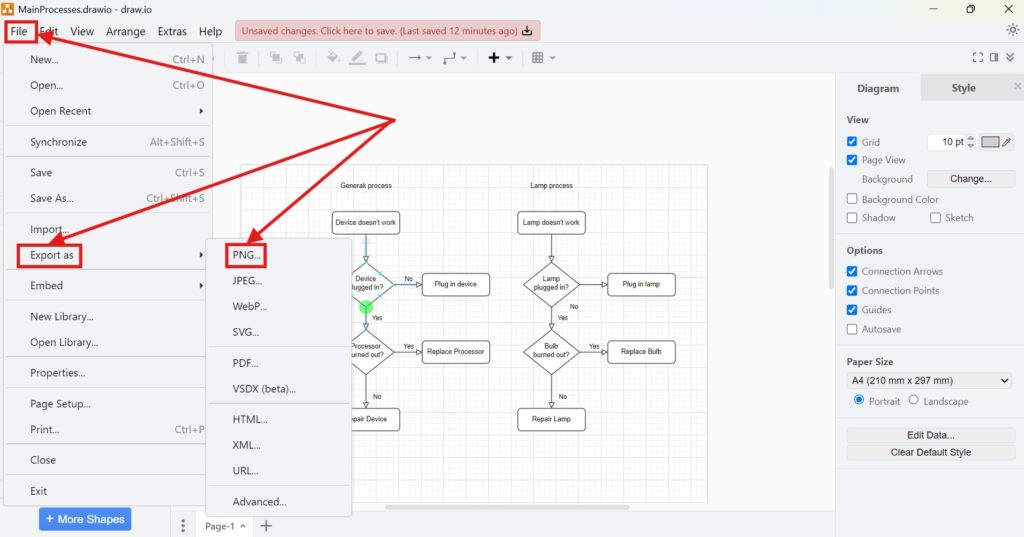
I open my diagram and check its final content. Then, I select File > Export As > PNG.
This command opens the PNG export dialog. Therefore, I can configure the image before I create the file.
Step 2: Configure Basic Settings
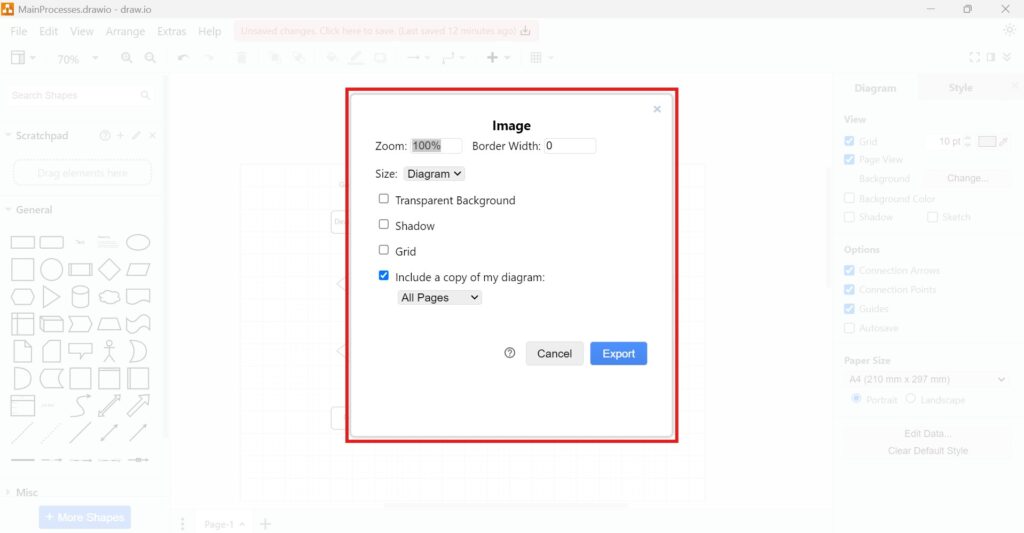
I now adjust the basic settings according to how I want to use the PNG.
- Zoom: I change the scale of the exported image. A higher value creates a larger image.
- Selection Only: I enable this option when I only want to export selected shapes and connectors.
- Size: I use this setting to control which area around my diagram the export includes.
- Transparent Background: I enable this option when I do not want a solid background behind my diagram.
- Include a copy of my diagram: I enable this option when I want to store the diagram data inside the PNG.
For multi-page diagrams, I can also choose whether the embedded diagram contains all pages or only the current page.
If I include a copy of my diagram, I can later reopen the PNG in draw.io and continue editing it.
Step 3: Save Your File
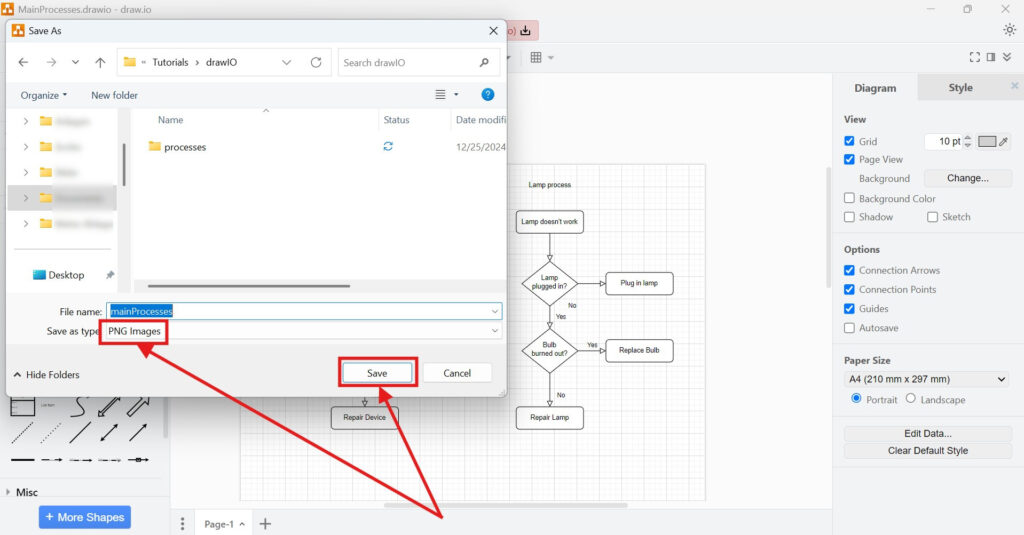
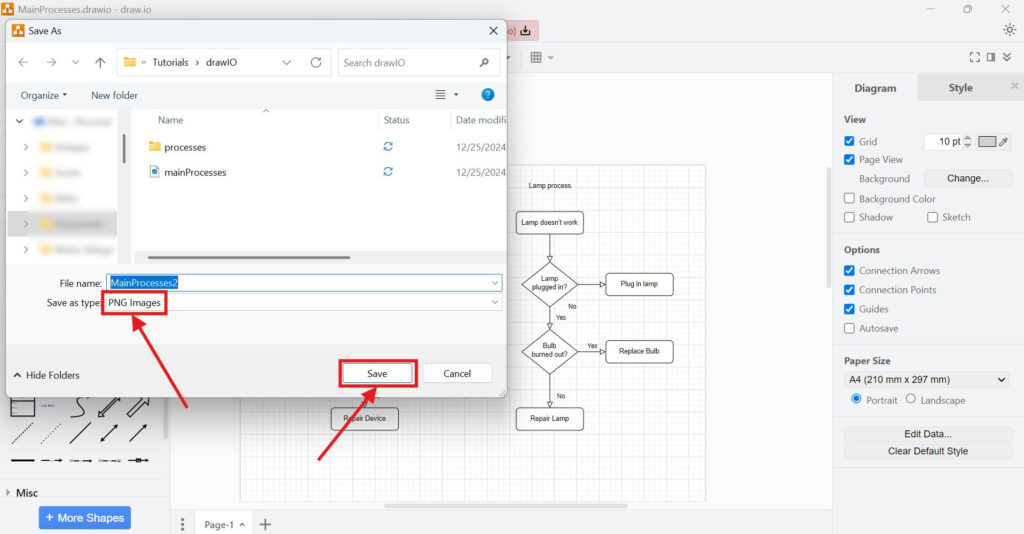
After I configure the settings, I click Export. Then, I choose the location where I want to save the PNG.
I also use a clear filename that identifies the diagram. The exported PNG is now ready for use as an image in other applications or online content.
Advanced PNG Export Options
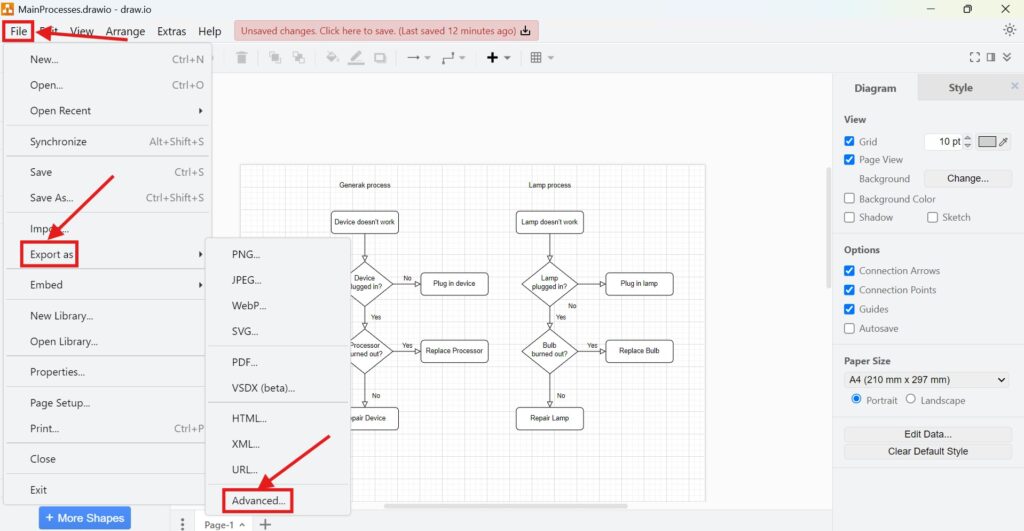
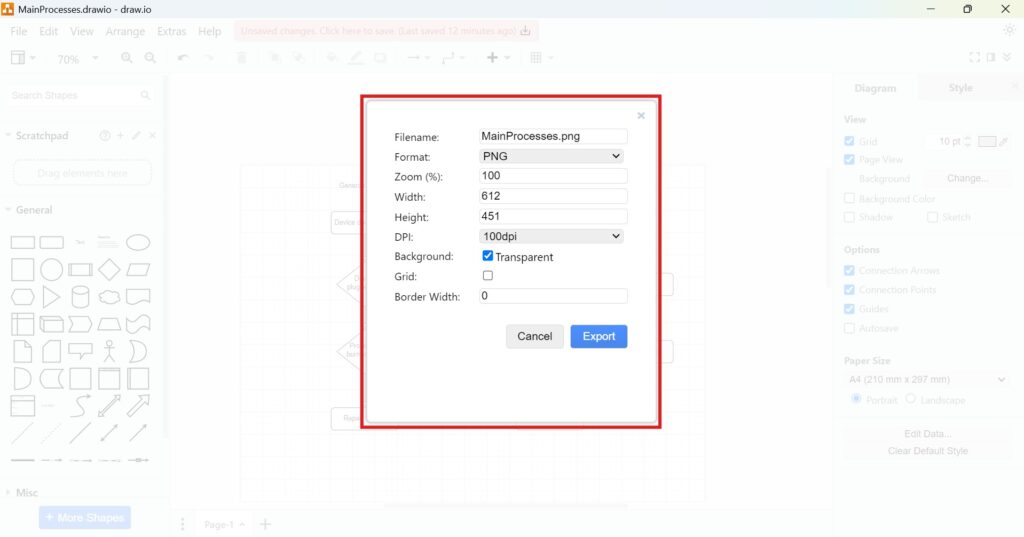
The current draw.io interface no longer requires a separate Advanced export format. Instead, I expand the Advanced section inside the PNG export dialog. This gives me additional control over the output.
Step 1: Open the Advanced Settings
I select File > Export As > PNG as before. Then, I expand Advanced at the bottom of the export dialog.
The Advanced section gives me more precise control over the dimensions and appearance of the PNG.
Step 2: Set Advanced Parameters
I can now adjust the additional PNG settings.
- Width: I define the output width when I need specific image dimensions.
- Height: I define the corresponding output height.
- DPI: I can specify a DPI value for the exported image.
- Border Width: I add extra whitespace around the outside of my diagram.
- Appearance: I can select a dark appearance when I want the diagram on a dark background.
- Shadow: I enable this option when I want shape shadows in the exported image.
- Grid: I enable this option when the drawing grid should appear in the PNG.
However, I use Zoom when I specifically need a higher-resolution PNG. draw.io recommends increasing the zoom percentage, such as to 200% or 300%. It notes that many image applications ignore specified DPI values.
For a genuinely larger PNG, I increase the export Zoom rather than relying only on the DPI setting.
Step 3: Finalize and Save
I review the dimensions and other settings before I continue. Then, I click Export and choose my save location.
If I need the image for a website, I balance image dimensions against file size. However, if I need fine details, I choose a larger output.
I always check whether labels remain readable at the size where I plan to display the diagram.
Should I Include a Copy of My Diagram?
The Include a copy of my diagram option deserves special attention. When I enable it, draw.io stores the diagram XML inside the PNG metadata. Therefore, the file works as an image while retaining the information needed for further editing.
I can later drag such a PNG onto the draw.io canvas and continue editing the underlying diagram. However, some image platforms may remove this embedded data when they process the image.
I include the diagram copy when editability matters, but I still keep my original draw.io file as the primary source.
Final Thoughts
Exporting to PNG gives me a simple way to use my draw.io diagrams outside the editor. First, I select File > Export As > PNG. Then, I configure the basic or advanced settings and export the image.
For normal use, I focus on size, zoom, background, and the required diagram area. In addition, I include the diagram data when I want the PNG to remain editable.
How to Export a Diagram as PNG in draw.io comes down to choosing the right output settings for readability, image quality, and future editing.
What’s Next?
Now that I know how to export a diagram as PNG in draw.io, I can choose another useful image format. PNG works well for sharp visuals, but JPEG can help when I need smaller files or simple image sharing. In the next article, I’ll explain How to Export a Diagram as JPEG in draw.io. You’ll learn when JPEG makes sense, how the export works, and how it helps you share diagrams more easily. Click below to continue and export your draw.io diagram as a JPEG image.
Use Tools That Support Clear Requirements Work
Requirements engineering becomes more effective when I use tools that support visual thinking, documentation, coordination, and process modeling. Therefore, I use draw.io to create diagrams, Confluence to organize knowledge, Jira to manage requirements-related work, and Camunda to model business processes. Each tool helps me reduce complexity in a practical way. As a result, I can connect ideas, decisions, tasks, and workflows more clearly. In the main article on Requirements Engineering Tools, I show how these tools work together and help me build a stronger requirements engineering workflow.
| Read mora about draw.io |
|---|
| Import PNG Export JPEG Export WebP Export SVG Export |