
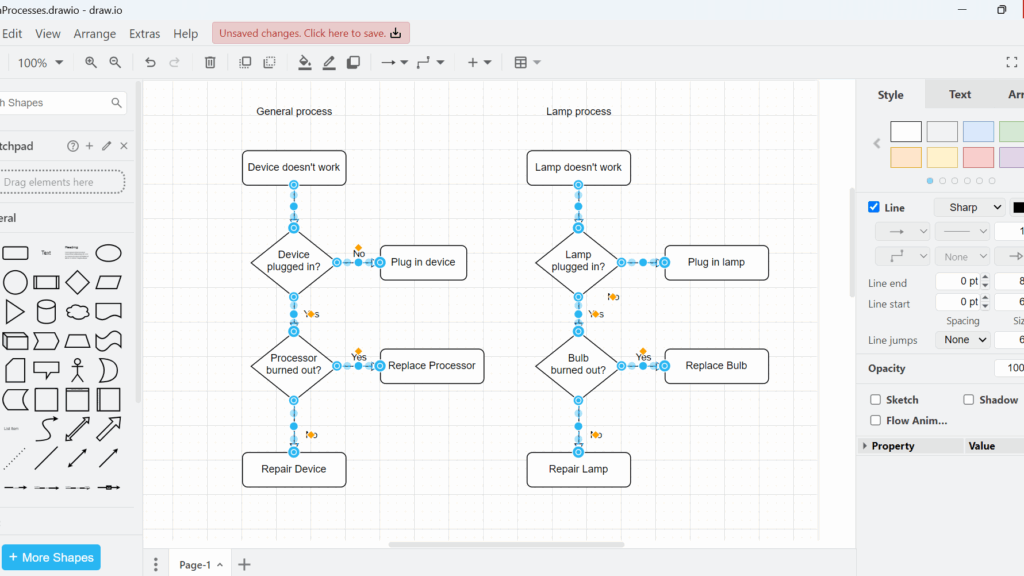
Selecting the right elements saves time in every diagram. In this guide, I explain how I use select options in draw.io to choose shapes, connectors, vertices, edges, or everything on the canvas. You’ll learn which options matter and how shortcuts make selection even faster. As a result, you can edit diagrams with more control and less effort.
Understanding Selection in draw.io
draw.io distinguishes between two main types of diagram elements: vertices and edges.
A vertex is a non-connector element. For example, it can be a shape, decision symbol, or text element. An edge is a connector between vertices.
This distinction matters when I want to change only one type of element. For example, I can format every shape without changing the connectors. Alternatively, I can select all connectors and modify their line style at once.
The selection commands let me edit groups of elements based on their function instead of selecting each element manually.
Selecting All Vertices
When I want to select the diagram objects without selecting their connectors, I use Select Vertices.
I open the Edit menu and choose Select Vertices. Alternatively, I use the keyboard shortcut Ctrl+Shift+I.

Afterward, draw.io selects the vertices across the diagram. The blue selection handles show which objects belong to the selection.
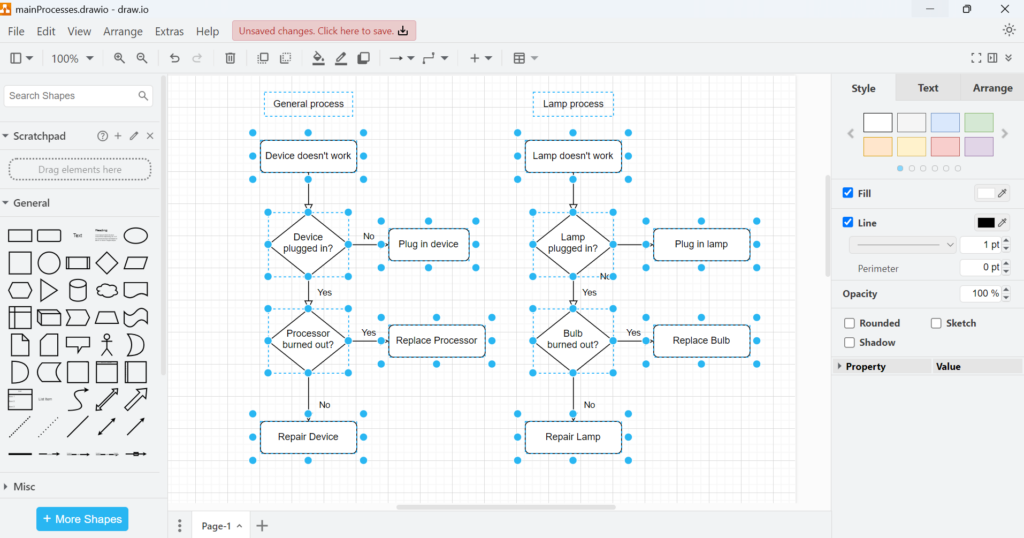
I find this option useful when I want to change several nodes consistently. For example, I can adjust their colors, styles, or other properties without changing the connecting lines.
Select Vertices is the fastest option when I want to modify diagram objects while leaving their connectors unchanged.
Selecting All Edges
Sometimes I need the opposite. I want to work only with the connections between diagram objects.
In that case, I open Edit and choose Select Edges. I can also press Ctrl+Shift+E.
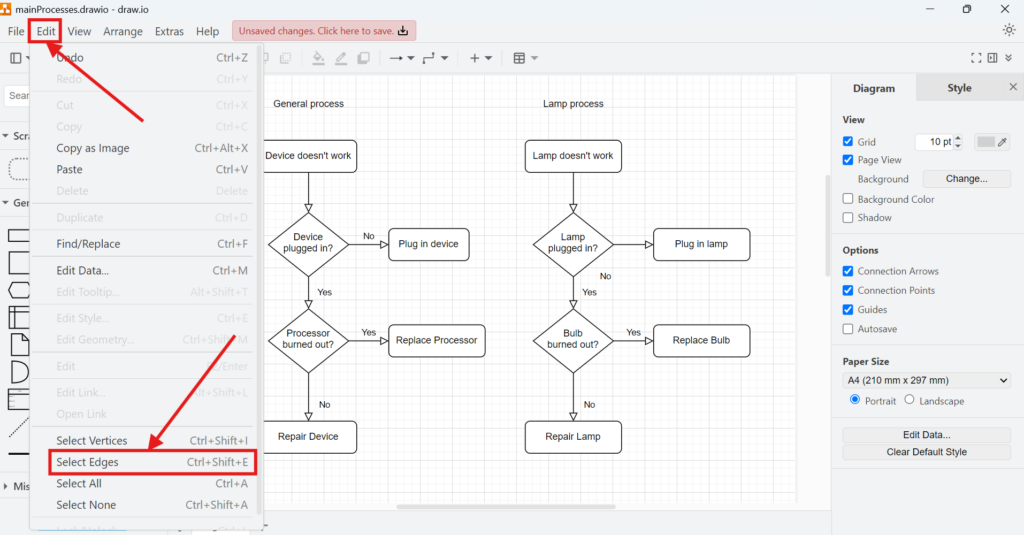
draw.io then selects the connectors while leaving the vertices unselected.
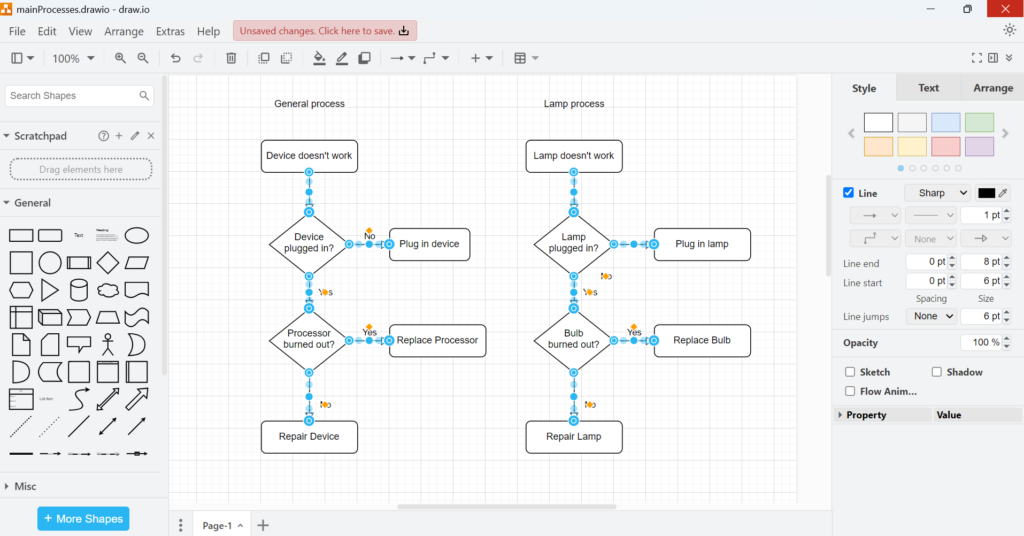
This selection is especially useful when I want to change connector properties. For example, I can adjust line formatting, arrow styles, or other connection settings across the diagram.
Select Edges lets me change the visual appearance of connections without affecting the connected objects.
Selecting Everything
If I want to work with the entire diagram, I use Select All.
I open the Edit menu and choose Select All. However, the faster method is usually Ctrl+A.
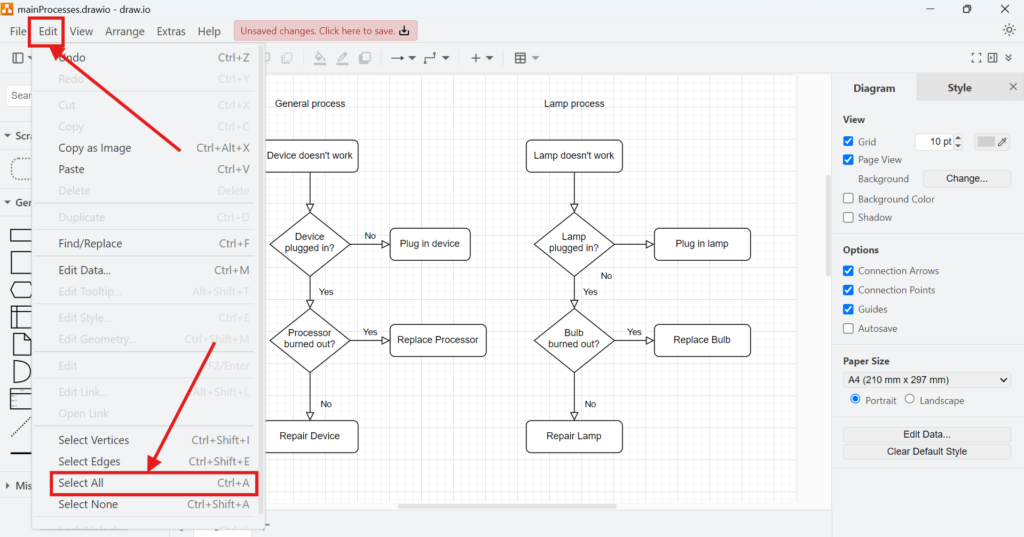
draw.io now selects both vertices and edges.
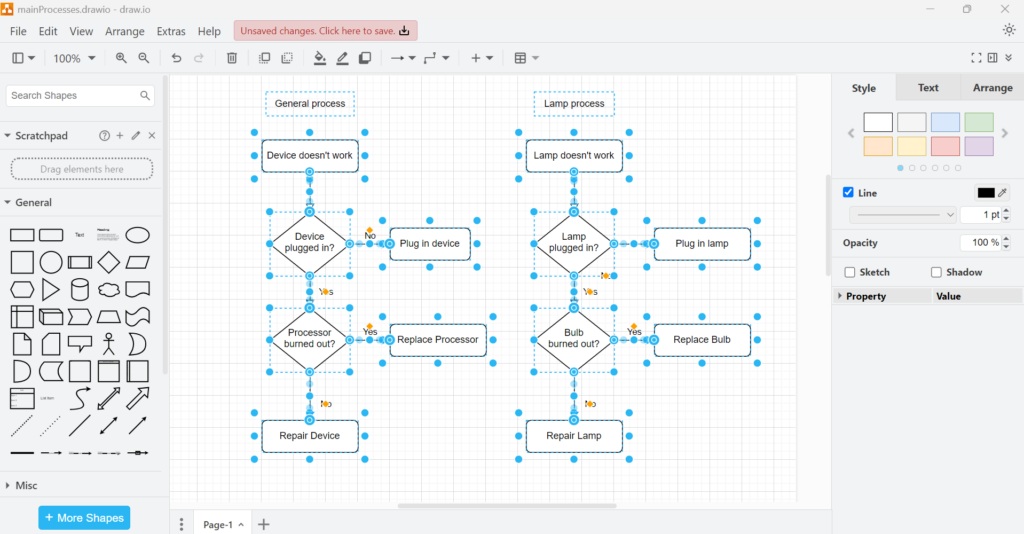
I use Select All when an action should affect the complete diagram. For example, I may want to move the whole model or apply a change to all available elements.
However, I first check what the intended operation will change. Some formatting options apply differently to shapes and connectors.
Select All gives me one selection that contains every selectable element on the current diagram page.
Clearing the Selection
After working with a large selection, I often want to remove the selection completely.
For this, I open Edit and choose Select None. The keyboard shortcut shown in draw.io is Ctrl+Shift+A.

Once I select this command, draw.io clears the current selection. No diagram element remains active.
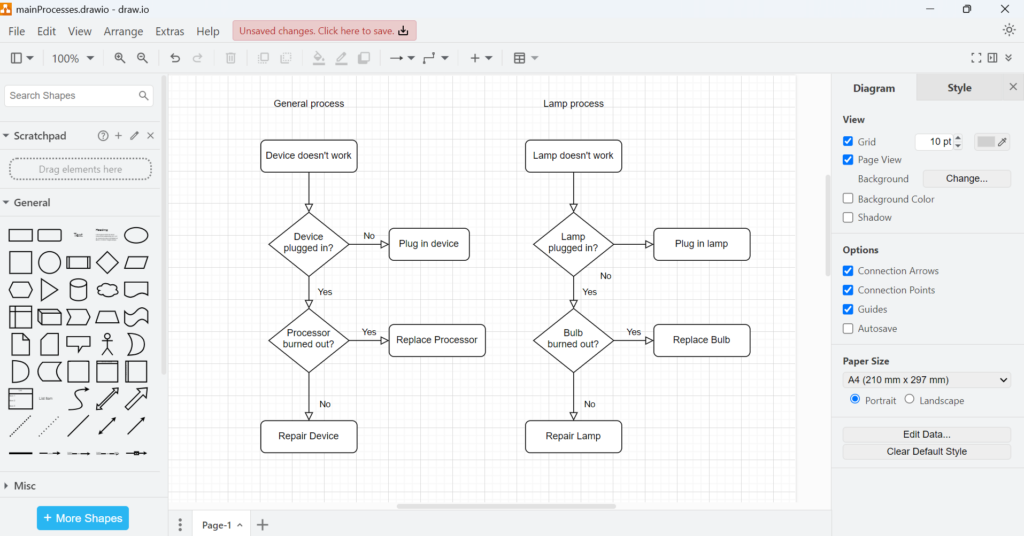
This command is useful after a bulk edit. It also gives me a clean starting point before I select another individual object or group.
Which Selection Option Should I Use?
I choose the command based on what I want to edit:
| Selection option | What it selects | Shortcut | Typical use |
|---|---|---|---|
| Select Vertices | Shapes and other non-connector elements | Ctrl+Shift+I | Editing diagram objects |
| Select Edges | Connectors | Ctrl+Shift+E | Editing connection lines |
| Select All | Vertices and edges | Ctrl+A | Working with the complete diagram |
| Select None | Nothing | Ctrl+Shift+A | Clearing the current selection |
The key distinction is simple: vertices are diagram objects, while edges are their connections.
Final Thoughts
Selection commands become more valuable as a diagram grows. Instead of manually selecting dozens of elements, I can tell draw.io which category of elements I need.
Therefore, I use Select Vertices for objects, Select Edges for connectors, Select All for the complete diagram, and Select None when I want to clear my selection.
These four commands give me a simple and reliable way to control bulk editing in draw.io.
What’s Next?
Now that I know how to use select options in draw.io, I can control diagram elements more precisely. However, some objects should stay fixed while I edit other parts. That is where locking becomes useful. In the next article, I’ll explain How to Lock or Unlock Objects in draw.io. You’ll learn how to protect shapes, avoid accidental changes, and keep your diagram layout stable. Click below to continue and manage objects in draw.io with more confidence.
Make Requirements Engineering Tools Work Together
Requirements engineering becomes clearer when I use tools that support each part of the workflow. Therefore, I use draw.io to visualize ideas, Confluence to document knowledge, Jira to manage work, and Camunda to model business processes. Each tool helps me reduce complexity in a practical way. As a result, I can connect diagrams, decisions, tasks, and processes more effectively. In the main article on Requirements Engineering Tools, I show how these tools support a stronger and more structured requirements engineering workflow.