
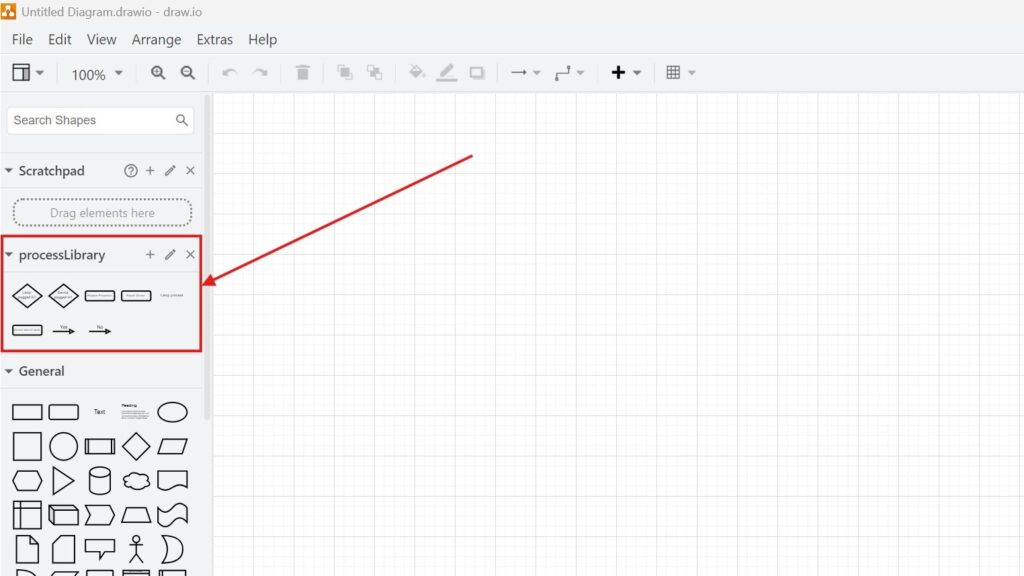
Libraries help me get more from draw.io. I use them to access, organize, and reuse shapes faster. In this guide, I explain How to open a library in draw.io. You’ll learn the basic steps, see why libraries improve productivity, and understand how they make repeated diagram work easier and more consistent.
If you would prefer to watch the accompanying video, click here:
What is Draw.io?
If you’ve never heard of draw.io (open in a new tab), let me introduce you. It’s a powerful and free online diagramming tool. Whether you’re sketching out workflows, creating network diagrams, or designing UML diagrams, draw.io has you covered. What makes it truly standout, though, is its flexibility.
For example, let’s say you’re working on a team project and need to create consistent designs across multiple diagrams. Using libraries in draw.io makes it simple to standardize elements like shapes, icons, or reusable templates. You save time, reduce errors, and stay consistent.
Why I Use a Library in Draw.io
A library stores reusable diagram elements.
For example, I can keep network symbols, process components, company-specific shapes, or standard modelling elements in one place.
Therefore, I do not need to recreate them each time.
Libraries save time and help me use the same visual elements consistently across different diagrams.
How to Open a Library in Draw.io
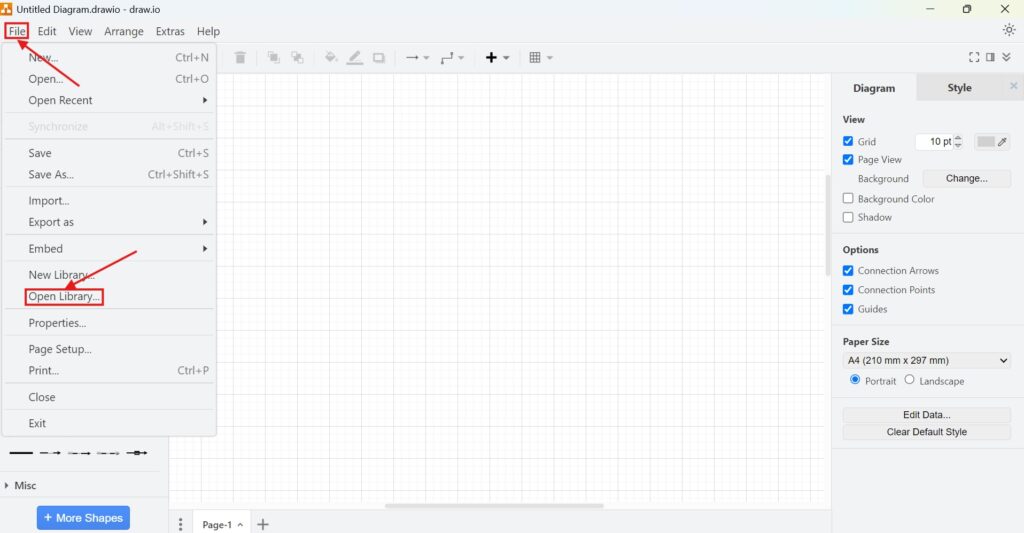
Step 1: Open File > Open Library
First, I open draw.io.
Then, I select File > Open Library.
Draw.io now asks me to choose the library that I want to load.
Step 2: Choose the Storage Location
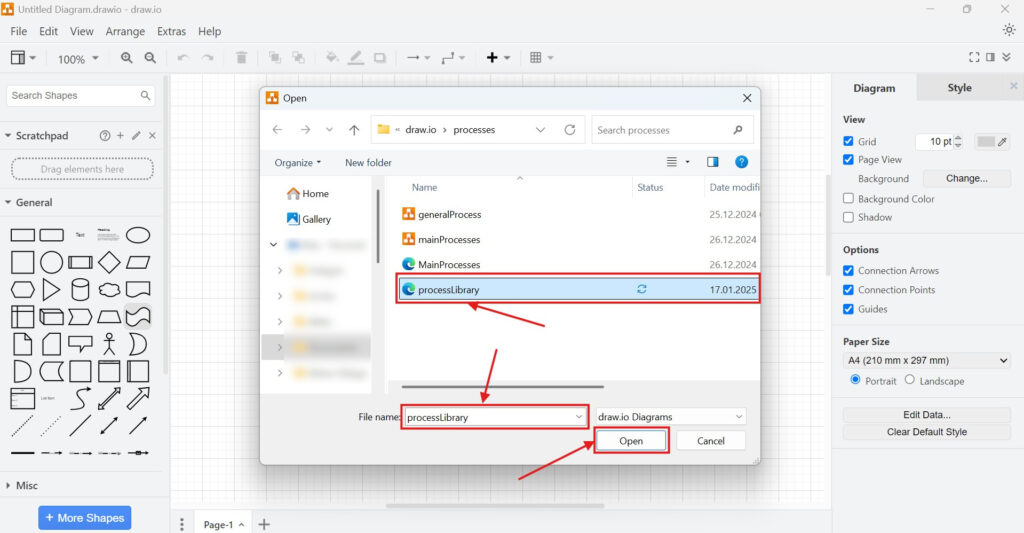
Next, I select where the library file is stored.
For example, I may open it from my local computer, a shared drive, or a connected cloud storage service.
Then, I locate the library file and select it.
I choose the correct library file before opening it because each file can contain a different set of reusable elements.
Step 3: Access the Library and Start Creating
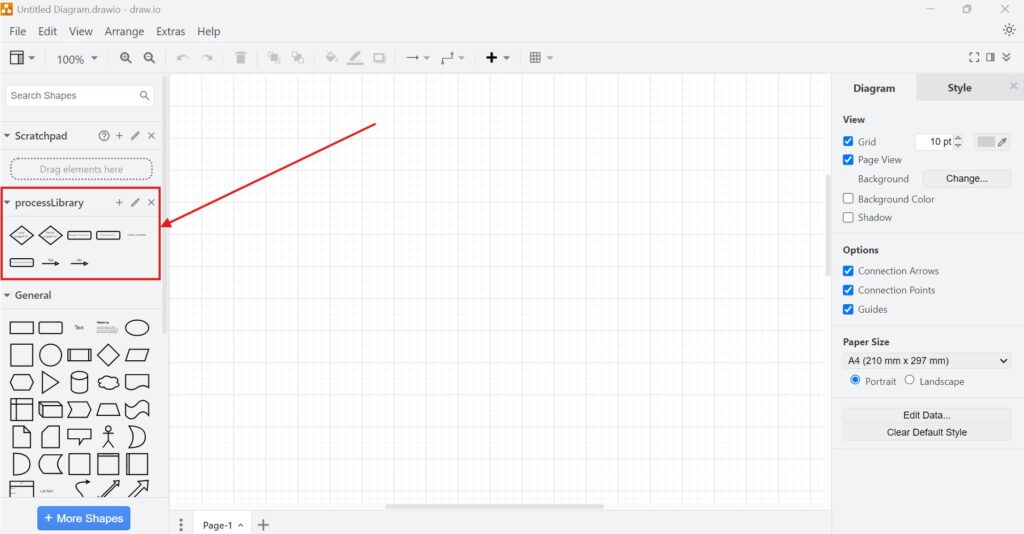
After I open the file, draw.io adds the library to the shapes panel on the left.
I can now browse its contents and drag elements directly onto the canvas.
Then, I position and edit them like other draw.io shapes.
As a result, I can reuse predefined elements without rebuilding them.
How I Use Several Libraries
I can open different libraries for different modelling purposes.
For example, I may use one library for network diagrams and another for process or requirements models.
Moreover, I keep library names clear so I can identify them quickly.
A focused library structure makes reusable elements easier to find and reduces visual clutter in the shapes panel.
Final Thoughts
To open a library in draw.io, I select File > Open Library, choose the storage location, select the library file, and then use its elements from the left-hand panel.
Opening custom libraries helps me reuse standard elements, maintain consistent diagrams, and work more efficiently.
What’s Next?!
Now that I know how to open a library in draw.io, I can use reusable shapes in a real diagram. Libraries help me work faster, but a practical example shows how the elements come together. In the next article, I’ll explain How to Create a Flowchart Example with draw.io. You’ll learn how to build a simple flowchart, connect shapes clearly, and turn a process idea into a useful visual model. Click below to continue and create your first flowchart example in draw.io.
Improve Requirements Engineering with Connected Tools
Requirements engineering becomes easier when I use tools that support visual thinking, documentation, coordination, and process modeling. Therefore, I use draw.io to create diagrams, Confluence to organize knowledge, Jira to manage requirements-related work, and Camunda to model business processes. Each tool gives structure to a different part of the workflow. As a result, I can connect ideas, decisions, tasks, and processes more clearly. In the main article on Requirements Engineering Tools, I show how these tools work together and help me build a stronger requirements engineering process.