

File settings can affect security, size, and structure. Therefore, I adjust them when a diagram needs better control. In this post, I explain how to change draw.io file properties step by step. You’ll learn which options matter, why they help, and how practical examples make the settings easier to understand.
If you’d rather watch the video, click here:
What is draw.io?
draw.io is a powerful and free online diagramming tool. It’s perfect for creating flowcharts, network diagrams, and organizational charts. Many businesses, including mine, rely on it for project planning, system design, and visual presentations.
Draw.io is useful because it helps me turn complex information into clear visual diagrams. The best part? It’s user-friendly and integrates seamlessly with tools like Google Drive, OneDrive, and GitHub. However, customizing draw.io files can elevate your productivity further. Let’s explore why.
What Are Draw.io File Properties?
Draw.io file properties are settings and metadata connected to a diagram file. They do not only describe the visible drawing. A draw.io diagram can contain visible shapes and hidden data that describes the complete diagram in more detail.
Draw.io file properties belong to the diagram file as a whole. Therefore, this feature is useful when a diagram should contain more than boxes, arrows, and labels.
For example, I can add a custom property to the file. This property does not appear as normal text in the diagram. Instead, draw.io stores it as structured data. Later, I can export this data and open it as a JSON file.
A custom property can describe the diagram without changing the visible diagram layout.
Why Should I Use Draw.io File Properties?
I use draw.io file properties when I want my diagram to become more useful than a simple picture. A normal diagram shows boxes, arrows, and labels. That already helps a lot. However, structured properties can add more context.
For example, I can add a system owner to a diagram. I can add a status, a requirement ID, a risk level, a process version, or a responsible department. This makes draw.io useful for requirements engineering, process documentation, audits, and reporting.
As a result, the diagram becomes easier to analyze, manage, and reuse.
This is especially helpful when I want to connect a visual model with structured information. The diagram remains easy to understand for readers. At the same time, the exported data can support analysis or documentation work.
The visible diagram stays simple, while the file properties add structured background information.
Step-by-Step Guide to Change Draw.io File Properties
1. Open the Draw.io File
First, I open my draw.io diagram.
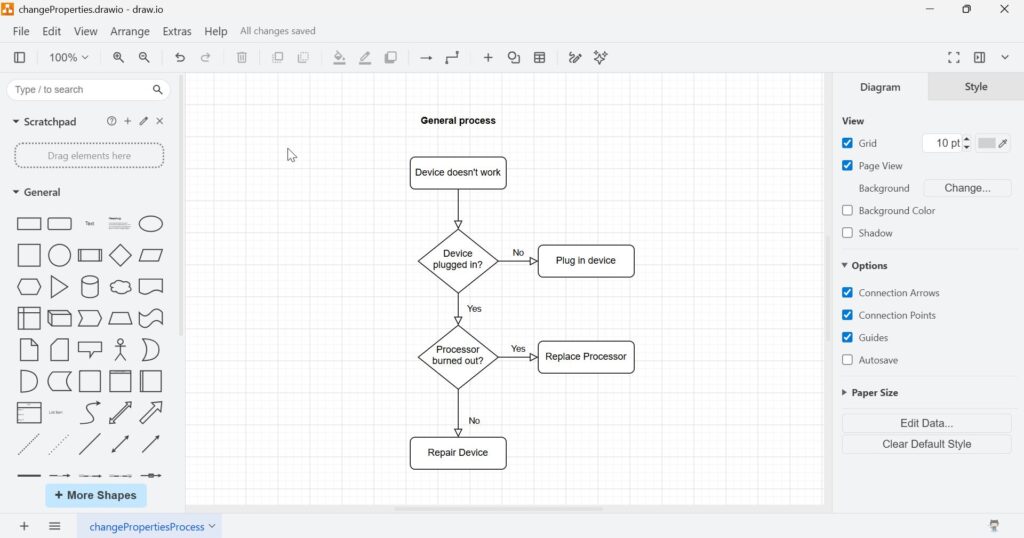
In the screenshot, the diagram contains a simple process with decisions and tasks. The diagram receives the custom property that I add in the data editor.
This property belongs to the complete diagram file, not only to one selected process step.
2. Open the Properties Dialog
Next, I click File in the top menu. Then I choose Properties.
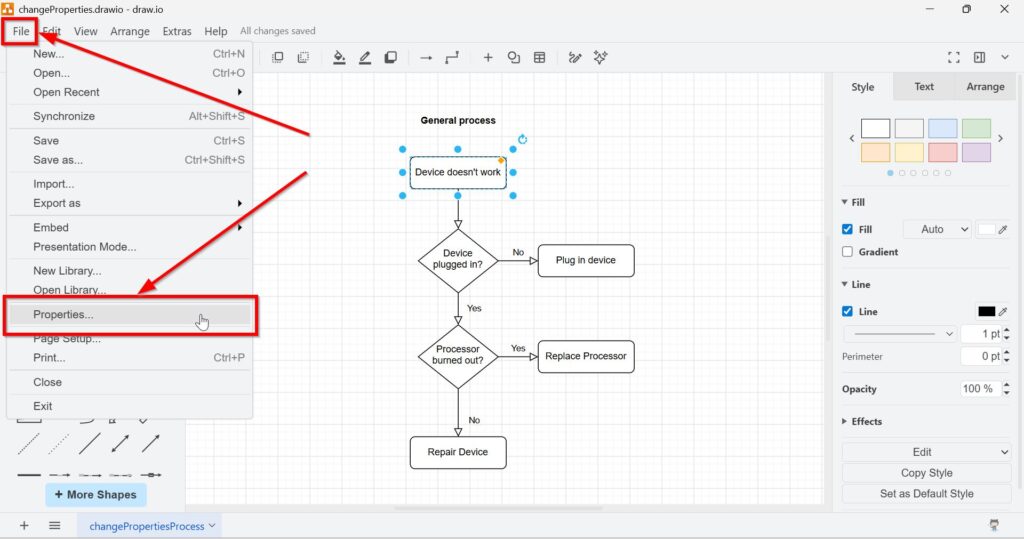
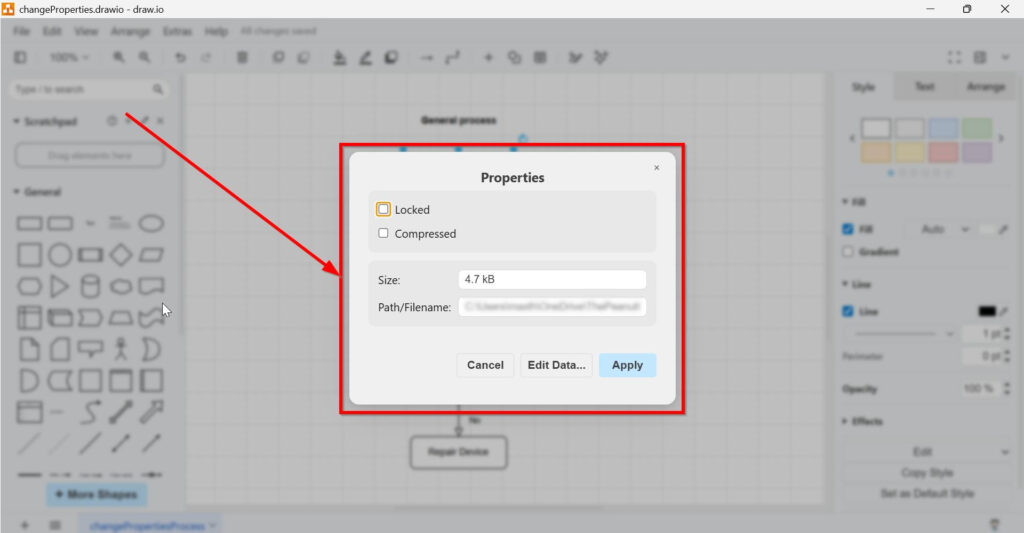
Draw.io opens the Properties dialog. Here I can see options like Locked and Compressed. I can also see the current file size and the file path.
The Properties dialog gives me access to important settings and metadata of the diagram file.
3. Open the Data Editor
After that, I click Edit Data.
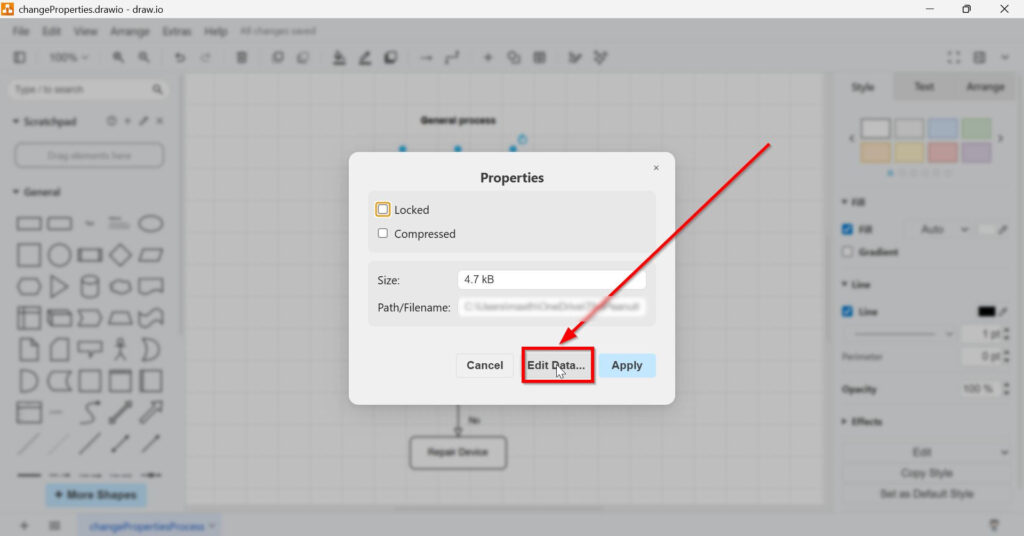
Now draw.io opens the data editor. The Edit Data dialog is the place where I add hidden metadata to a draw.io diagram. This is the part where the feature becomes more powerful.
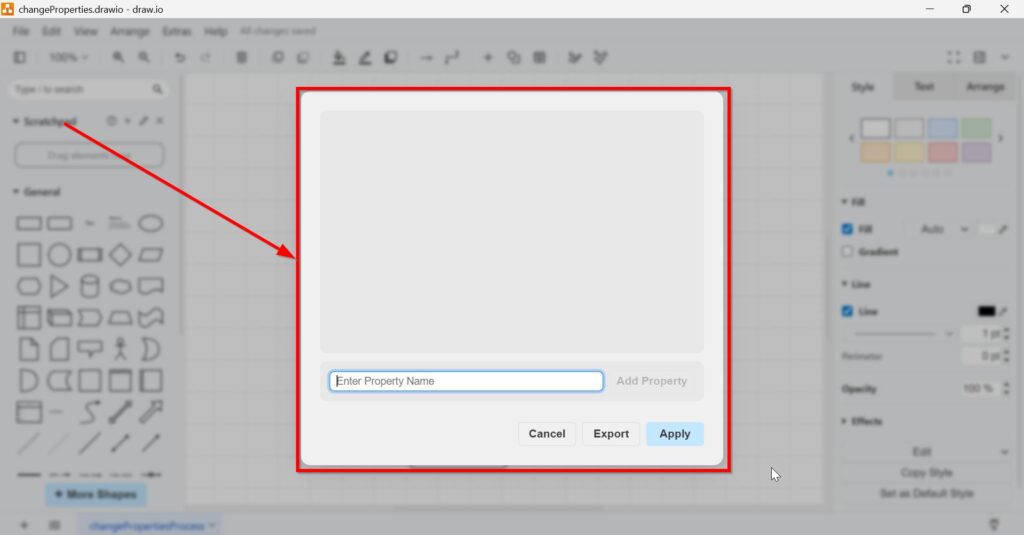
In this area, I can add custom properties to the diagram. These properties stay behind the visible diagram. The data editor helps me add structured information to the diagram file.
4. Add a Property Name
In the field Enter Property Name, I enter a property name. For example, I could enter “Status”.
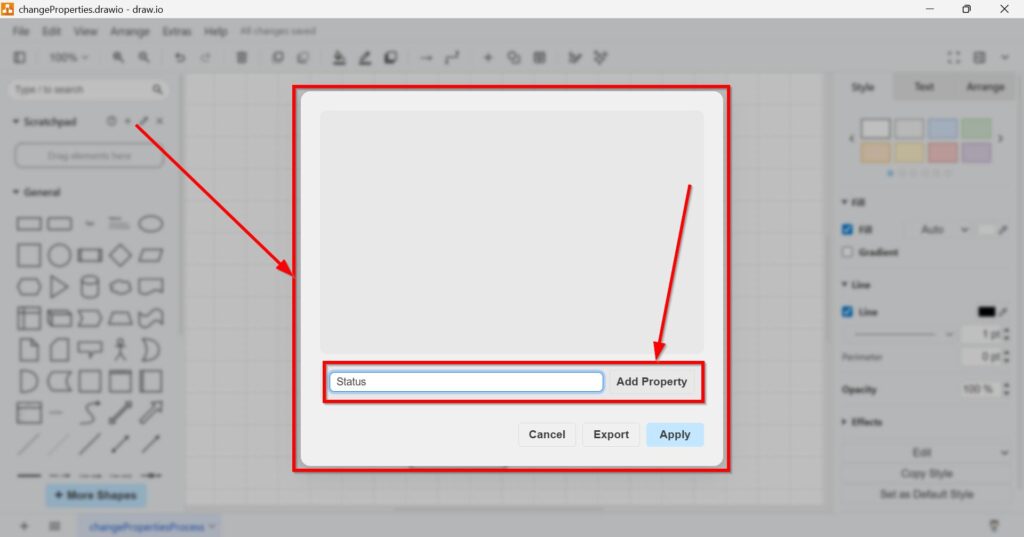
Then I click “Add Property”. Draw.io now creates a new property row.
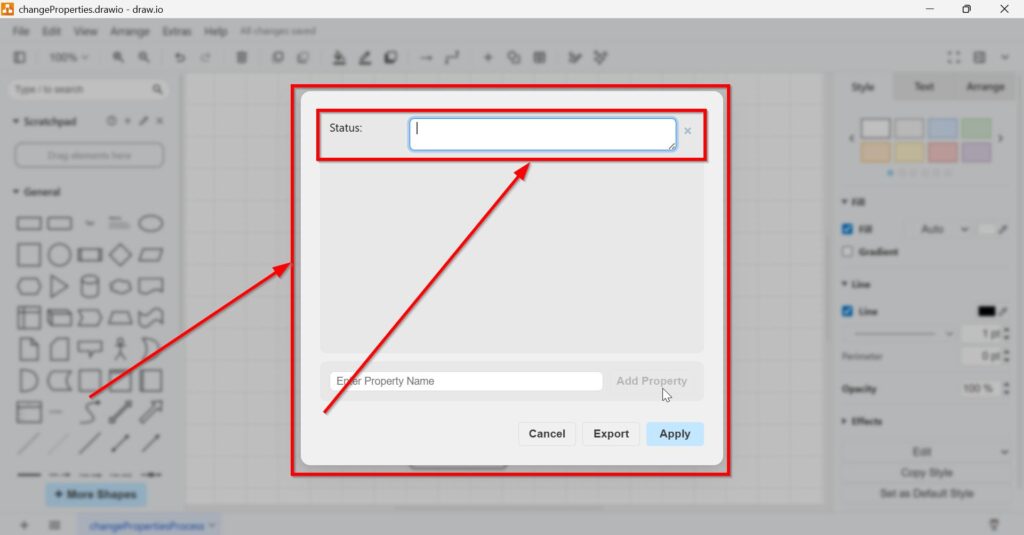
5. Add a Property Value
Draw.io now lets me enter a value for this property. For example, I could use “Status: approved”. A property name and a property value turn a normal diagram into a documented model.
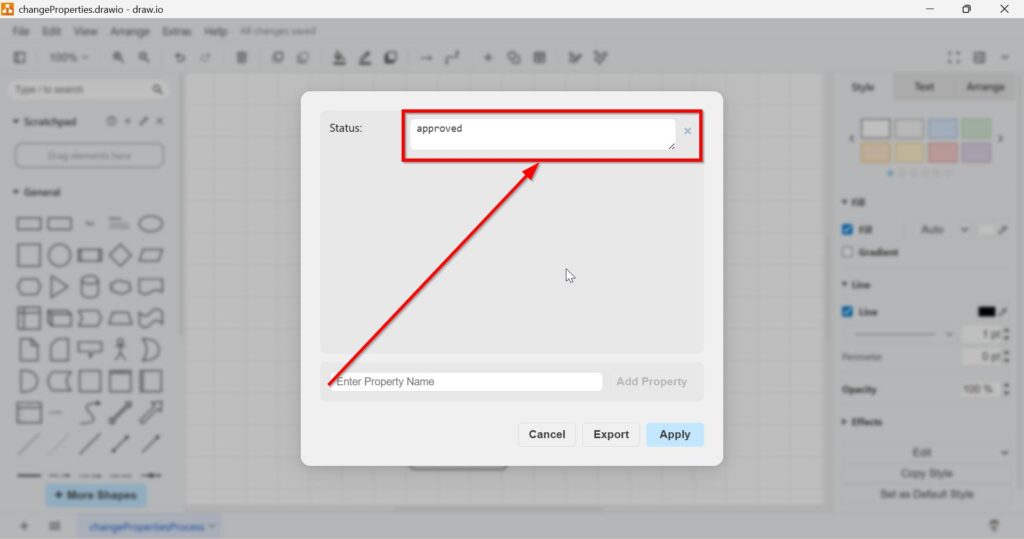
In the screenshot, a property receives a simple text value. This shows the basic principle. The value can describe something that is not visible in the diagram itself. A property name and a property value add structured context to the diagram file.
6. Apply the Change
After entering the property value, I click Apply.
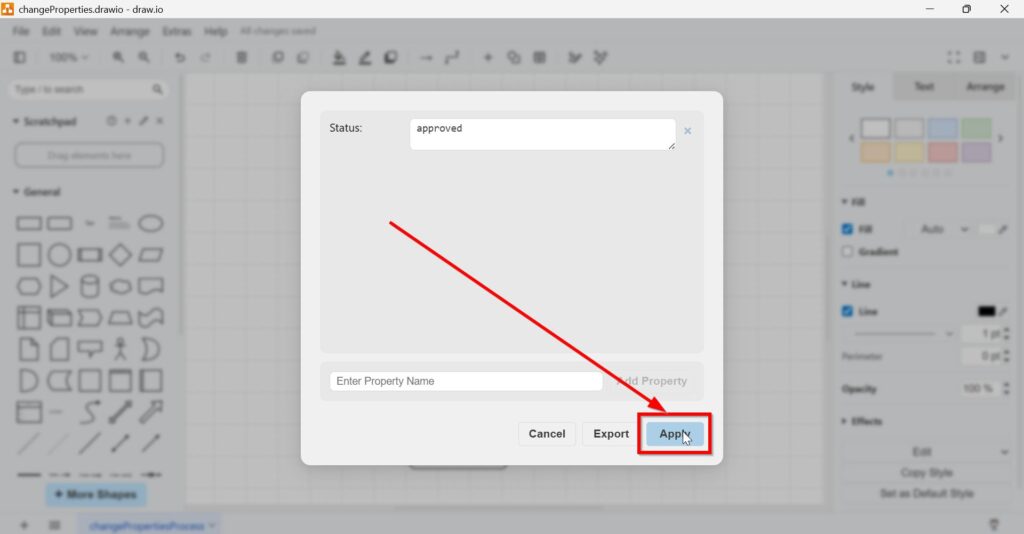
Now draw.io stores this property inside the diagram data. The visible shapes may still look the same. However, the diagram now contains extra structured information. A property name and a property value add structured context to the diagram file.
7. Export the Data
Next, I click “Export” in the data editor (To do this, I must navigate the path “File > Properties” again, once the dialog has closed after clicking “Apply”.). Draw.io opens an export window.
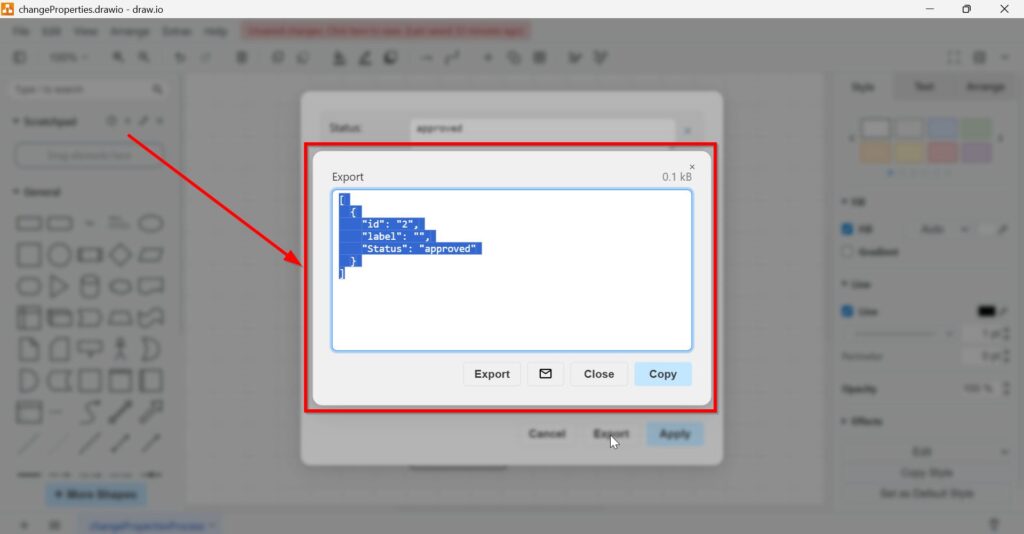
The exported content appears as structured JSON. The JSON export makes the hidden diagram data readable for humans and usable for other tools.
The JSON export turns hidden diagram file properties into structured text data.
This JSON contains element data, such as an ID, a label, and the custom property. This is why the export looks like code. It is not meant to be a normal diagram view. It is meant to be read in an editor or processed by another tool.
8. Save the Export as a JSON File
Finally, I save the export as a file,
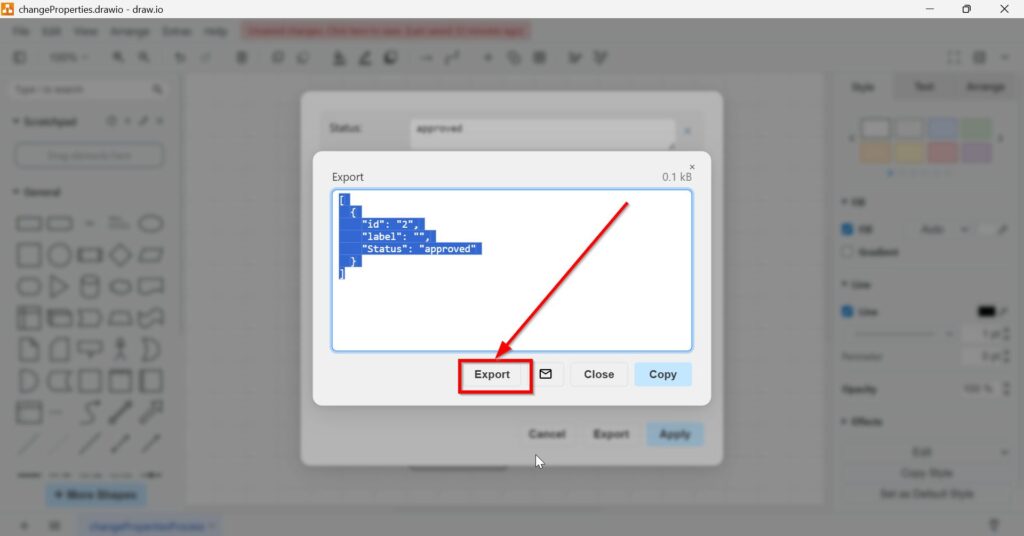
for example as data.json.
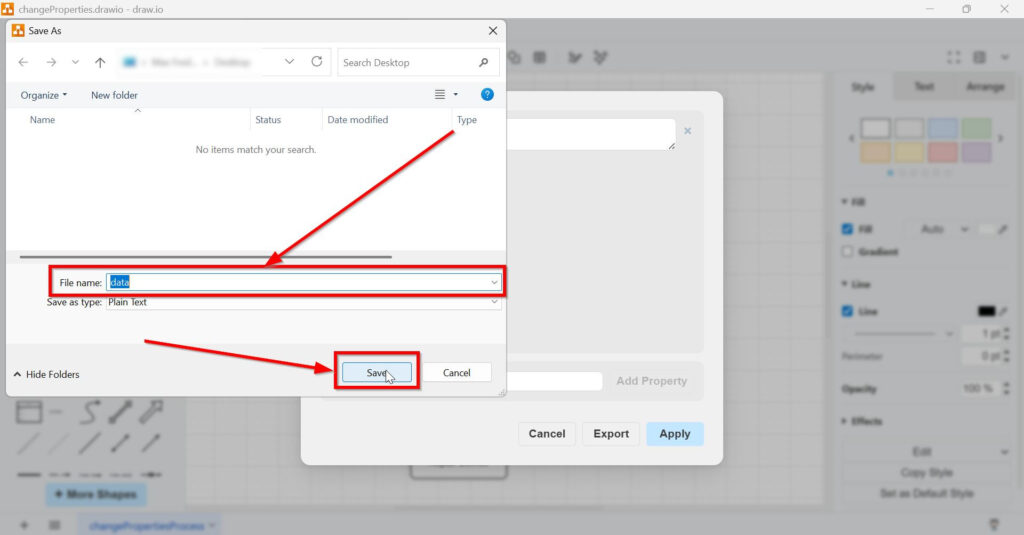
When I open this file in an editor, I can see the exported data. This confirms that draw.io has turned the diagram metadata into a structured text file.
The JSON file is useful when I want to inspect or process the hidden diagram data outside draw.io.
How Do I View the Properties Again?
After I add a custom property, draw.io stores it inside the original .drawio file. Therefore, I do not reopen the exported JSON file to continue editing the diagram. Instead, I open the .drawio file again.
Therefore, I go to File, choose Properties, and click Edit Data. Now I can see the property again and change its value if needed. The custom properties belong to the selected diagram. This is an important point. The property does belong to every shape in the diagram.
Can I Show Properties Visibly in the Diagram?
The simplest option is to write the information directly into the shape texts. For example, I can write “Repair Device,” “Owner: IT Support,” and “Requirement: REQ-042” inside the same shape. Then everyone can see the information immediately.
However, this is no longer hidden metadata. It is normal visible diagram text. Therefore, the diagram can become crowded if I add too much information. Visible labels are useful for readers, while hidden properties are useful for structured background information.
In some cases, draw.io can also work with placeholders or more advanced configurations. This can display property values in labels. However, this is a more advanced use case. For a simple tutorial, I focus on the basic idea: I store the information in the diagram and view it again through Edit Data.
Important: Locked Does Not Mean Secure
The Locked option can help prevent accidental changes. However, I should not treat it as strong security. Locked can reduce accidental edits, but it is not a replacement for real access control or encryption.
Therefore, I use locking mainly for control inside the diagram editor. If I work with sensitive diagrams, I still protect the file through proper storage, permissions, and secure sharing.
Important: Compressed Does Not Mean I Choose a File Size
The Compressed option can reduce how the diagram data is stored. This can make the file smaller. However, I do not enter a target size manually. Compressed can reduce stored diagram data, but it does not let me manually define a target file size.
The Size field mainly shows the current file size. The Path/Filename field shows where the file is stored. In the screenshot, the file is stored locally on the computer. Therefore, I see the Size and Path/Filename fields mainly as file information.
What Is the JSON Export For?
The exported JSON file is not the main diagram file. It is also not the file I normally import back into draw.io for editing.
Instead, it is a structured data export of the properties stored in the diagram file.
This distinction makes the feature much easier to understand. I continue working with the .drawio file when I want to edit the diagram. I use the JSON file when I want to inspect, document, validate, or process the hidden file properties outside draw.io.
For example, I can open the JSON file in a text editor. Then I can see which data draw.io exported. The file may contain custom properties such as Status, Owner, Requirement ID, or Department.
These values describe the diagram file in a structured way.
Do I Import the JSON File Back Into Draw.io?
In this use case, I normally do not import the JSON file back into draw.io. The JSON file is mainly an export. It helps me use the data outside the diagram editor.
Therefore, the working logic is simple. I edit and save the diagram as a .drawio file. I export the properties as a .json file when I need a separate data file.
The .drawio file is the file for editing the diagram, while the .json file is the file for reviewing or processing exported data.
This also explains why opening the JSON file in Windows does not open a diagram.
Windows treats it as a text-based data file. That is why it opens in an editor, not as a visual draw.io model.
What Does the JSON File Mean?
A JSON file can look technical at first. However, it follows a simple structure. In the screenshot, the file contains data like a custom property and its value.
A simplified example can look like this:
[
{
“id”: “2”,
“label”: “”,
“Status”: “approved”
}
]
This means that draw.io exported the custom property from the diagram file.
The property is called Status. The value is approved.
The JSON file shows the stored diagram data in a machine-readable text format.
This is useful because other tools can read JSON. A script, reporting tool, documentation system, or validation workflow can use the exported information.
Practical Use Cases
Requirements Engineering
I can link a diagram file to requirement IDs. For example, the diagram can contain the property Requirement ID with the value REQ-001.
Custom draw.io file properties help me connect visual diagrams with requirements documentation.
Therefore, I can use a diagram as a visual entry point into my requirements work. This helps me keep a model and its related requirements closer together.
Process Documentation
I can add owners, roles, systems, or statuses to the diagram file.
Custom properties can show who owns the diagram, which system the diagram describes, and which status the documentation currently has.
This helps when I want to manage process documentation in a structured way.
As a result, the process model becomes more useful for reviews and improvements. It no longer only shows the process flow. It also stores additional context about the diagram file.
System Architecture
I can add technical context to an architecture diagram. For example, the diagram file can include Environment, Owner, Criticality, or Interface Information.
A draw.io architecture diagram becomes more valuable when the file contains structured technical information.
This helps me keep visual documentation and technical context together. Therefore, the diagram becomes more useful for technical reviews.
Audits and Reviews
I can export the hidden data and review it outside draw.io.
The exported JSON file can support audits because it shows which metadata exists inside the diagram file.
This helps when I want to check whether the diagram contains required information.
For example, I can check whether the diagram has an owner, a status, a requirement ID, or a review date.
As a result, I can improve completeness and consistency.
Automation and Reporting
Because JSON is machine-readable, other tools can process the exported data.
JSON makes draw.io data easier to reuse in reporting, validation, and automation workflows.
For example, I could use the export to create reports, check completeness, or compare diagram metadata.
This is the main reason why the export is useful. It turns hidden diagram information into structured data.
Simple Example
Imagine I model an incident management process. The visible diagram shows tasks, decisions, and connections. It helps readers understand how the process works.
However, I can also add hidden file properties to the diagram. For example, I can add Owner: IT Support, System: Ticket System, Priority: High, and Requirement ID: REQ-043.
The real value of draw.io file properties is that they combine a visual diagram with structured background information.
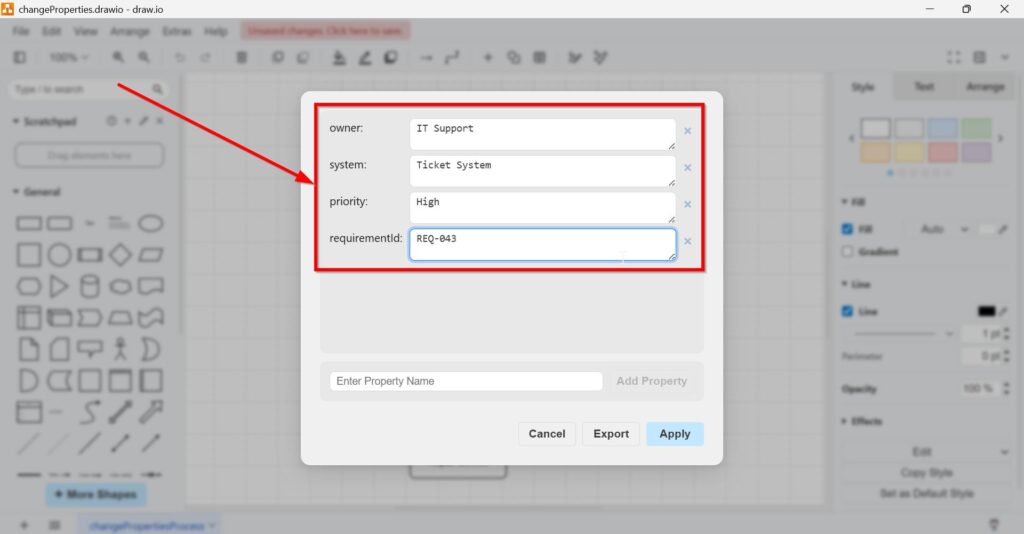
Now the diagram has two layers. The visible layer helps people understand the process. The hidden data layer helps me document and analyze the diagram in a structured way.
Later, I can reopen the .drawio file, go to File, choose Properties, and open Edit Data again. Then I can view or change the stored properties. I can also export the data as JSON if I want to review the hidden information outside draw.io.
I use the .drawio file to continue modeling. I use the JSON export to work with the stored metadata outside the editor.
Final Thoughts
Changing draw.io file properties is not only about locking or compressing a file.
The more useful part is the ability to add custom data to the diagram file.
Draw.io file properties are useful when I want to document, analyze, export, or reuse information behind a diagram.
Now I understand the purpose better. I use the Properties dialog to view basic file information. I use Edit Data to add hidden structured information to the diagram file. Then I use Export to save this information as JSON.
The most important distinction is simple. The .drawio file remains my actual diagram file. The JSON file is only a structured data export.
I should edit the diagram in the .drawio file and use the JSON file only when I want to inspect, validate, document, or process exported properties.
Therefore, this feature is especially helpful when I want to connect diagrams with requirements, systems, responsibilities, audits, or reports.
It may look technical at first. However, once I understand the idea, it becomes a practical way to make draw.io diagrams more powerful.
What’s Next?
Now that I know how to change draw.io file properties, I can bring existing content into my diagrams. Importing helps me reuse files, diagrams, and visual material instead of starting from zero. In the next article, I’ll explain How to Import into draw.io: A Comprehensive Guide. You’ll learn what you can import, how the process works, and how imported content can support your diagram workflow. Click below to continue and import content into draw.io with confidence.
Improve Requirements Work with the Right Tools
Requirements engineering becomes more effective when I use tools that support clarity, structure, and collaboration. Therefore, I use draw.io to visualize ideas, Confluence to document knowledge, Jira to manage work, and Camunda to model processes. Each tool helps me handle a different part of the requirements workflow. As a result, I can turn complex needs into clear diagrams, useful documentation, traceable tasks, and understandable process models. In the main article on Requirements Engineering Tools, I show how these tools help me work with requirements in a more practical and reliable way.