
Object geometry helps me create precise diagrams. I adjust size, position, and shape dimensions when I need a cleaner layout. In this guide, I explain how to change geometry in Draw.io. You’ll learn how geometry settings help you fine-tune objects, improve alignment, and create clearer diagrams with a more professional look.
What Does Geometry Mean in draw.io?
Geometry defines the position and dimensions of an object in a diagram. Instead of moving or resizing a shape manually, I can enter exact values.
Therefore, I use the geometry editor when I need more precision. For example, I can change the width of several shapes to the same value or place an element at a specific position.
The geometry editor gives me numerical control over an object’s position, size, and rotation.
How to Change Geometry in draw.io
1. Select the Object
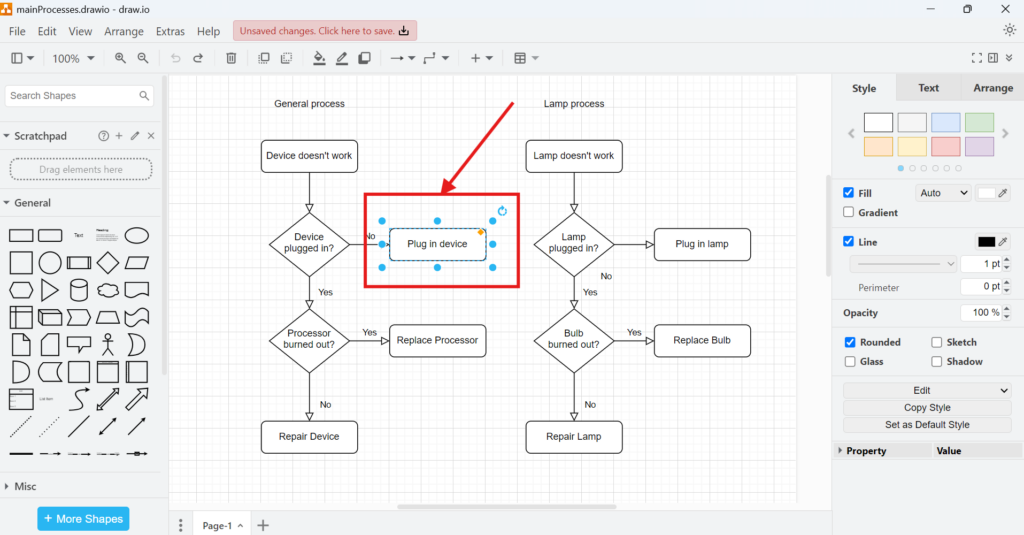
First, I select the shape that I want to change. draw.io displays the selection handles around the object.
In my example, I select the “Plug in device” activity.
2. Open Edit Geometry
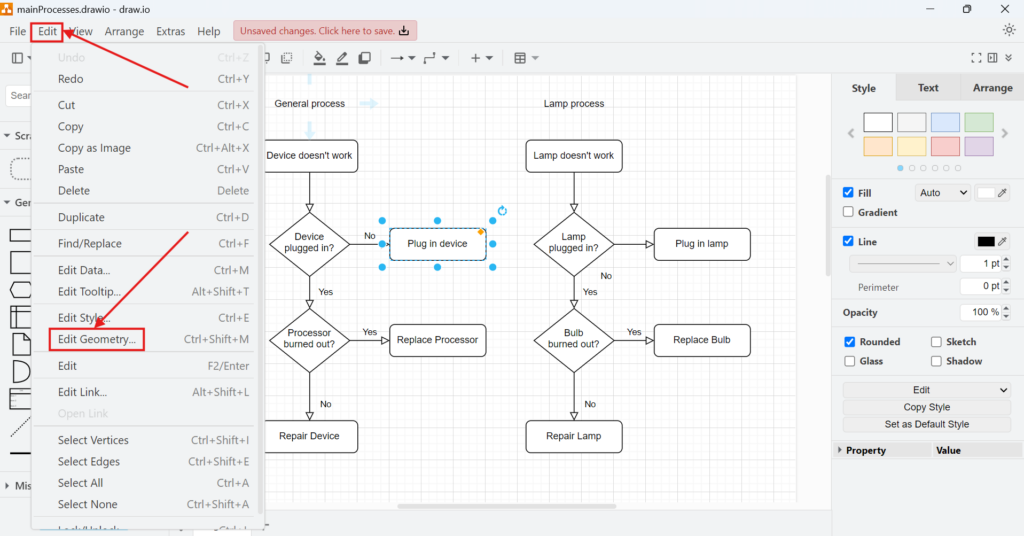
Next, I open the Edit menu. Then, I select Edit Geometry.
Alternatively, I can use the keyboard shortcut Ctrl + Shift + M.
I use Edit Geometry when I need exact values instead of approximate mouse-based adjustments.
3. Review the Geometry Values
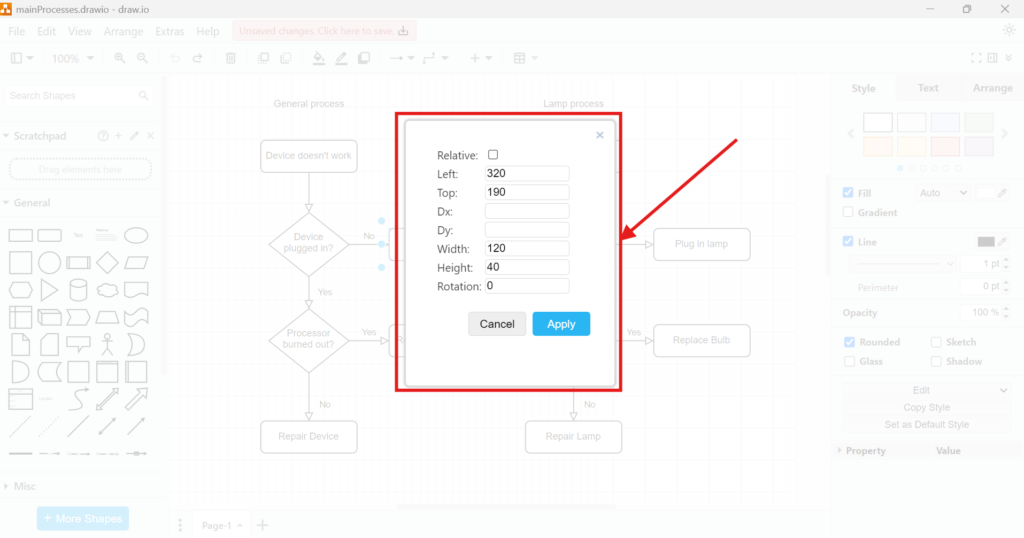
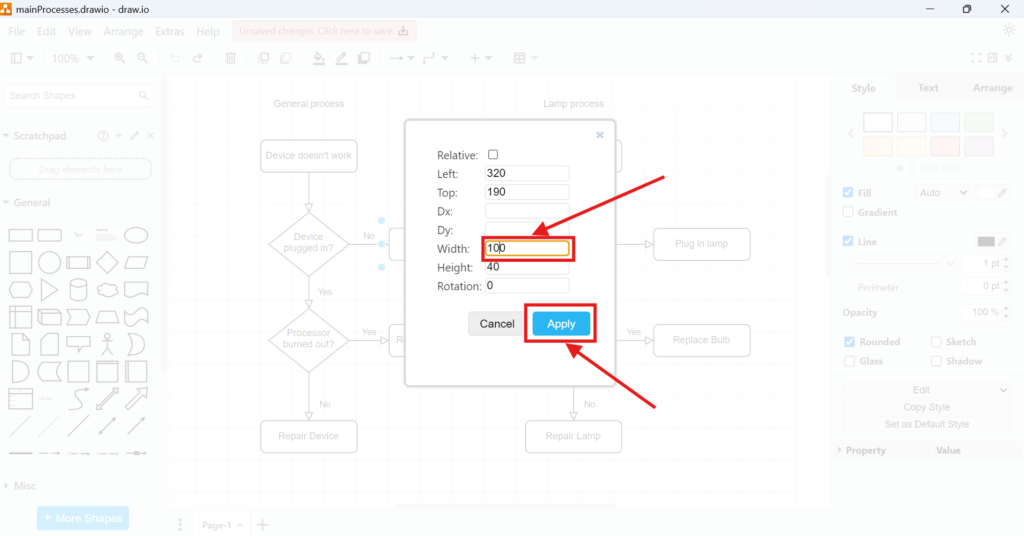
The Edit Geometry window shows the numerical properties of the selected object.
Depending on the object, I can work with these values:
- Left controls the horizontal position.
- Top controls the vertical position.
- Dx and Dy define additional horizontal and vertical offsets.
- Width controls the object’s width.
- Height controls its height.
- Rotation changes the object’s angle.
- Relative changes how draw.io interprets the object’s position in relation to another element.
For normal diagram shapes, I usually focus on Left, Top, Width, Height, and Rotation.
4. Enter the New Geometry
Now I change the value that I need.
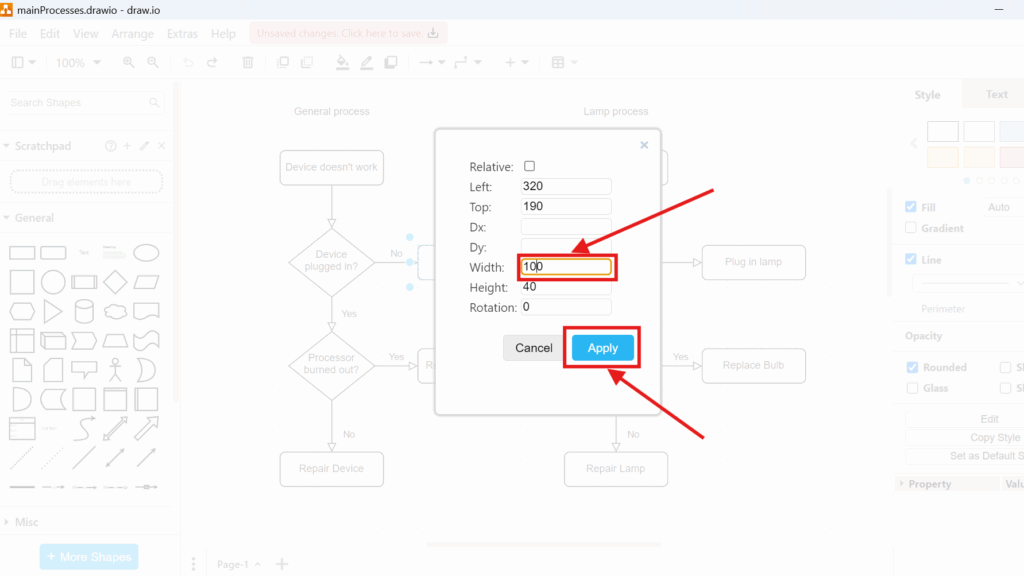
For example, the selected shape has a width of 120. I want it to be narrower. Therefore, I replace 120 with 100.
Afterward, I click Apply.
draw.io applies the numerical value directly to the selected object.
5. Check the Result
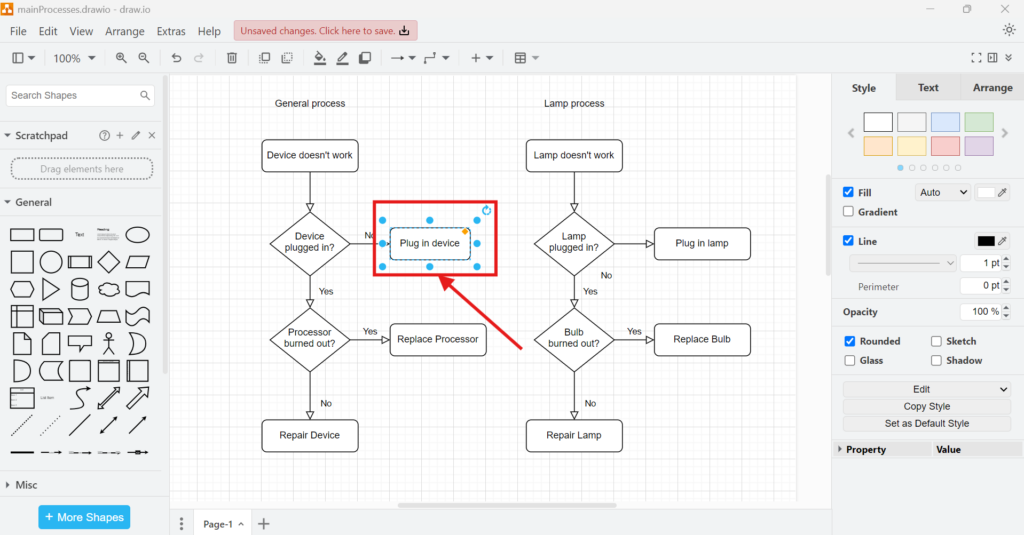
Finally, I check the updated object in the diagram.
In this example, the “Plug in device” activity is now narrower. Its other geometry values remain unchanged because I only modified the width.
When I Use Edit Geometry
I do not need the geometry editor for every change. Dragging and resizing with the mouse is faster for normal diagram work.
However, I use Edit Geometry when precision matters. Typical examples include:
- creating several shapes with identical dimensions;
- correcting small positioning differences;
- reproducing a specific layout;
- setting an exact rotation;
- adjusting an object when mouse-based resizing is too imprecise.
As a result, the feature becomes especially useful in structured diagrams where consistent spacing and dimensions improve readability.
Conclusion
Changing geometry in draw.io is a simple way to control an object more precisely. I select the object, open Edit Geometry, enter the required values, and apply the change.
For everyday diagramming, I use the mouse. However, when exact positioning or dimensions matter, I use the geometry editor.
What’s Next?
Now that I know how to change geometry in Draw.io, I can control the shape and position of diagram elements more precisely. However, clear diagrams also need clear connections. In the next article, I’ll explain Connection Arrows and Points in draw.io. You’ll learn how arrows, connectors, and connection points help you show relationships between elements. Click below to continue and make your draw.io diagrams easier to follow.
Build Clearer Requirements with the Right Tools
Requirements engineering becomes easier when I use tools that support visual thinking, structured documentation, task management, and process modeling. Therefore, I use draw.io to create diagrams, Confluence to organize knowledge, Jira to manage work, and Camunda to model business processes. Each tool adds clarity to a different part of the workflow. As a result, I can connect ideas, decisions, requirements, and processes more effectively. In the main article on Requirements Engineering Tools, I show how these tools work together and help me create a stronger requirements engineering workflow.