
When I work with diagrams, I often use Draw.io. It helps me visualize complex processes clearly. However, sometimes I need more than the app itself. I may want tutorials, updates, examples, or documentation. Therefore, I access the Draw.io website to learn more, solve problems, and improve my diagramming workflow.
What is draw.io?
draw.io (opens in a new tab) is a free, browser-based diagramming tool. It lets me create flowcharts, network diagrams, UML models, and more. I don’t need to install anything. I just open my browser, and I’m ready to go. Plus, it integrates with platforms like Google Drive, OneDrive, and GitHub.
Why Access the draw.io Website?
The website is packed with valuable resources. I can find detailed user guides, troubleshoot issues, and discover tips to boost my productivity. In addition, it’s the best place to stay updated with the latest features and improvements. So, whenever I need to dig deeper, I access the draw.io website.
Opening the draw.io Website from the Application
Accessing the website from within the draw.io interface is simple. Here’s how I do it step by step:
Navigate to the Menu: I start by clicking on “Help” in the top navigation bar. Click on Website: In the dropdown menu, I select “Website”.
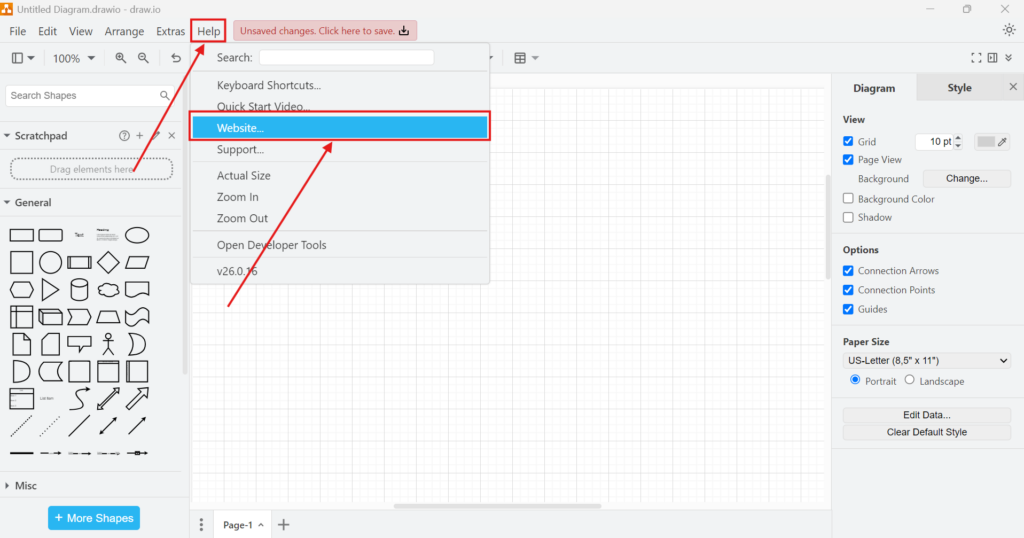
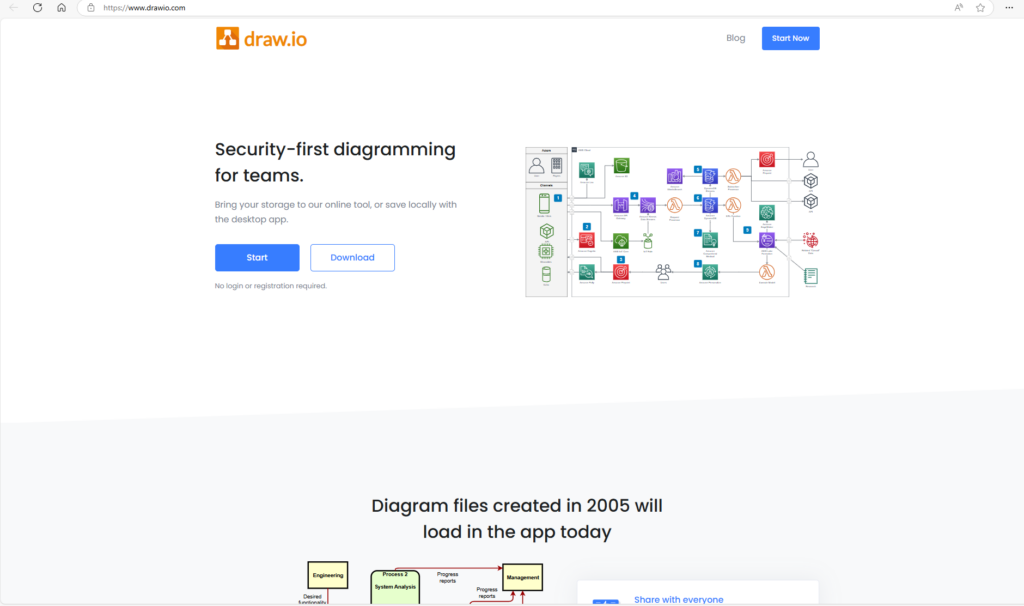
Browser Opens Automatically: My browser launches, and the draw.io website loads instantly. Explore the Website. Now, I can browse through tutorials, check out templates, or read the blog for inspiration.
Final Thoughts
Knowing how to access the draw.io website directly from the application saves me time. It keeps me connected to a wealth of resources that help me create better diagrams. Whether I need to troubleshoot, learn new features, or simply explore ideas, the website is just a click away.
What’s Next?
Now that I know why I may need to access the Draw.io website, I can take the next practical step. I can start my first diagram from scratch. In the next article, I’ll explain How to Create a Blank Diagram in draw.io. You’ll learn how to open a clean canvas, choose the right starting point, and begin building your own diagram with confidence. Click below to continue and create your first blank diagram in draw.io.
Explore Practical Requirements Engineering Tools
Requirements engineering becomes easier when I use the right tools for the right task. Therefore, I use draw.io to visualize ideas, Confluence to document knowledge, Jira to manage work, and Camunda to model processes. Each tool supports a different part of the requirements workflow. As a result, I can move from unclear ideas to structured documentation, traceable tasks, and understandable process models. In the main article on Requirements Engineering Tools, I show how these tools work together and how they support better requirements work.