
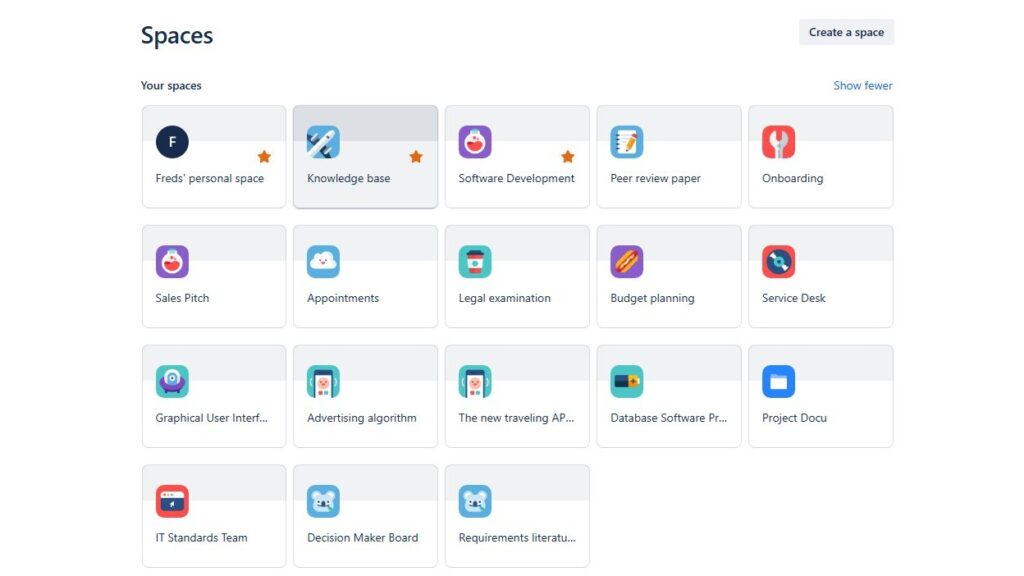
In this introduction to confluence spaces, I explain how spaces help teams organize work in Confluence. Spaces give each project, team, or topic a clear home. As a result, I can create, share, and manage content with less confusion. They support better structure, smoother collaboration, and easier access to important knowledge.
What Is Confluence?
I use Confluence as a shared workspace for creating, organizing, and sharing knowledge.
For example, I can document processes, requirements, decisions, meeting notes, project information, and guidelines. Team members can edit content, comment, and work with the same information.
Therefore, Confluence helps me move knowledge away from isolated files and scattered messages.
I use Confluence when information should remain accessible, structured, and useful beyond a single conversation.
What Is a Confluence Space?
A space groups related Confluence content.
For example, I can create one space for a project, another for a department, and another for shared documentation. Within each space, I can organize pages, files, blog posts, and other relevant content.
Therefore, the space provides context.
Instead of searching through unrelated information, I know where content for a specific subject belongs.
A Confluence space gives related knowledge a defined home.
Site Spaces
I use site spaces when several people need to create and share information around a common subject.
For example, I can create a site space for:
- a project,
- a team,
- a product,
- requirements documentation,
- technical knowledge,
- or organizational processes.
I can then build a clear page structure within that space.
As a result, related information remains together while still allowing collaboration across the team.
Personal Spaces
I can also use a personal space.
A personal space gives me an area connected to my own Confluence profile. I can use it for individual notes, drafts, working information, or knowledge that I want to organize personally.
Depending on the access settings, I can keep information private or make it available to other people.
Therefore, personal spaces complement shared site spaces rather than replacing them.
Access and Permissions
Not every person needs the same access.
Therefore, I use space permissions to control who can view, create, edit, or manage content. I can also restrict individual content where necessary.
This becomes especially important when a Confluence site contains information for different teams or projects.
Clear access rules help me share knowledge without giving everyone unrestricted access to everything.
How I Structure Spaces
Creating many spaces does not automatically improve organization.
Therefore, I create a new space when the content has a clear purpose, audience, or ownership. Within the space, I then use a logical page structure and meaningful names.
I also avoid creating separate spaces for every small subject. Otherwise, information becomes fragmented again.
When I no longer need a space, I can archive or delete it instead of allowing obsolete information to remain mixed with current knowledge.
Why Confluence Spaces Matter
Spaces help me combine organization with collaboration.
They separate major areas of knowledge while keeping related information together. Moreover, permissions help me control access, while pages and other content provide structure within each area.
Confluence Spaces work best when each space has a clear purpose, audience, and content structure.
For me, this is their main value. They turn Confluence from a collection of individual pages into an organized knowledge environment that teams can maintain and use together.
Create your first project space
Now start creating your first own space:
Step 1: Click “Spaces” in the top left menu and then “Create Space”:

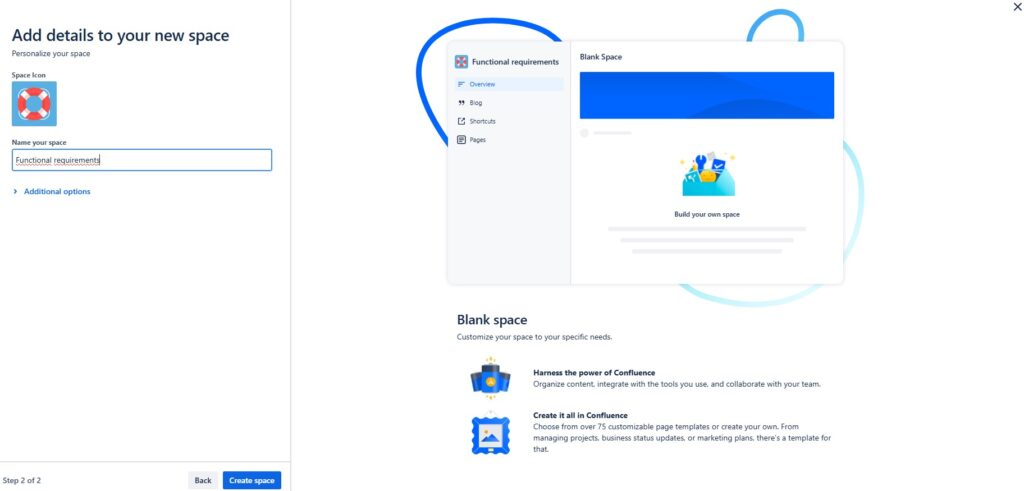
Step 2: select the option “blank”:

Choose a name for your new space and click “Create space”:
Now you can work in your new space:
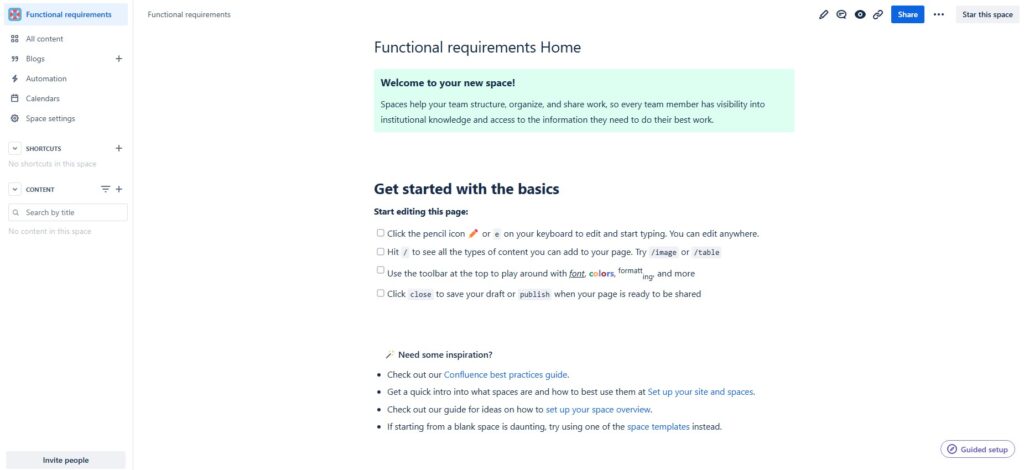
If you do not consciously restrict access, all colleagues can see this space. Your space is not accessible outside of your work environment, not even from the Internet.
Edit your Confluence Space
To customize and edit your Confluence Space, click on the pencil icon in the top right corner of the bar. You can also use the keyboard shortcut and simply press “E” (you can find many powerful keyboard shortcuts on our shortcut page (opens in a new tab)).
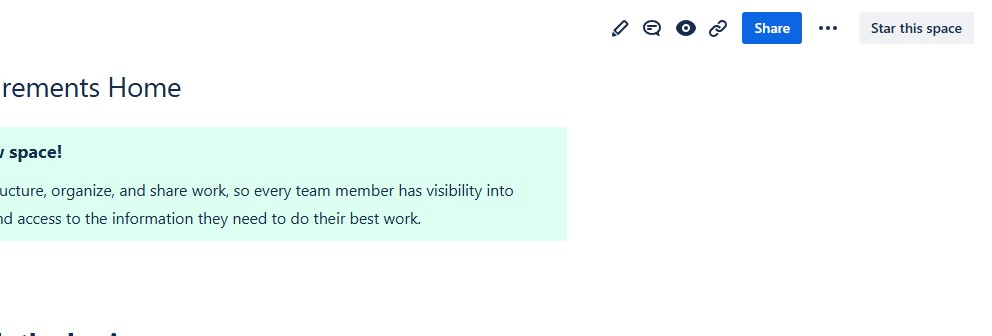
In edit mode you can now customize your Confluence Space.
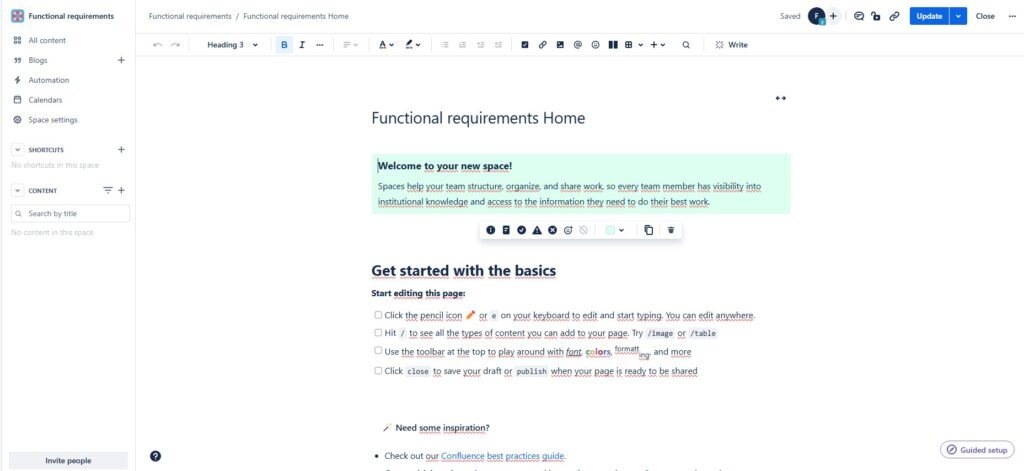
In edit mode, you can now customize your Confluence space. Click “Update” when you are happy with your edits.
Your Personal Space
You can work in a personal space for yourself. The settings are configured so that none of your colleagues have access to the pages and blogs in your personal space. Another benefit is that you can work on drafts without worrying, or keep a loose and unformatted notebook. You don’t have to worry about anyone seeing it.
Step 1: Click on your profile picture in the top right. Or on your icon if you haven’t uploaded a photo yet.
Step 2: Click on “Add personal space…”. In the future you will find your access to your “Personal Space” here.

Step 3: Give your personal room a name and click “Create”.

Welcome to your personal space!
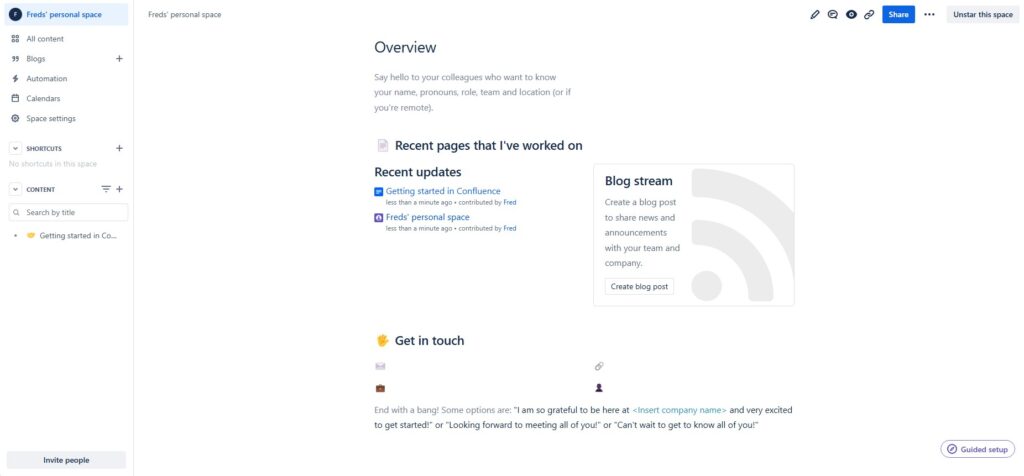
You can now edit and design your personal room like any other room.
Archive and Delete your Spaces
If you no longer need your space, you can delete or archive it. If you delete your space, it is gone and cannot be restored (after a short period). Archiving just means that it is stored in an archive and is no longer visible to you.
Deleting
To delete, follow these steps:
Step 1: Navigate to “Spaces” in the top right menu. Click “View all Spaces”:
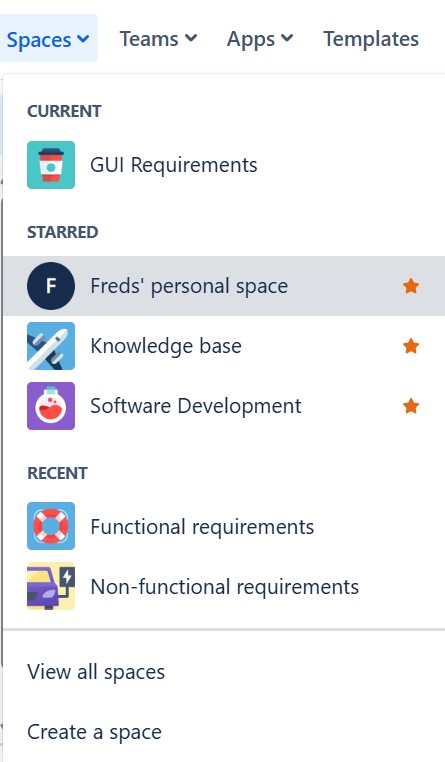
Step 2: Click on the three dots on the right of the space you want to delete. “More Options” opens the way to “Space Settings”
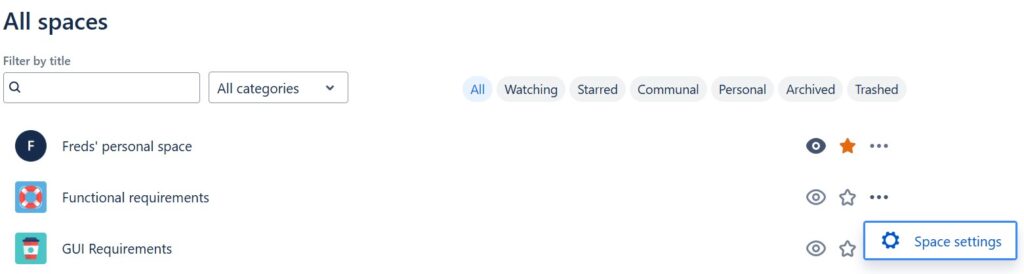
Alternatively, go directly to the space you want to delete and navigate to “Space settings” in the left row.

Step 3: Click “Send space to trash”.

Step 4: In the next step you have to decide to actually delete it. Click on “Send this space to trash”.
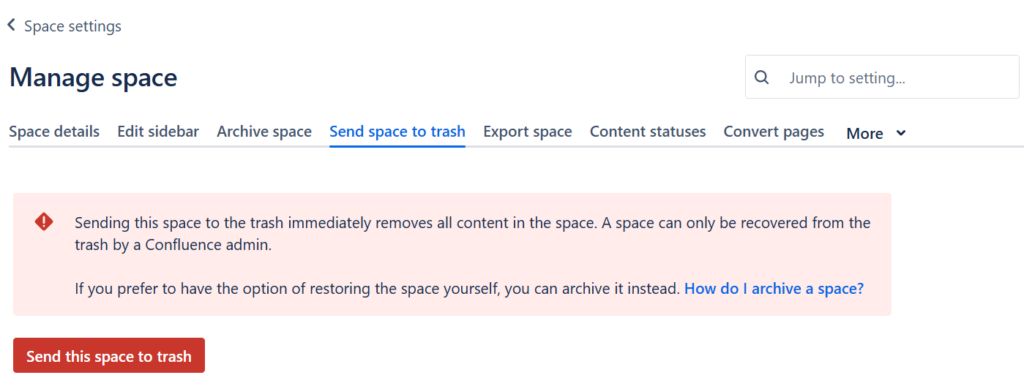
Step 5: Finally confirm with “Send to trash”.

Archive
Steps 1 to 3 are the same as for deletion. In the Space settings in step 4 click “Archive space”.
Step 4: Click on “Archive space” again.
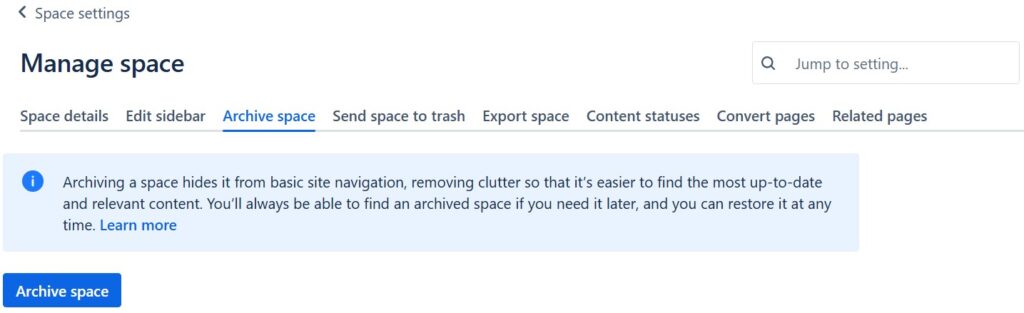
Step 5: In the last step you confirm the archiving again.

Conclusions
In conclusion, Spaces in Confluence are essential for fostering collaboration, organization, and efficiency within teams. By leveraging their robust features, users can create a centralized hub for all project-related information. Implementing best practices in managing Spaces not only enhances productivity but also promotes a culture of knowledge sharing and continuous improvement. As you explore and utilize Spaces, you’ll discover the full potential of Confluence in driving your team’s success. I hope this introduction to Confluence Spaces takes you one step further.
what’s Next?!
Now that you understand what spaces are in Confluence, it is time to create one yourself. Spaces give your content a clear home. However, they become truly useful when you set them up with purpose and structure.
In the next article, I’ll show you How to Create a Space in Confluence. You’ll learn the basic steps, key settings, and practical decisions that help you start with a clean workspace. Click the next article to build your first Confluence space with confidence.
Choose Better Tools for Requirements Engineering
Requirements engineering becomes stronger when I combine clear thinking with practical tools. In my main article on Requirements Engineering Tools, I show how draw.io, Confluence, Jira, and Camunda support my daily work. Draw.io helps me visualize ideas and models. Confluence helps me structure knowledge. Jira helps me track tasks and issues. Camunda helps me understand and improve processes. Click through to the full article and discover how these tools help you move from unclear ideas to well-managed requirements.
| Read more about Confluence and How to |
|---|
| Use shortcuts in Confluence Assign a task in Confluence Create a Confluence space from a template Delete a Page in Confluence Create a Confluence page |