
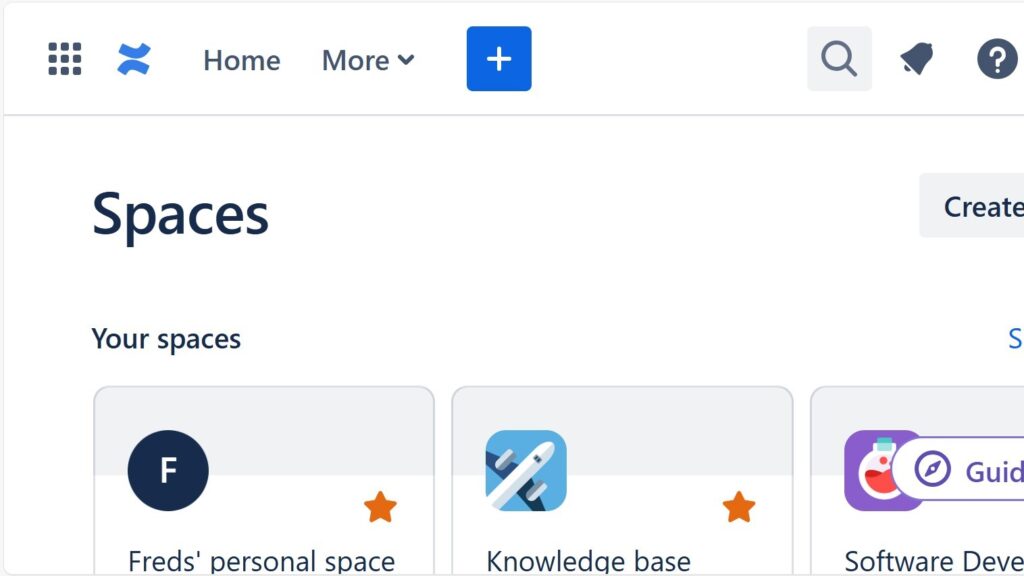
I use templates when I want to create a confluence space from a template quickly and consistently. Templates give me a ready-made structure with a homepage, sidebar, and sample pages. As a result, I can organize project information faster and keep my workspace clear. In this guide, I show you how to use templates for smoother project management.
Use Templates
To use a Confluence Spaces template, I click on one of the options to create a space. Read the article: How to create a Space in Confluence (opens in a new tab).
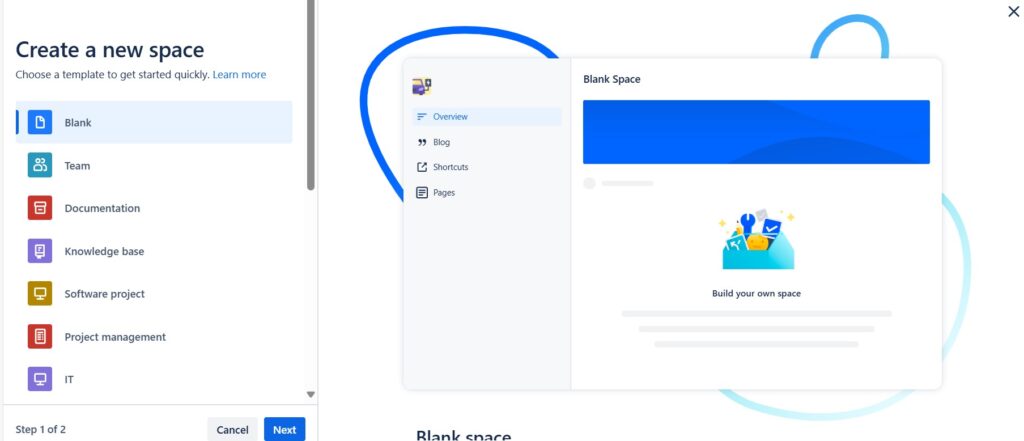
The “Blank” space template
By creating the “Blank” template I simply create an empty space. Even though this is the basic option, the “Blank” room is a template. When I click “Create space” anywhere, the template overview appears. It is the starting point for understanding how to create a confluence space from a template.
The “Team” space template
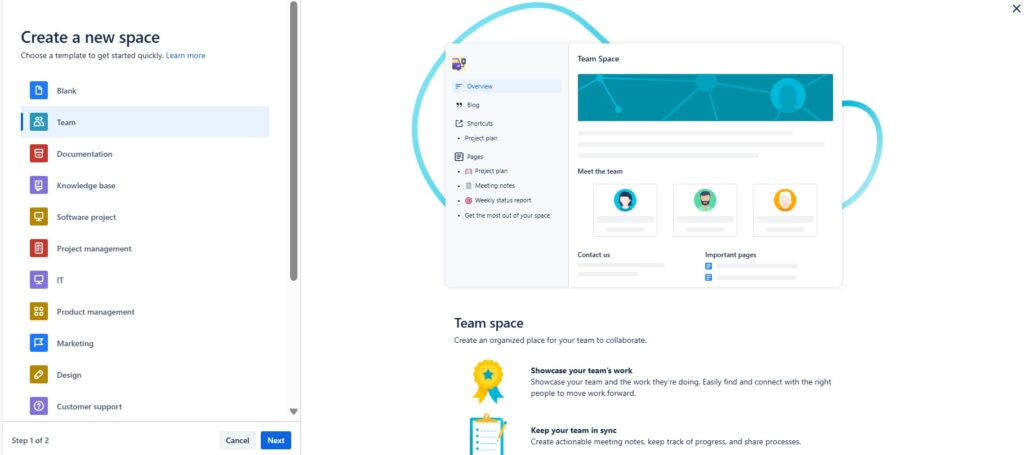
I use the Team space template in Confluence to give teams one hub for goals, updates, meeting notes, decisions, and shared knowledge. First, I adapt the space overview so that priorities and important pages are easy to find. Then, I keep meeting results and action items close to the team’s work. In addition, I encourage comments and regular updates. A useful team space stays current, focused, and easy to navigate. Therefore, I use the template as a clear starting point, not as a fixed structure.
Select the “Team” space template from the list.
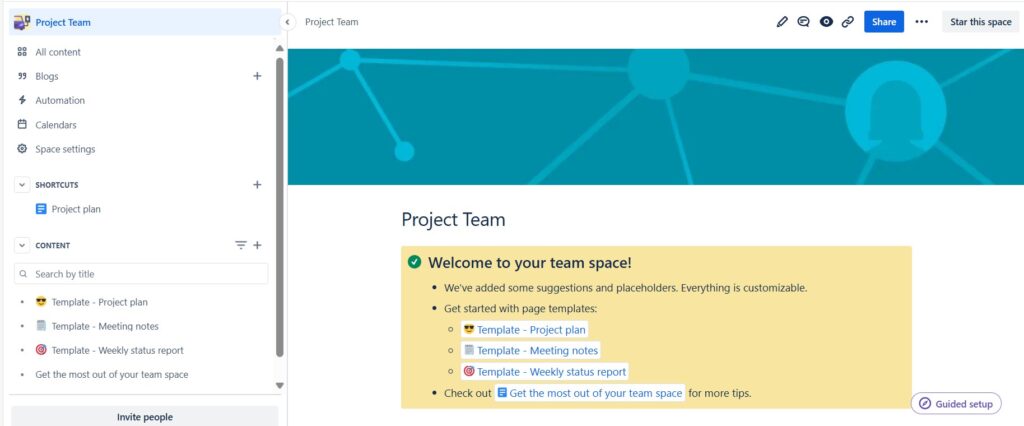
Give the “Team” space template a name.

Once you have created the “Team” confluence space from a template, you can begin designing and editing. To illustrate, begin by exploring the predefined pages and customizing them to suit your objectives. These include:
- Template – Project Plan,
- Template – Meeting Notes,
- Template – Weekly status report and
- Get the most out of your team space.
The “Documentation” space template
I use the Documentation space template in Confluence to organize structured and maintainable knowledge. First, I create a clear page hierarchy and consistent formatting. Then, I connect related pages with internal links and use search to improve access. In addition, I encourage team contributions and comments. Good documentation stays easy to find, consistent, and current. Therefore, I review important content regularly and update outdated information.
Select the “Documentation” confluence space from a template from the list after you clicked to create a new space.
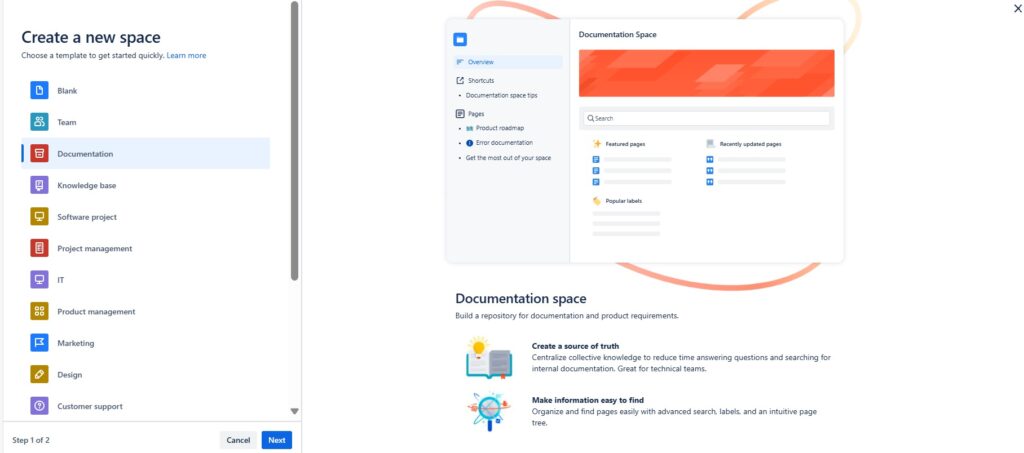
Give your “Documentation” space template a name.

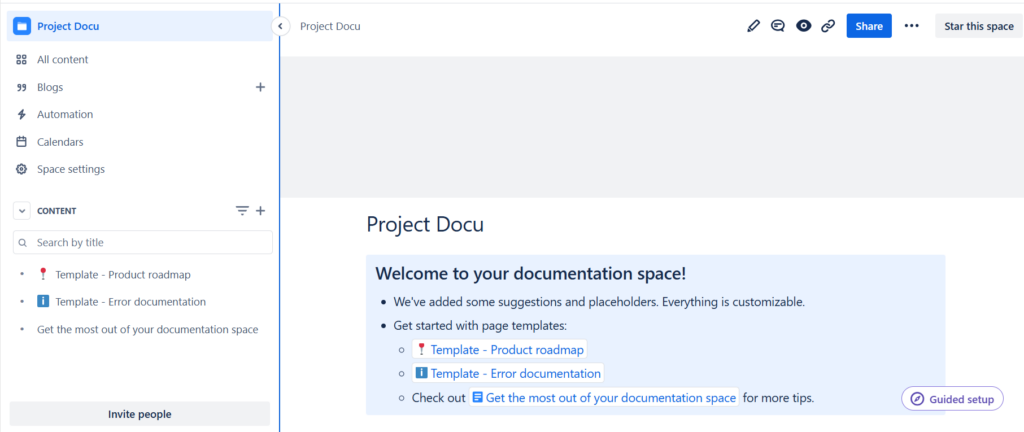
After creating the “Documentation” space template, you can immediately begin the process of designing and editing. For instance, start by exploring the predefined pages and adapting them to align with your specific goals. These include:
- Project roadmap,
- Error documentation and
- Get the most out of your space.
The “Knowledge Base” space template
I use the Knowledge Base template in Confluence to organize information into clear categories and consistent page structures. I add labels to improve searchability and connect related content where useful. In addition, I encourage feedback and questions from users. A useful knowledge base stays structured, searchable, and current. Therefore, I review key pages regularly and update outdated information.
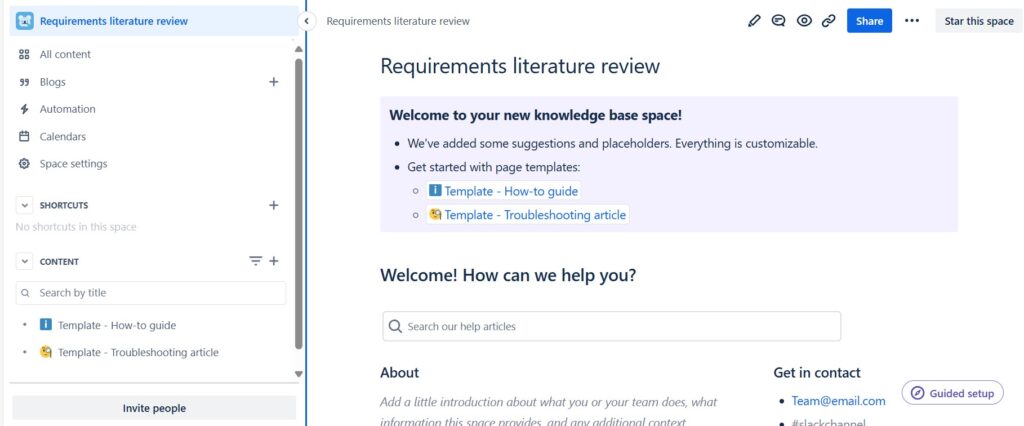
Select the “Knowledge Base” space template from the list after you clicked to create a new space.
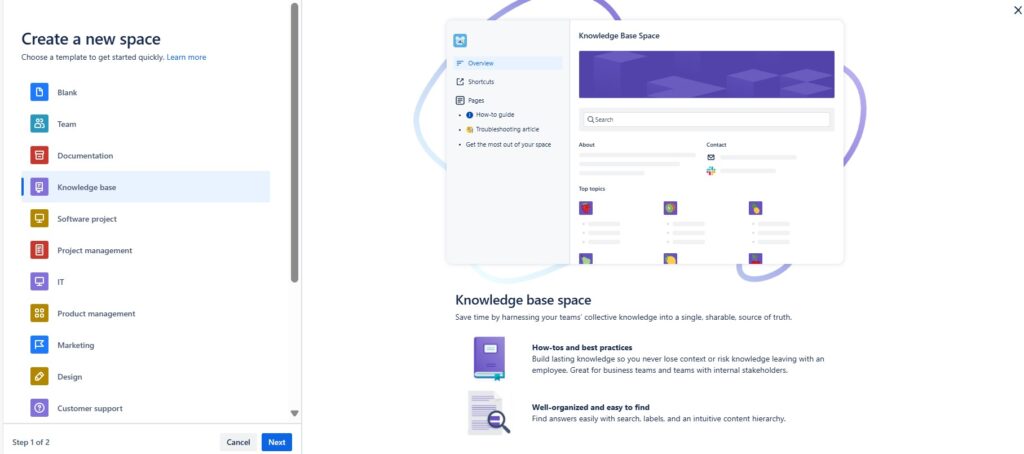
Give your “Knowledge base” space template a name.
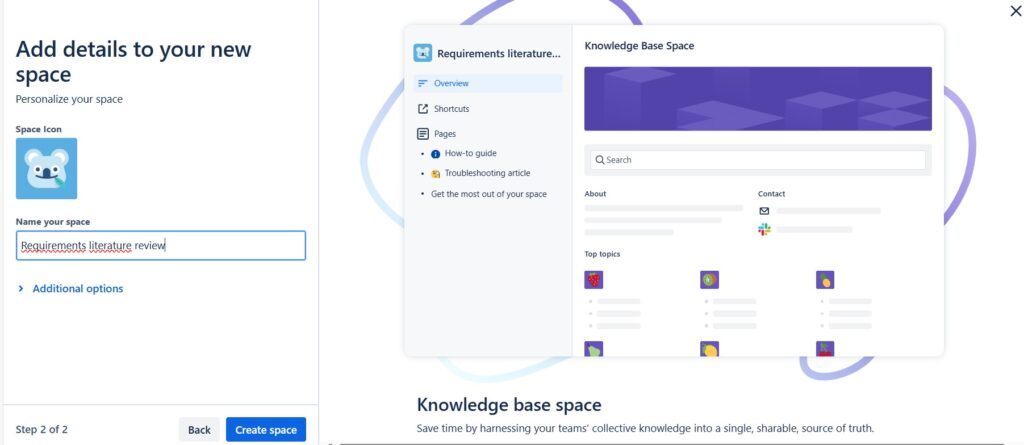
Once you’ve established the “Knowledge base” space template, you can embark on designing and editing it. Begin by exploring the predefined pages and customizing them to suit your needs:
- Template – How to guide,
- Template – Troubleshooting article and
- Get the most out of your space.
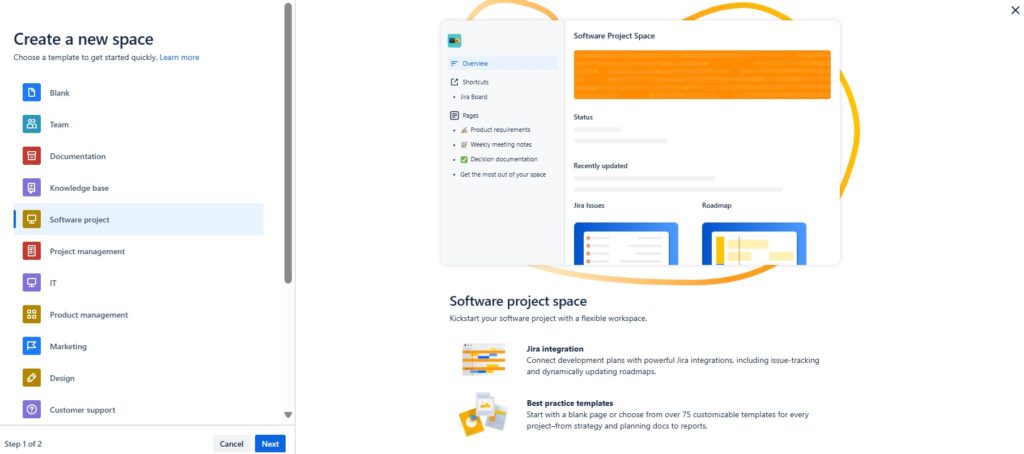
The “Software Project” space template
I use the Software Project space template in Confluence to organize requirements, design, development, testing, and deployment in one shared area. I structure pages clearly, add useful labels, and connect relevant Jira work items where needed. In addition, I document progress, decisions, and meeting results. A useful software project space connects project knowledge with ongoing delivery. Therefore, I keep the content current and easy to navigate.
Select the “Software Project” space template for your new space.
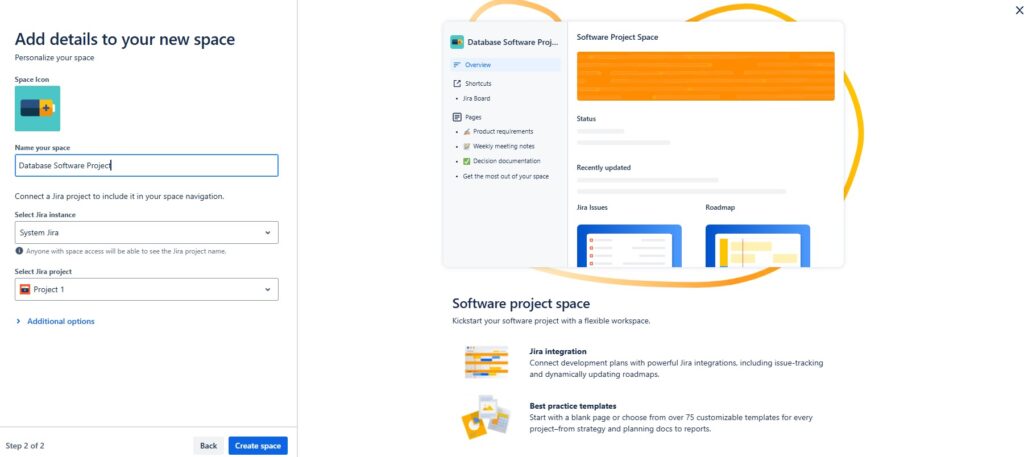
Give your “Software project” space a name.
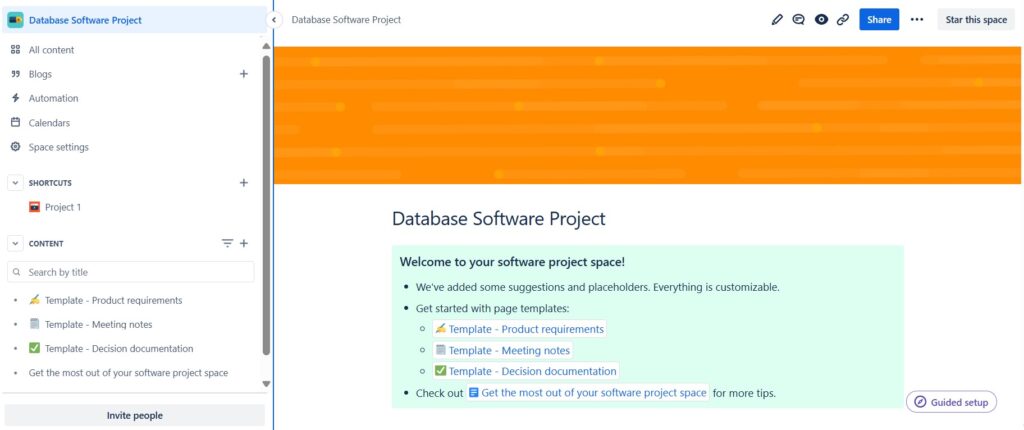
After setting up the “Software project” space template, you can initiate the design and editing phase. Start by exploring the predefined pages and adapting them to meet your specific objectives:
- Template – Product requirements,
- Template – Meeting notes,
- Template – Decision documentation and
- Get the most out of your software project space.
The “Project Management” space template
I use the Project space template in Confluence to organize planning, milestones, tasks, decisions, and collaboration in one shared area. I structure the space around the project workflow and keep important information easy to find. In addition, I update progress and key decisions regularly. A useful project space connects planning, communication, and execution. Therefore, I keep the structure focused and current throughout the project.
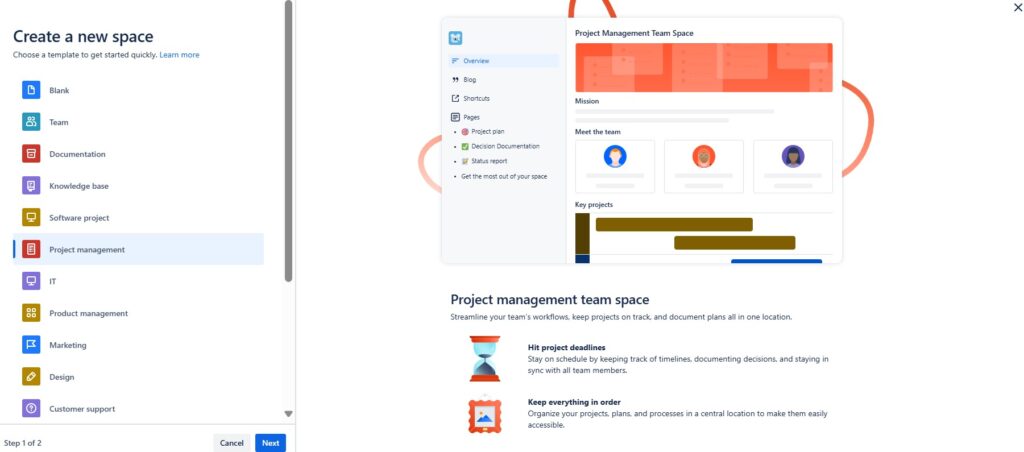
Name your new “Project management” space.
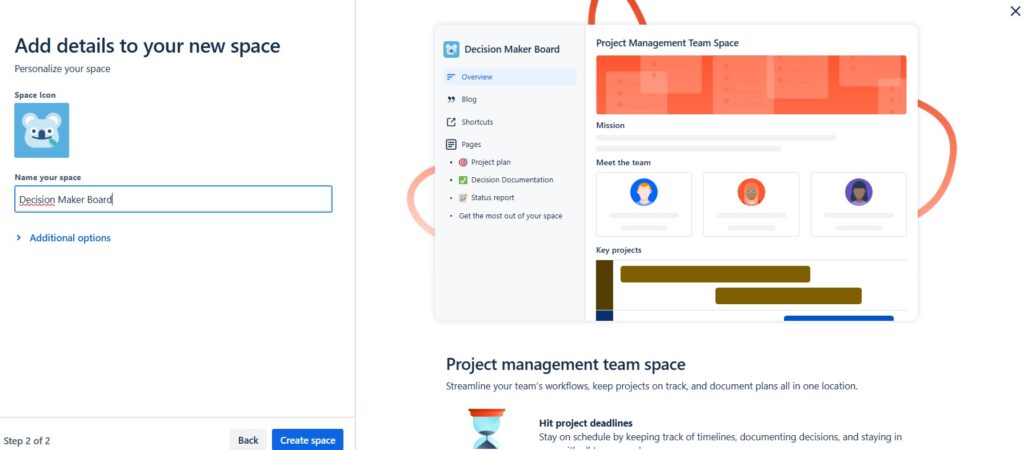
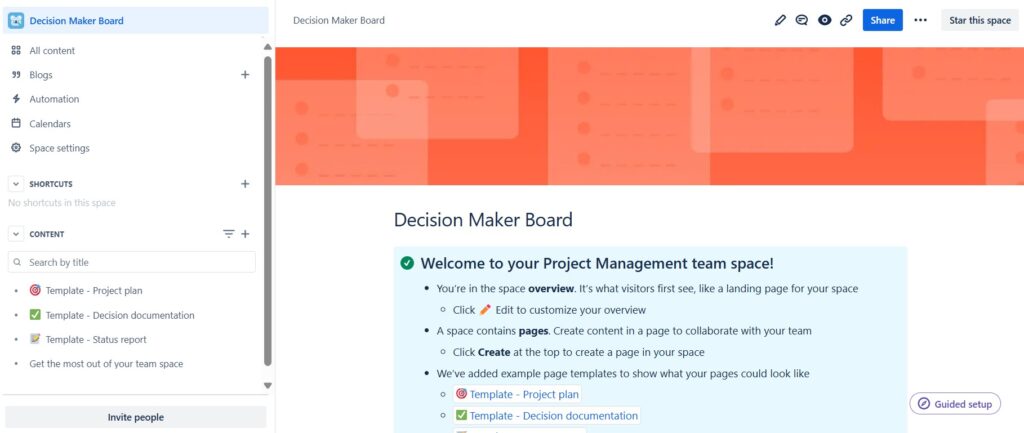
Upon creating the “Project management” space template, you can immediately begin designing and editing. Begin by exploring the predefined pages and adapting them to suit your goals. For instance:
- Template – Project plan,
- Template – Decision documentation,
- Template – Status report and
- Get the most out of your team space.
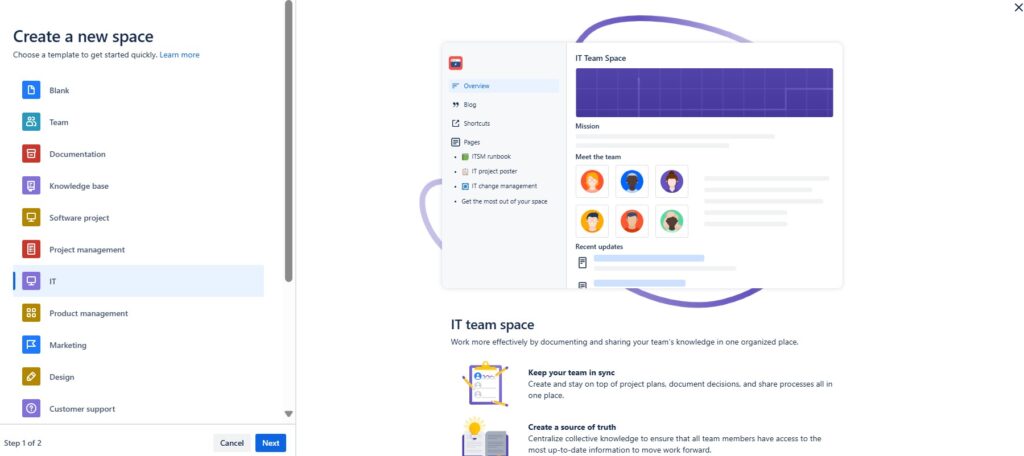
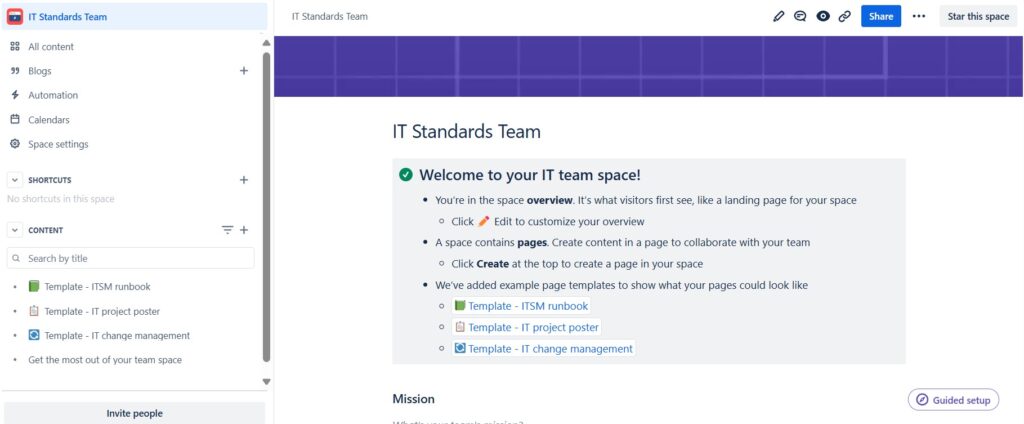
The “IT” space template
I use the IT space template in Confluence to organize technical information into clear sections such as overview, documentation, and roadmap. I keep the page structure simple and use the sidebar for fast navigation. In addition, I update the content as priorities and project information change. A useful IT space makes technical knowledge easy to find, understand, and maintain. Therefore, I keep the structure focused and current.
Choose a name for your “IT” space.

Following the creation of the “IT” space template, you can proceed with designing and editing. Start by exploring the predefined pages and tailoring them to align with your objectives. For instance:
- Template – ITSM runbook,
- Template – IT project poster,
- Template – IT change management and
- Get the most out of your team space.
The “Product Management” space template
I use the Product Management space template in Confluence to organize product strategy, roadmaps, backlog information, release notes, and meeting results in one shared area. I structure content around priorities, planned changes, and product goals. In addition, I connect requirements and backlog items with relevant updates. A useful product space keeps strategy, priorities, and delivery information aligned. Therefore, I keep it current and easy to navigate.
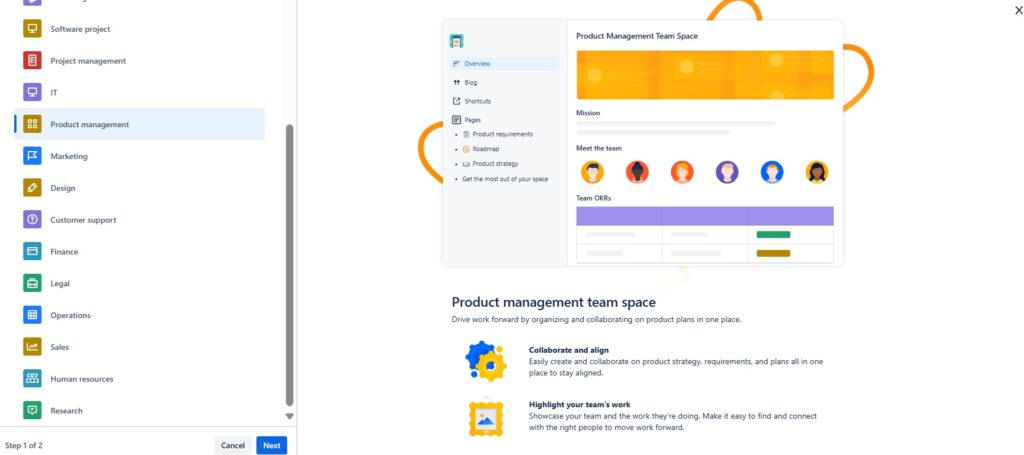
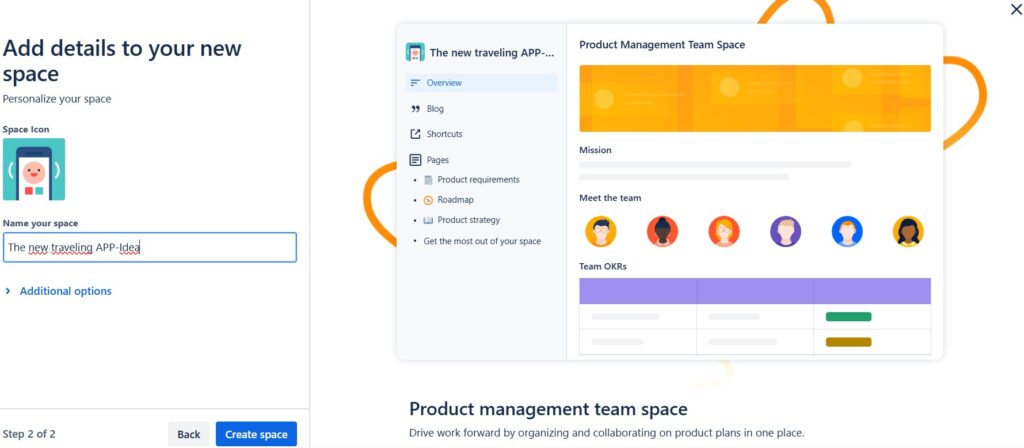
Name your “Product management space”.
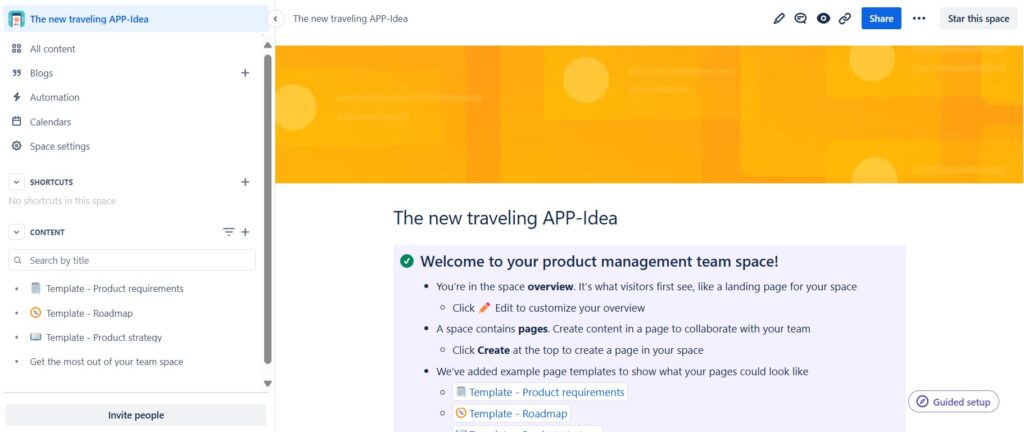
Upon finalizing the “Product management” space template, you can begin the process of designing and editing it to meet your needs. Take the following steps:
- Template – Product requirements,
- Template – Roadmap,
- Template – Product strategy and
- Get the most out of your team space.
The “Marketing” space template
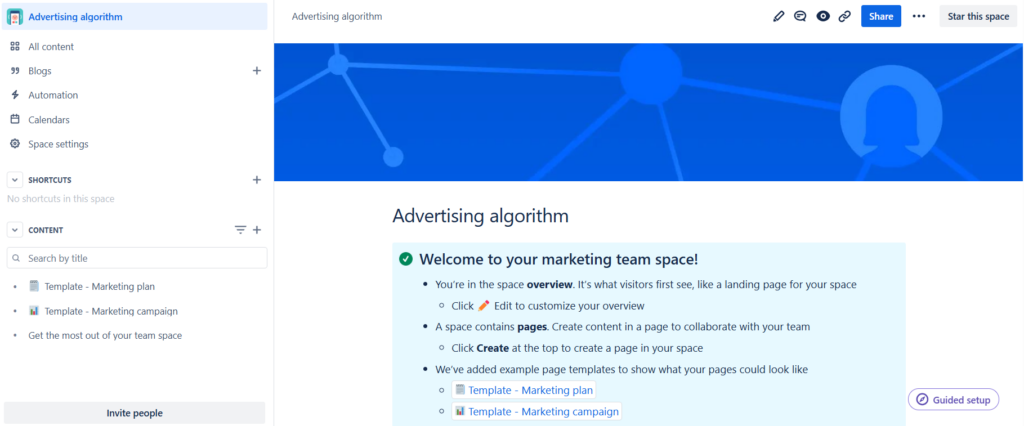
I use the Marketing space template in Confluence to organize campaigns, ideas, plans, and results in one shared area. I structure content around marketing goals, ongoing initiatives, and performance insights. In addition, I document decisions and updates so the team stays aligned. A useful marketing space connects planning, collaboration, and results. Therefore, I keep the content focused, current, and easy to access.

Choose a name.

With the “Marketing” space template now established, you can proceed to design and edit it according to your requirements. To begin:
- Template – Maketing plan,
- Template – Marketing campaign and
- Get the most out of your team space.
The “Design” space template
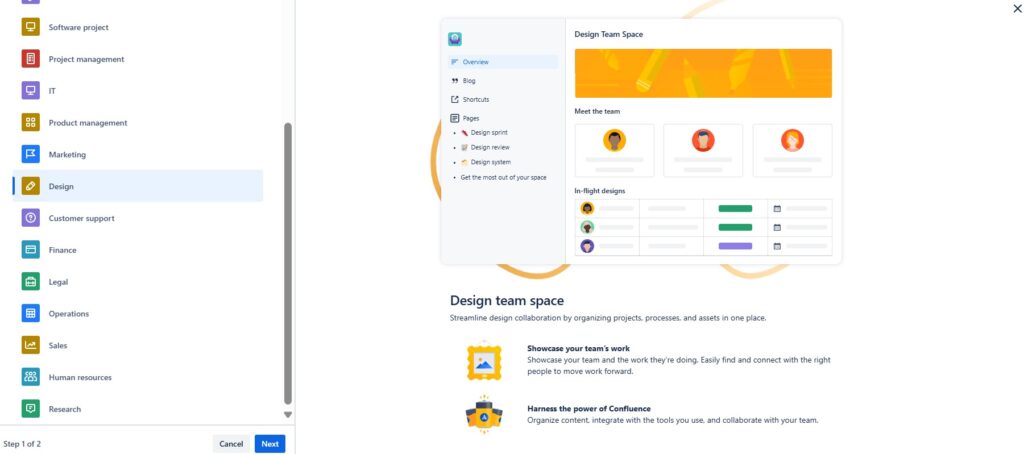
I use the Design space template in Confluence to organize project goals, milestones, concepts, and detailed design work in one shared area. I structure content clearly and keep updates close to the relevant design decisions. In addition, I use the space to support collaboration and document progress. A useful design space connects ideas, decisions, and execution. Therefore, I keep it focused, current, and easy to navigate.
Choose the “Design” space template in the list.
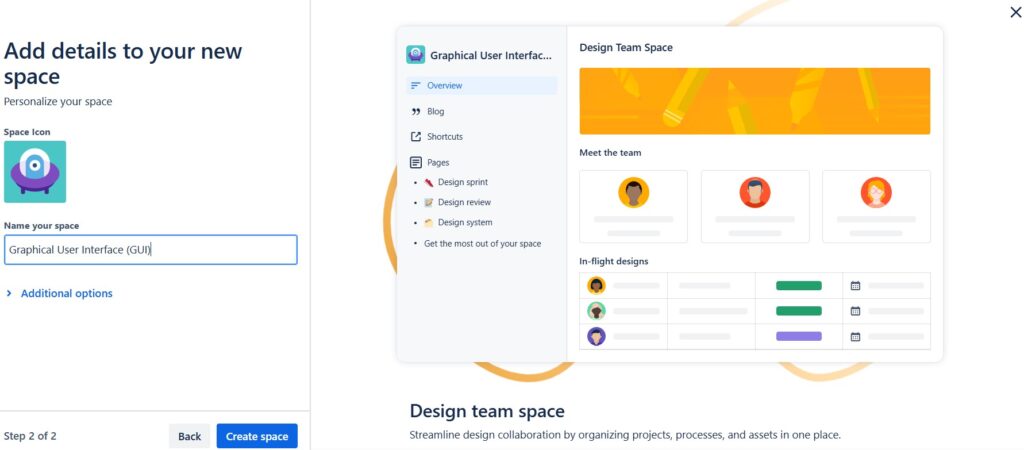
Give your “Design” space template a name.
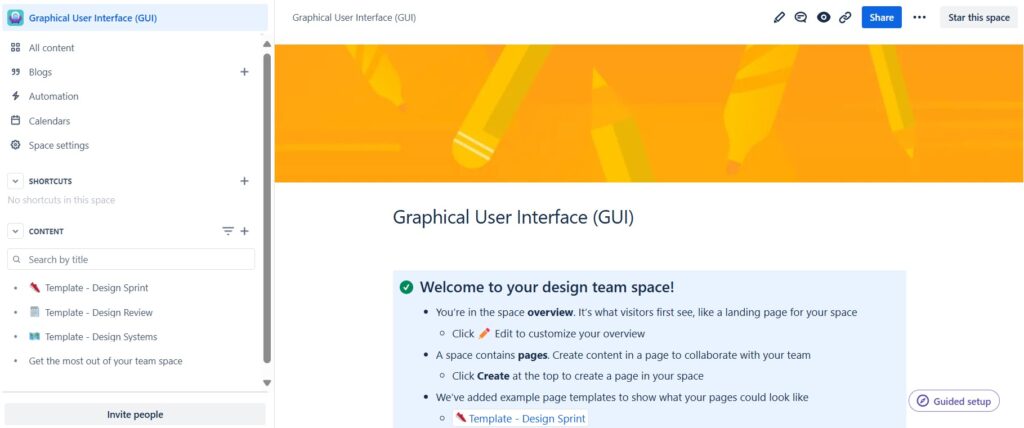
After you have created the “Design” space template you can start designing and editing. Thus, for example, start by exploring the predefined pages and adapting them to your goals:
- Template – Design Spring,
- Template – Design Review,
- Template – Design Systems and
- Get the most out of your team space.
The “Customer Support” spaces template
I use the Customer Support space template in Confluence to organize FAQs, troubleshooting guidance, support procedures, and recurring solutions in one shared area. I structure content so support teams can find answers quickly and keep guidance consistent. In addition, I update pages as new issues and solutions appear. A useful support space improves access to knowledge and speeds up issue resolution. Therefore, I keep it clear, current, and easy to search.
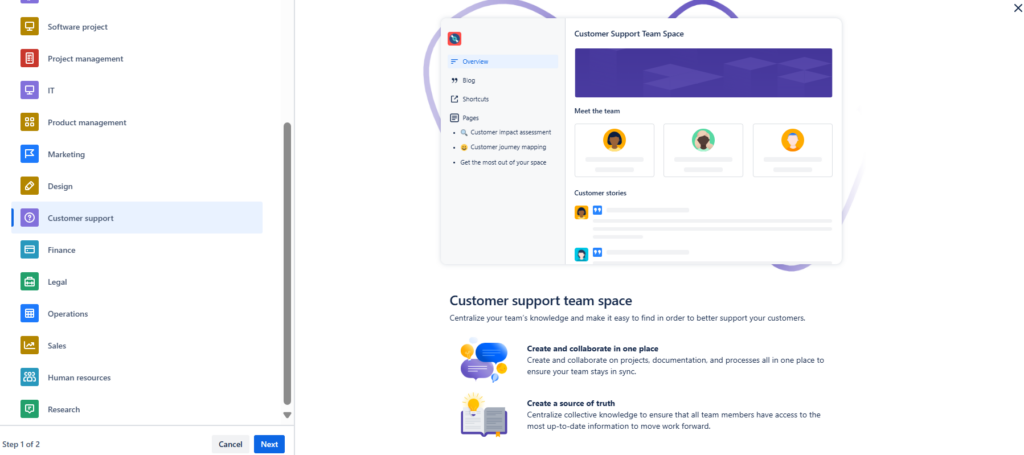
Name your new space.

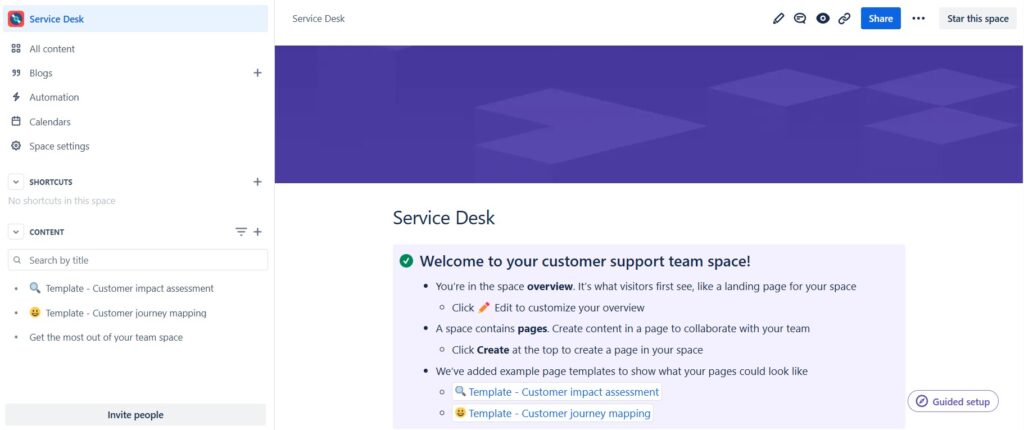
After you have created the “Customer Support” space template you can start designing and editing. Therefore, start by exploring the predefined pages and adapting them to your goals:
- Template – Customer impace assessment,
- Template – Customer journey mapping and
- Get the most out of your team space.
The “Finance” spaces template
I use the Finance space template in Confluence to organize budgets, expenses, reports, and financial insights in one shared area. I structure content around key financial topics and keep important figures and decisions easy to find. In addition, I use the space to support collaboration and review trends. A useful finance space connects financial information with analysis and decisions. Therefore, I keep it structured, current, and easy to navigate.
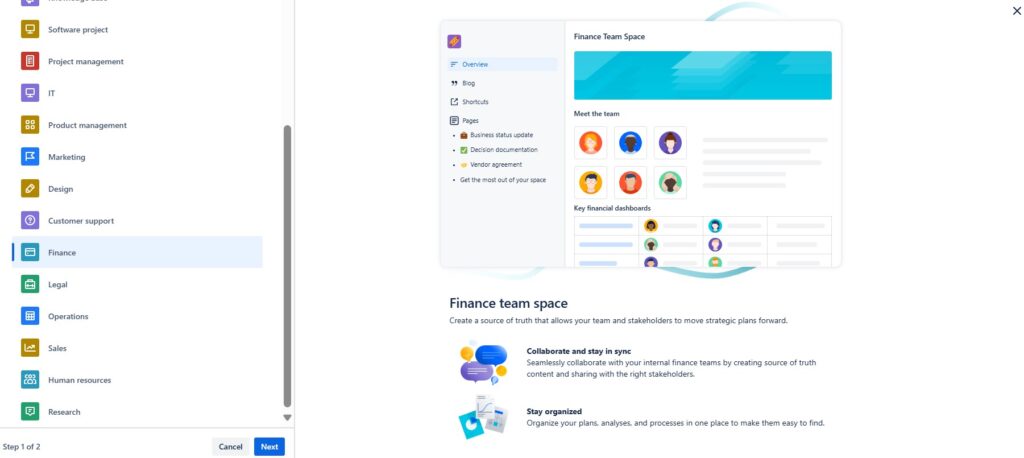
Name your new “Finance” space.
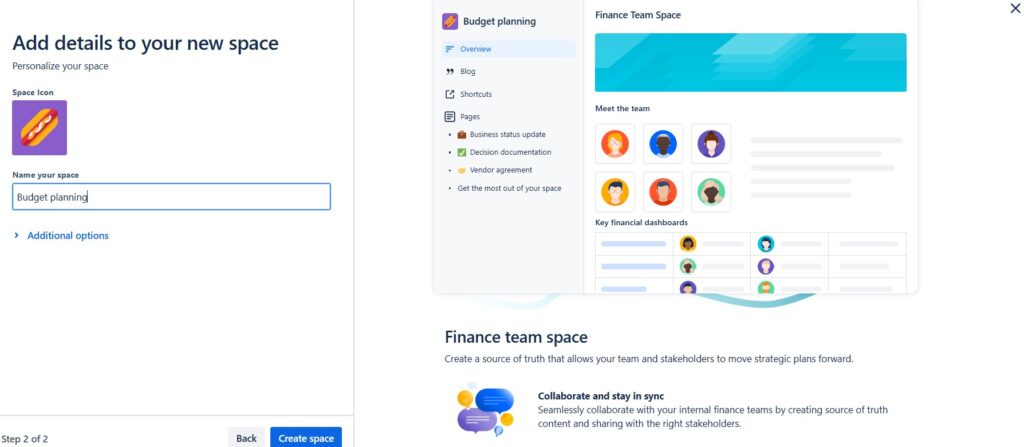
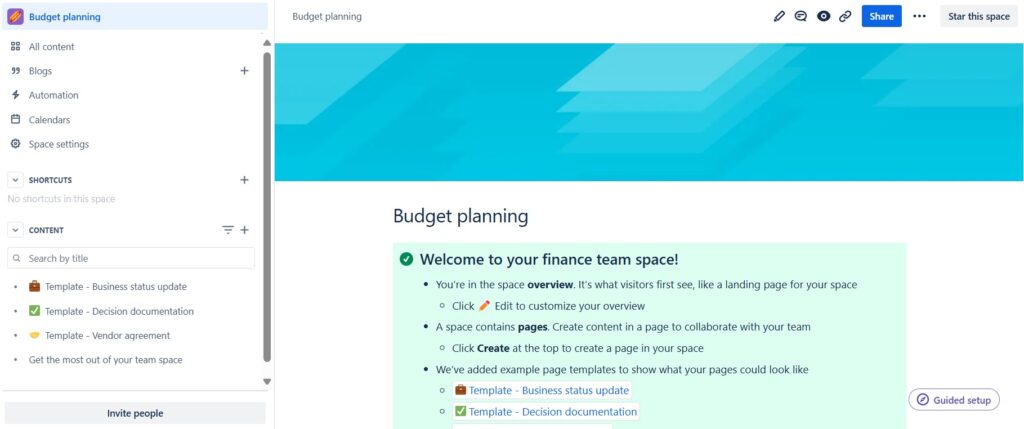
After you have created the “Finance” space template you can start designing and editing. For example, start by exploring the predefined pages and adapting them to your goals:
- Template – Business status update,
- Template – Decision documentation,
- Template – Vendor agreement and
- Get the most out of your team space.
The “Legal” space template
I use the Legal space template in Confluence to organize contracts, policies, compliance documents, and related legal information in one shared area. I structure pages clearly, attach relevant files, and use tables where they improve clarity. In addition, I use comments, tasks, and page history to support collaboration and review. A useful legal space keeps legal knowledge structured, traceable, and easy to maintain. Therefore, I keep the content current and well organized.

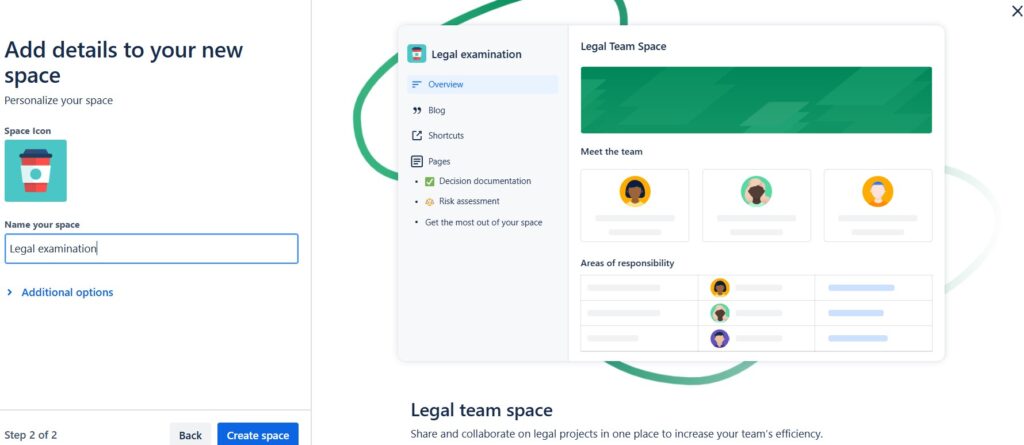
Choose a name for your new “Legal” space.
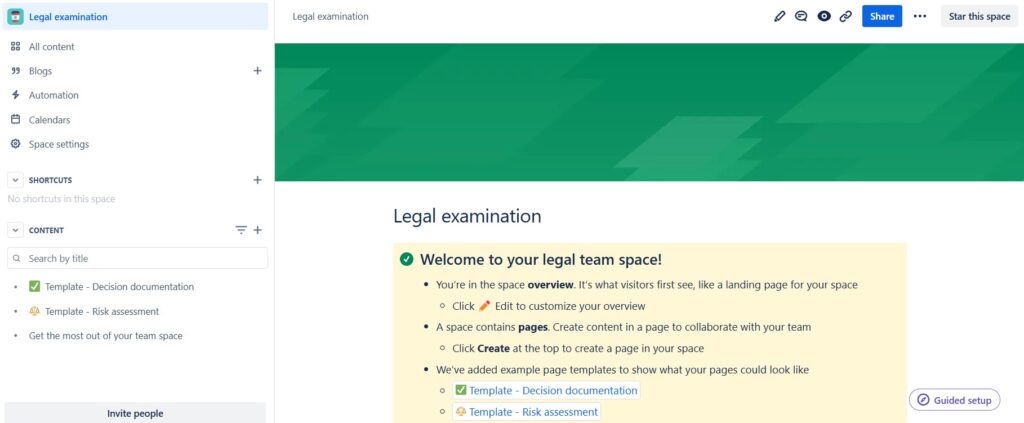
After you have created the “Legal” space template you can start designing and editing. For example, start by exploring the predefined pages and adapting them to your goals:
- Template – Decision documentation,
- Template – Risk assessment and
- Get the most out of your team space.
The “Operations” space template
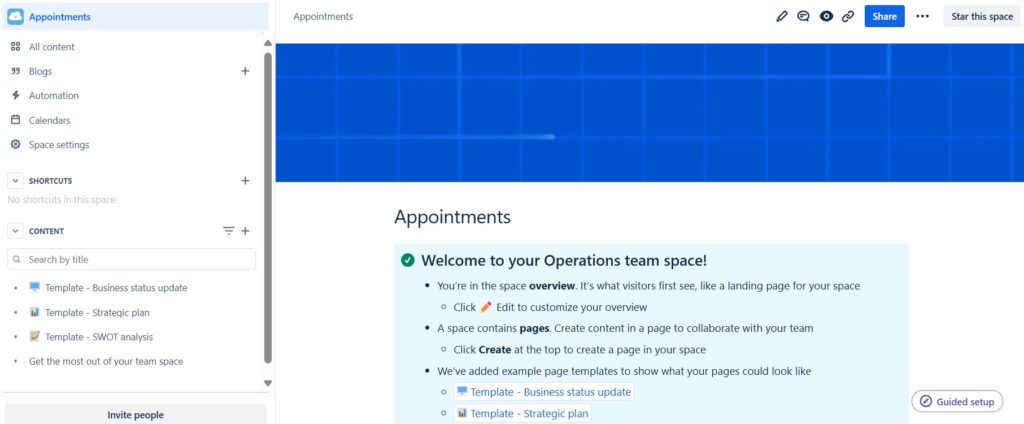
This “Operations” template is designed to streamline our operations documentation and ensure clarity and efficiency in our processes. To use it effectively, follow these steps.
Choose the template in the list after you started to create a new space.

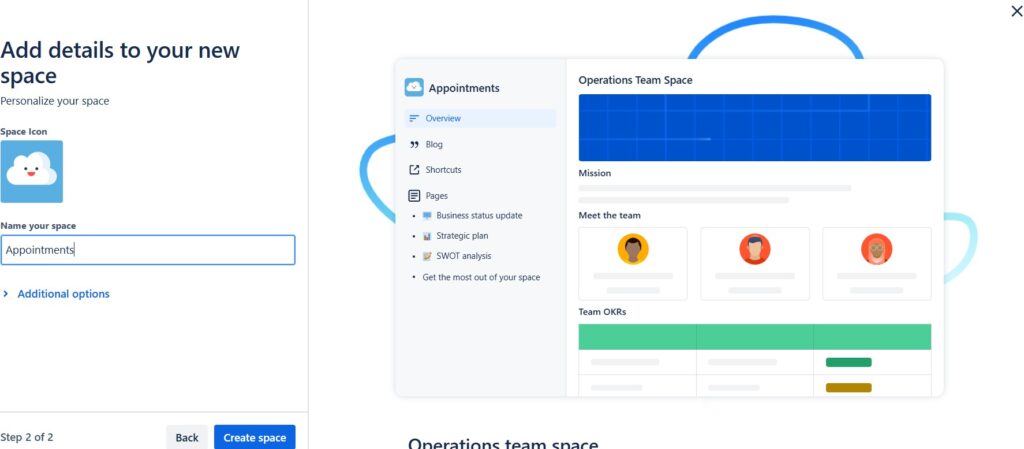
Find a name for your “Operations” space.
After you have created the “Operations” space template you can start designing and editing. For example, start by exploring the predefined pages and adapting them to your goals:
- Template – Business status update,
- Template – Strategic plan,
- Template – SWOT analysis and
- Get the most out of your team space.
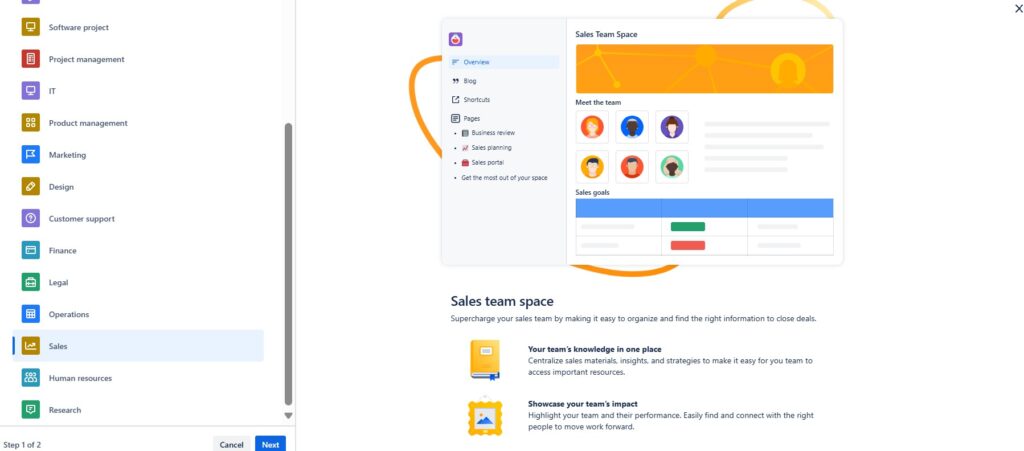
The “Sales” space template
I use the Sales space template in Confluence to organize pitches, client information, sales strategies, and team updates in one shared area. I structure content around opportunities, goals, and relevant sales knowledge. In addition, I document decisions and progress so the team stays aligned. A useful sales space connects customer information, strategy, and collaboration. Therefore, I keep it focused, current, and easy to navigate.
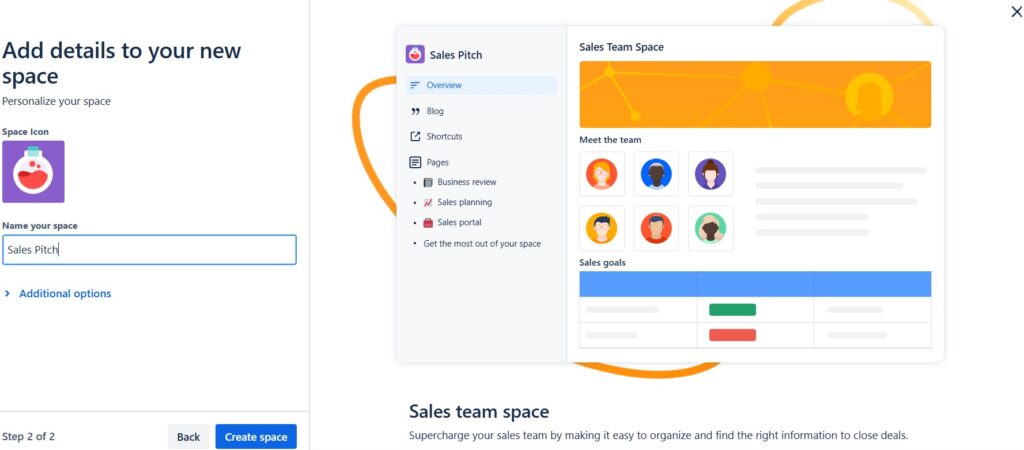
Name your new space.
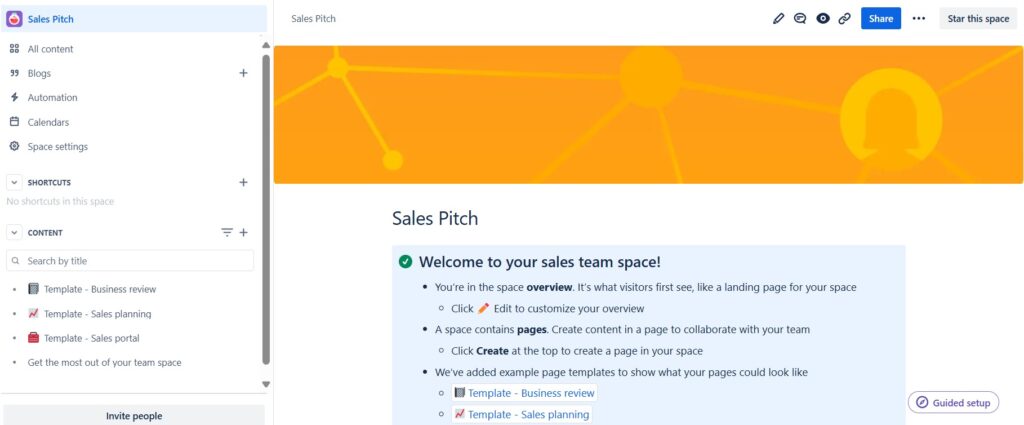
After you have created the “Sales” space template you can start designing and editing. For example, start by exploring the predefined pages and adapting them to your goals:
- Template – Business review,
- Template – Sales planning,
- Template – Sales portal and
- Get the most out of your team space.
The “Human Resources” spaces template
I use the HR space template in Confluence to organize policies, onboarding information, leave procedures, and other HR knowledge in one shared area. I structure content around key employee processes and keep important guidance easy to find. In addition, I update information as policies or procedures change. A useful HR space keeps employee information structured, accessible, and current. Therefore, I use it as a central source for consistent HR knowledge.
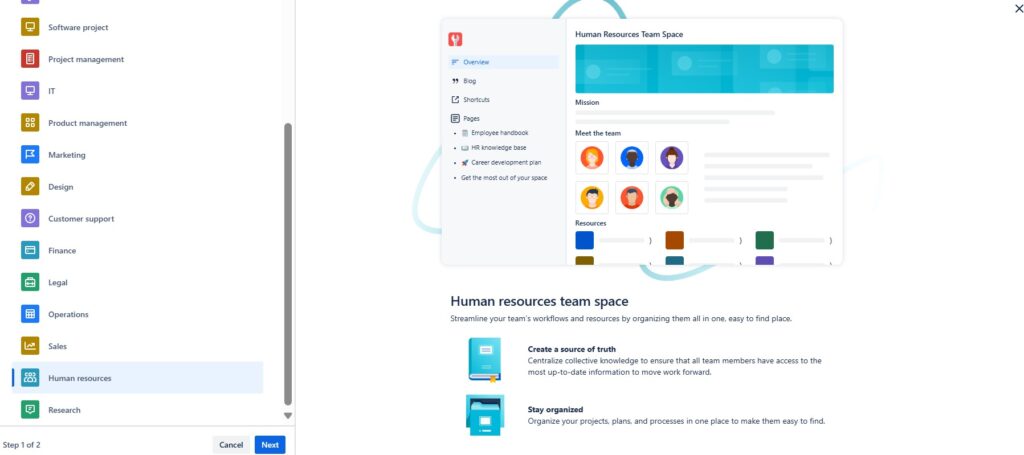
Name your new “Human resources” space.
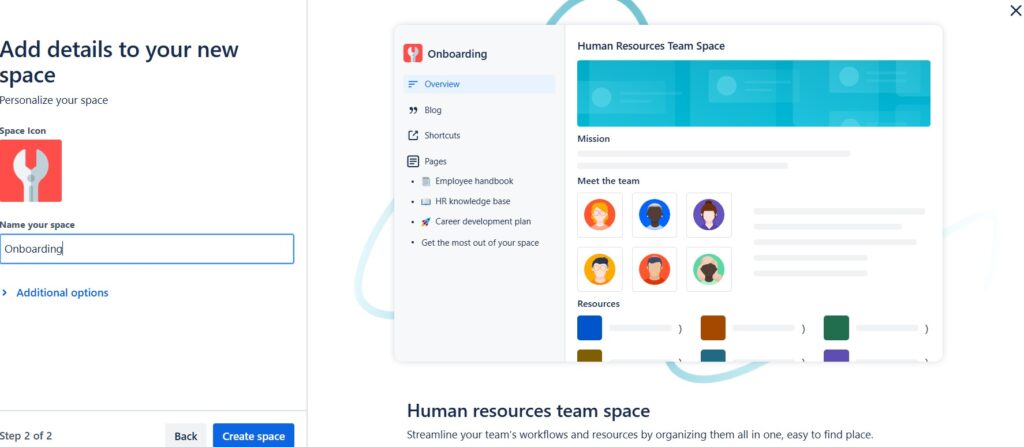
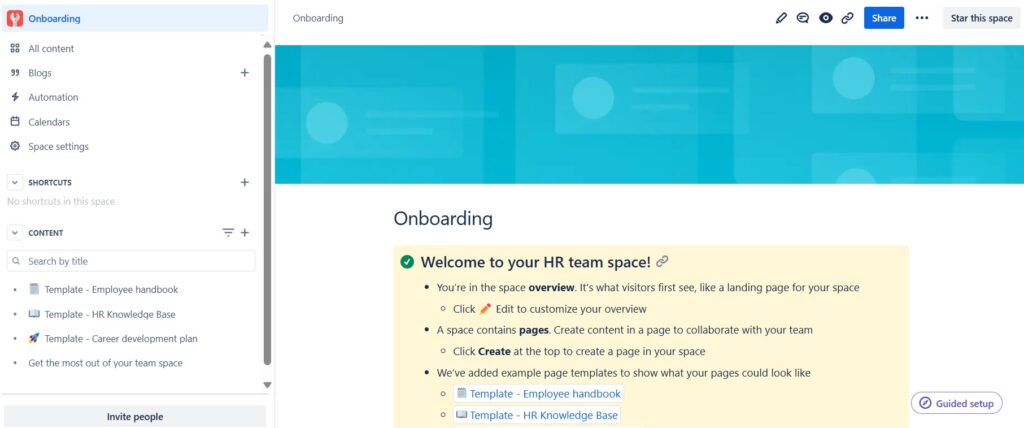
After you have created the “Human resources” space template you can start designing and editing. For example, start by exploring the predefined pages and adapting them to your goals:
- Template – Employee handbook,
- Template – HR knowledge Base,
- Template – Create development plan and
- Get the most out of your team space.
The “Research” space template
I use the Research space template in Confluence to organize findings, ideas, sources, and progress in one shared area. I structure content around research questions, evidence, and results so information remains easy to follow. In addition, I document updates and decisions to support collaboration. A useful research space connects questions, evidence, and conclusions. Therefore, I keep it structured, current, and easy to navigate.
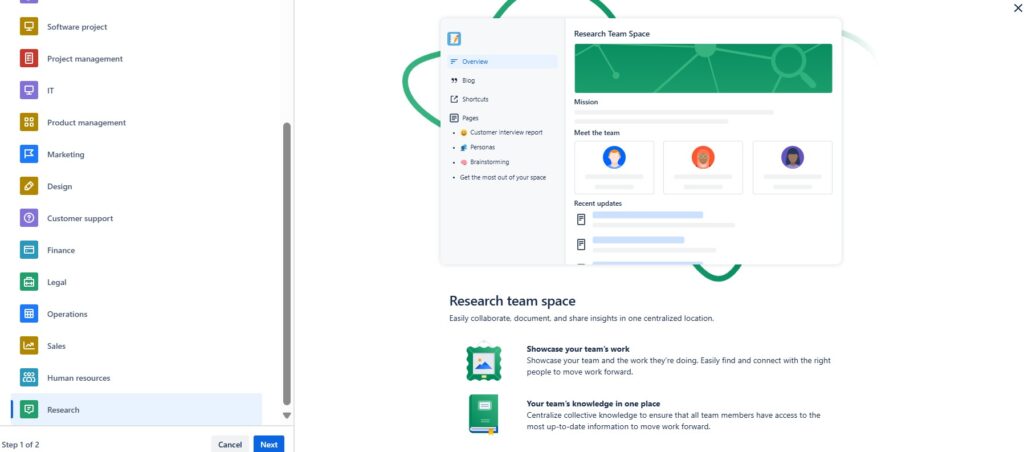
Name your new “Research” space.
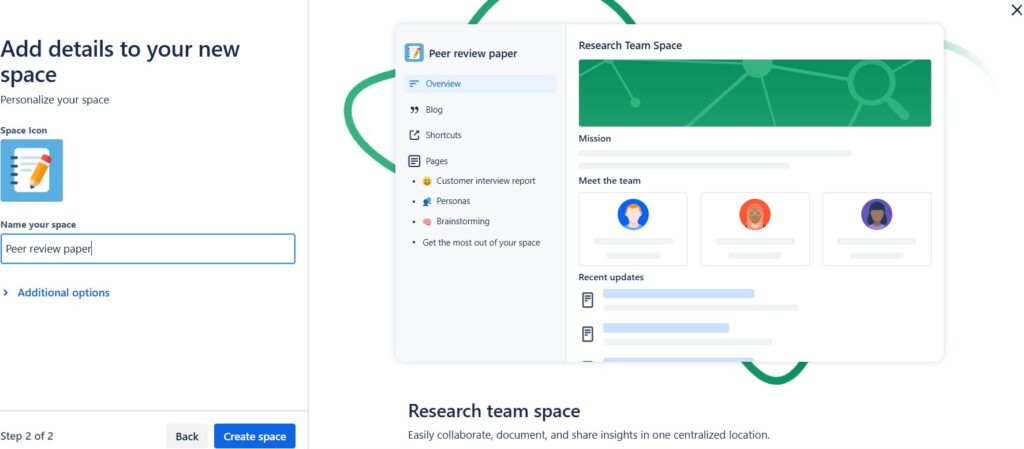
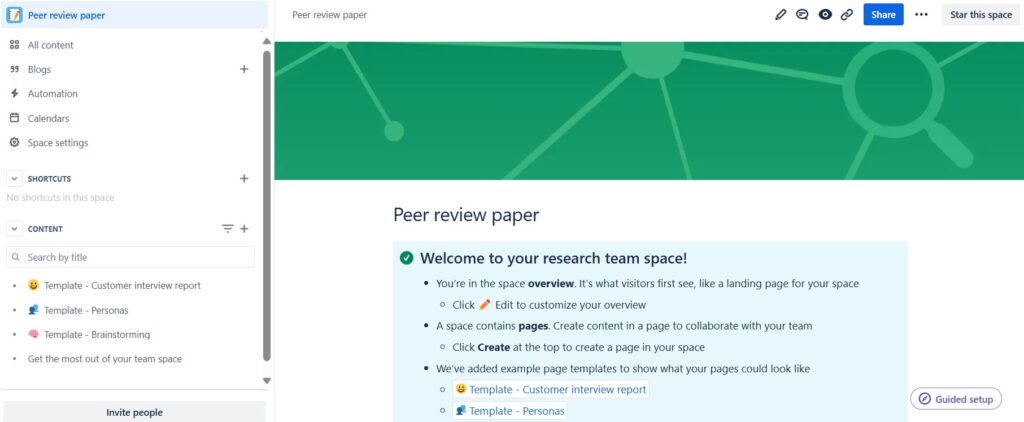
When you the “Human resources” space template you can start designing and editing. Thus, start by exploring the predefined pages and adapting them to your goals:
- Template – Customer interview report,
- Template – Personas,
- Template – Brainstorming and
- Get the most out of your team space.
Conclusions
Creating a Confluence space from a template gives me a structured starting point for different teams, projects, and knowledge areas. I select the template that best fits the purpose and then adapt its pages, sections, and content to actual needs. A useful Confluence template provides structure without limiting how the team works. Therefore, I use templates to improve consistency, navigation, collaboration, and knowledge management while keeping each space focused and practical.
What’s next?!
Now that you know how to create a Confluence space from a template, you have a faster way to start with structure. However, a space only becomes useful when you fill it with clear pages. Pages help you document ideas, decisions, requirements, and project knowledge.
In the next article, I’ll show you How to Create a Confluence Page. You’ll learn how to add your first page, structure your content, and build useful documentation step by step. Click the next article to turn your Confluence space into a real knowledge base.
Connect Requirements Work with the Right Tools
Requirements engineering becomes more practical when I use tools that support clear thinking and smooth collaboration. In my main article on Requirements Engineering Tools, I explain how draw.io, Confluence, Jira, and Camunda help me move from ideas to structured results. Draw.io helps me visualize models. Confluence helps me document knowledge. Jira helps me track work. Camunda helps me understand processes. Click through to the full article and discover how these tools support better requirements work.
| Read more about Confluence and How to |
|---|
| Use shortcuts in Confluence Assign a task in Confluence Create a Confluence space from a template Delete a Page in Confluence Create a Confluence page |