
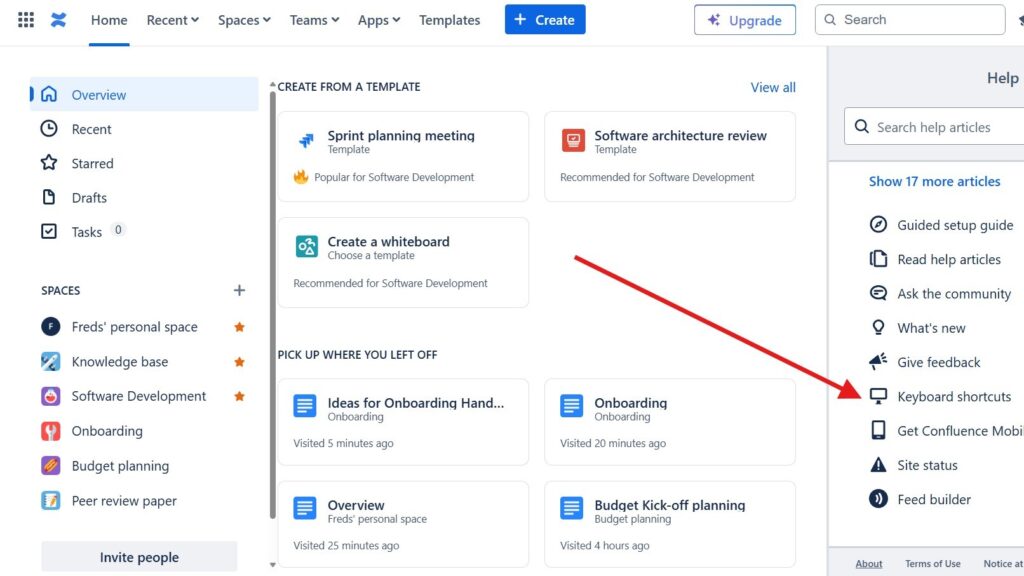
Confluence shortcuts help me work faster in daily teamwork. They let me navigate pages, edit content, and manage tasks with fewer clicks. As a result, I save time and keep my focus on useful work. In this guide, I show you how to find the full shortcut list directly in Confluence and use it to improve your workflow.
What is Confluence
Confluence is a collaborative platform that helps teams manage knowledge, organize projects, and document processes in one place. It allows users to create pages, share ideas, and track progress in real time. With its intuitive structure, Confluence turns scattered information into a clear, organized knowledge base. Whether for software development, business documentation, or team planning, Confluence provides the foundation for transparent and efficient collaboration.
General
The general keyboard shortcuts can be used everywhere.
Global shortcuts
The plus sign is an operator and does not (!) represent the plus sign on the keyboard.
| Create Content | c |
| Go to Dashboard | g + d |
| Open Notifications | g + n |
| Browse Current Space | g + s |
| Open Shortcut Help | ? |
| Quick Search | / |
| Quick Search | g + g |
| Toggle Sidebar | [ |
| Toggle Sidebar from Editor | Ctrl + [ |
Page / Blog Post Actions
| Add Page | c |
| Add Blog | b |
| Edit | e |
| Comment | m |
| Next Inline Comment | n |
| Previous Inline Comment | p |
| Toggle Inline Comments | ] |
| Toggle Inline Comments from Editor | Ctrl + ] |
| Watch | w |
| Share | s |
| Edit Labels | l |
| View Attachments | t |
| Favourite Page | f |
| Link to Page | k |
| Enter Presenter Mode | r |
Editor
The general keyboard shortcuts can be used in the editor.
Block Formatting
| Paragraph | Ctrl + Alt + 0 |
| Heading 1 | Ctrl + Alt + 1 |
| Heading 6 | Ctrl + Alt + 6 |
| Numbered list | Ctrl + Shift + 7 |
| Bullet list | Ctrl + Shift + 8 |
| Quote | Ctrl + Shift + 9 |
Rich Formatting
| Files and images | Ctrl + M |
| Link | Ctrl + K |
| Insert markup | Ctrl + Shift + D |
| Macro | Ctrl + Shift + A |
| Table | Ctrl + Shift + I |
| Add row above | Ctrl + Alt + ↑ |
| Add row below | Ctrl + Alt + ↓ |
| Add column after | Ctrl + Alt + → |
| Add column before | Ctrl + Alt + ← |
Editing Actions
| Preview | Ctrl + Shift + E |
| Publish | Ctrl + Enter |
| Publish with note | Ctrl + Shift + Enter |
| Find & Replace | Ctrl + F |
Editor Autoformatting
The general keyboard shortcuts can be used in the editor for automatic formatting.
Font Formatting
| **Bold** | **Bold** |
| ~~Strikethrough~~ | ~~Strikethrough~~ |
| *Italic* | *Italic* |
| `Monospace` | `Monospace` |
Autocomplete
| Image/ media | ! |
| Link | [ |
| Macro | { |
| mention | @ |
Tables
| Simple table | |Cell|Cell| |
| Table with header | ||Heading||Heading|| |
Styles
| Heading 1 | # + Space |
| Heading 3 | ### +Space |
| Quote | > + Space |
Emoticons
| ✅ | (/) |
| 🙂 | 🙂 |
Lists
| Numbered list | 1. + Space |
| Bullet list | * + Space |
| Task | [] + Space |
Accessing in the User Interface
There are three ways to access the keyboard shortcuts in the GUI.

- You can access the keyboard shortcuts directly in the GUI by clicking on the ‘?’ in the top right. A sidebar opens on the left and a little further down.
- Another option is to click ‘Shift + ?’ when you are viewing a page.
- The third way to open the keyboard shortcuts is to click the ‘?’ symbol in the editor toolbar – when you are currently working on a page in the editor.
Conclusions
In this article you will find all the keyboard shortcuts in Confluence. Create a direct access in your browser, for example in the favorites bar (!), so that you can always access this page directly. Over time you will know all the keyboard shortcuts by heart. Until then, we hope that this page helps you!
What’s Next?!
Now that you know how Confluence shortcuts can speed up your work, it is time to understand how Confluence organizes content. Shortcuts help you move faster. However, spaces help you keep pages, knowledge, and project information in the right place.
In the next article, I’ll explain Spaces in Confluence. You’ll learn what spaces are, why they matter, and how they help you structure team knowledge clearly. Click the next article to see how spaces create a better foundation for organized collaboration in Confluence.
Build Better Requirements Work with the Right Tools
Requirements engineering works best when I use tools that support clear thinking, shared knowledge, and practical delivery. In my main article on Requirements Engineering Tools, I explain how draw.io, Confluence, Jira, and Camunda help me work better.
Draw.io helps me create visual models. Confluence helps me organize documentation. Jira helps me track tasks and issues. Camunda helps me understand business processes. Click through to the full article and discover how these tools support stronger requirements from idea to implementation.