
Sometimes I need to remove outdated content and keep my workspace clean. In this guide, I show you how to delete a page in Confluence safely and step by step. You will learn what to check before deleting, how to avoid confusion, and how to manage pages with more confidence. As a result, your Confluence space stays clear and well organized.
What is Confluence?
Confluence is a collaborative workspace developed by Atlassian that enables teams to create, share, and organize information in one central place. It serves as a digital hub for documentation, project planning, and knowledge management. With Confluence, teams can work together in real time, track updates, and maintain transparency across projects. Its structured yet flexible design helps transform scattered ideas into organized, actionable knowledge accessible to everyone.
Step 1: Navigate to the Page
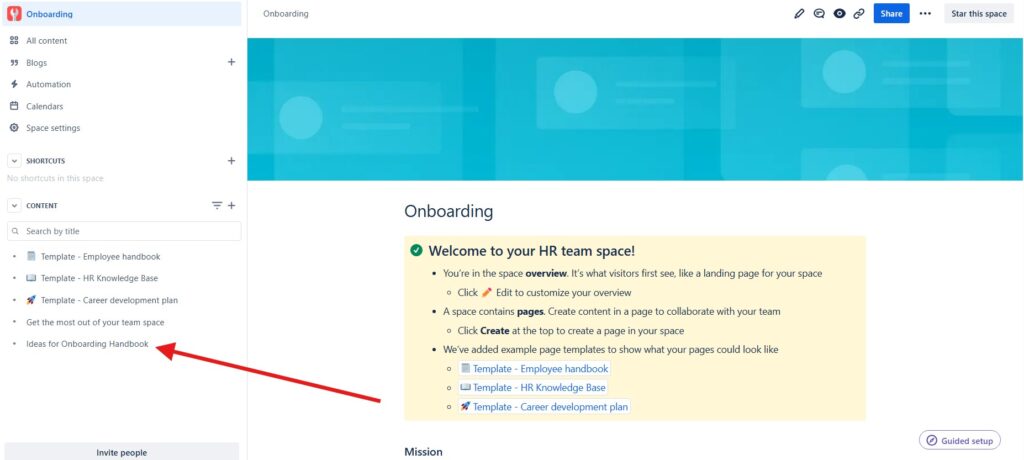
First, I locate the page that I want to delete. I can browse the space navigation or use Confluence search when the page is difficult to find.
I make sure that I select the correct page before continuing.
Step 2: Open and Check the Page
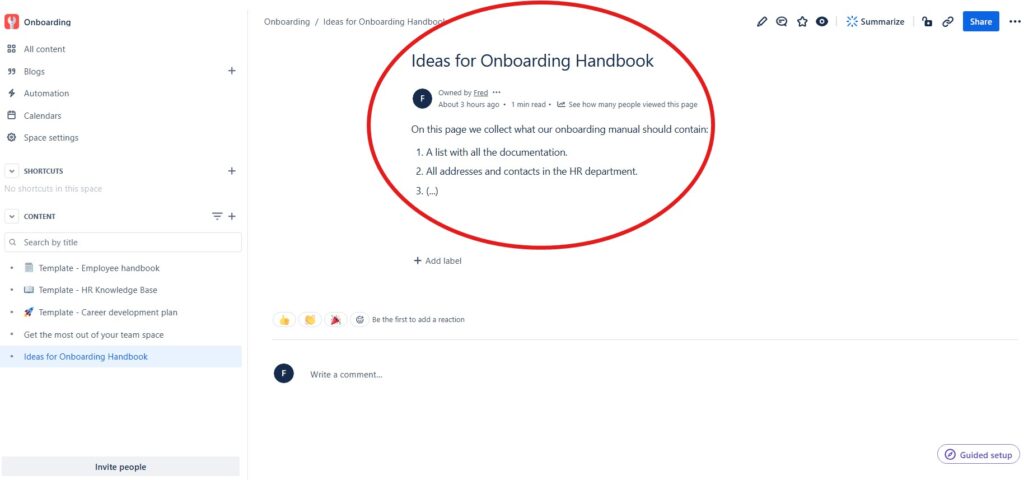
Next, I open the page and review its content.
I also consider whether other pages link to it and whether it has child content. If necessary, I move or update related content before deletion.
This check helps me avoid broken links and unintended changes to the content structure.
Step 3: Open the More Actions Menu
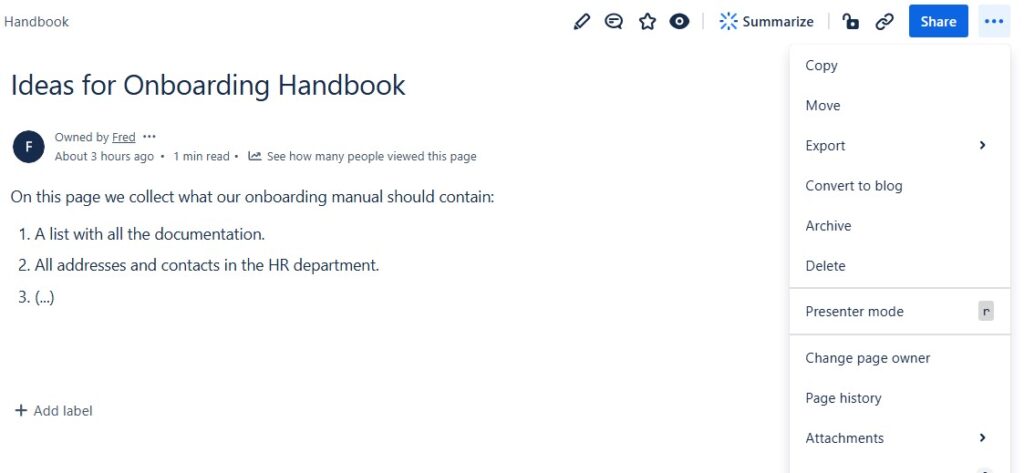
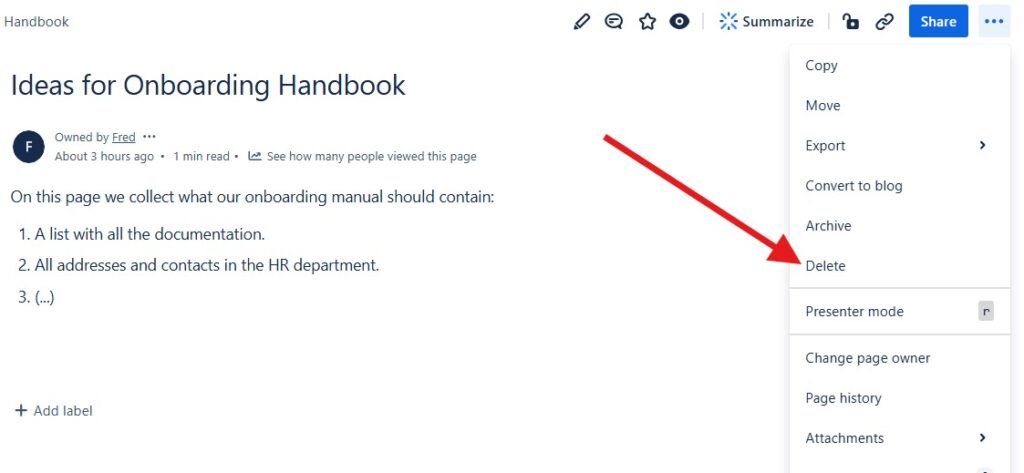
Then, I select the three dots in the upper-right corner.
This opens the More actions menu. In the interface shown here, the menu contains the Delete option directly.
Step 4: Select Delete
Next, I select Delete.
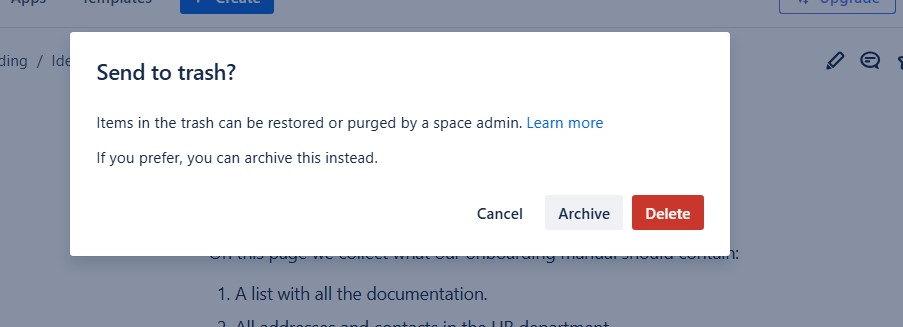
Confluence then asks me to confirm the deletion.
This extra step helps prevent accidental removal.
Step 5: Confirm the Deletion
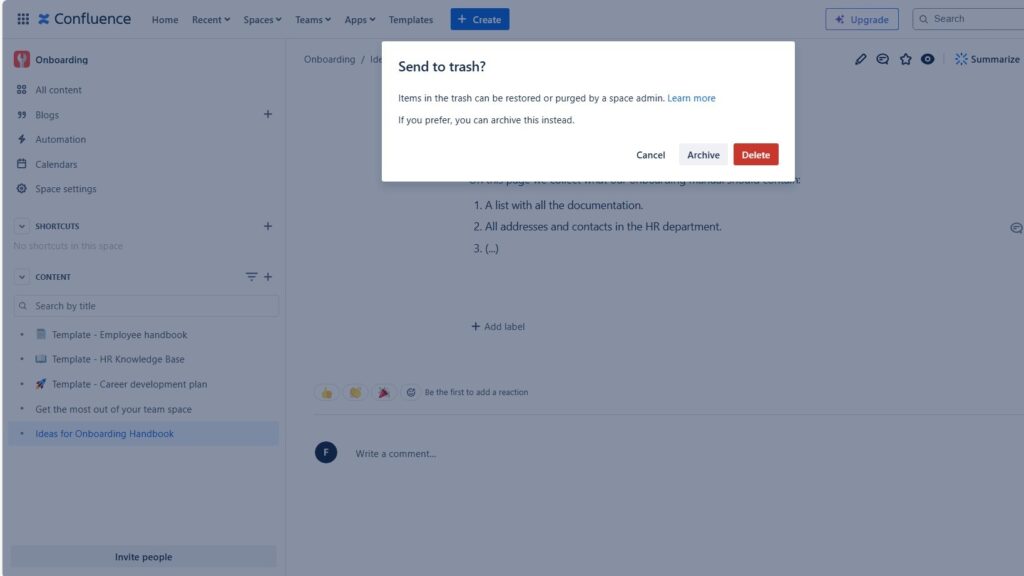
I review the confirmation dialog and select Delete again.
The published page now moves to the space trash. Therefore, Confluence does not immediately remove it permanently.
Step 6: Open the Trash
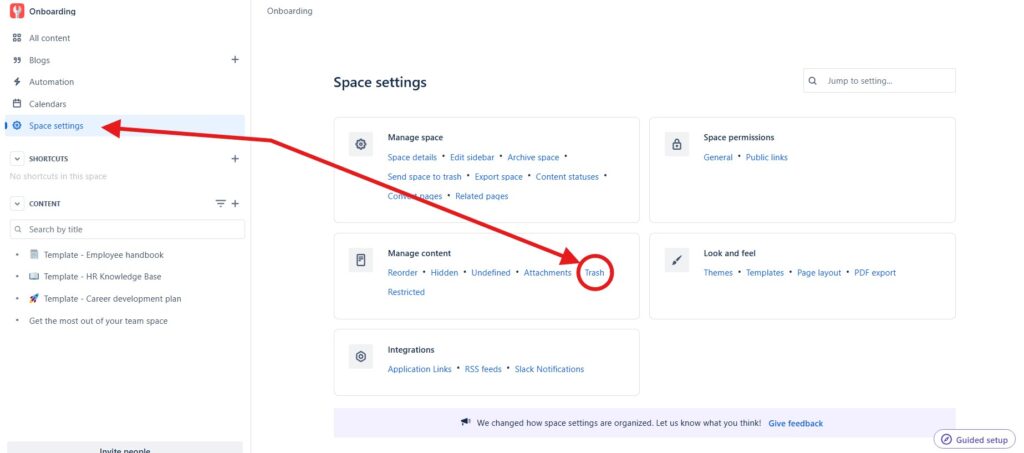
If I want to check the deleted page, I open Space settings and then Trash.
The trash contains deleted content that I can still manage.
Step 7: Restore or Purge the Page
Finally, I decide what should happen to the deleted page.
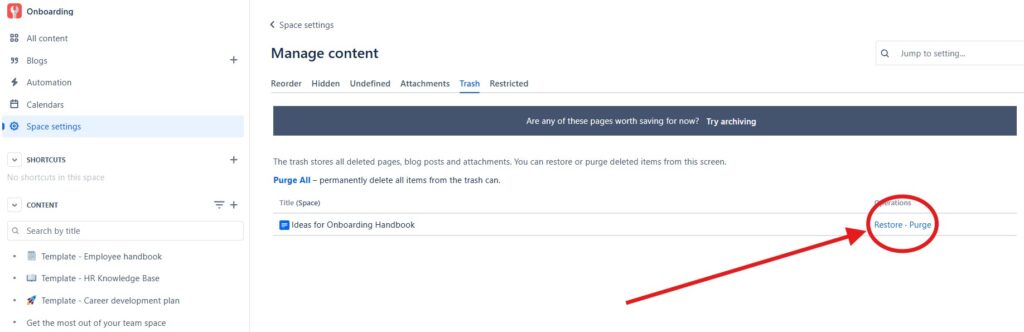
I select Restore if I need it again. Alternatively, I select Purge if I want to remove it permanently.
I only purge a page when I am certain that I no longer need it.
Conclusion
Deleting a page in Confluence is simple, but I still check the content before I remove it.
First, I delete the page. Then Confluence keeps it in the trash until I restore or purge it.
This process lets me clean up a Confluence space while keeping control over deleted content.
What’s Next?!
Now that you know how to delete a page in Confluence, you can keep your workspace clean and organized. However, removing outdated pages is only one part of good content management. I also need clear headings to make every page easy to read and understand.
In the next article, I’ll show you How to Change the Headings in Confluence. You’ll learn how headings structure your content, improve readability, and guide readers through your page. Click the next article to make your Confluence pages clearer and easier to navigate.
Use Tools That Make Requirements Engineering Practical
Requirements engineering becomes easier when I choose tools that support each part of the work. In my main article on Requirements Engineering Tools, I explain how draw.io, Confluence, Jira, and Camunda help me create better results. Draw.io helps me visualize ideas. Confluence helps me structure knowledge. Jira helps me manage tasks and issues. Camunda helps me model and understand processes. Click through to the full article and discover how these tools support clear requirements from idea to delivery.
| Read more about Confluence and How to |
|---|
| Use shortcuts in Confluence Assign a task in Confluence Create a Confluence space from a template Delete a Page in Confluence Create a Confluence page |