All How to Confluence Articles

The subsequent articles are an essential resource for anyone delving into requirements engineering, offering comprehensive guides on leveraging the software Confluence for optimal project management and collaboration. It offers go-to manual for users, answering questions on how to efficiently utilize Confluence’s myriad features. From setting up your first space to mastering advanced macros and templates, the following provides step-by-step instructions that simplify the intricacies of this powerful tool. For requirements engineers, it translates complex needs into clear, actionable documentation, ensuring that every stakeholder is on the same page.

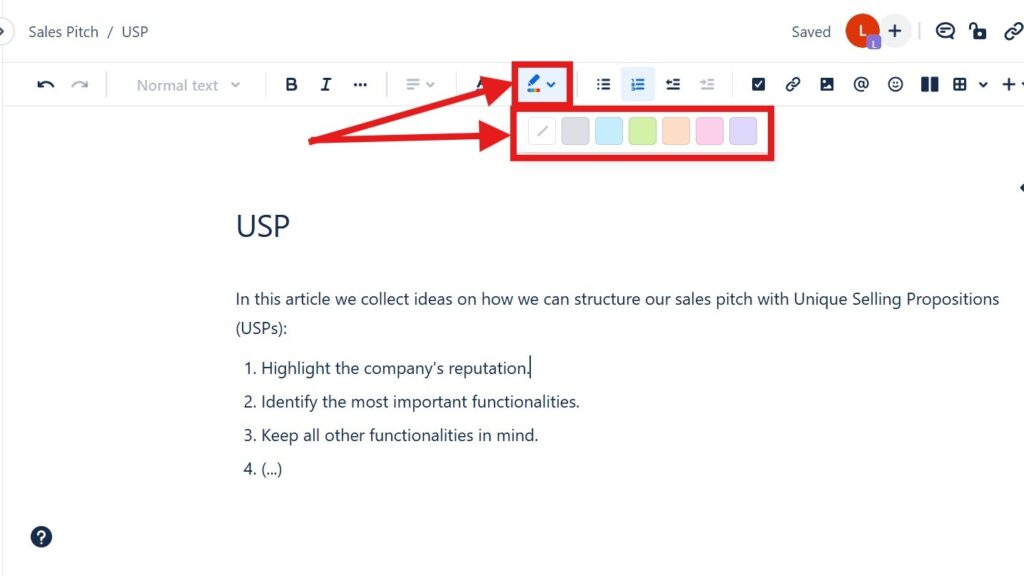
Editor toolbar with a color/highlight dropdown open, showing a row of colored squares; red arrows point to the color tool and palette.

How to Color Text in Confluence: A Quick Guide to Text Color and Highlight Color

Confluence helps me create clear and useful project pages. In this guide, I show you How to Color Text in Confluence with text colors and highlight colors. Color helps me emphasize key details, improve readability, and guide readers through important content. As a result, my pages look cleaner, more structured, and easier to understand.

How to Color Text in Confluence: A Quick Guide to Text Color and Highlight Color Read More »

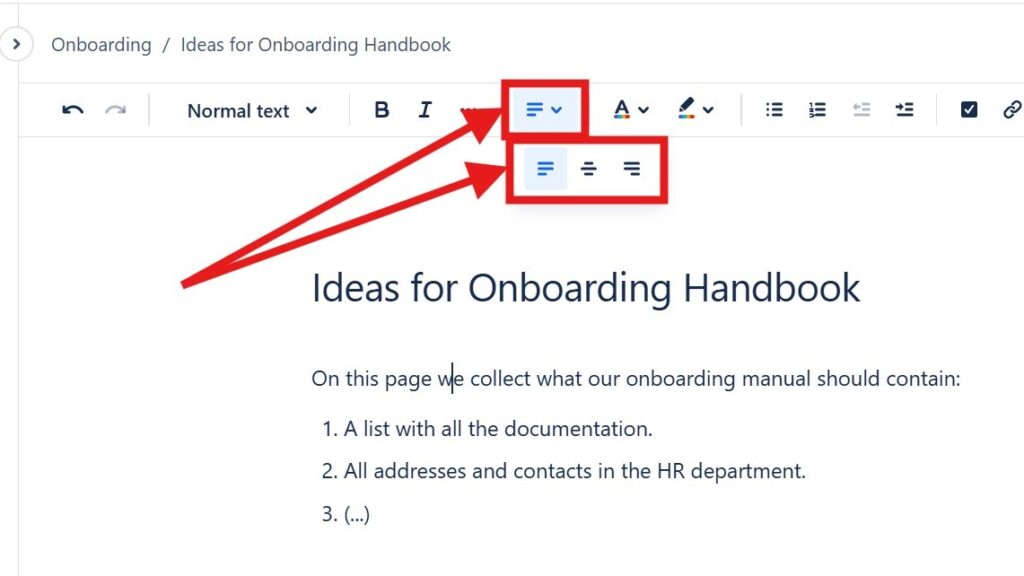
Editor toolbar with alignment dropdown open, showing multiple alignment icons; red arrows point to the alignment control.

How to Align Text in Confluence

Learning to align text in Confluence helps me create cleaner and more professional pages. I can place content on the left, center, or right to improve layout and readability. As a result, information looks more structured and easier to follow. In this guide, I show you simple methods and shortcuts for better text alignment.

How to Align Text in Confluence Read More »

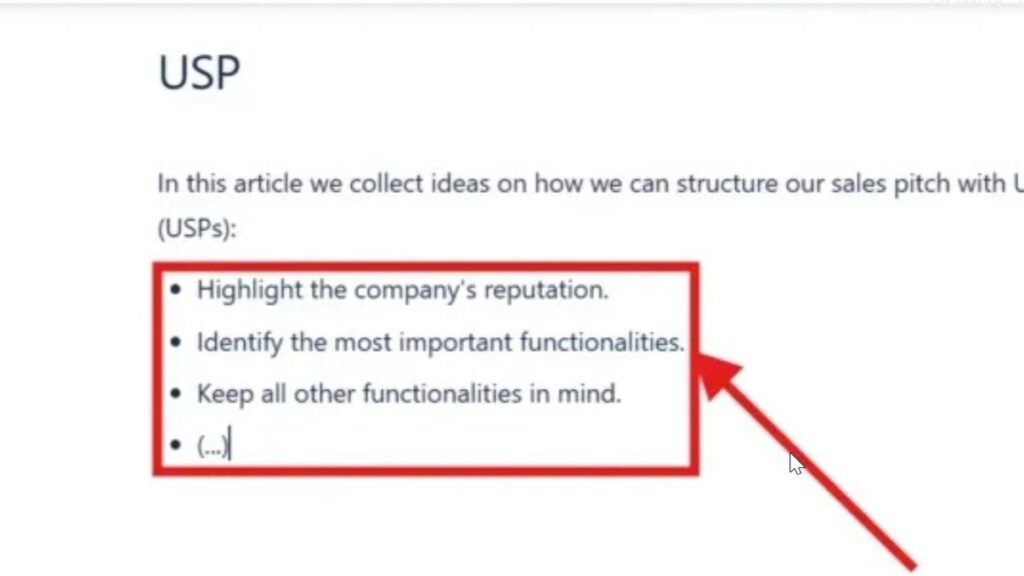
Zoomed-in bullet list inside a red rectangle with an arrow pointing at the list items.

How to Make Lists in Confluence

Confluence helps me organize team information in a clear way. When I make lists in Confluence, I can structure steps, ideas, tasks, and key points so readers understand them faster. Bullet lists and numbered lists make pages easier to scan. In this guide, I show you how to create lists and use simple shortcuts for cleaner documentation.

How to Make Lists in Confluence Read More »

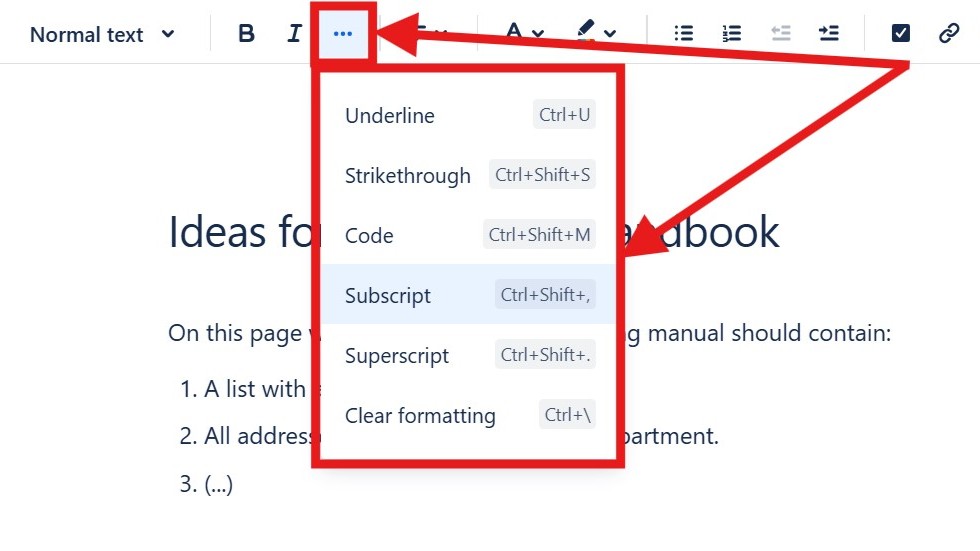
Editor “more options” menu open showing “Underline,” “Strikethrough,” “Code,” “Subscript,” “Superscript,” and “Clear formatting.”

How to Format Text in Confluence

Confluence helps me create clear and professional team pages. When I know how to format text in Confluence, I can structure information, highlight key points, and improve readability. Formatting also helps readers scan content faster and understand important details. In this guide, I show you the essential options and shortcuts for cleaner Confluence pages.

How to Format Text in Confluence Read More »

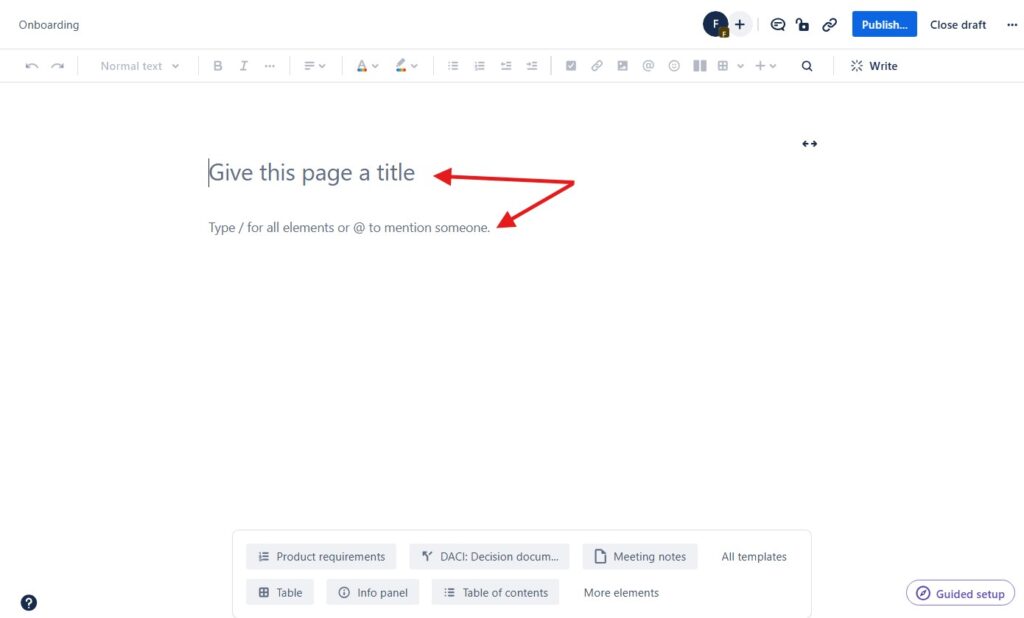
Blank page editor with the placeholder text “Give this page a title,” marked by red arrows.

How to Create a Confluence Page

Learning how to create a Confluence page is easy, but a few tips make the process smoother. I use Confluence to document projects, coordinate teams, and structure knowledge clearly. Therefore, a good page needs more than text. It needs purpose, order, and readability. In this guide, I show you how to create useful pages and improve collaboration.

How to Create a Confluence Page Read More »
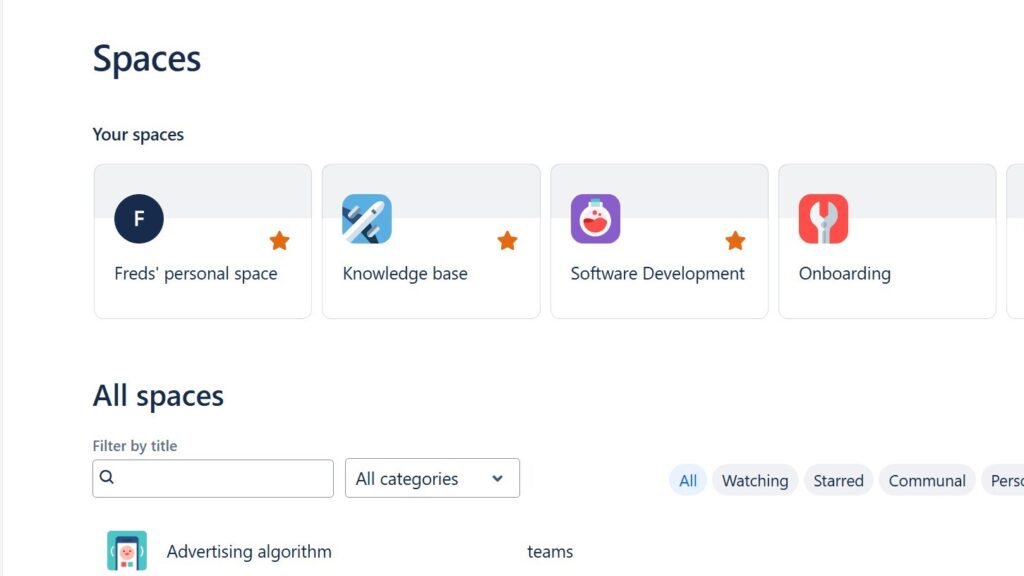
Confluence “Spaces” page showing “Your spaces” cards (Freds’ personal space, Knowledge base, Software Development, Onboarding) and an “All spaces” filter area.

How to Create a Space in Confluence

Learning how to create a Space in Confluence helps me organize team content with clarity. A space works as a home for related pages, projects, departments, or topics. As a result, I can structure information, reduce confusion, and support smoother collaboration. In this guide, I show you the steps to set up a useful Confluence space.

How to Create a Space in Confluence Read More »

Scroll to Top
WordPress Cookie Plugin by Real Cookie Banner