
Confluence helps me create clear and professional team pages. When I know how to format text in Confluence, I can structure information, highlight key points, and improve readability. Formatting also helps readers scan content faster and understand important details. In this guide, I show you the essential options and shortcuts for cleaner Confluence pages.
How to Format Text in Confluence
Knowing how to format text in Confluence helps me create pages that are easier to scan, understand, and maintain. I use headings, bold text, lists, links, and other formatting only when they improve meaning. Therefore, I avoid decorative formatting and focus on structure. Confluence also provides keyboard shortcuts and a More formatting menu for additional options. In this guide, I show the essential text formatting tools and how I use them to create clear, consistent, and professional pages.
Basic Text Formatting
I use a small set of formatting options for most Confluence pages.
Bold
I use bold text to emphasize important information.
On Windows, I press Ctrl + B. Alternatively, I select the B button in the toolbar.
I use bold selectively so that important information remains easy to recognize.
Italic
I can use italic formatting for limited emphasis or specific terminology.
On Windows, I press Ctrl + I or select the italic option in the toolbar.
However, I avoid combining several emphasis styles without a clear reason.
Underline
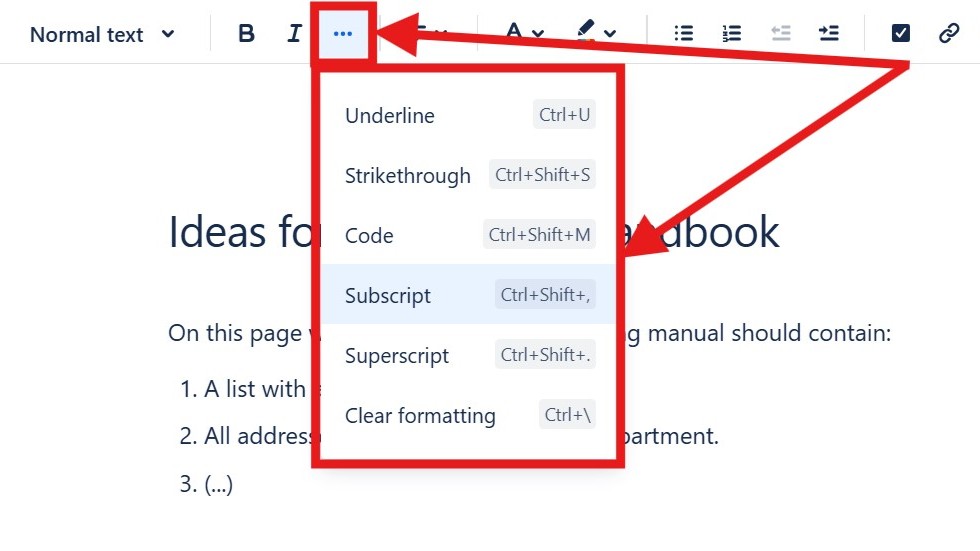
For underlined text, I select the text and open the More formatting menu.
Alternatively, I use Ctrl + U on Windows.
Strikethrough
I use strikethrough when information no longer applies but should remain visible.
On Windows, I use Ctrl + Shift + S.
More Formatting Options
Confluence places several additional options under the three-dot More formatting menu:
- Underline
- Strikethrough
- Code
- Subscript
- Superscript
- Clear formatting
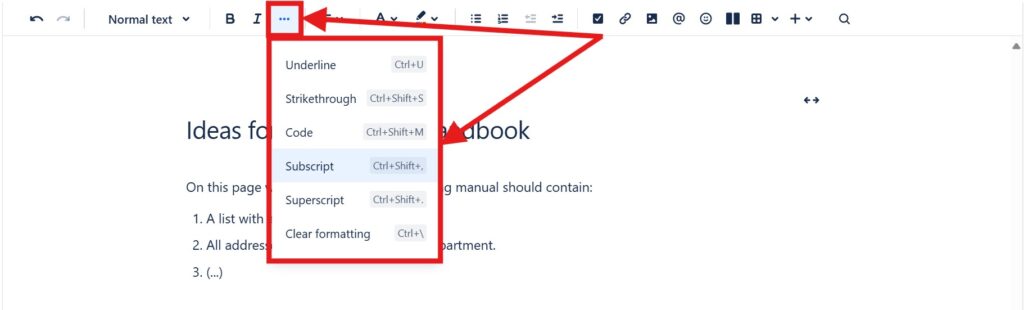
The More formatting menu gives me access to additional text styles without overcrowding the main toolbar.
Code
I use code formatting to distinguish commands, technical values, or short code elements from normal text.
On Windows, I use Ctrl + Shift + M.
Subscript and Superscript
I use subscript for content such as chemical formulas and superscript for exponents or similar notation.
On Windows, I use Ctrl + Shift + , for subscript and Ctrl + Shift + . for superscript.
Clear Formatting
Sometimes copied text contains unwanted formatting.
In that case, I select the text and choose Clear formatting from the More formatting menu.
Clear formatting helps me restore consistency when imported text contains unwanted styles.
Structure Text With Headings and Lists
Text formatting should improve structure, not only appearance.
Therefore, I use headings to divide longer pages into sections. I also use numbered lists for sequences and bullet lists for related information.
A clear visual hierarchy helps readers find and understand information faster.
Use Formatting Consistently
Too much formatting reduces clarity.
Therefore, I use headings for structure, bold for important information, and lists for content that benefits from scanning. I use specialized formatting only when the content requires it.
Good formatting supports the content instead of competing with it.
Conclusion
Formatting text in Confluence is straightforward once I know the main toolbar options, shortcuts, and More formatting menu.
I use formatting to create hierarchy, emphasize important information, and improve readability. However, I keep it consistent and purposeful.
The best Confluence formatting makes information easier to scan, understand, and maintain.
What’s Next?!
Now that you know how to format text in Confluence, your pages can become clearer and easier to read. However, good formatting is only the beginning. Lists help you structure steps, ideas, tasks, requirements, and important details in a more organized way.
In the next article, I’ll show you How to Make Lists in Confluence. You’ll learn how lists improve readability, guide your readers, and make your documentation easier to scan. Click the next article to create cleaner and more useful Confluence pages.
Choose Tools That Support Better Requirements Work
Requirements engineering becomes easier when I use the right tool for each step. In my main article on Requirements Engineering Tools, I show how draw.io, Confluence, Jira, and Camunda support clear and practical work. Draw.io helps me visualize ideas. Confluence helps me document knowledge. Jira helps me track tasks and issues. Camunda helps me model processes. Click through to the full article and learn how these tools help you create clearer requirements and stronger project results.
| Read more about Confluence and How to |
|---|
| Use shortcuts in Confluence Assign a task in Confluence Create a Confluence space from a template Delete a Page in Confluence Create a Confluence page |