

Confluence helps me organize team information in a clear way. When I make lists in Confluence, I can structure steps, ideas, tasks, and key points so readers understand them faster. Bullet lists and numbered lists make pages easier to scan. In this guide, I show you how to create lists and use simple shortcuts for cleaner documentation.
What is Confluence?
Confluence is a digital workspace where teams can collaborate, document, and share knowledge efficiently. It centralizes information so everyone has access to the same up-to-date content. Users can create pages for projects, meeting notes, and documentation, all in one organized structure. With powerful editing tools and real-time collaboration features, Confluence helps teams stay aligned, communicate clearly, and maintain a single source of truth for their work.
Bullet Lists in Confluence
I use bullet lists when the items belong together but do not need a specific order.
For example, I can use them for requirements, features, ideas, meeting topics, or supporting information.
Bullet lists help me group related information without suggesting a sequence.
Step 1: Select the Text
First, I select the lines that I want to turn into a bullet list.

Step 2: Select the Bullet List Button
Next, I select the Bullet list button in the editor toolbar.
Confluence applies bullet formatting to every selected line.

Step 3: Check the Bullet List
The selected lines now appear as individual bullet points.
I review the list and make sure that every item belongs at the same logical level.
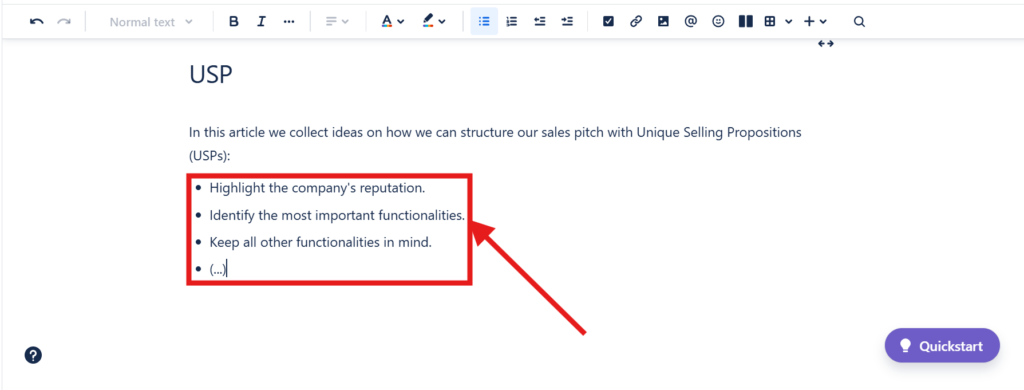
I use a bullet list when the relationship between the items matters more than their order.
Numbered Lists in Confluence
I use numbered lists when sequence or order carries meaning.
They work well for instructions, procedures, workflows, rankings, or any series of actions that readers should follow in order.
Step 4: Select the Text
First, I select the lines that I want to convert into a numbered list.
Step 5: Select the Numbered List Button
Next, I select the Numbered list button in the toolbar.
Confluence converts the selected lines into sequentially numbered items.

Step 6: Check the Numbered List
I now see the selected content as a numbered sequence.
Because the numbers imply an order, I check whether the sequence reflects how readers should follow the information.

I use numbered lists when changing the order would change how readers understand or perform the steps.
Create Lists Faster
I do not always need the toolbar.
On Windows, I can press Ctrl + Shift + 8 for a bullet list or Ctrl + Shift + 7 for a numbered list. On macOS, the corresponding shortcuts use Cmd instead of Ctrl.
I can also start a new bullet list by typing an asterisk followed by a space. For a numbered list, I type 1. followed by a space. Confluence then converts the line automatically.
These options are useful when I write longer pages and want to stay focused on the keyboard.
Use Lists With Purpose
Lists improve readability only when I choose the right type.
Therefore, I use bullet lists for related points and numbered lists for ordered steps. I also keep individual items concise and use the same grammatical structure where possible.
If a list becomes very long or contains several different ideas, I divide it into smaller sections with headings.
A good list makes information easier to scan without removing the context readers need to understand it.
Conclusion
Creating lists in Confluence takes only a few steps. I select the content and choose either bullet or numbered formatting. Alternatively, I use a keyboard shortcut or start the list directly while typing.
Bullet lists organize related information, while numbered lists communicate sequence and order.
By choosing the appropriate format, I can make Confluence pages clearer, easier to scan, and more consistent.
What’s Next?!
Now that you know how to make lists in Confluence, your pages can present steps, ideas, and tasks more clearly. However, structure also depends on how your text appears on the page. Text alignment can help you improve layout, readability, and visual order.
In the next article, I’ll show you How to Align Text in Confluence. You’ll learn how alignment works, when to use it, and how it can make your pages look cleaner. Click the next article to improve the layout of your Confluence documentation.
Connect Tools, Knowledge, and Requirements
Requirements engineering becomes more effective when I combine visual thinking, clear documentation, task tracking, and process modeling. In my main article on Requirements Engineering Tools, I explain how draw.io, Confluence, Jira, and Camunda support this workflow. Draw.io helps me create diagrams. Confluence helps me organize knowledge. Jira helps me manage work. Camunda helps me model processes. Click through to the full article and see how these tools help you build stronger requirements.