
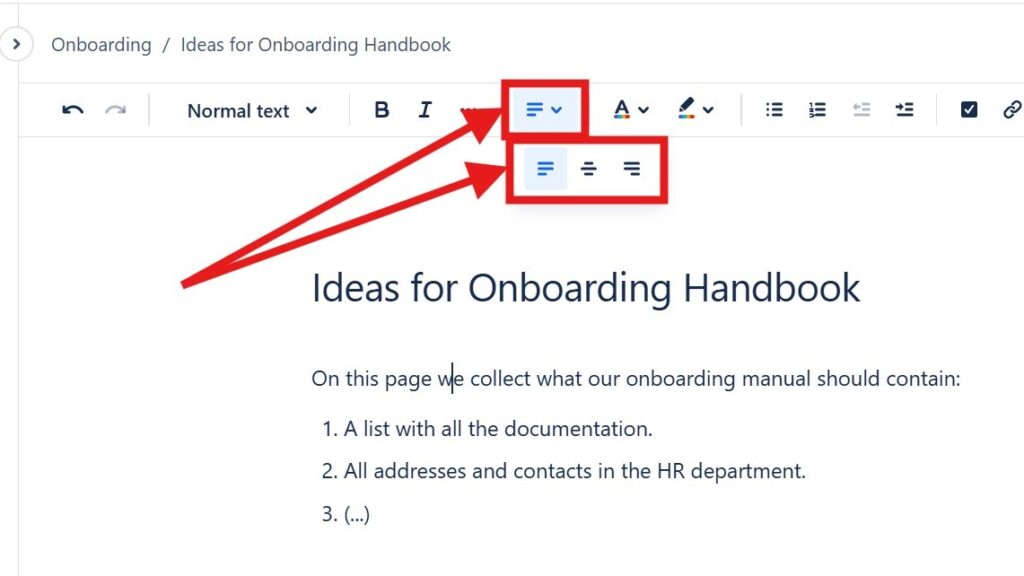
Learning to align text in Confluence helps me create cleaner and more professional pages. I can place content on the left, center, or right to improve layout and readability. As a result, information looks more structured and easier to follow. In this guide, I show you simple methods and shortcuts for better text alignment.
How Text Alignment Works in Confluence
Confluence gives me three basic alignment options:
- left alignment
- center alignment
- right alignment
I select the text first. Then I open the alignment menu in the editor toolbar and choose the required option.
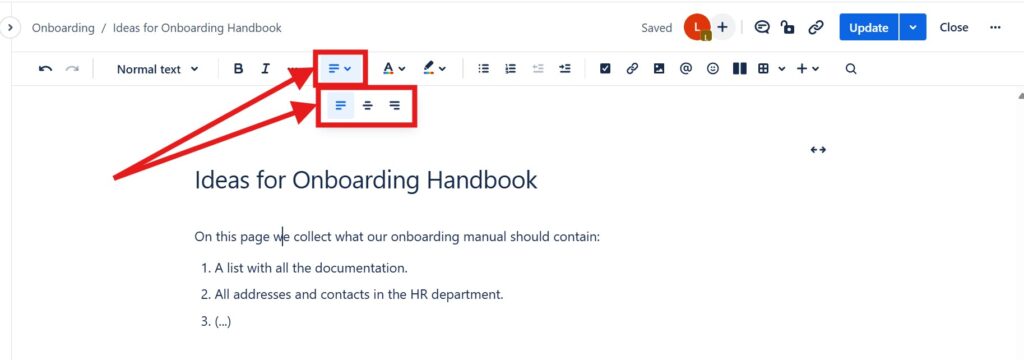
I choose alignment according to the purpose of the content rather than its visual effect alone.
Left Align Text
I use left alignment for normal paragraphs, lists, and most documentation.
It creates a consistent starting point for every line. Therefore, readers can scan longer sections more easily.
Left alignment is my default choice for most Confluence content because it supports comfortable reading.
Center Align Text
I use center alignment selectively.
For example, it can work for a short heading, statement, or isolated piece of information that needs a different visual position.
However, I avoid centering long paragraphs. Their changing left edge makes continuous reading harder.
Right Align Text
I use right alignment only when the layout gives me a clear reason.
For example, I may use it for a short date, reference, or other isolated element. In contrast, I avoid it for normal body text.
Right alignment works best for short elements rather than longer passages.
Keep Alignment Consistent
Alignment should support the structure of a page.
Therefore, I avoid changing alignment repeatedly without a clear purpose. I normally keep body text left aligned and use other options only when they improve the presentation of specific content.
Consistent alignment makes a Confluence page easier to scan and gives its content a clearer visual structure.
Conclusion
To align text in Confluence, I select the content, open the alignment menu, and choose left, center, or right alignment.
The technical action is simple. However, the choice matters for readability.
I use text alignment to support structure and understanding, not simply to change how a page looks.
What’s Next?!
Now that you know how to align text in Confluence, your pages can look cleaner and more structured. However, alignment is only one part of good visual formatting. Color can also help you guide attention and highlight important information.
In the next article, I’ll show you How to Color Text in Confluence: A Quick Guide to Text Color and Highlight Color. You’ll learn how to use text color and highlight color with purpose. Click the next article to make your Confluence pages clearer, more readable, and more visually helpful.
Use the Right Tools for Clear Requirements Work
Requirements engineering becomes stronger when I use tools that support each step of the workflow. In my main article on Requirements Engineering Tools, I show how draw.io, Confluence, Jira, and Camunda help me create better results. Draw.io helps me visualize ideas. Confluence helps me document knowledge. Jira helps me track tasks and issues. Camunda helps me model and understand processes. Click through to the full article and learn how these tools support clearer requirements and smoother project work.