
When I finish working on a diagram, I need to leave the tool safely. That is why I want to know How to exit draw.io properly. In this guide, I explain what to check before closing the session, why saving matters, and how a clear exit routine helps me keep my diagram workflow efficient and ready for the next session.
Check out the video too:
What is draw.io?
First, let me explain what draw.io is. It’s a popular, free online tool for creating diagrams. It’s widely used for flowcharts, organizational charts, network diagrams, and more. Businesses love it because it’s intuitive, collaborative, and integrates with tools like Google Drive and OneDrive. You can create professional diagrams without needing design experience. For example, I’ve used it to create team workflows in just a few minutes. It saves time and ensures clarity.
Why I Exit draw.io Properly
When I finish a diagram, I want to leave draw.io without doubt. Therefore, I check the file before I close the session.
I should save my diagram before I exit draw.io.
This is the only important preparation. It helps me keep the latest version of my work.
How to Exit draw.io
To exit draw.io, I use the top menu.
First, I click File.
Then I choose Exit.
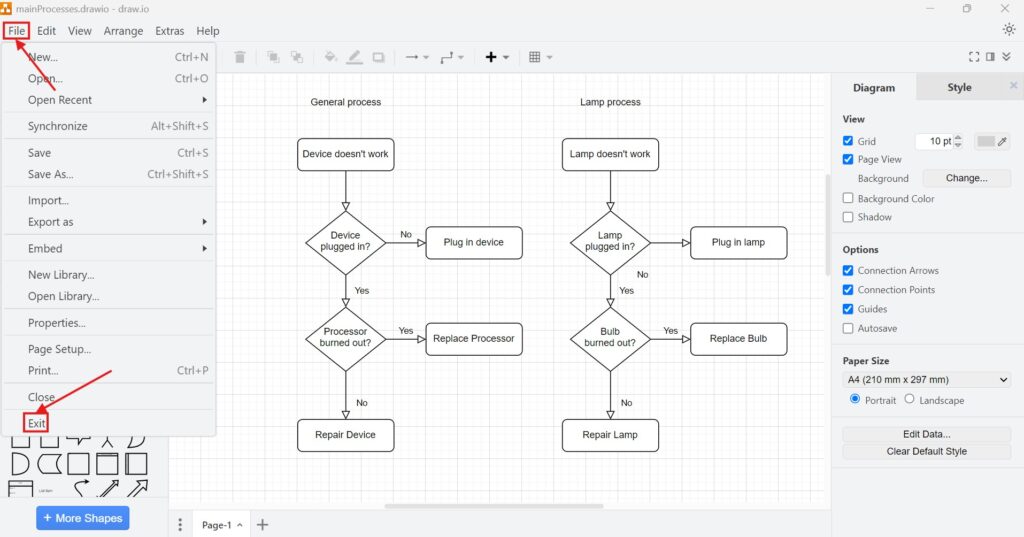
After that, draw.io closes the current session. The diagram does not get deleted. I only leave the editor.
Final Thoughts
Exiting draw.io is a small step. However, I still do it in the right order.
First, I save the diagram. Then I click File > Exit.
The best way to exit draw.io is to save first and then use File > Exit.
What’s Next?
Now that I know how to exit draw.io safely, I can also learn how to present my diagrams more clearly. Exiting helps me finish a session, but presentation mode helps me show my final diagram without editor distractions. In the next article, I’ll explain How to Activate the Presentation Mode in draw.io. You’ll learn how presentation mode works, why it supports clearer communication, and how it helps you guide viewers through your diagram step by step. Click below to continue and present your draw.io diagrams with more confidence.
Strengthen Requirements Engineering with Practical Tools
Requirements engineering becomes clearer when I use tools that support visual thinking, documentation, coordination, and process modeling. Therefore, I use draw.io to create diagrams, Confluence to structure knowledge, Jira to manage requirements-related work, and Camunda to model business processes. Each tool helps me reduce complexity in a different way. As a result, I can connect ideas, decisions, tasks, and workflows more effectively. In the main article on Requirements Engineering Tools, I show how these tools work together and help me build a stronger requirements engineering workflow.
| Read more about draw.io |
|---|
| PDF Export VSDX Export HTML Export URL Export XML Export |