
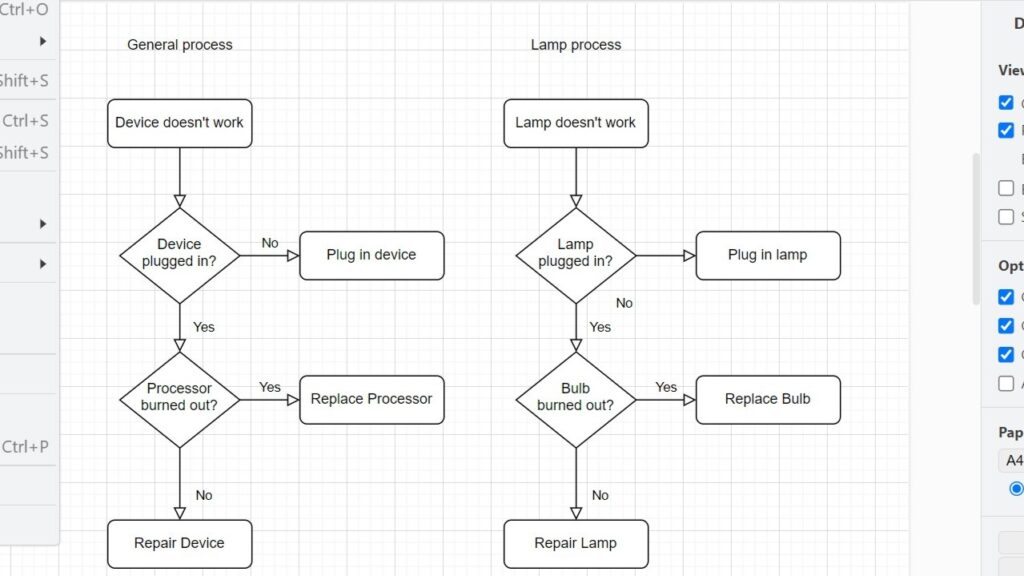
Closing a diagram correctly helps me keep my draw.io workflow clean and safe. Before I leave the editor, I want to protect my changes and avoid confusion later. In this post, I explain how to close a Draw.io diagram step by step. You’ll learn what to check first and why a proper closing routine supports better diagram management.
You can also watch the explanation as a video:
What is Draw.io?
Draw.io is a powerful online diagramming tool. It allows users to create flowcharts, process maps, and organizational charts seamlessly. It’s particularly popular among IT professionals and business analysts for its flexibility and intuitive interface. Imagine you’re documenting a complex software architecture; Draw.io makes it simple to map out every detail. Its user-friendly design ensures you can create and edit diagrams without a steep learning curve.
Why I Close the Diagram First
When I finish working in Draw.io, I do not close the browser tab immediately. First, I make sure that I saved the diagram. Then I close the current diagram through the menu.
This keeps the end of the work session clear.
The action is simple. However, it helps me avoid confusion when I want to start another diagram or open a different file.
How to Close a Draw.io Diagram
First, I go to the menu bar.
Then I click File.
After that, I click Close.
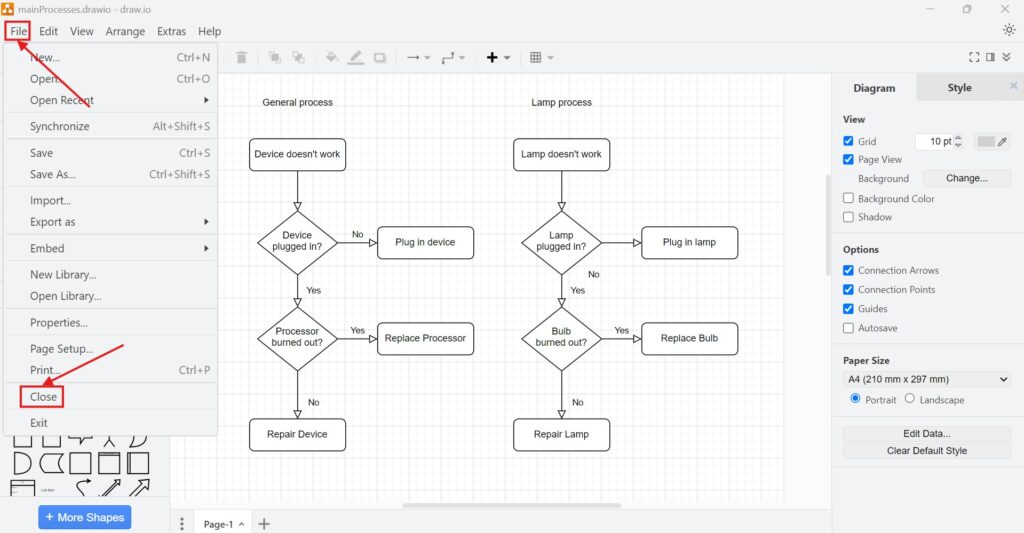
Draw.io now closes the current diagram. Then it returns me to the start screen.
The path is File > Close.
From the start screen, I can choose Create New Diagram or Open Existing Diagram.
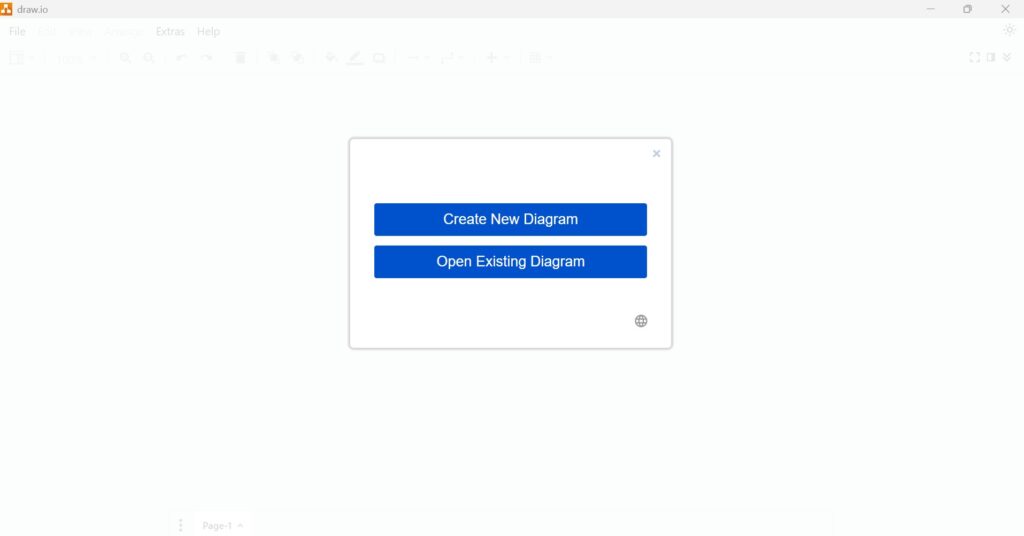
If I am done, I can close the browser tab or the app window.
What Close Means
Close does not delete the diagram. It only closes the diagram that is currently open.
Therefore, I can open the file again later from the place where I saved it.
Close means leaving the current diagram, not removing the file.
Final Thoughts
Closing a Draw.io diagram is not complicated. I save the file, click File, and choose Close. Then I can start a new diagram, open another one, or exit Draw.io.
I save first, close the diagram, and then leave the tool.
What’s Next?
Now that I know how to close a Draw.io diagram, I can finish the full workflow properly. Closing a diagram helps me manage the current file, but exiting draw.io ends the whole session. In the next article, I’ll explain How to Exit draw.io. You’ll learn what to check before leaving, how to avoid losing work, and how to finish your diagram session safely. Click below to continue and exit draw.io with confidence.
Create Stronger Requirements Work with the Right Tools
Requirements engineering becomes clearer when I use tools that support visual thinking, documentation, coordination, and process modeling. Therefore, I use draw.io to create diagrams, Confluence to organize knowledge, Jira to manage requirements-related work, and Camunda to model business processes. Each tool helps me handle a different part of the workflow. As a result, I can connect ideas, decisions, tasks, and processes more effectively. In the main article on Requirements Engineering Tools, I show how these tools work together and help me build a stronger requirements engineering workflow.