
Creating diagrams can feel overwhelming at first. However, draw.io makes the start simple. In this article, I show how to create a diagram using templates in draw.io. You’ll learn how to open the template dialog, choose a useful layout, and adapt it to your needs. As a result, you can build clear diagrams faster and with more confidence.
Prefer watching instead of reading? Here is the quick video walkthrough:
What is draw.io?
Draw.io is a powerful, free diagramming tool. It allows you to create flowcharts, network diagrams, org charts, and more. It’s user-friendly and doesn’t require any advanced design skills. One of its best features is its extensive library of templates. These templates save time and help you create professional diagrams effortlessly.
Why I Use a Template
A template gives me a prepared structure for a specific diagram type. Therefore, I do not arrange every basic element myself. However, I can still change the shapes, text, connectors, and layout.
Templates help me create structured diagrams faster without limiting my control.
Two Ways to Create a Diagram Using Templates
I can select a template when I start draw.io. Alternatively, I can open the template gallery from the File menu. Both methods create a new diagram from the template I select.
Creating a Template Diagram When I Start draw.io
1. Step: Open draw.io
I open the draw.io website or launch the desktop application. Then, I wait until the start screen appears.
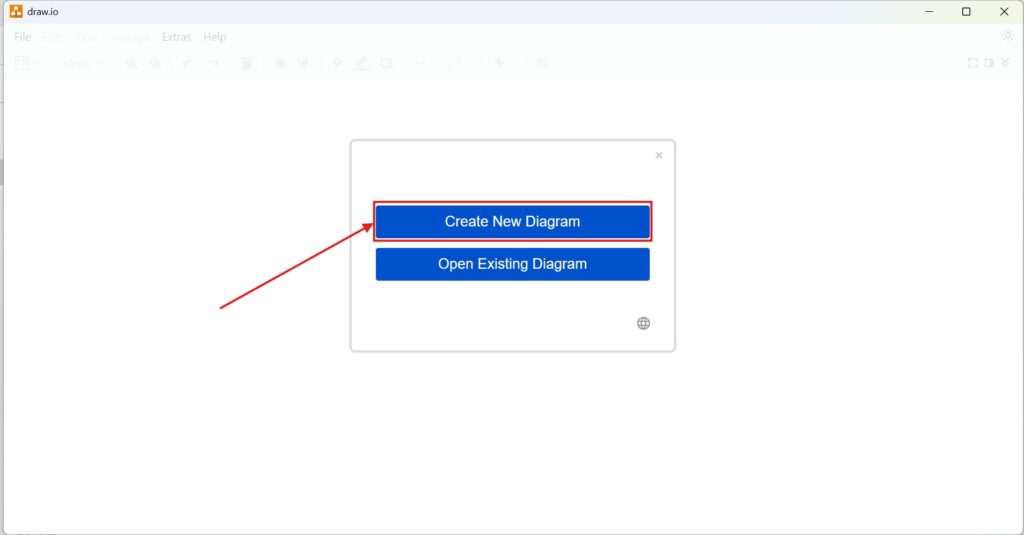
2. Step: Choose Create New Diagram
I select Create New Diagram on the start screen. This option opens the template selection.
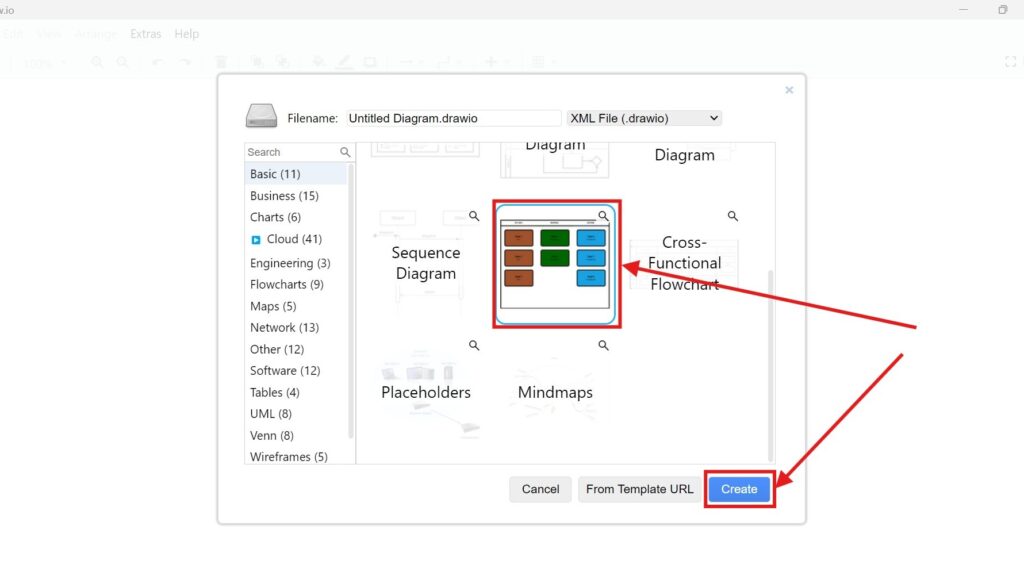
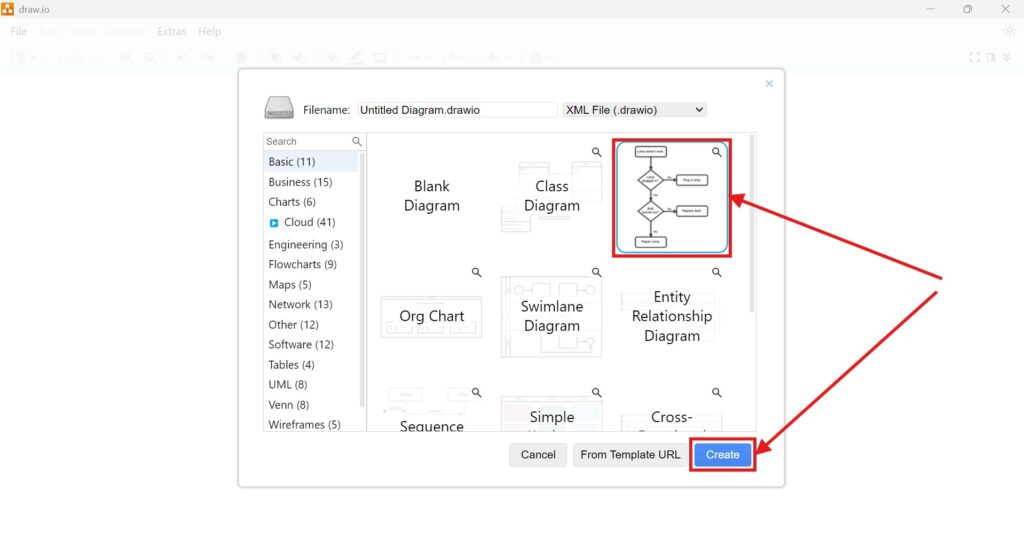
3. Step: Select a Template
I browse the available template categories and select a suitable template. Then, I click Create.
I choose a template that already matches the basic purpose of my diagram.
4. Step: Edit the Diagram
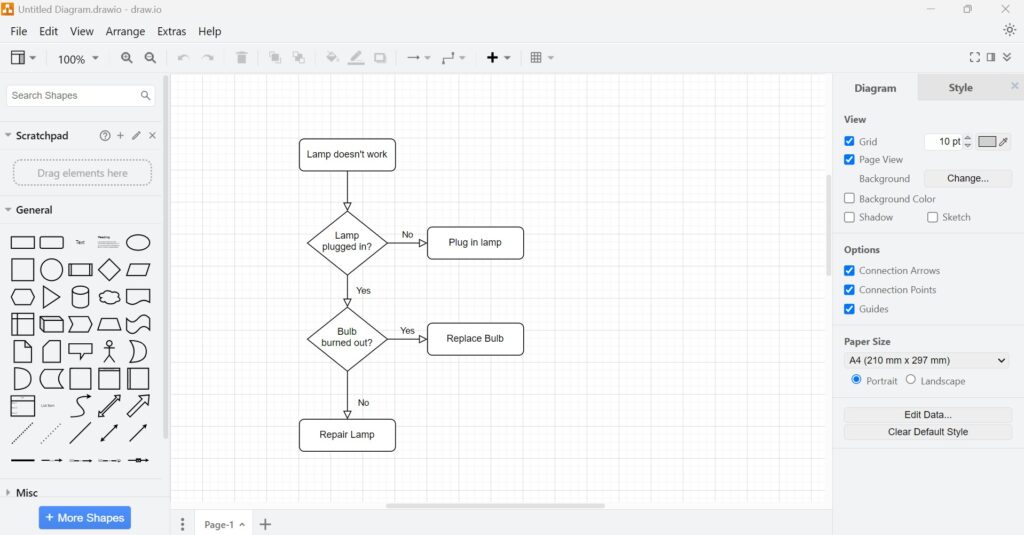
draw.io opens the selected template in the main editor. I can now replace the example content with my own information.
In addition, I can move, remove, or add elements. I can also change labels, connectors, and formatting.
Creating a Diagram Using the Menu
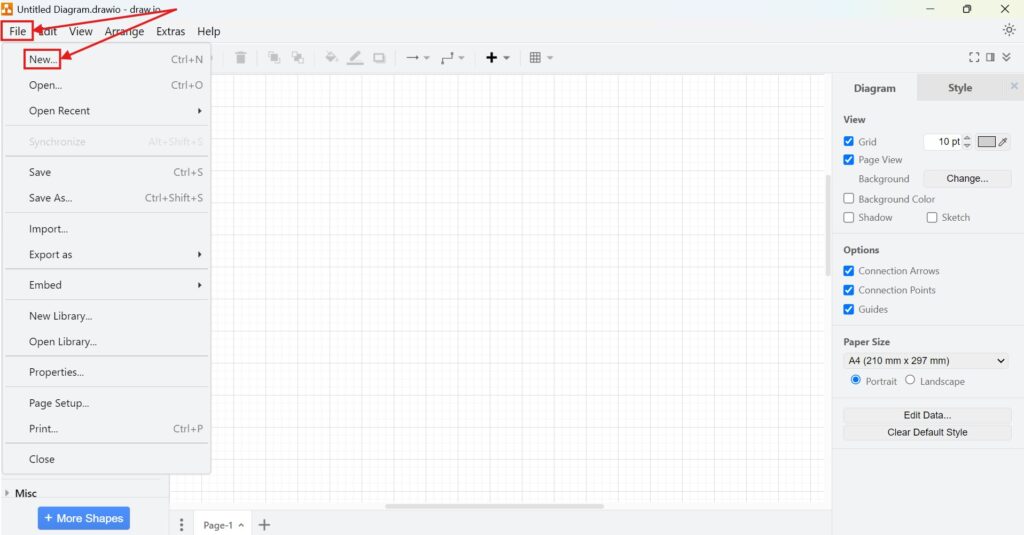
1. Step: Access the File Menu
I select File in the upper-left corner of the editor. This method works while another diagram is already open.
2. Step: Select New
I select New from the File menu. As a result, draw.io opens the template gallery.
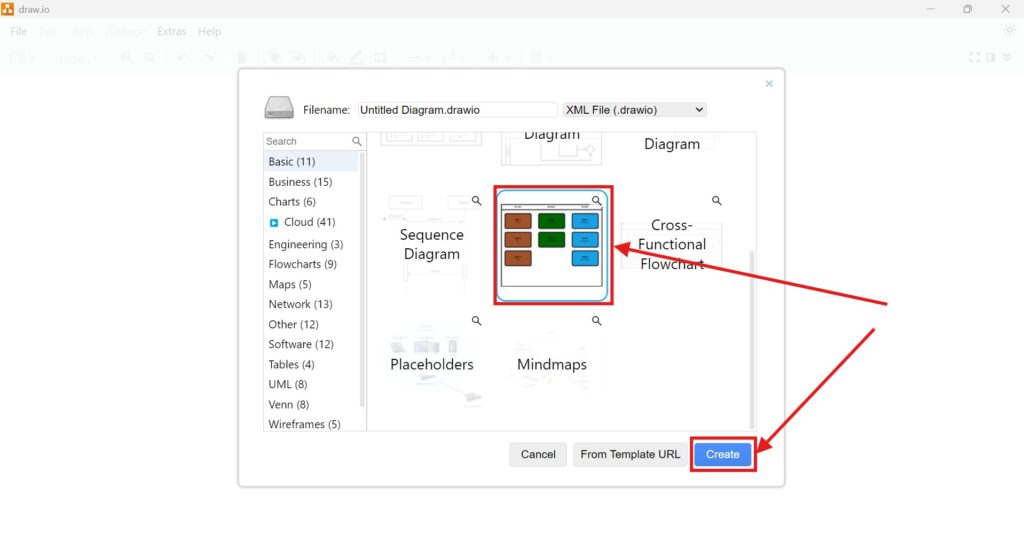
3. Step: Choose a Template
I select the template that fits my intended diagram. Then, I click Create to continue.
The template provides a starting structure, but I decide which elements remain in the final diagram.
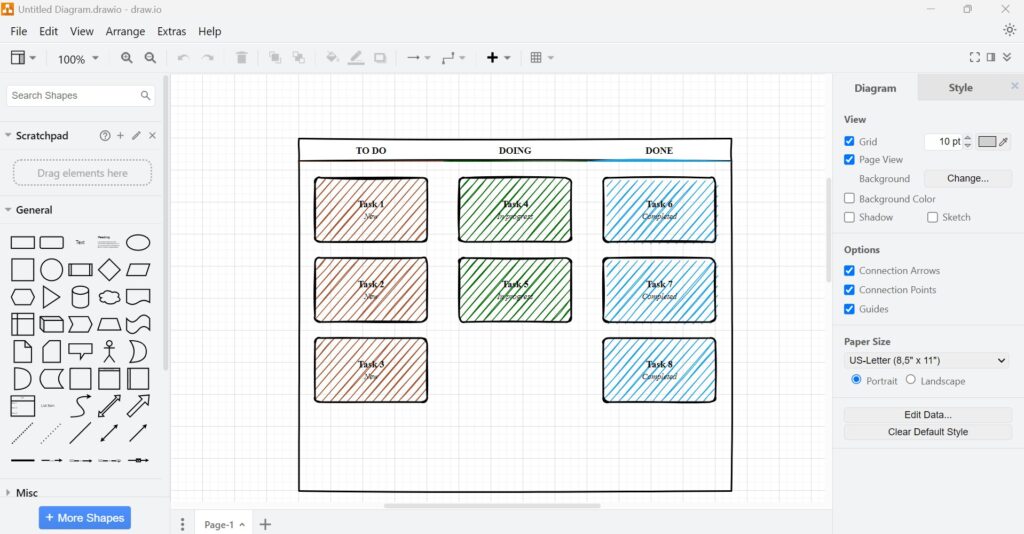
4. Step: Customize the New Diagram
draw.io opens the new diagram in the editor. I replace the sample text and adjust the visual structure.
Therefore, the template becomes my own diagram rather than remaining a generic example.
Choosing a Suitable Template
I select a template according to the information that I want to communicate. For example, different structures support processes, responsibilities, systems, or relationships.
However, I do not choose a template only because it looks attractive. Instead, I check whether its structure supports my modeling purpose.
A suitable template reduces setup work and gives my diagram a useful initial structure.
Final Thoughts
Templates give me a practical starting point for many diagram types. Therefore, I can focus on the content instead of building every basic structure manually.
However, I always review and customize the selected template. A template becomes valuable when I adapt it to the information that my diagram must communicate.
What’s Next?
Now that I know how to create a diagram using templates in draw.io, I can continue with existing work. Sometimes I do not need a new diagram. Instead, I need to reopen, review, or improve a diagram I already created. In the next article, I’ll explain How to Open an Existing Diagram in draw.io. You’ll learn how to find your diagram, open it correctly, and continue your work with confidence. Click below to continue and reopen your existing draw.io diagram.
Discover the Right Requirements Engineering Tools
Requirements engineering becomes clearer when I use tools that support each step of the work. Therefore, I use draw.io to create visual models, Confluence to document knowledge, Jira to organize tasks, and Camunda to model business processes. Each tool helps me reduce confusion and improve collaboration. As a result, I can turn ideas, requirements, decisions, and workflows into a structured system. In the main article on Requirements Engineering Tools, I show how these tools support better requirements work from start to finish.