
Collaboration can get messy when several people work on one diagram. I know how hard it can be to track changes and avoid confusion. In this guide, I explain how to synchronize in draw.io. You’ll learn how synchronization helps you keep updates aligned, protect your work, and manage team changes more clearly.
What is draw.io?
draw.io is a powerful diagramming tool that supports collaboration. It allows users to create, edit, and share diagrams in real-time. Whether you’re working online or offline, it has features that simplify teamwork. For instance, it integrates with platforms like GitHub, GitLab, Dropbox, Google Drive, and OneDrive. Plus, you can use its desktop version to manage files stored on any network drive.
What makes draw.io stand out is its ability to synchronize changes. This feature ensures that everyone’s edits merge into a single, up-to-date version. Let’s explore how to use it.
How to Synchronize in draw.io Manually
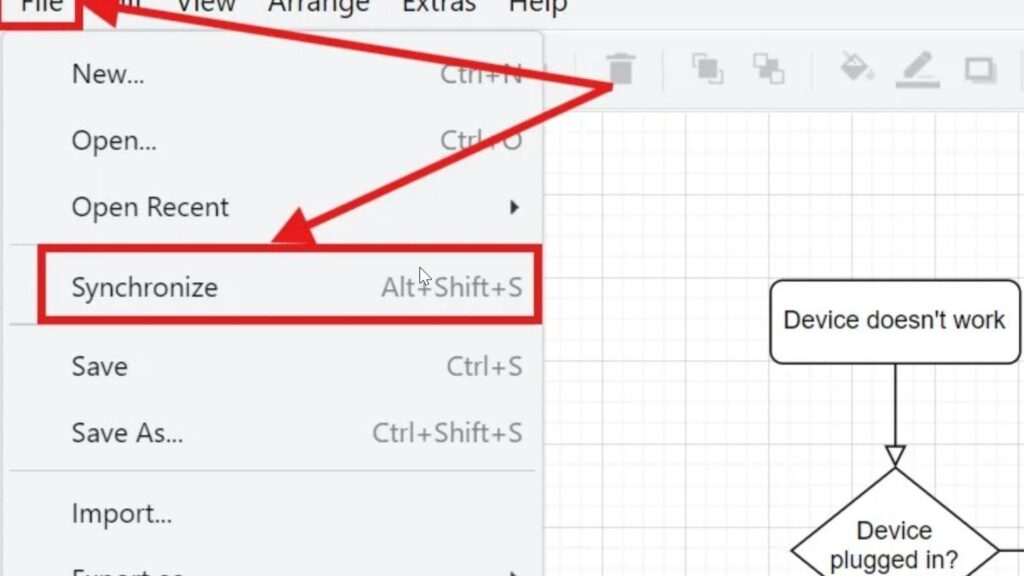
I can synchronize a diagram in a few steps:
- I open the diagram in draw.io.
- I select File.
- I click Synchronize.
- draw.io merges external changes with the changes in my open diagram.
The Synchronize command lets me merge changes from the stored file into the diagram I am currently editing.

When I Need Manual Synchronization
In the online version of draw.io, I can manually synchronize diagrams stored in:
- GitHub
- GitLab
- Dropbox
The draw.io Desktop application can also synchronize files stored on a network drive.
Therefore, I use manual synchronization when another person may have changed the stored diagram while I was working on my own version.
Automatic Synchronization
Google Drive and OneDrive work differently.
When I work online with autosave enabled, draw.io detects external changes and merges them automatically. Therefore, I normally do not need to select Synchronize myself.
However, if I work offline or disable autosave, I can use File > Synchronize manually.
Whether I need manual synchronization therefore depends mainly on the storage platform and my current connection settings.
Be Careful With Dropbox
Dropbox requires additional care.
According to the current draw.io documentation, Dropbox does not provide the revision history that draw.io uses for this synchronization process. Therefore, draw.io overwrites the diagram file when it merges changes.
As a result, I make sure that I understand which version I am working with before synchronizing important shared diagrams.
Conclusion
To synchronize in draw.io manually, I select File > Synchronize. This merges external changes with the diagram I currently have open.
GitHub, GitLab, Dropbox, and network-drive workflows can use manual synchronization. Google Drive and OneDrive normally detect and merge changes automatically when I work online with autosave enabled.
I use synchronization whenever I need to bring changes from a shared diagram into my current editing version without simply replacing my work.
What’s Next?
Now that I know how to synchronize in draw.io, I can continue with better file organization. Clear file names help me find diagrams faster and avoid confusion later. In the next article, I’ll explain Renaming a File in draw.io: A Simple Step-by-Step Guide. You’ll learn how to rename your diagram, keep your files organized, and manage your draw.io work with more confidence. Click below to continue and rename your draw.io file step by step.
Strengthen Your Work with Requirements Engineering Tools
Requirements engineering becomes easier when I use tools that support clear thinking, documentation, tracking, and modeling. Therefore, I use draw.io to visualize ideas, Confluence to organize knowledge, Jira to manage requirements-related work, and Camunda to model business processes. Each tool helps me reduce confusion and improve collaboration. As a result, I can connect requirements, decisions, tasks, and workflows in one practical tool landscape. In the main article on Requirements Engineering Tools, I show how these tools support better requirements work from idea to implementation.