
I rename files in draw.io when I want a clear structure. A good file name saves time, reduces mistakes, and makes diagrams easier to find. In this guide, I show how to rename a file in draw.io directly inside the editor. I keep each step short and clear. Therefore, you can follow along fast and use the same workflow in many projects.
Prefer watching instead of reading? Here is the quick video walkthrough:
What is draw.io
draw.io is a diagramming tool that I use to create flowcharts, BPMN diagrams, UML diagrams, and many other visuals. I can use it online at app.diagrams.net. I can also use it offline with the desktop app.
Because draw.io focuses on diagrams, it fits many use cases. For example, I use it for process maps and system overviews. In addition, I use it for quick sketches during workshops. The editor stays simple. However, it still offers powerful features.
Why I Rename Files in draw.io
Clear file names help me identify diagrams quickly. Therefore, I do not need to open several files before I find the right one.
Good names also help when I share diagrams with other people. For example, a name such as “order-process” explains the content better than “diagram1.”
Moreover, consistent naming helps me manage related files and exports.
A clear file name should identify the diagram without requiring additional explanation.
How to Rename a File in the draw.io Editor
I can rename the current diagram directly inside draw.io. The process only requires a few steps.
Step 0: Take a First Look
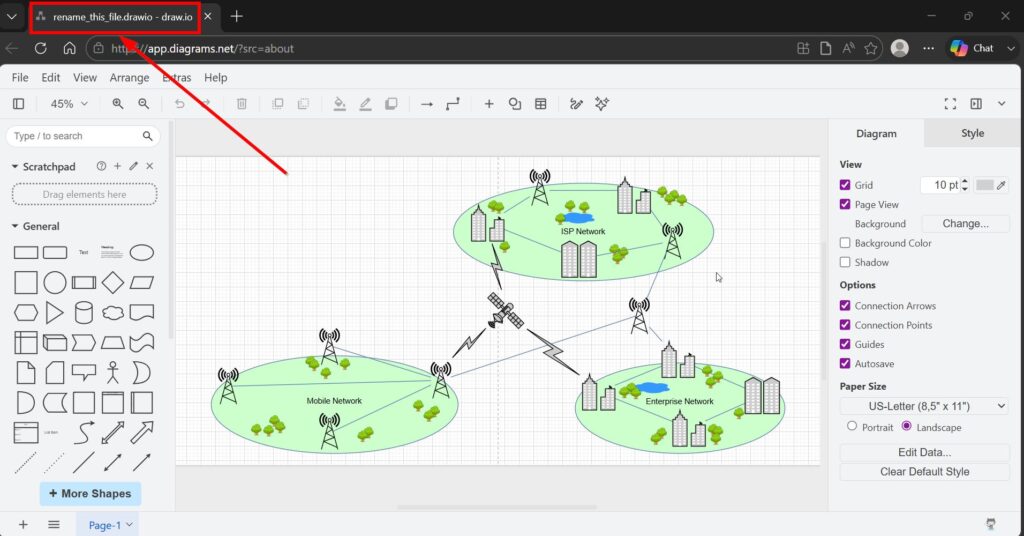
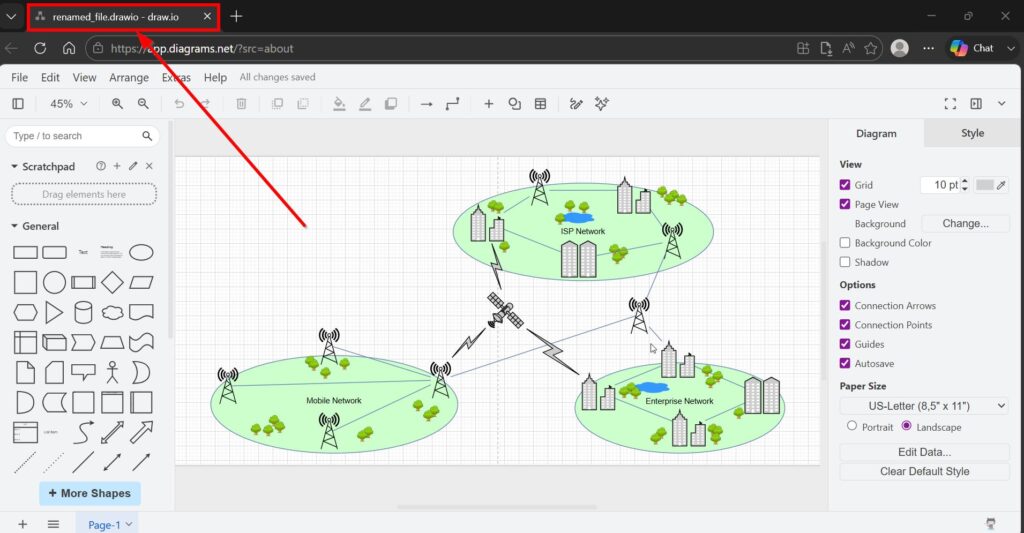
First, I check the current file name. Draw.io displays it at the top of the editor.
This check helps me confirm that I have opened the correct diagram before I make a change.
Step 1: I Open the File Menu
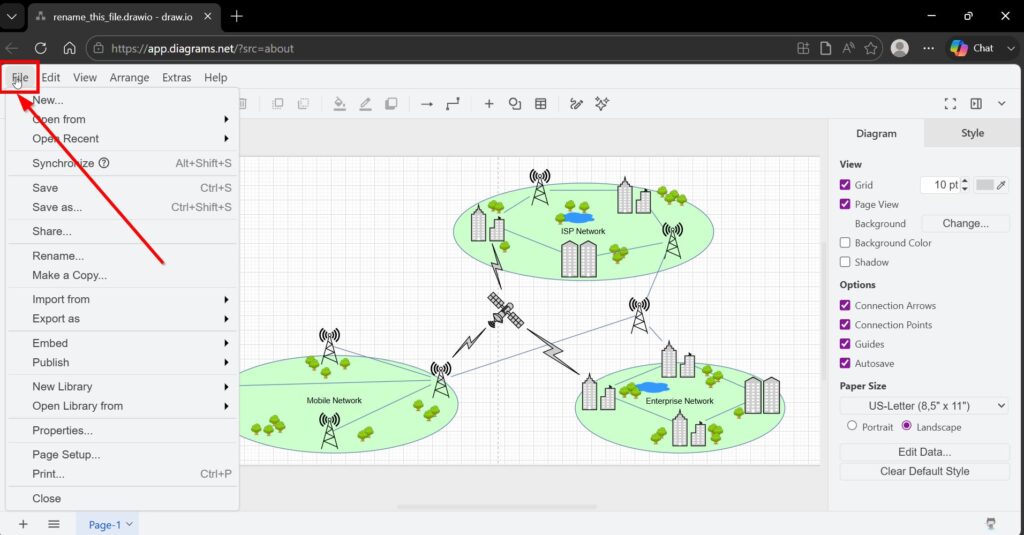
Next, I open the File menu in the upper menu bar.
I keep the diagram open while I do this. Therefore, I can rename it without interrupting my work.
Step 2: I Click Rename
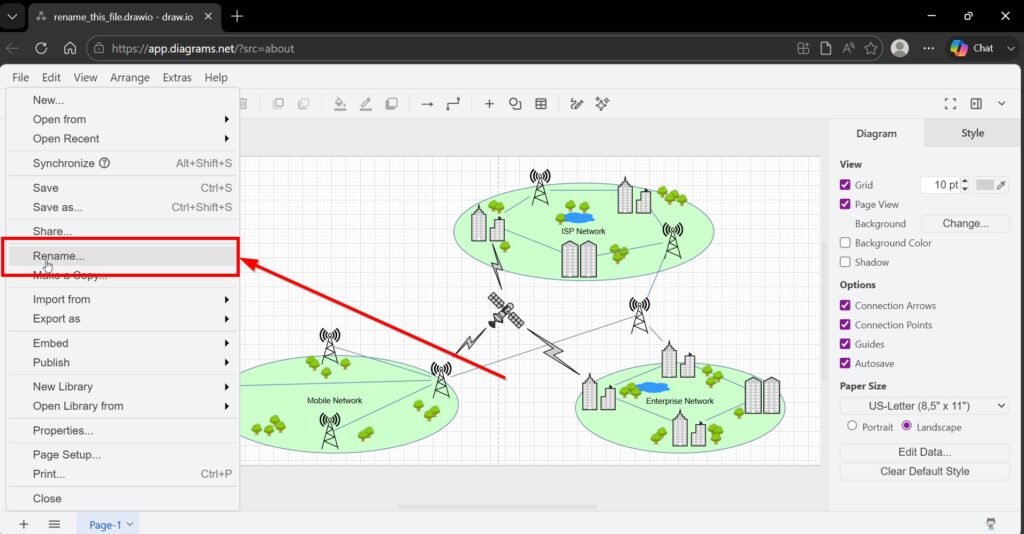
Then, I select Rename from the File menu.
Draw.io opens the rename dialog. As a result, I can change the current name directly inside the editor.
Step 3: I Use the Dialog Window
The dialog shows the current file name and lets me enter a new one.
At this point, I select the existing name and replace it.
I choose a name that describes the content of the diagram clearly and briefly.
For example, I may use:
I avoid vague names such as “new diagram,” “test,” or “final version.” These names provide little information and become difficult to manage later.
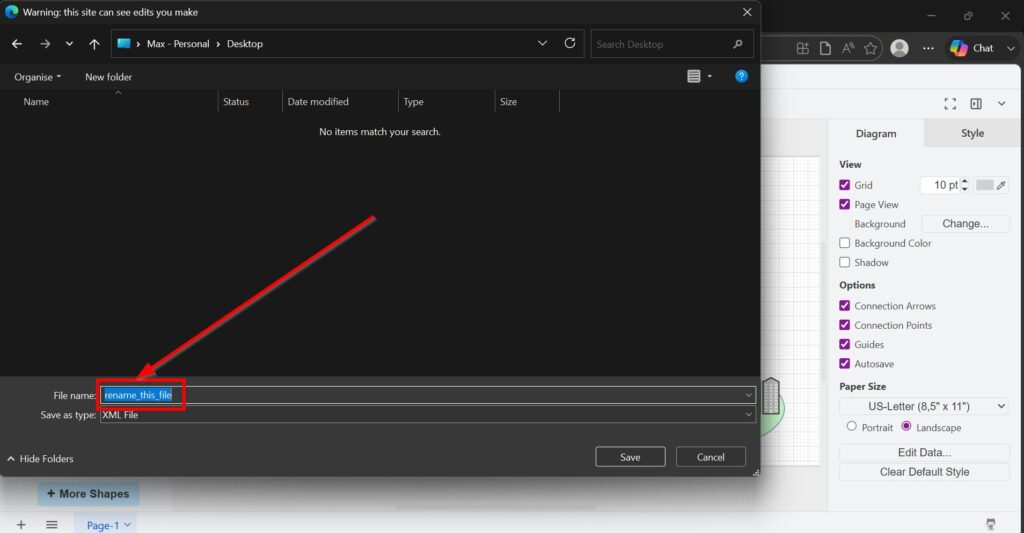
Step 4: I Change the File Name
Now, I enter the new file name.
I normally use a short and consistent naming structure. For example, I may combine the subject and diagram type:
- order-process
- payment-sequence-diagram
- customer-registration-bpmn
I can also add a meaningful version identifier when I need one:
- customer-registration-v2
- payment-process-v3
However, I avoid adding unnecessary information. A file name should remain easy to scan in folders, search results, and shared storage.
Consistent naming becomes especially valuable when a project contains many diagrams.
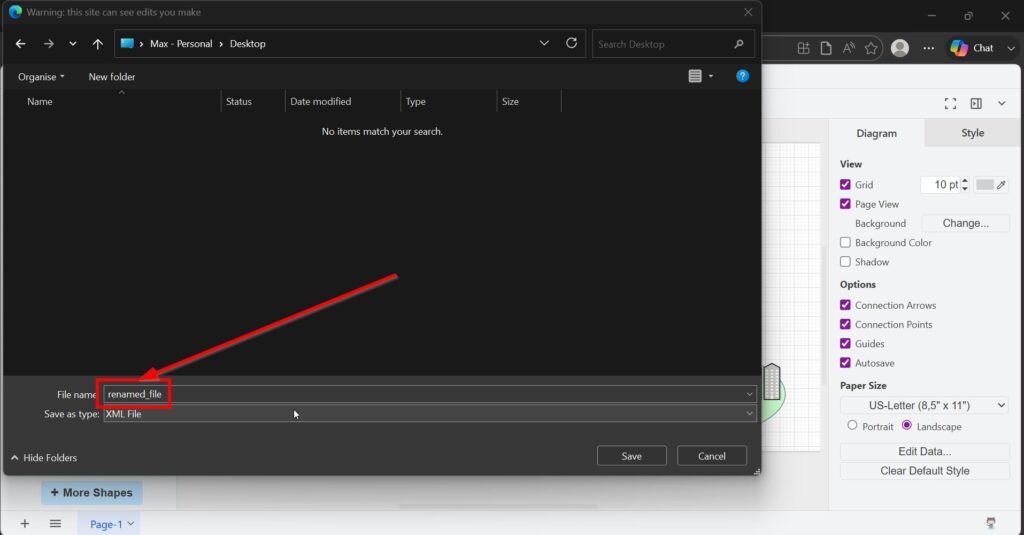
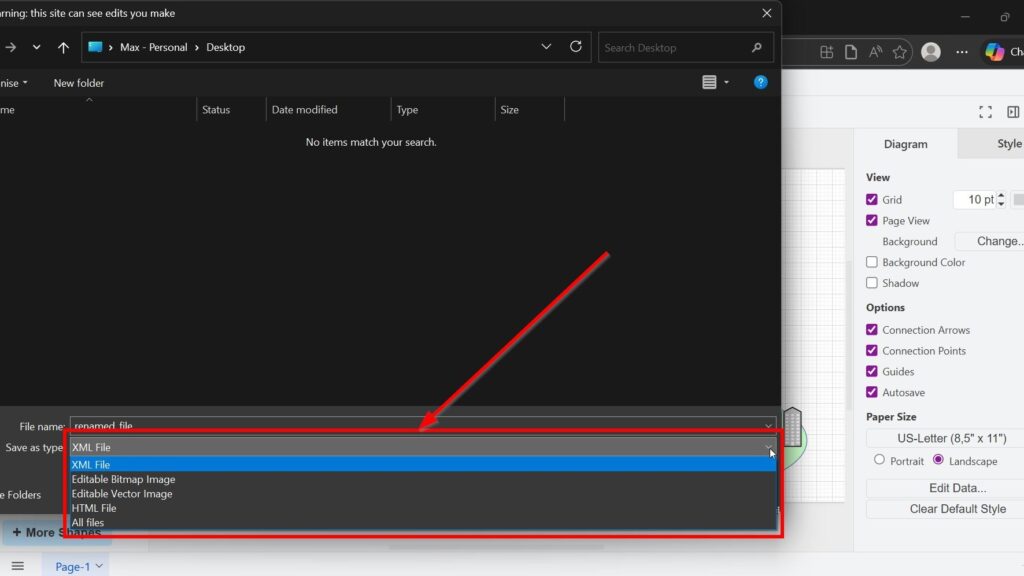
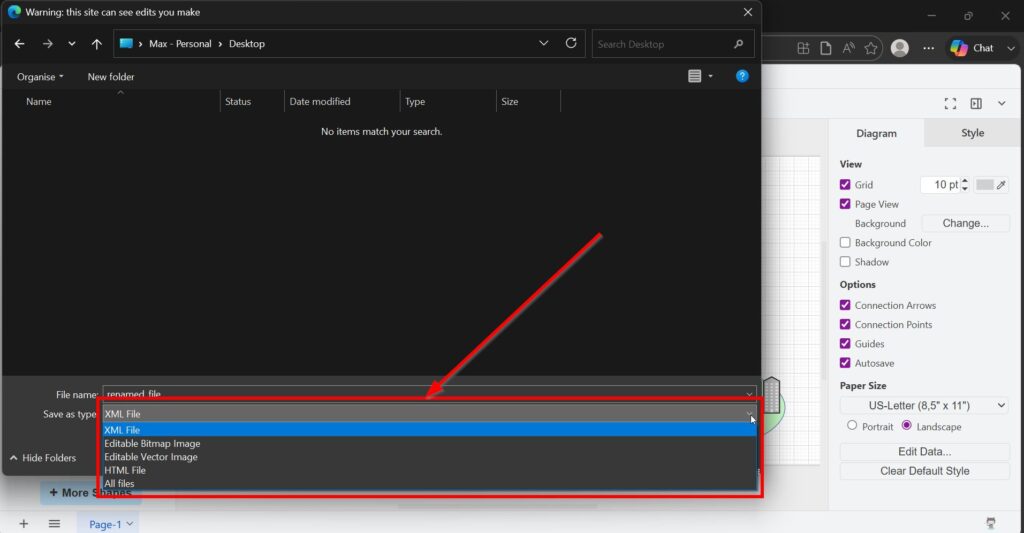
Step 5: I Check the Type Dropdown to Adjust the File Type
Depending on the available rename dialog, I can also review the file type.
The available options may include draw.io, PNG, SVG, or HTML.
I choose the format according to what I want to do with the file.
draw.io
I use the draw.io format when I want a normal editable diagram file.
This is usually my preferred format while I continue modelling.
PNG
I use PNG when I need a bitmap image for documents, websites, or presentations.
Draw.io can also create editable PNG files when the diagram data remains embedded. Therefore, I check the relevant settings when future editing matters.
SVG
I use SVG when I need a scalable vector image.
This format works well when I want sharp graphics at different sizes. Moreover, it suits diagrams that I use on websites or in high-quality documents.
HTML
I use HTML when I want to provide the diagram in a browser-based format.
However, changing the file type is not necessary when I only want to rename the diagram.
If I only need a different output format, I normally use the export functions instead of treating the format change as part of the rename itself.
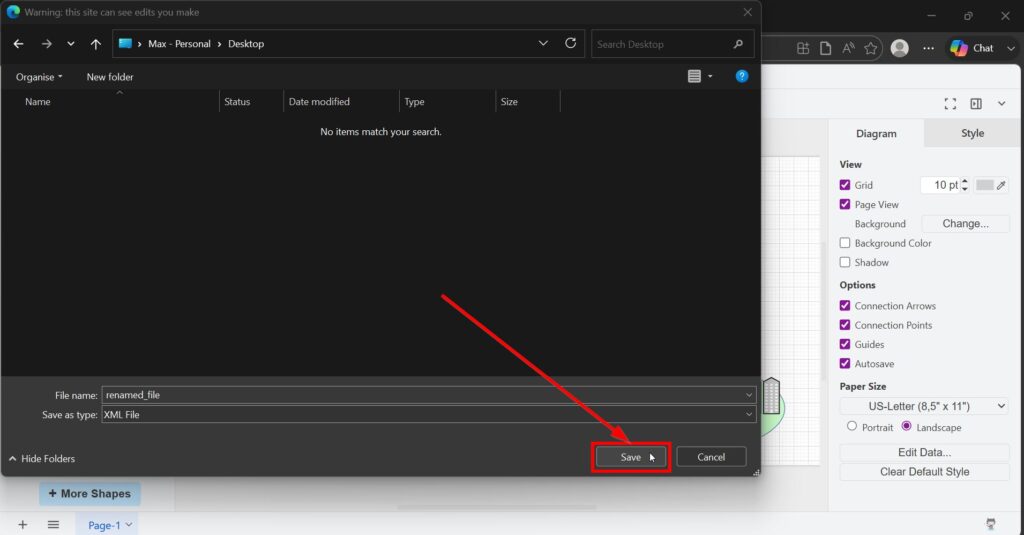
Step 6: I Confirm with Rename
Finally, I confirm the new name in the dialog.
Draw.io then updates the file name. I can immediately continue editing the same diagram.
Afterwards, I check the title area once more. This confirms that the new name appears correctly.
After that, I continue working as normal. Therefore, I keep momentum. Moreover, I reduce the risk of messy file libraries later.
As a result, a new filename now appears in the title bar.
How I Choose Useful File Names
I keep file names descriptive but short. Therefore, I include information that helps me identify the diagram and remove words that add no value.
For example:
- customer-registration-bpmn
- order-fulfilment-process
- payment-system-context
- incident-flow-v2
I also use the same base name for related exports when possible. For example:
- order-process.drawio
- order-process.png
- order-process.svg
As a result, I can recognise immediately that the files belong together.
Renaming and Exporting Are Different
Renaming changes how I identify the file. Exporting creates another representation of the diagram.
This distinction matters because I may want to keep my editable draw.io file while also creating a PNG or SVG for another purpose.
For example, I can keep:
- order-process.drawio
- Then, I can export:
- order-process.svg
Therefore, I preserve my editable source while also creating the format I need for publication or sharing.
I keep the editable diagram as my source file and create exports separately whenever that workflow gives me better control.
Final Thoughts
To rename a file in draw.io, I open File, select Rename, enter the new name, review the file type if necessary, and confirm the change.
The process is simple. However, good naming becomes increasingly important as the number of diagrams grows.
I use short, descriptive, and consistent names. Moreover, I keep related exports under the same base name whenever possible.
A clear naming system makes diagrams easier to find, share, maintain, and reuse throughout a project., I collaborate more easily. Therefore, renaming becomes a small habit with a big payoff.
What’s Next?
Now that I know how to rename a file in draw.io, I can manage my diagrams even more clearly. A good file name helps, but file properties give me more control over the diagram itself. In the next article, I’ll explain How to Change Draw.io File Properties. You’ll learn how file properties affect your diagram and how they help you adjust important settings. Click below to continue and improve your draw.io file management step by step.
Choose Tools That Support Better Requirements Engineering
Requirements engineering becomes clearer when I use practical tools for visual thinking, documentation, tracking, and process modeling. Therefore, I use draw.io to create diagrams, Confluence to organize knowledge, Jira to manage work, and Camunda to model business processes. Each tool supports a different part of the requirements workflow. As a result, I can connect ideas, decisions, tasks, and processes more effectively. In the main article on Requirements Engineering Tools, I show how these tools help me improve requirements work from first idea to final implementation.