
Saving my work in draw.io matters. I know how frustrating lost changes can feel. In this article, I explain How to Save Files in draw.io in a clear and practical way. You’ll learn where to save your diagrams, which options matter, and which formats help most. As a result, you can protect your work and continue later with confidence.
Prefer watching instead of reading? Here is the quick video walkthrough:
What is draw.io?
draw.io (opens in a new tab) is an online diagramming tool. It’s perfect for creating flowcharts, network diagrams, and process visuals. I use it because it’s user-friendly and versatile. With its intuitive interface, I can quickly create and edit diagrams. It supports many export formats, making it ideal for sharing or embedding.
Saving My Diagram with Save As
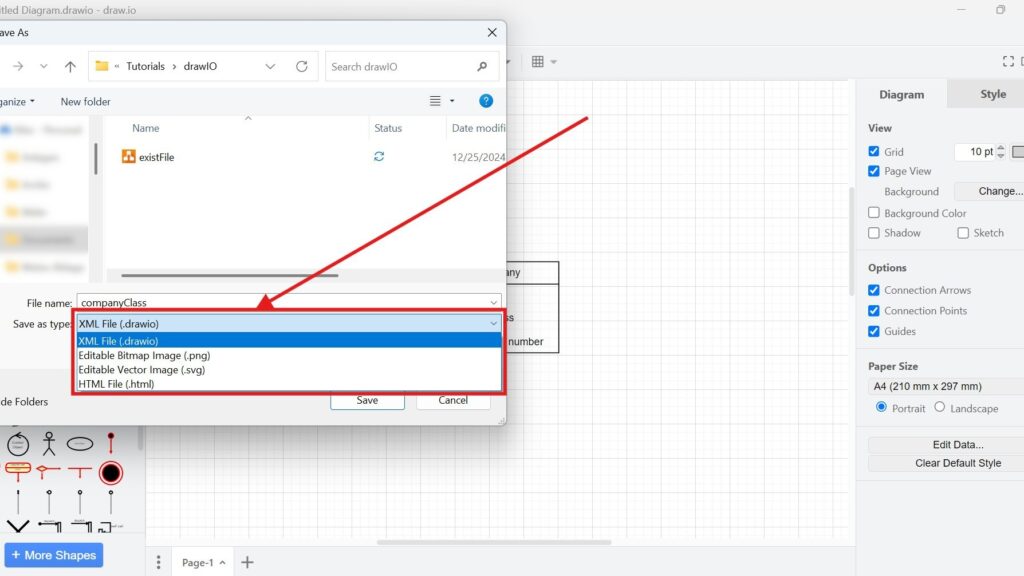
I use Save As when I save a new diagram or want another filename, format, or location. The default and recommended format for regular draw.io diagrams is .drawio.
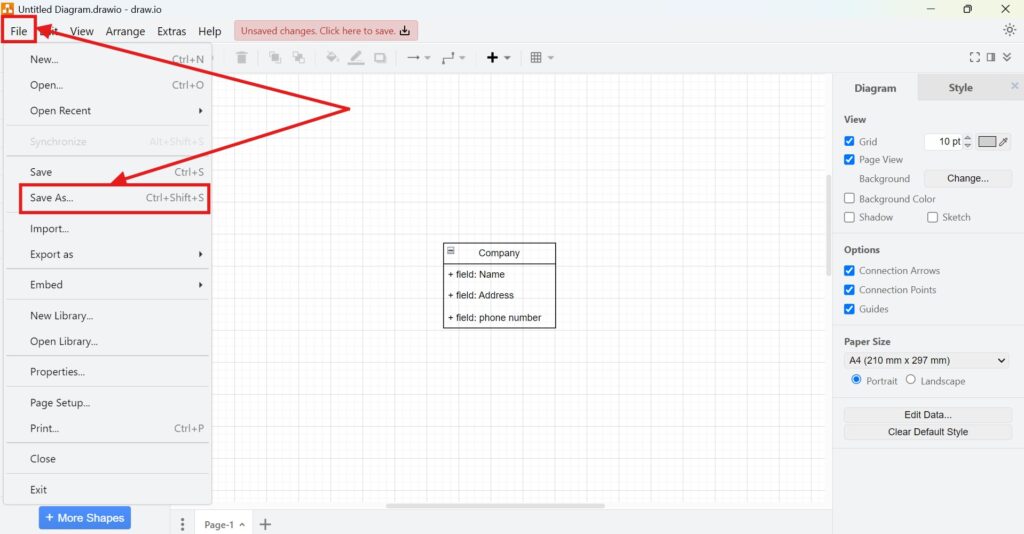
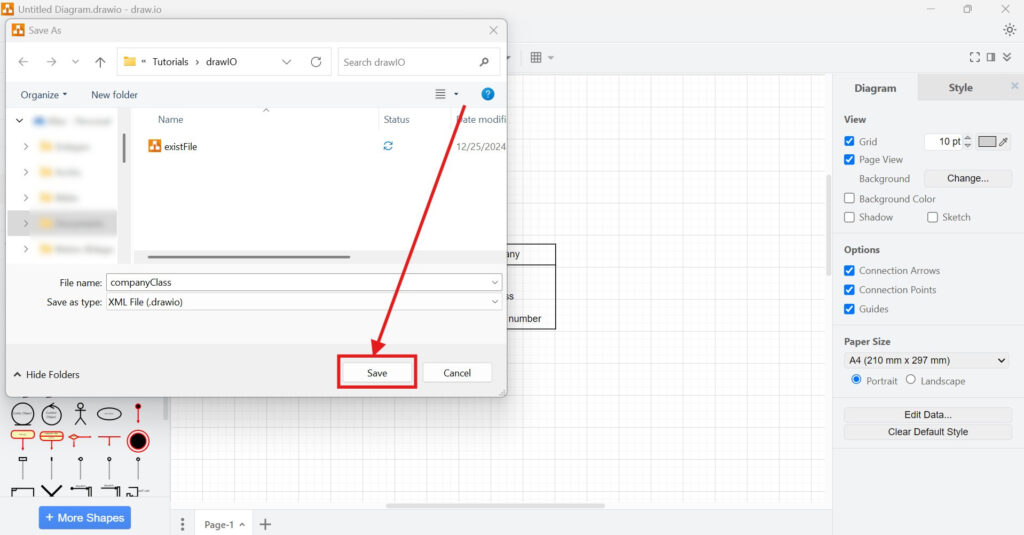
1. Step: Open File > Save As
I open the File menu and select Save As. This opens the settings for the new file.
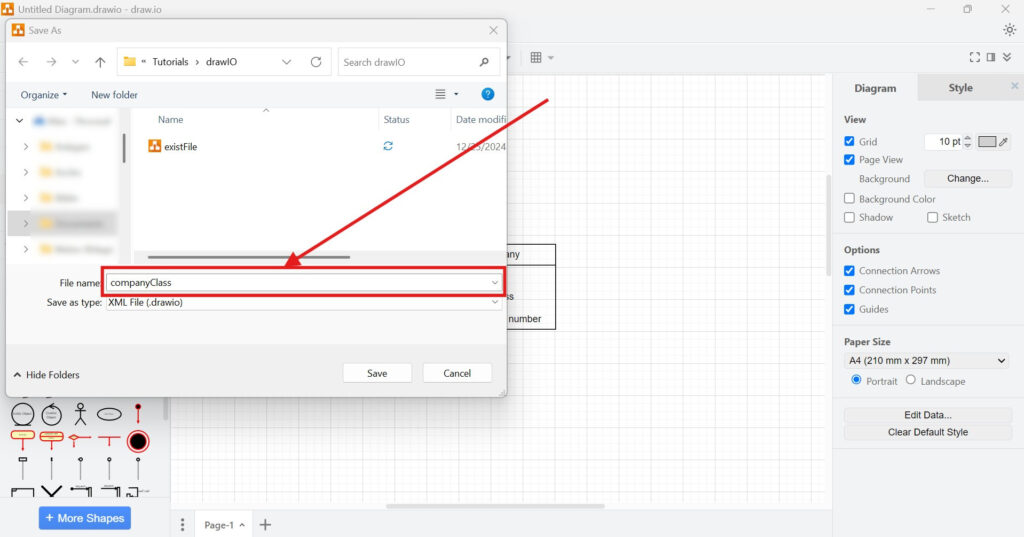
2. Step: Enter a File Name
I enter a clear name in the Save As field. Therefore, I can identify the diagram easily later.
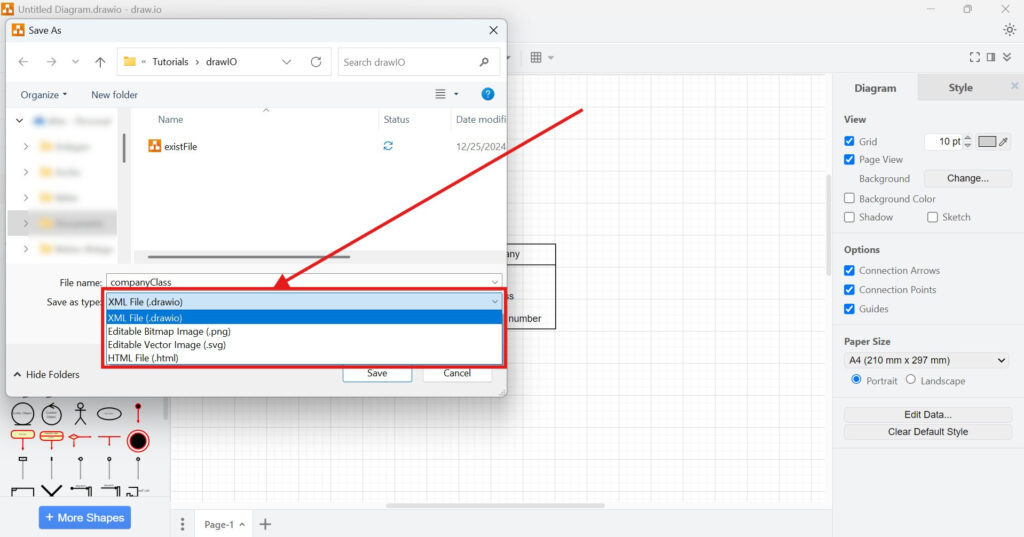
3. Step: Choose the File Type
I select the required format from the Type list. Each native Save As format contains the diagram data needed to reopen the file in draw.io.
4. Step: Save the File
Finally, I confirm the settings and save the diagram. I now have a file that contains the current state of my diagram.
Saving with a Keyboard Shortcut
I can also open Save As without using the menu.
On Windows, I press Ctrl+Shift+S. On macOS, I press Cmd+Shift+S.
The shortcut opens the same Save As workflow and therefore does not change how draw.io stores the file.
I use this method when I work frequently with several diagrams. It reduces the number of menu actions.
Using the Save Menu Option
After I have already saved and named my diagram, I use Save for normal updates. I do not need a new filename each time.
Save updates my existing diagram, while Save As lets me create another saved version or choose different settings.
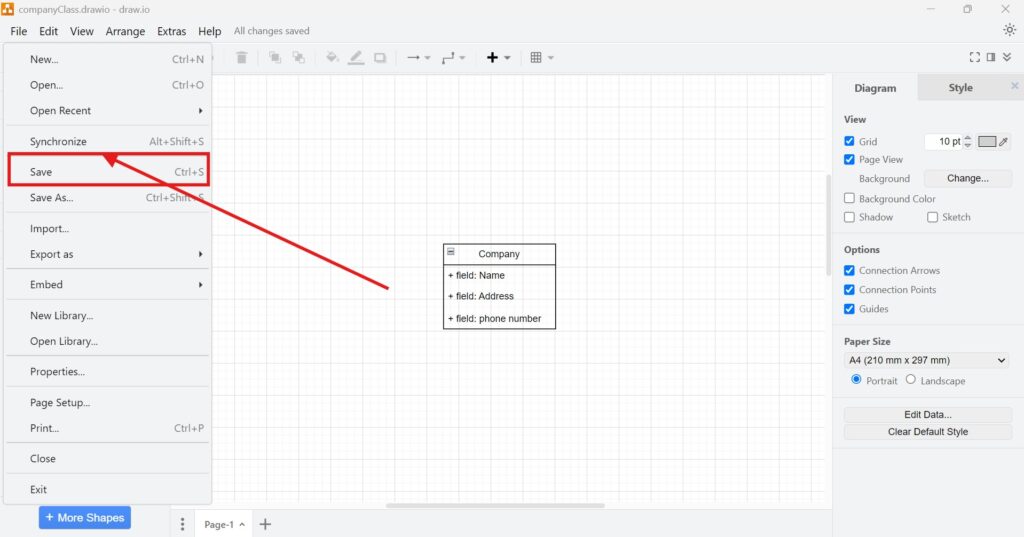
Therefore, I use Save regularly while I work. However, I use Save As when I need another filename, format, or storage location.
Which File Format Should I Use?
The Save As menu supports several native formats. All of them preserve diagram data, although they serve different purposes.
.drawio
I use .drawio for normal diagram work. It stores the diagram as XML under the draw.io file extension.
I choose .drawio when continued editing is my main priority. draw.io itself recommends this format as the default.
Editable PNG
I can save my diagram as an editable PNG image. draw.io embeds the diagram data inside the PNG file. Therefore, I can use the file as an image and still reopen its diagram content later.
An editable PNG combines a standard image with the underlying draw.io diagram data.
However, some image platforms may remove the embedded metadata when they process the image. Therefore, I still keep my original diagram file.
Editable SVG
I can also save an editable SVG with embedded diagram data. SVG gives me a vector image, which works well when I need scalable graphics.
However, different SVG viewers may handle fonts or text formatting differently. Therefore, I check the result in the application where I plan to use it.
I choose editable SVG when I need a scalable image and also want to retain diagram data.
HTML
The HTML save format contains my diagram data and information for opening the diagram through the draw.io web editor.
I use this option only when an HTML-based workflow makes sense. For normal editing, I prefer the simpler .drawio format.
Saving and Exporting Are Different
I separate saving from exporting because they serve different purposes. Save As focuses on native formats that preserve diagram information. Export As creates formats intended primarily for distribution or presentation.
For example, PDF belongs to the export workflow. I select File > Export As > PDF when I need one. I can also enable Include a copy of my diagram if I want the PDF to contain diagram data.
I save when I want to preserve my working diagram, and I export when I need a finished output for another purpose.
Which Format Should I Choose?
For normal work, I choose .drawio. If I need an image that stays editable, I consider PNG or SVG. However, I use export formats when I mainly want to publish, present, or distribute the diagram.
For most ongoing modeling work, the .drawio format remains the clearest and safest choice.
Final Thoughts
Saving correctly helps me protect my work and keep diagrams available for later changes. First, I choose Save As when I create the file or need another version. Afterward, I use Save for normal updates.
I also choose the format according to my goal. How to save files in draw.io therefore starts with one simple rule: I use .drawio for regular editing and other formats only when they provide a specific benefit.
What’s Next?
Now that I know how to save files in draw.io, I can make my workflow even safer. Saving helps me protect my diagram. However, synchronization helps me keep changes aligned across storage locations. In the next article, I’ll explain How to Synchronize in draw.io: A Step-by-Step Guide. You’ll learn how synchronization works, why it matters, and how it helps you avoid outdated diagram versions. Click below to continue and synchronize your draw.io files with more confidence.
Connect Your Requirements Engineering Tools
Requirements engineering becomes stronger when I connect the right tools with a clear workflow. Therefore, I use draw.io to visualize ideas, Confluence to document knowledge, Jira to manage work, and Camunda to model processes. Each tool supports a different part of requirements work. As a result, I can move from early ideas to structured documentation, traceable tasks, and clear process models. In the main article on Requirements Engineering Tools, I show how these tools work together and help me improve requirements engineering from start to finish.