
Styles in draw.io can turn simple diagrams into clear and professional visuals. I use them to control colors, lines, text, and shape design. In this guide, I show how style management works and why it matters. As a result, you can make diagrams more consistent, engaging, and easier to understand.
What Are Styles in draw.io?
A style defines how an element looks. It does not define what the element means or how the process works.
For example, I can change a shape’s fill color without changing its label or connections. Likewise, I can change a connector from a solid line to a dashed line without changing where it leads.
A style should communicate meaning consistently; it should not become decoration without purpose.
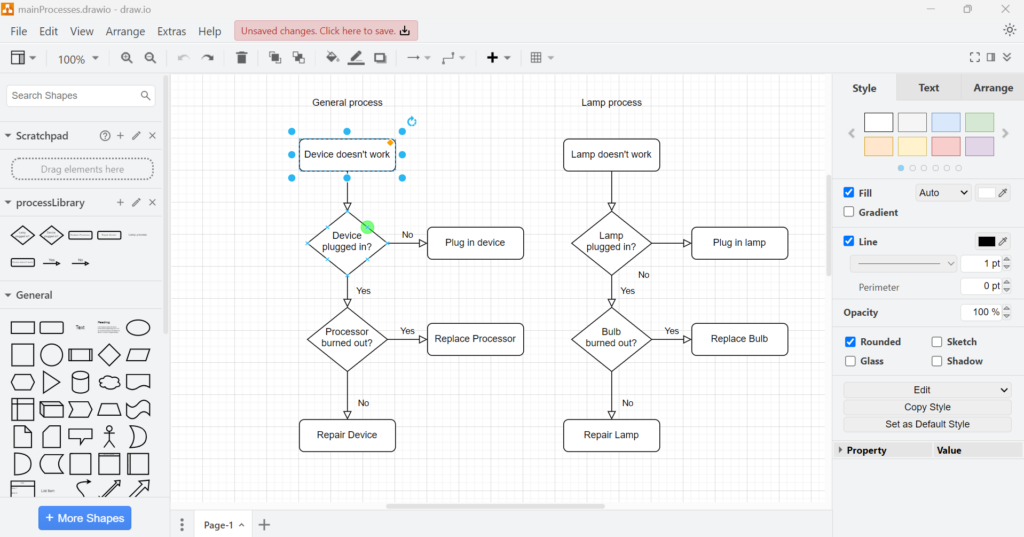
The available settings depend on the element I select. A rectangle offers different options from a connector or an ellipse. Therefore, I always select the element first and then check the Style panel.
Changing Fill and Shape Appearance
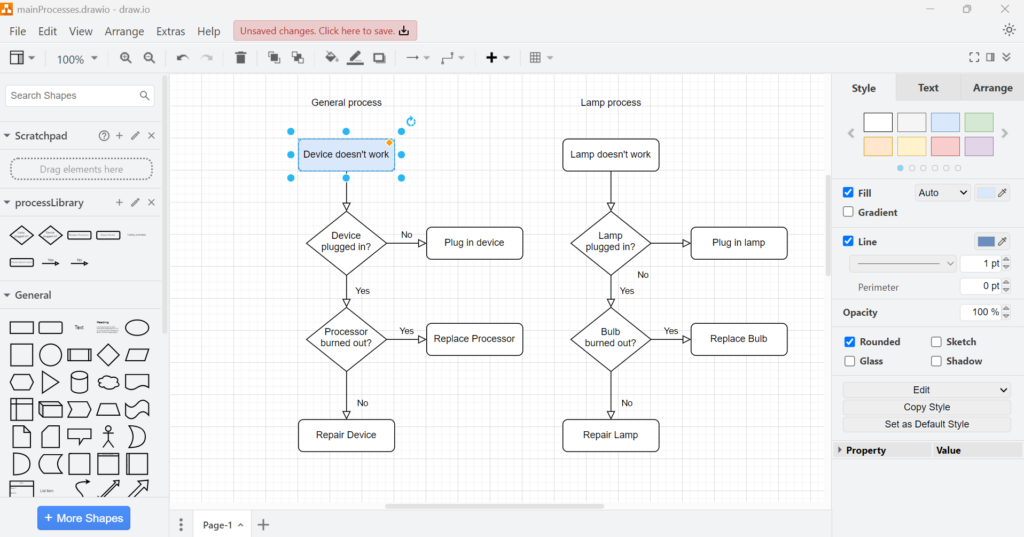
I usually start with the fill because it creates the strongest visual distinction.
The Style panel provides predefined colors. However, I can also choose a custom color when I need a specific visual standard. I can remove the fill, use a gradient, or adjust additional effects.
I use these options carefully. A strong color can emphasize an important state or category. Too many colors, however, make a diagram harder to interpret.
For professional diagrams, I prefer a small and repeatable visual vocabulary.
Formatting Lines and Borders
Next, I control the outline. I can change its color, thickness, and pattern. For example, I can use a solid, dashed, or dotted line when the notation and context allow it.
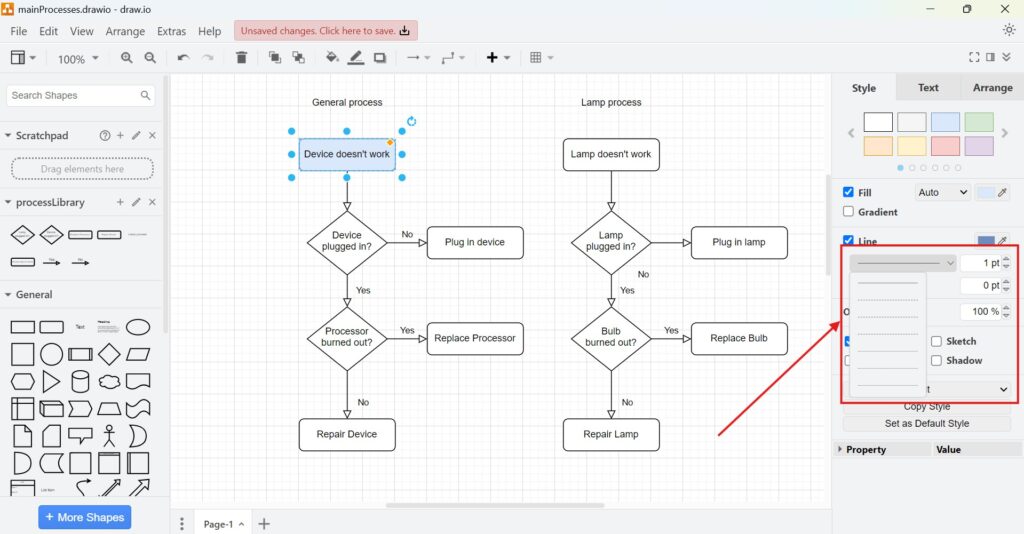
These settings also matter for connectors. However, I avoid assigning arbitrary meanings to line patterns. If a modeling notation already defines a connector type, I follow that notation instead.
Using Opacity, Rounded Corners, and Effects
The Style panel also contains controls for opacity and visual effects.
Opacity makes an element more transparent. Rounded changes compatible shapes from sharp to rounded corners. Glass adds a reflective effect. Shadow adds depth around an element.

I use these effects selectively. Transparency can help when elements overlap. Rounded corners can support a consistent design language. Shadows and glass effects, however, rarely improve technical models.
Therefore, I normally favor clarity over decoration.
Creating a Reusable Visual Style
Once I create a suitable style, I often want to reuse it.
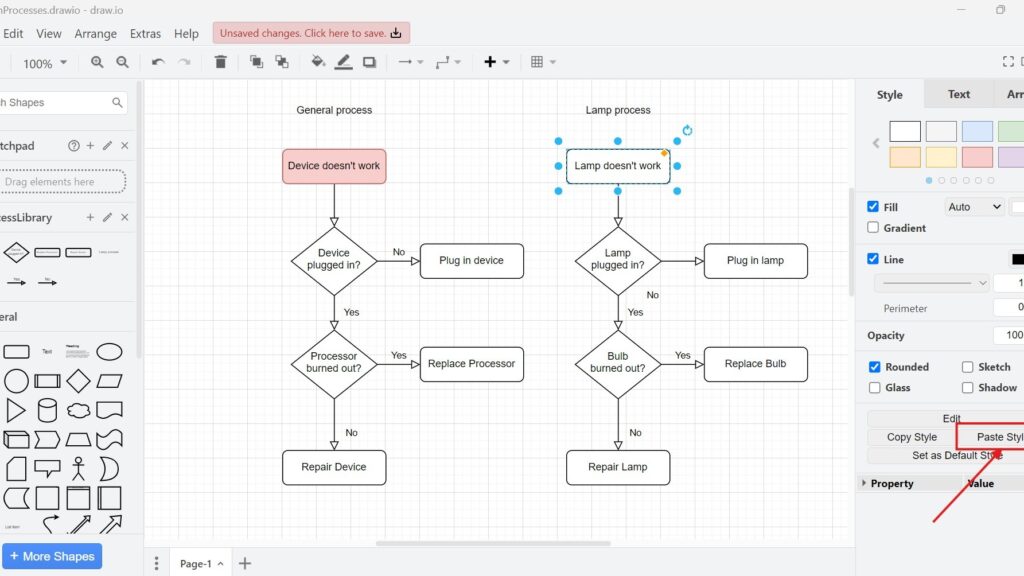
For example, I can give the starting point of a process a distinct fill color. This creates visual emphasis without changing the structure of the flowchart.
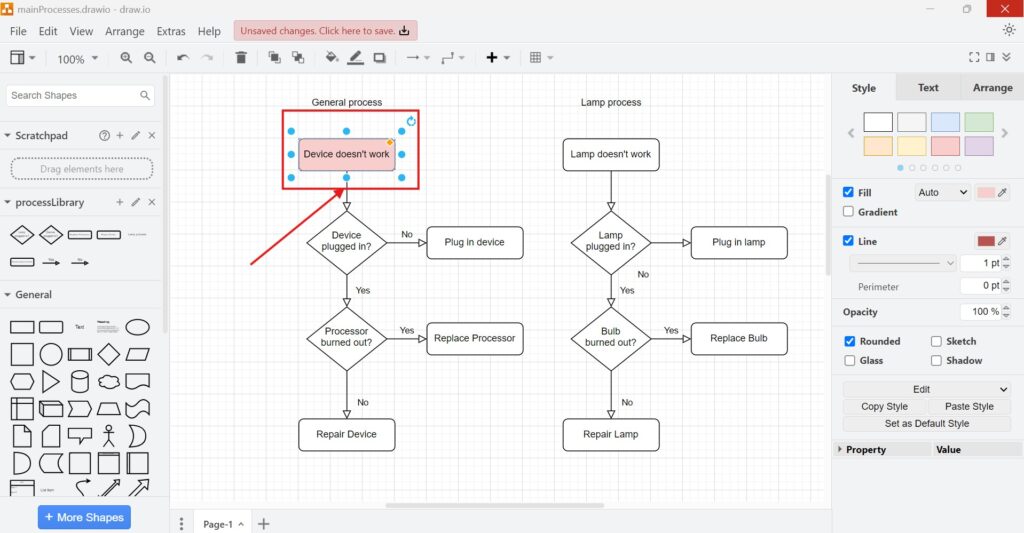
Manually recreating the same formatting on every similar shape would waste time. More importantly, small differences could appear between elements.
Therefore, I use Copy Style and Paste Style.
Copying a Style
First, I select the element that already has the appearance I want. Then I choose Copy Style in the Style panel.
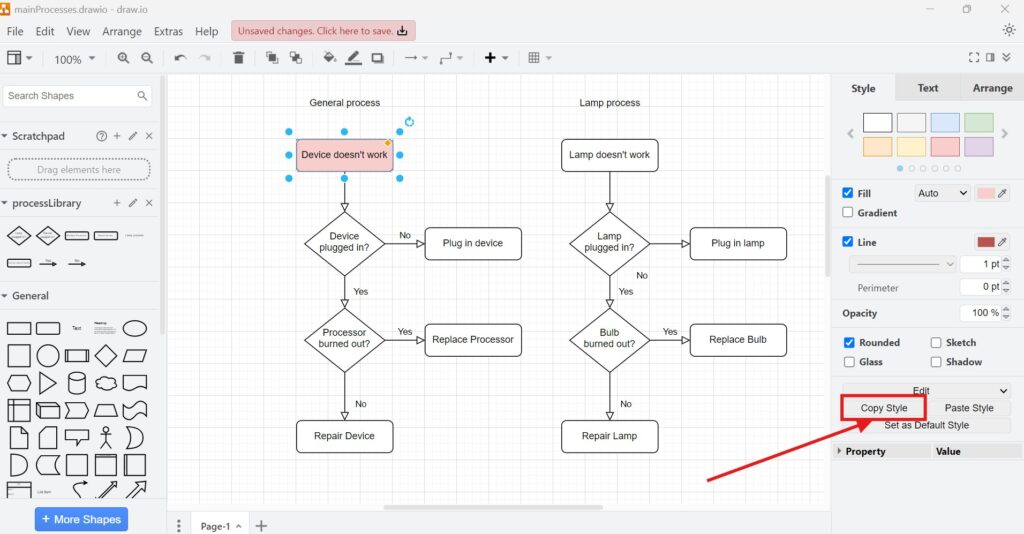
The copied style can contain properties such as fill, border, text formatting, and other visual settings.
Next, I select the element that should receive the same formatting.
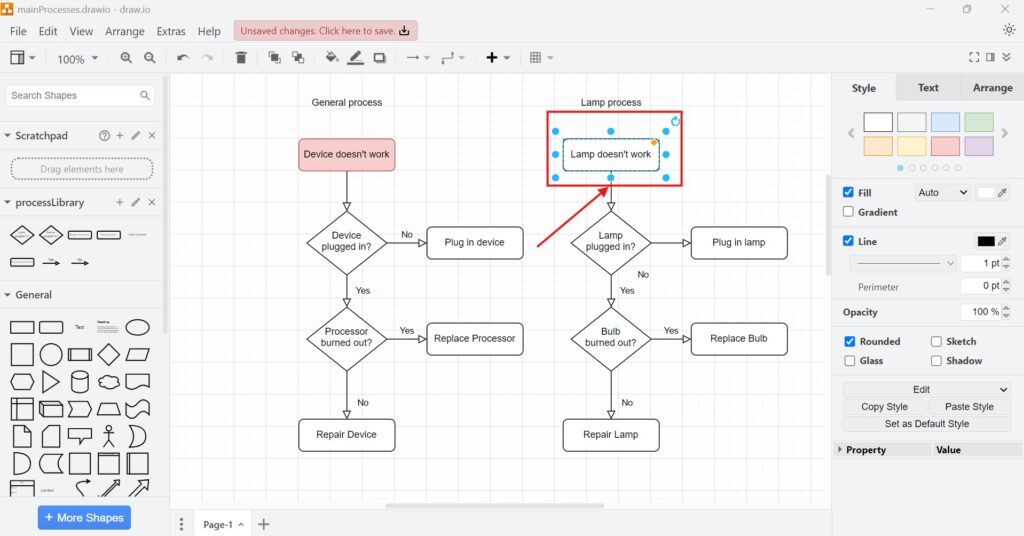
Then I choose Paste Style.
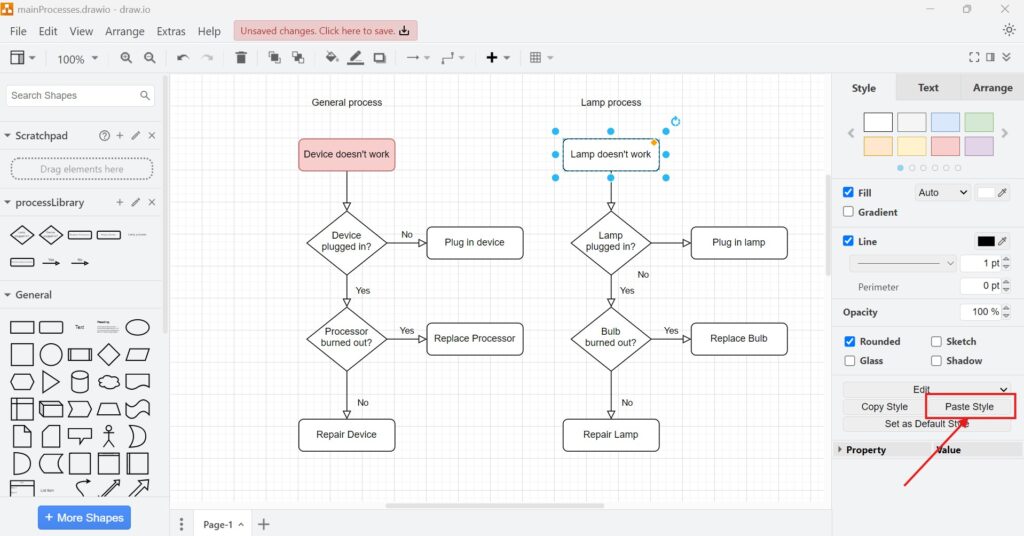
The target now follows the same visual design.
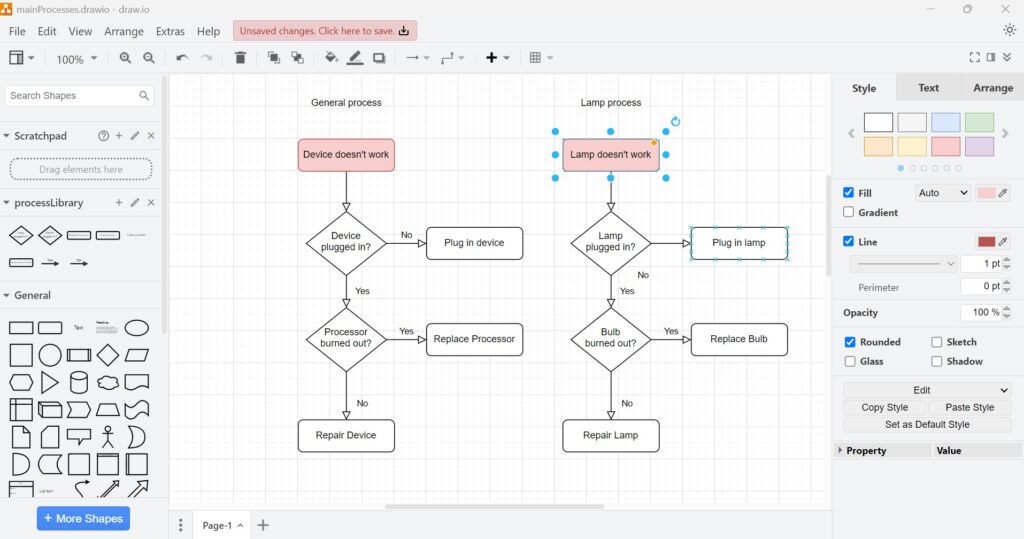
Copy Style and Paste Style change the appearance of an element without changing the underlying process logic.
This distinction matters. I can standardize a large diagram without rebuilding its structure.
Setting a Default Style
If I need the same appearance repeatedly, I can go one step further. I select a correctly formatted element and choose Set as Default Style.
Draw.io then uses that style when I create compatible new elements. As a result, I do not need to paste the same formatting again and again.
Set as Default Style affects new elements; it does not restyle the elements that already exist in my diagram.
I find this especially useful when I create many elements of the same category.
Editing a Style Directly
The graphical Style panel covers most everyday requirements. However, draw.io also lets me inspect and modify the underlying style definition.
I can access it through Edit > Edit Style.
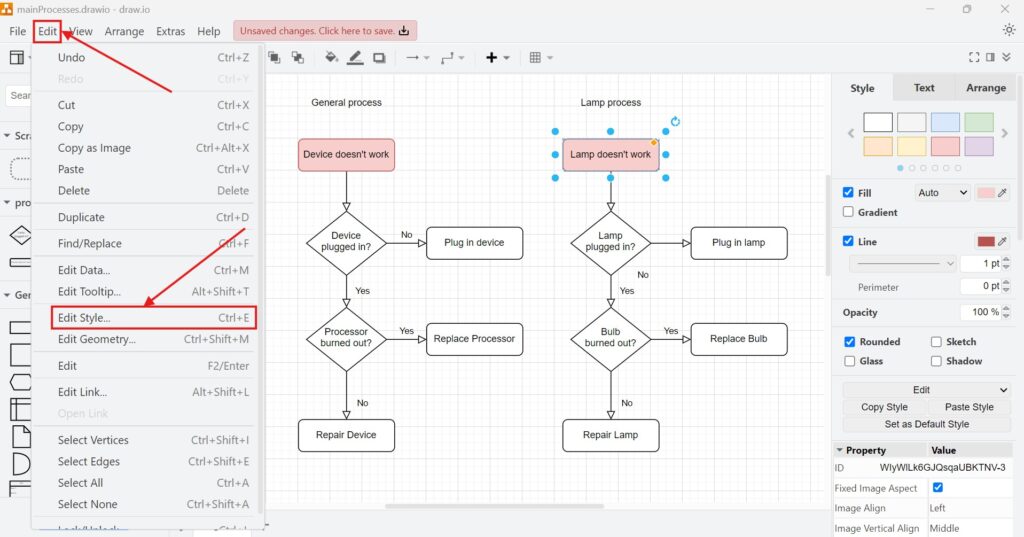
Alternatively, I can open the Edit menu inside the Style panel and select Edit Style there.
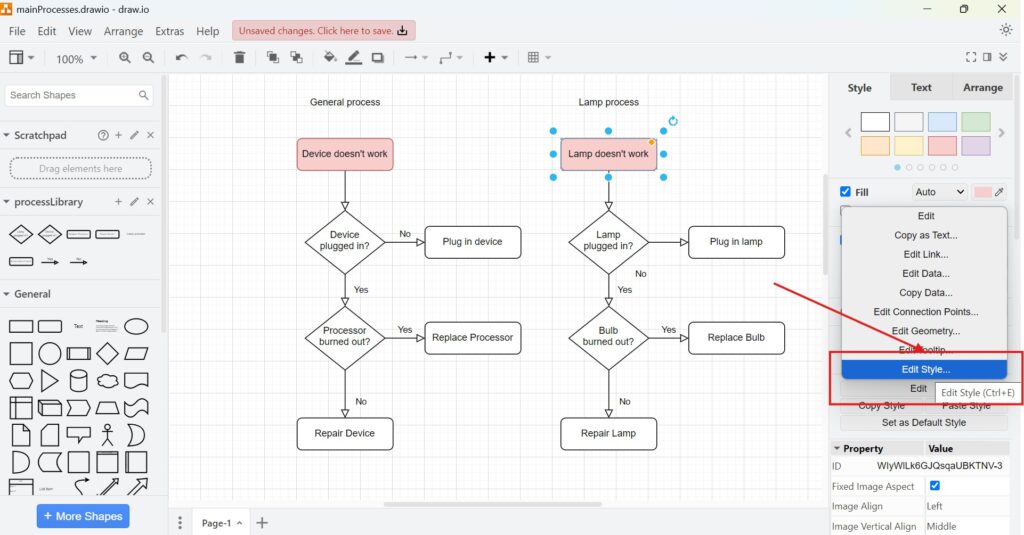
Both paths open the same editor.
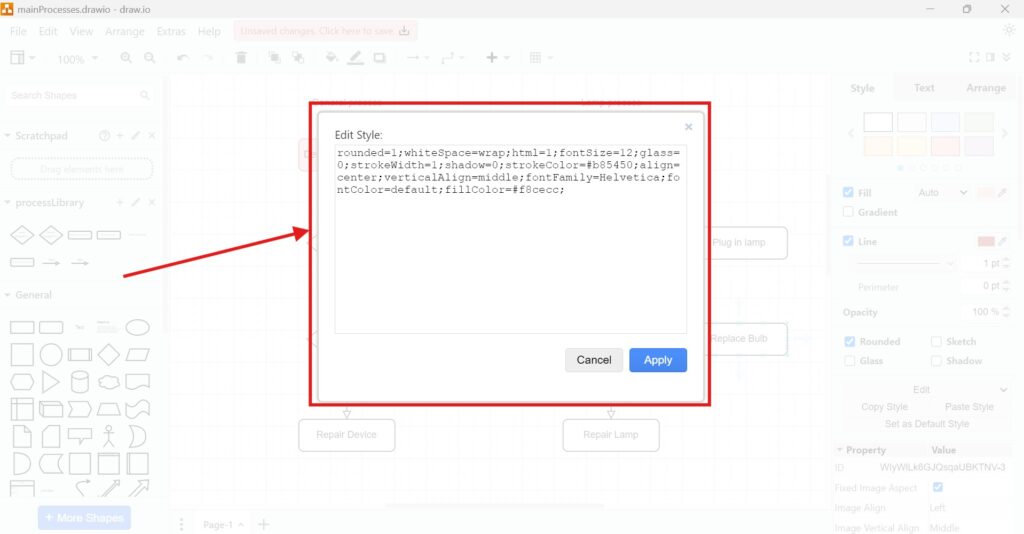
The dialog displays the style as a series of properties and values. For example, the definition can contain properties for the fill color, stroke color, font size, alignment, opacity, or rounded corners.
This gives me more precise control than the graphical controls alone.
However, I edit these properties carefully. A small change can affect several aspects of an element. Therefore, I normally change one property at a time and check the result before continuing.
The Edit Style dialog changes the style definition of an element; it does not expose the full XML structure of the diagram.
That distinction is important because style editing and diagram structure editing solve different problems.
Using Styles as a Visual Language
I get the greatest value from styles when I treat them as part of the diagram’s visual language.
For example, I might use one style for normal activities and another for exceptions. Likewise, I might use a specific color to highlight elements that require attention.
However, I keep each meaning consistent. If red represents an error in one part of a diagram, I avoid using the same red merely for decoration elsewhere.
I also avoid relying on color alone. Labels, shapes, and the structure of the model should still communicate the essential information. This improves accessibility and makes the diagram easier to understand when someone prints it without color.
When I use BPMN, UML, or another formal notation, I preserve the notation rules before I add visual customization.
A visually attractive model cannot compensate for incorrect modeling semantics.
Keeping Large Diagrams Consistent
Style management becomes more important as a diagram grows.
Small differences in border width, colors, fonts, or effects can make related elements look unrelated. Therefore, I reuse styles rather than recreating them manually.
I also keep the number of styles limited. A few clearly defined styles usually communicate more than many slightly different ones.
For recurring diagram types, I establish these choices early. Then I use Copy Style, Paste Style, and default styles to maintain them.
This approach reduces formatting work. More importantly, it makes later changes easier.
Final Thoughts
Styles in draw.io give me much more than control over colors. They help me establish hierarchy, distinguish categories, emphasize important elements, and keep diagrams consistent.
For individual changes, I use the Style panel. For repeated formatting, I use Copy Style and Paste Style. When I create many similar elements, I use a default style. Finally, when I need precise control, I edit the style definition directly.
Good style management makes a diagram easier to scan, compare, maintain, and explain.
For me, that is the real purpose of styling. The diagram should not simply look better. Its visual design should make its information easier to understand.
What’s Next?
Now that I know how styles in draw.io improve clarity and consistency, I can edit visual details even faster. The format view gives me direct access to important design options. In the next article, I’ll explain How to Activate the Format View in draw.io. You’ll learn how to open the format panel, adjust diagram elements, and refine your shapes, text, and connectors more efficiently. Click below to continue and format your draw.io diagrams with more control.
Improve Requirements Engineering with Connected Tools
Requirements engineering becomes easier when I use tools that support clear thinking, documentation, tracking, and process modeling. Therefore, I use draw.io to visualize ideas, Confluence to organize knowledge, Jira to manage requirements-related work, and Camunda to model business processes. Each tool helps me handle complexity from a different angle. As a result, I can connect diagrams, decisions, tasks, and workflows more effectively. In the main article on Requirements Engineering Tools, I show how these tools support a clearer and more reliable requirements engineering workflow.