
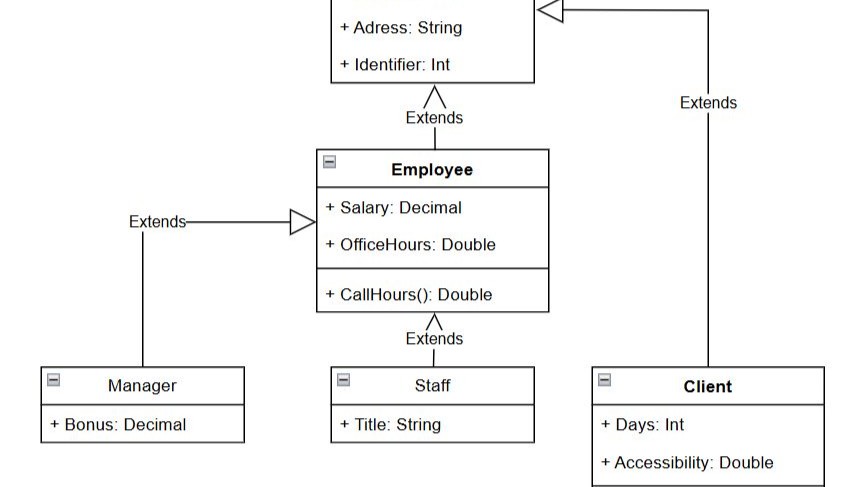
Creating UML diagrams can feel complicated at first. However, I show how easy it is to build a UML Class diagram with draw.io. Step by step, I guide you through the key parts. As a result, you quickly see which details need close review and which parts you can understand at a glance.
What I Model in This Example
A UML class diagram describes the static structure of a system. I use classes to represent relevant concepts. Within each class, I can define attributes and operations. I then use relationships to show how the classes relate to each other.
For this tutorial, I use the following model:
- Person
- Name: String
- Address: String
- Identifier: Int
- Employee
- Salary: Decimal
- OfficeHours: Double
- CallHours(): Double
- Manager
- Bonus: Decimal
- Staff
- Title: String
- Client
- Days: Int
- Accessibility: Double
- WhichStaff(): Double
Employee specializes Person. Manager and Staff specialize Employee. Client specializes Person in this example.
Before I draw relationships, I first define the classes and their contents because a clear conceptual structure prevents me from creating arbitrary connections later.
In a real project, I would also challenge the model itself. For example, I would verify whether Client truly represents a specialized Person or whether another relationship would describe the domain more accurately. UML should document the domain model, not determine it.
1. Select the UML Class Shape
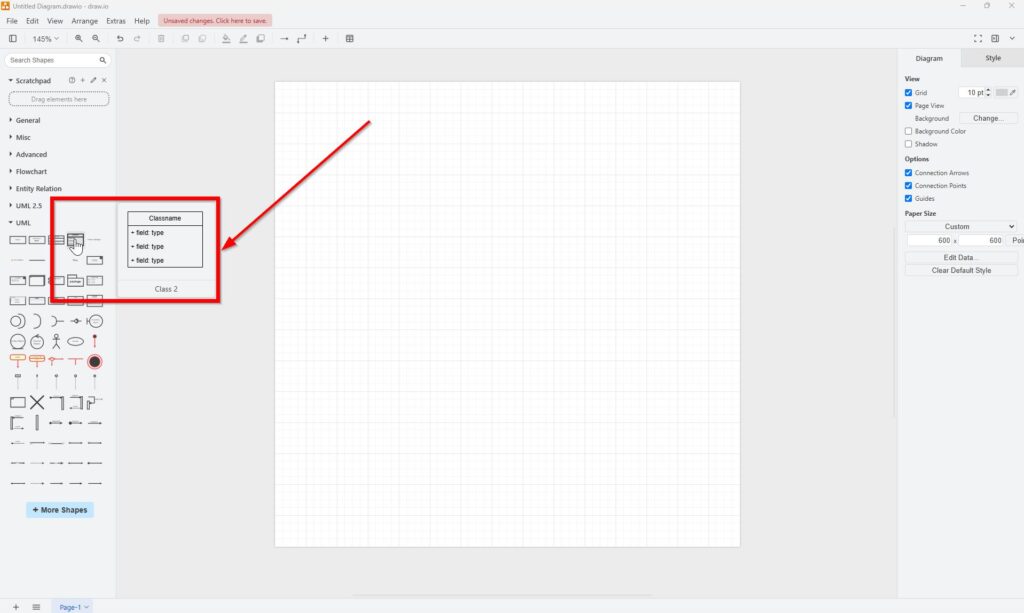
First, I open the UML shape library in draw.io. If it does not appear in the sidebar, I can enable the relevant UML library through the shape selection options.
For Person, I need only a class name and attributes. Therefore, I select the class variant without an operations compartment. In the interface shown here, draw.io calls this shape Class 2.
2. Add the Person Class to the Canvas
Next, I drag the class shape from the sidebar onto the canvas.
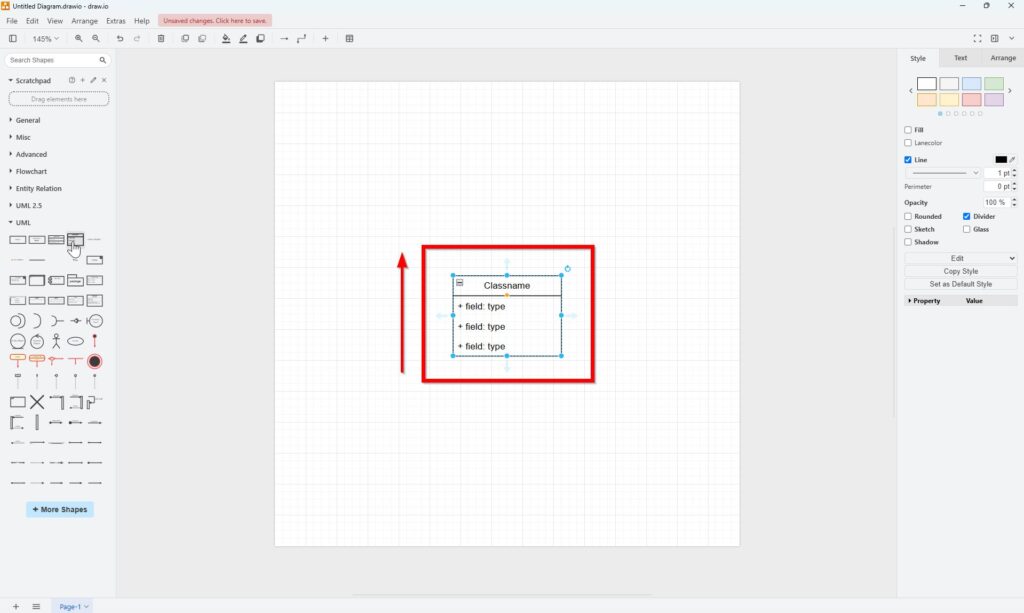
I then position it near the top of the diagram. This gives me enough space below it for the specialized classes that I will add later.
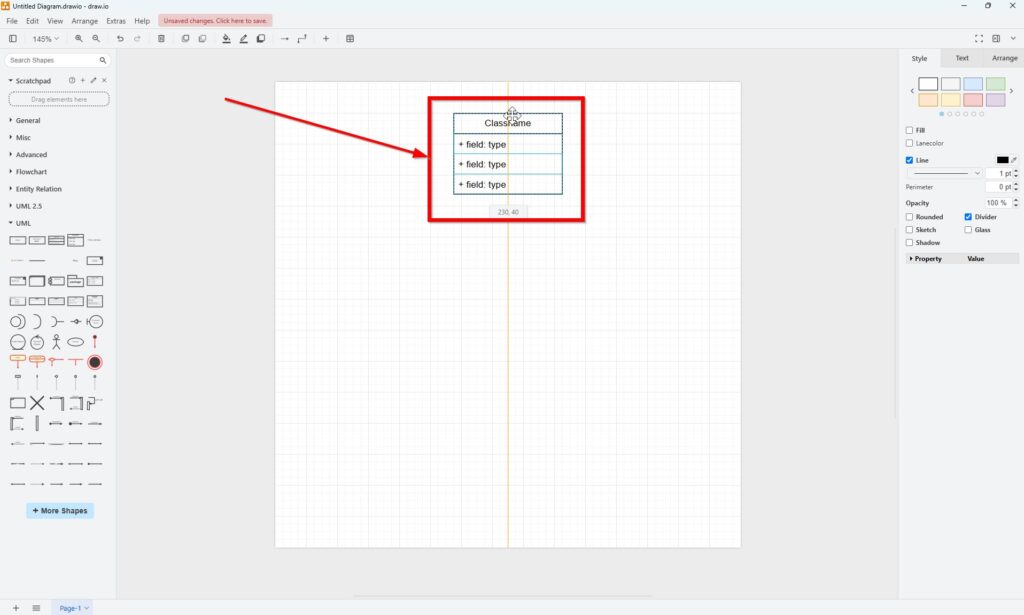
This layout decision is simple, but it matters. General classes usually work well above their specialized classes when I use a top-down inheritance structure. As a result, readers can follow the hierarchy more easily.
3. Rename the Class
Now I replace the default class name with Person.
I double-click the class name and enter the new value. I keep class names short and use singular nouns because each class describes one type of object.
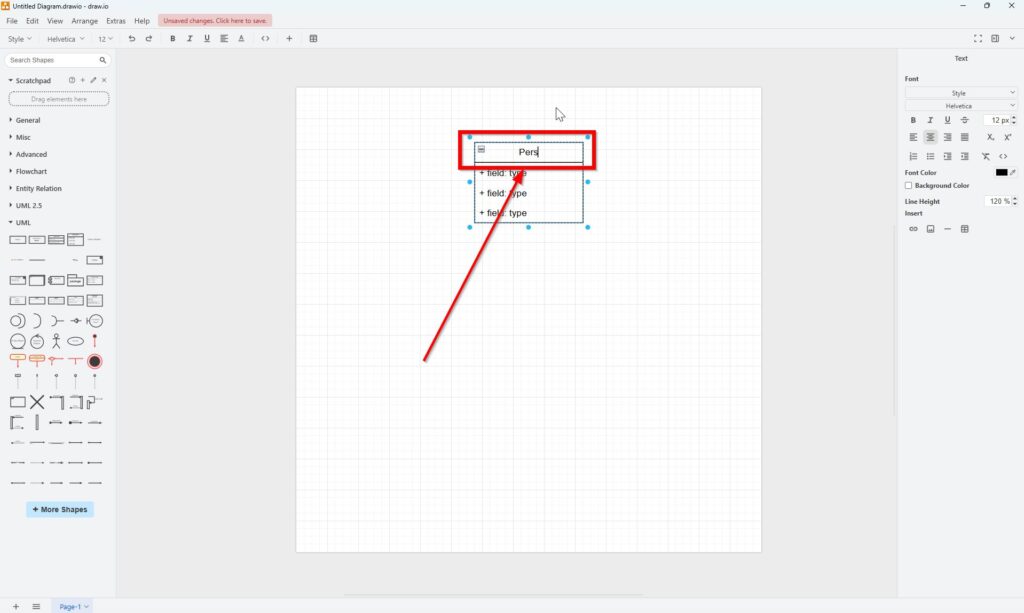
A class name should identify a meaningful domain concept rather than describe an activity or implementation detail.
4. Define the Attributes
Next, I enter the attributes for Person:
- Name: String
- Address: String
- Identifier: Int
The plus sign represents public visibility in UML. A minus sign would represent private visibility. The colon separates an attribute name from its type.
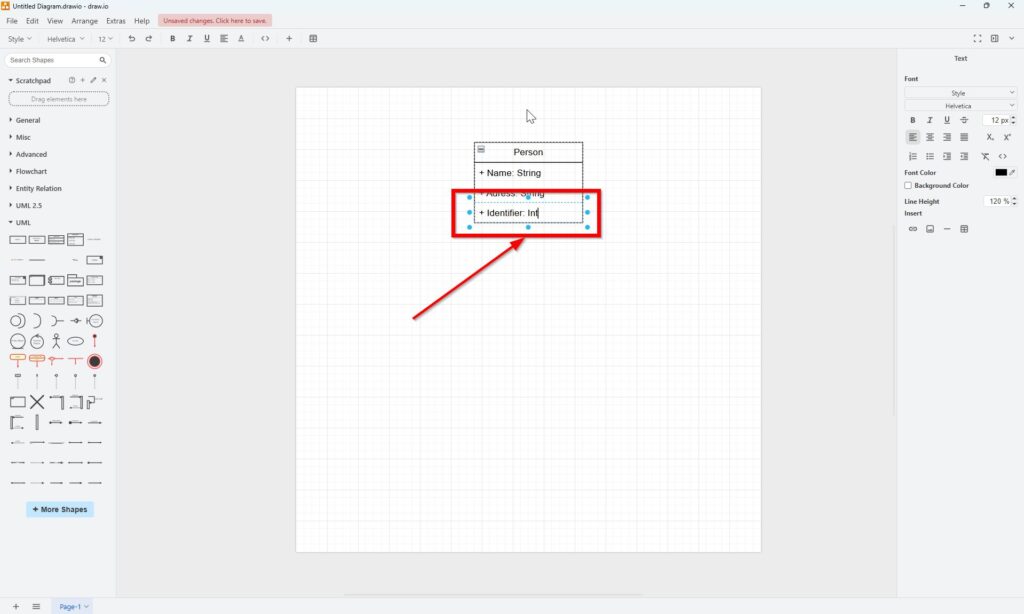
For a conceptual model, I do not always need detailed visibility information. However, I keep it here because the draw.io shapes use standard UML-style notation and because it makes the example easier to extend into a design model later.
5. Create a Class with Operations
Employee differs from Person because it also contains an operation. Therefore, I select the UML class shape that contains separate compartments for attributes and operations.
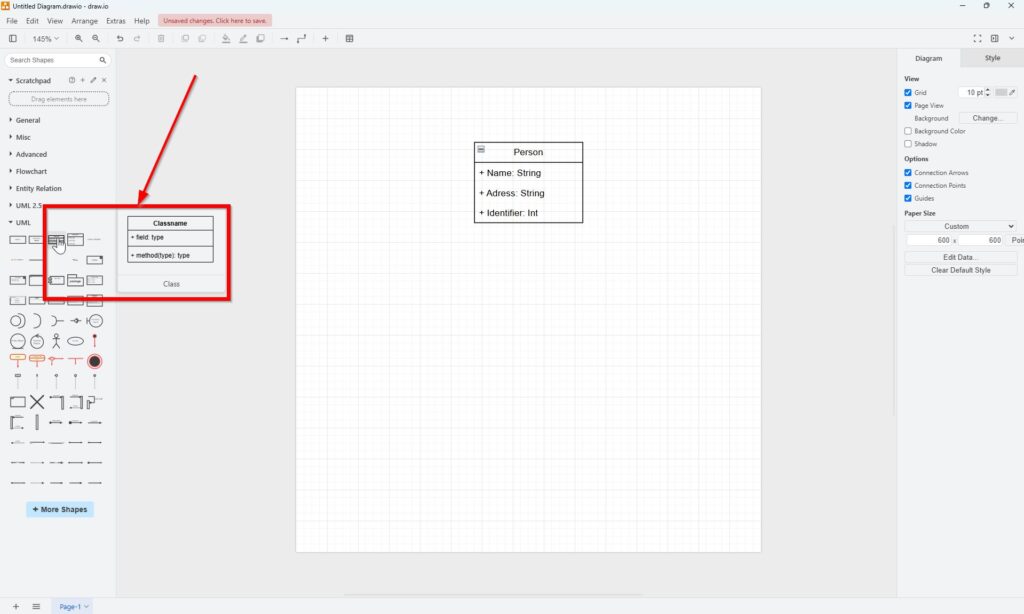
I drag this shape below Person. At the same time, I leave enough space between both classes for the inheritance connector.
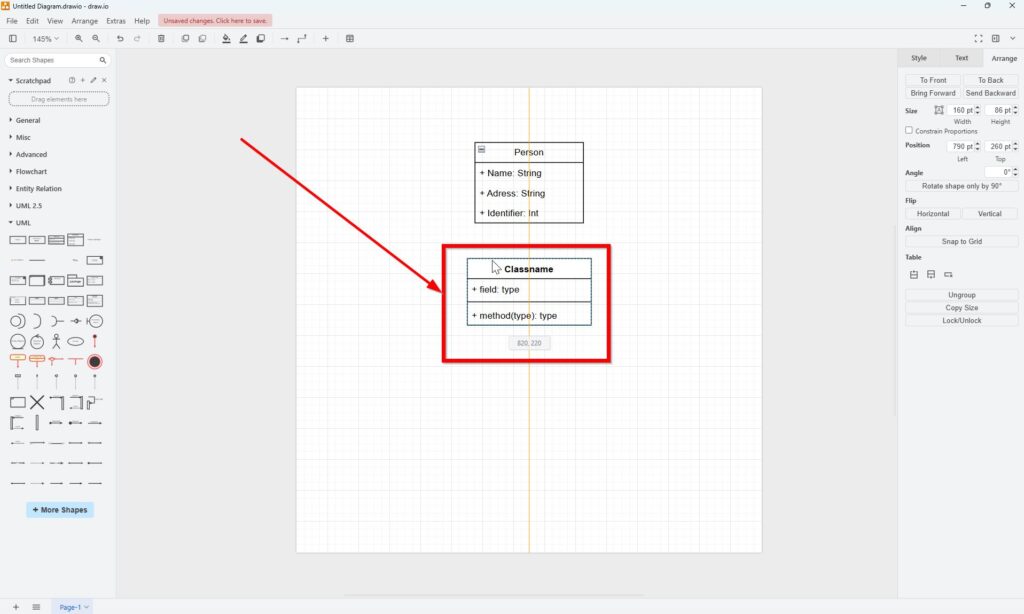
6. Add Attributes and Operations
I rename the new class Employee. Then I add its attributes:
- Salary: Decimal
- OfficeHours: Double
If I need another row, I select an existing row and use the small blue insertion control provided by draw.io.
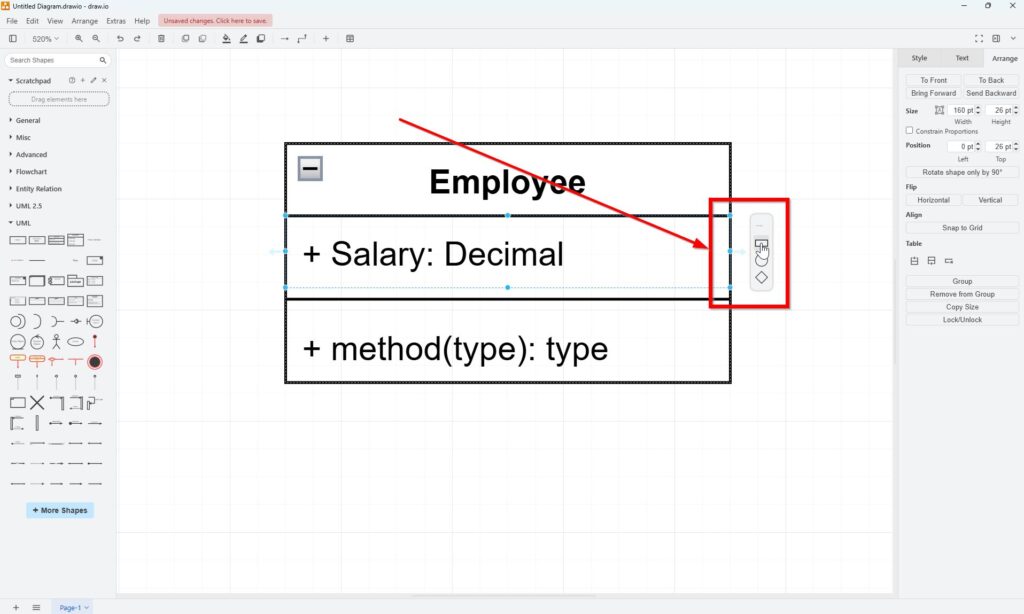
Next, I add the additional Employee attribute.
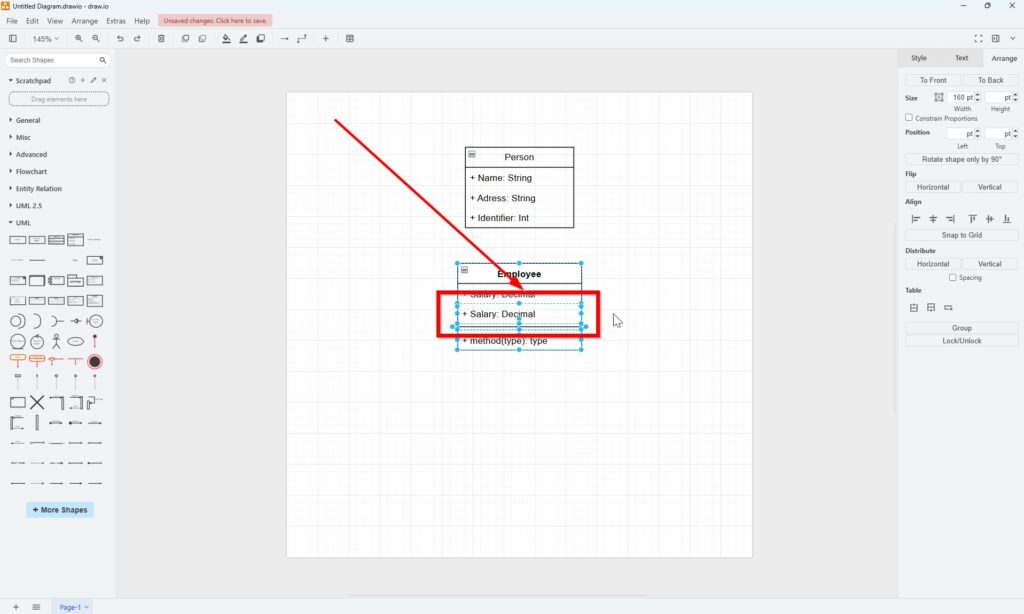
Finally, I add the operation:
- CallHours(): Double
The parentheses distinguish an operation from an attribute. Meanwhile, the type after the colon defines the return type.
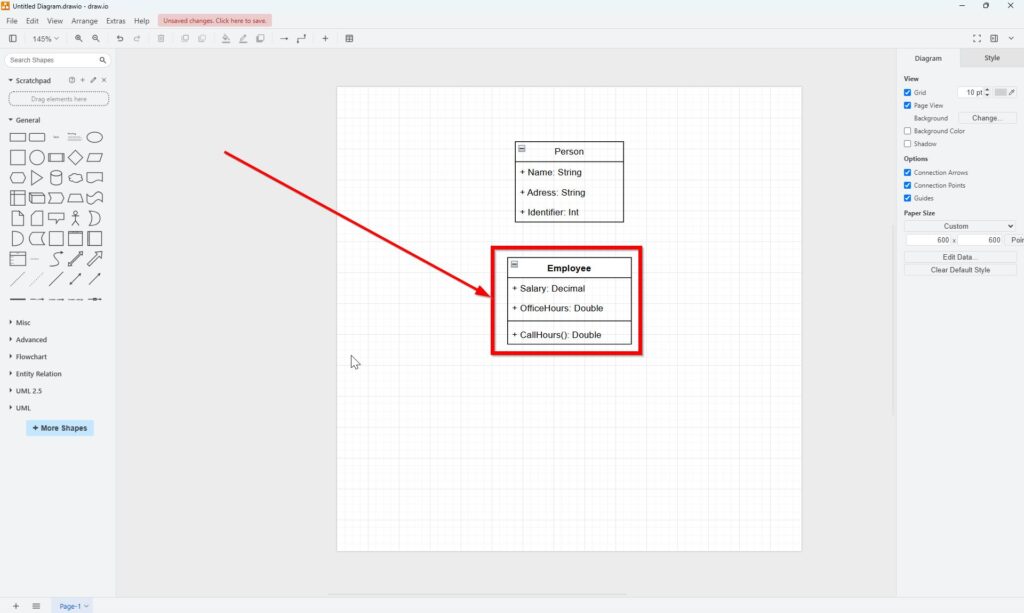
I keep attributes and operations in separate compartments because this distinction makes the responsibility of a class much easier to understand.
For more complex operations, I can also add parameters. For example, an operation could contain a parameter name and parameter type before its return type.
7. Add the Remaining Classes
Next, I create Manager, Staff, and Client.
Manager contains:
- Bonus: Decimal
Staff contains:
- Title: String
Client contains:
- Days: Int
- Accessibility: Double
- WhichStaff(): Double
Because Manager and Staff contain no operations in this example, I can use the simpler class shape. Client needs an operations compartment, so I use the full class shape.
I position Manager and Staff below Employee. In contrast, Client belongs directly under Person in this example because I will connect it directly to Person.
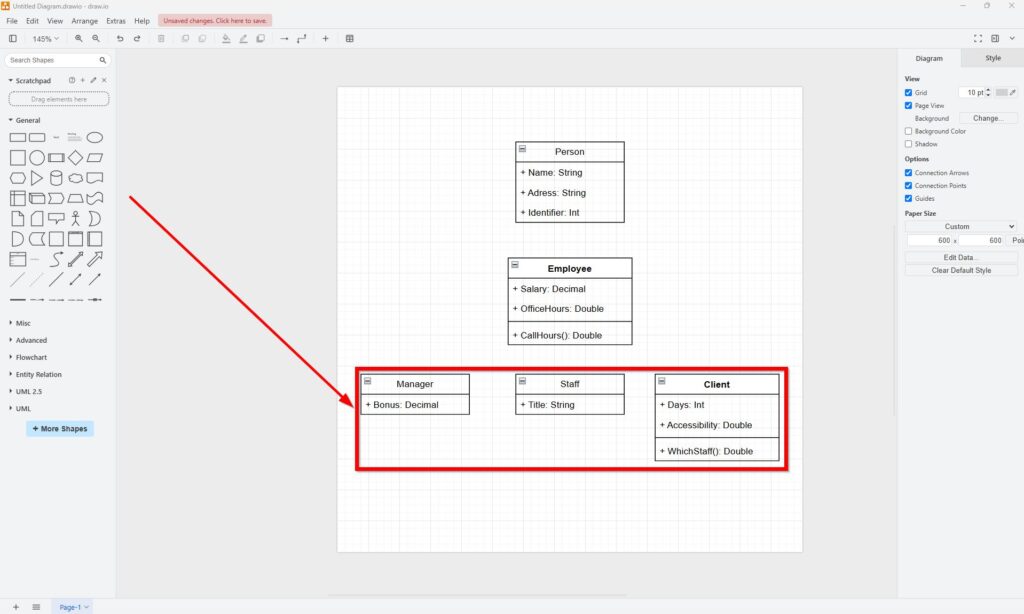
At this stage, I check naming, spelling, data types, and class contents before I add relationships. This small review saves time because connector changes become more cumbersome once the diagram grows.
8. Add UML Generalization Relationships
Now I connect the hierarchy.
In UML, generalization represents an inheritance or specialization relationship. Therefore, I select the Generalization connector from the UML library.
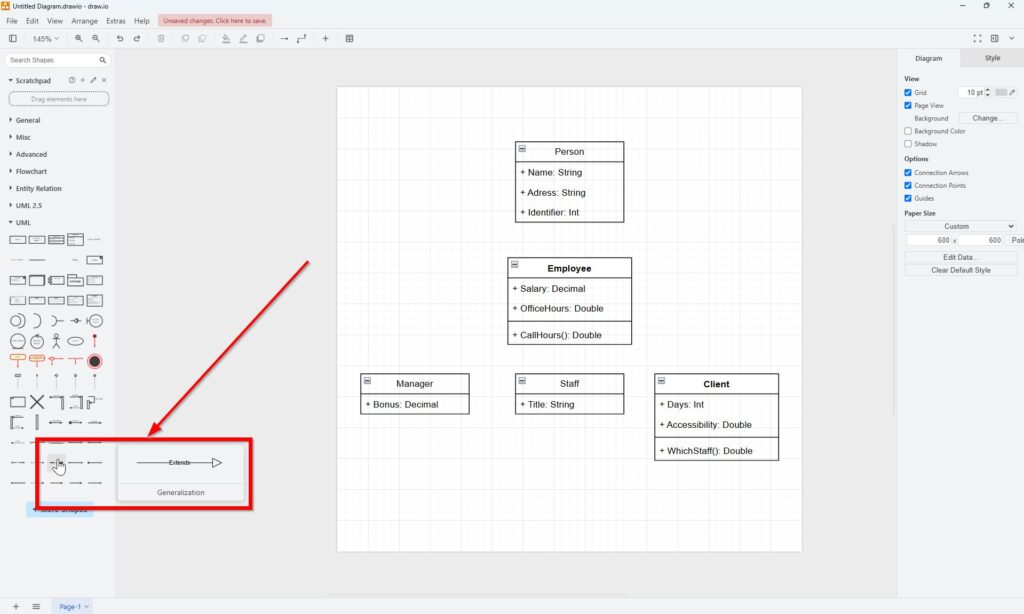
A generalization uses a solid line with a hollow triangular arrowhead. The triangle points toward the more general class.
Therefore:
- Employee points to Person.
- Manager points to Employee.
- Staff points to Employee.
- Client points to Person.
The generalization arrow must point from the specialized class toward the more general class.
I first connect Employee to Person.
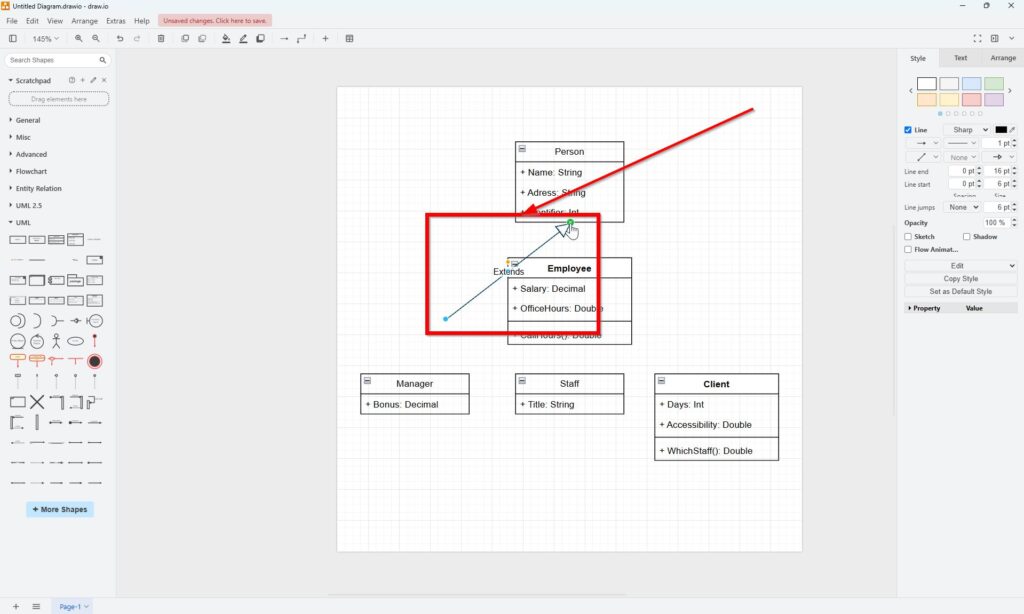
I do not need to label this relationship with words such as Extends. The UML arrow already expresses the meaning. A label may help in a tutorial, but standard UML notation works without it.
9. Review the Completed UML Class Diagram
Finally, I connect Manager and Staff to Employee and Client to Person.
The completed structure now contains two inheritance levels:
Person
→ Employee
→ Manager and Staff
Person
→ Client
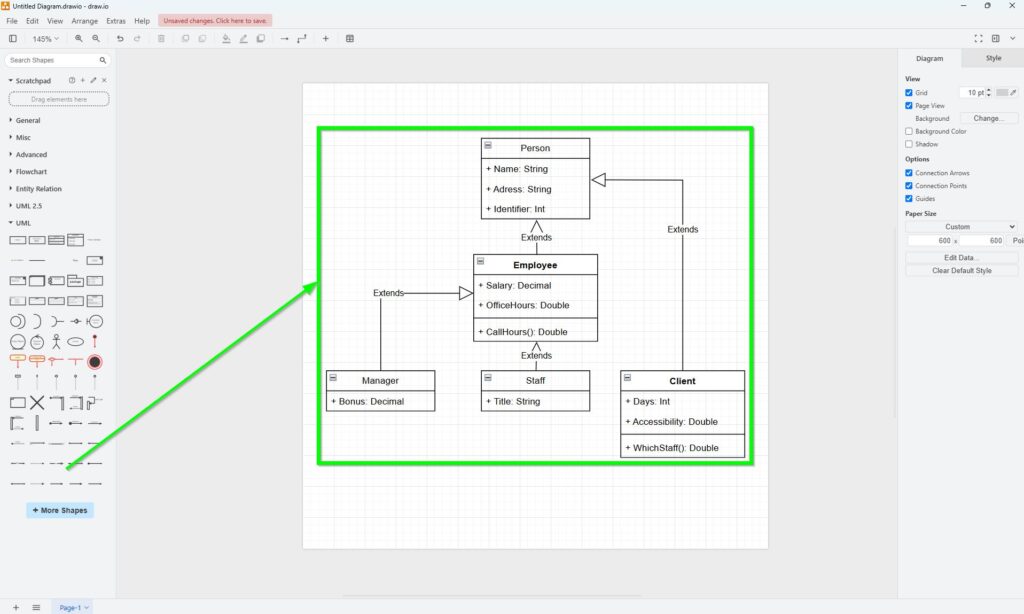
The finished diagram communicates several facts immediately. Person defines common information. Employee adds employment-specific properties and behavior. Manager and Staff specialize Employee further. Client forms another specialization of Person.
Therefore, I can understand the basic structure without reading implementation code or long textual descriptions.
What I Check Before I Finish
Before I consider a UML class diagram complete, I review four points:
- Every class represents a meaningful concept.
- Attributes use clear names and suitable types.
- Operations describe behavior that belongs to the class.
- Generalization exists only where a genuine specialization relationship exists.
I use inheritance only when I can truthfully say that the specialized class is a type of the more general class.
For example, a Manager can reasonably be a specialized Employee. However, one object merely using, containing, or communicating with another does not justify inheritance. In those cases, I would consider associations, aggregation, composition, or dependencies instead.
Final Thoughts
I can build a useful UML Class Diagram with draw.io without creating a complicated model. First, I identify the classes. Next, I define their attributes and operations. Then I arrange them according to their conceptual hierarchy. Finally, I connect genuine inheritance relationships with UML generalization.
The drawing tool remains secondary to the modeling logic. draw.io helps me visualize the structure, but I still need to decide which concepts belong in the model and how they relate.
A good UML class diagram does not try to show everything; it shows the structure that readers need in order to understand the system.
What’s Next?
Now that I know how to build a UML Class diagram with draw.io, I can explore another important UML diagram type. Class diagrams show system structure, but use case diagrams help me understand users, goals, and system interactions. In the next article, I’ll explain Draw UML Use Case Diagrams with draw.io: A Hands-on Example. You’ll learn how actors, use cases, and relationships work together in a clear visual model. Click below to continue and model use cases in draw.io step by step.
Explore Requirements Modeling from Multiple Angles
If I want to understand requirements in a deeper and more practical way, I need more than text alone. I need models that show how concepts, processes, and system structures connect. In the main article on Requirements Modeling, I explore essential Modeling Concepts, Process Modeling with BPMN, and the structural perspective of UML. Together, these topics help me analyze requirements more clearly, communicate them more effectively, and build a stronger foundation for successful system design.
In addition, I also recommend the main article on Requirements Engineering Tools. There, I show how draw.io, Confluence, Jira, and Camunda help me create diagrams, document knowledge, manage work, and model processes in a practical tool workflow.