

Modeling UML classes in draw.io helps me understand complex systems more clearly. I can structure information, show objects, and explain relationships in a visual way. In this article, I show why draw.io works well for UML modeling and guide you step by step through creating UML classes in draw.io.
What is UML?
UML stands for Unified Modeling Language. It’s a standardized way to visualize system designs. UML diagrams help me represent classes, objects, and their relationships. A class acts as a blueprint, defining properties and behaviors. Objects, on the other hand, are instances of these classes. For example, the class “Person” defines characteristics like the attribute: name. Each individual person is an object of that class. Understanding this distinction is crucial when modeling information structures.
What is draw.io?
Draw.io (opens in a new tab) is an online diagramming tool. It’s intuitive, browser-based, and doesn’t require installation. It supports many diagram types, including flowcharts, mind maps, and UML diagrams. I like using draw.io because it offers a variety of UML elements. It lets me drag and drop elements, connect them, and label them easily. Plus, I can save diagrams locally or in cloud storage. This makes draw.io a convenient choice for visualizing UML classes.
Why Model UML with draw.io?
Draw.io makes UML modeling straightforward. It’s free, which is perfect when starting out. The tool provides an extensive set of UML elements. I can quickly create a class diagram, define attributes, and visualize relationships. The interface is user-friendly, and the learning curve is minimal. For me, the best part is the real-time collaboration. I can share diagrams with teammates and refine models together. This makes draw.io a powerful tool for UML modeling.
Classes versus Objects
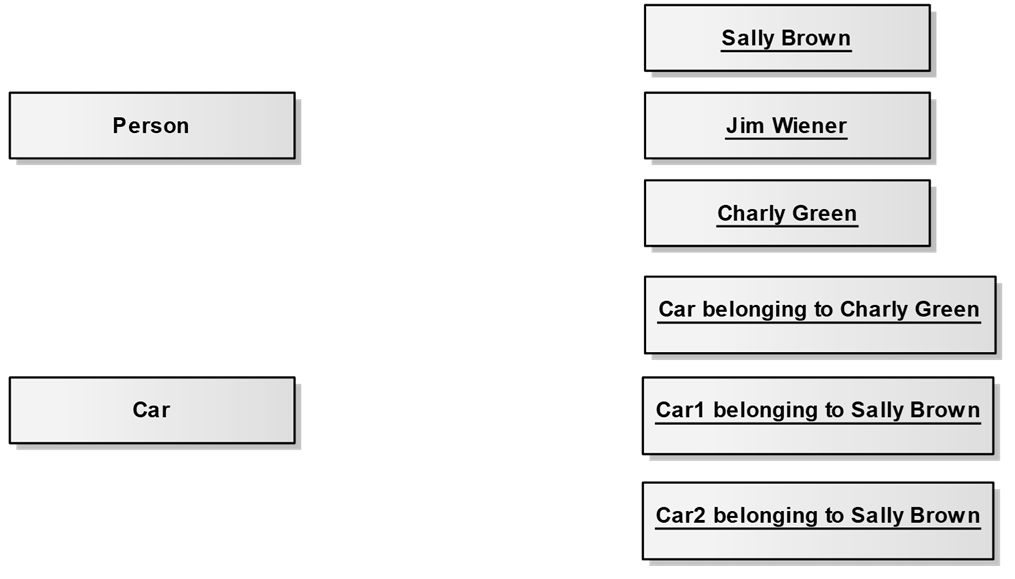
When modeling UML classes in draw.io, I start by identifying the classes. Let’s say I want to represent a person and their car. I’ll model the “Person” and “Car” classes, along with their instances.
A class defines a template for objects. Objects are unique instances of a class. For instance, the class “Car” includes attributes like brand and color. Two cars, even if they share attributes, are distinct objects. They need unique identifiers to differentiate them.
Modeling UML Classes in draw.io
I’ll guide you through creating a UML class in draw.io. Be aware that the creation below represents the most basic form of a UML class! A more in-depth look follows in further UML in draw.io tutorials.
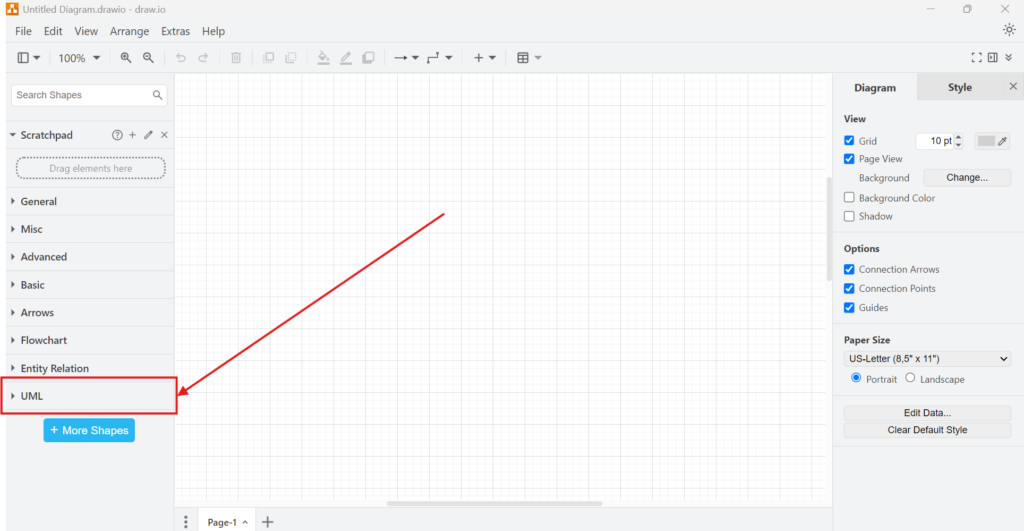
1. Step: Open draw.io and navigate to the UML section in the left sidebar. I select the UML shape library.
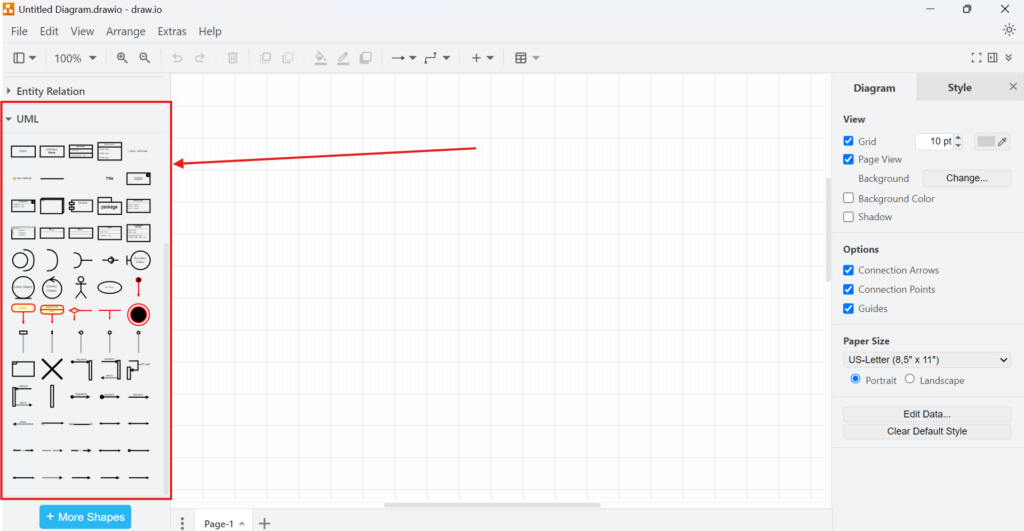
2. Step: I choose the “Object” element. When I hover over it, a preview appears. I click to add it to the canvas.
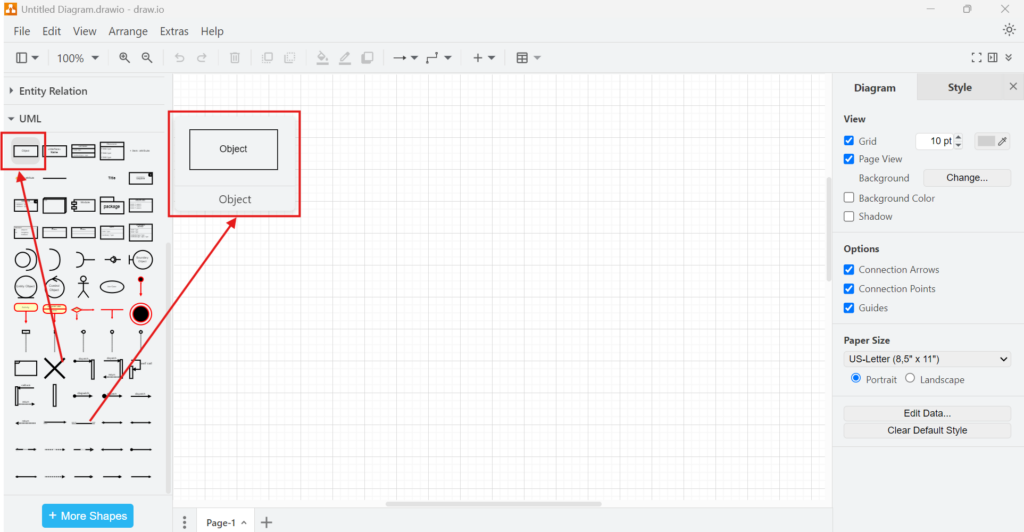
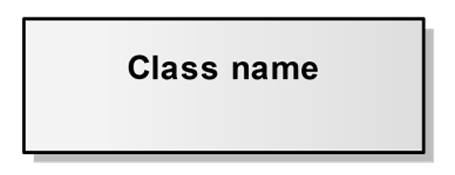
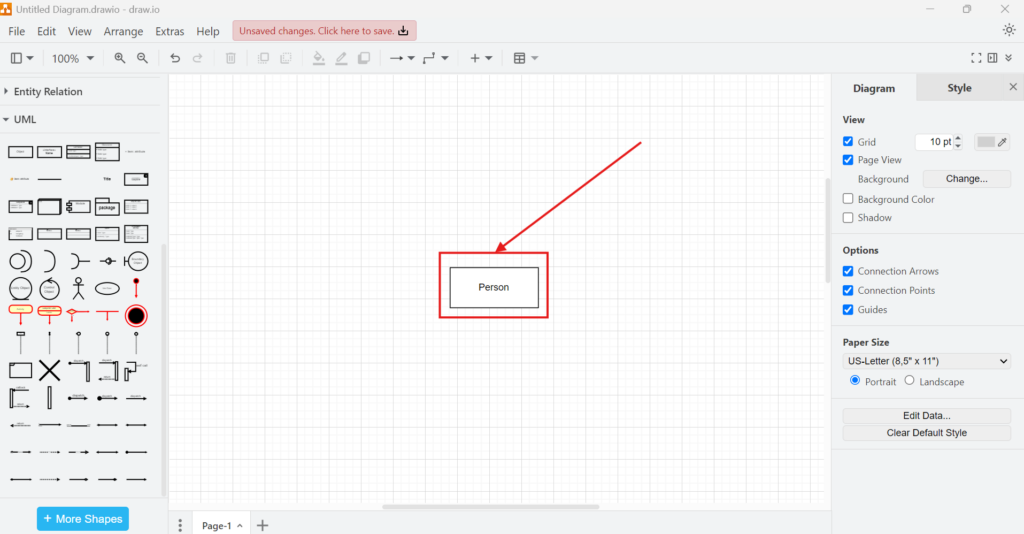
3. Step: The class element appears. I double-click the placeholder text and type “Person.”
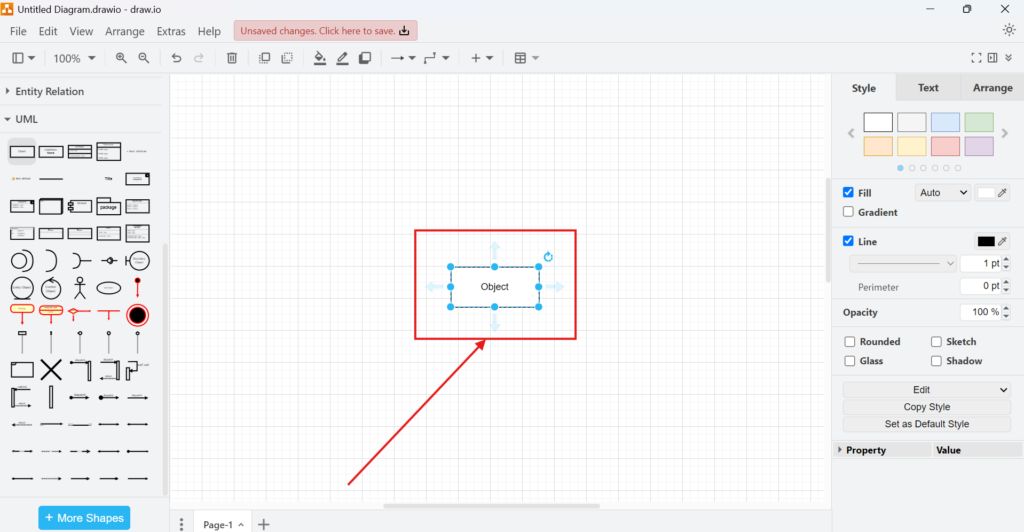
After clicking outside the element, my class is created.
Final Thoughts
Modeling UML classes in draw.io makes system design clearer. It bridges the gap between requirements and implementation. The tool’s simplicity and power make it an excellent choice for UML diagrams. I can quickly visualize class structures, define relationships, and iterate on designs. Whether I’m working solo or with a team, draw.io streamlines my modeling process.
If you’re starting with UML, I recommend trying draw.io. It’s free, flexible, and perfectly suited for modeling UML classes. Happy modeling!
What’s Next?
Now that I know how to model UML classes in draw.io, I can bring the full class diagram together. Single classes are useful, but a complete diagram shows structure, relationships, and system logic more clearly. In the next article, I’ll explain How to Build a UML Class Diagram with draw.io. You’ll learn how to combine classes, attributes, operations, and connections into one understandable model. Click below to continue and build your UML class diagram step by step.
See How Requirements Modeling Turns Complexity into Clarity
If I want to understand requirements in a clearer and more visual way, I need more than text alone. I need models that show how concepts, workflows, and system structures connect. In the main article on Requirements Modeling, I explore essential Modeling Concepts, Process Modeling with BPMN, and the structural perspective of UML. Together, these topics help me analyze requirements more precisely, communicate them more effectively, and build a stronger foundation for successful system design.
In addition, I also recommend the main article on Requirements Engineering Tools. There, I show how draw.io, Confluence, Jira, and Camunda help me create diagrams, document knowledge, manage work, and model processes in a practical tool workflow.
This article covers concepts that are also included in the CPRE certification syllabus.