
Fred

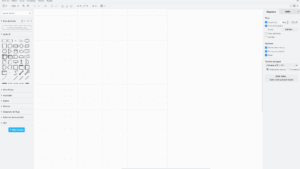
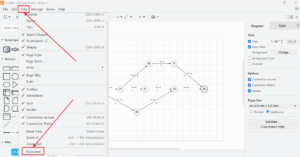
Draw.io interface in Spanish with an empty grid canvas, left shape libraries, and a right panel labeled “Diagrama” and “Estilo.”

How to Change the Language in draw.io

When I want to change the language in draw.io, I can do it directly from the application menu. This is useful when I prefer to work in my native language or when several people use draw.io in different countries. The setting changes the interface language, including menus and commands. Therefore, I can make the editor easier to understand. In this guide, I show step by step how to change the language in draw.io and explain what happens after I select a new language. It is simple.

How to Change the Language in draw.io Read More »

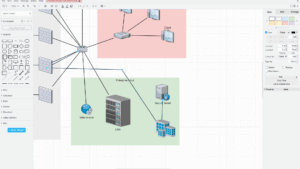
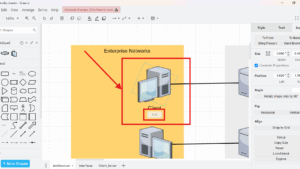
Draw.io diagram with a connector line showing multiple blue waypoint handles along the path.

How to Use Waypoints in draw.io

Have you ever struggled to align connectors perfectly in a flowchart? I know I have. When diagrams get complex, lines crisscross, and clarity fades. Fortunately, draw.io offers a powerful feature called waypoints. With waypoints, I can precisely control how connectors flow between elements. Let’s explore why this feature is a game changer and how to use it step by step.

How to Use Waypoints in draw.io Read More »

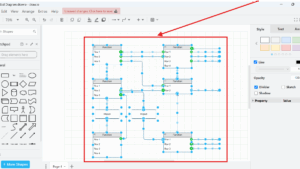
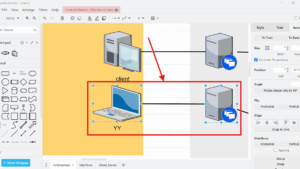
Draw.io canvas with many elements selected at once, showing blue selection points around multiple boxes and connectors inside a red frame.

How to Group Elements in draw.io

When working on complex diagrams, organizing elements can become a challenge. I’ve often found myself accidentally moving objects out of place. That’s frustrating and wastes time. Fortunately, draw.io makes it simple to keep everything organized. Grouping elements helps streamline your workflow. It ensures that related components stay together, even when making adjustments. Let me show you exactly how to do it!

How to Group Elements in draw.io Read More »

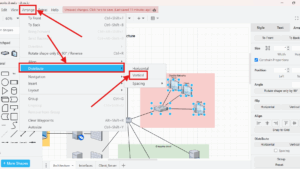
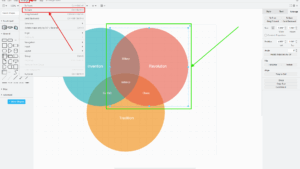
Draw.io “Arrange” menu open with “Distribute” submenu expanded and “Vertical” highlighted.

How to Distribute Elements in Draw.io

When creating diagrams, whether for personal or business use, organization is key. A neat, aligned layout makes information easier to digest and interpret. In Draw.io, the “distribute” function is one of the most helpful features for achieving this goal. It ensures that elements in your diagram are evenly spaced, either horizontally or vertically, with equal distance between them. In this article, I’ll walk you through how to distribute elements in Draw.io and why it’s crucial for creating professional and clear diagrams.

How to Distribute Elements in Draw.io Read More »

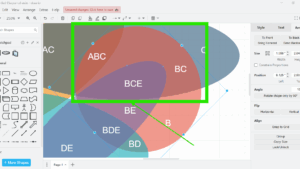
Overlapping translucent shapes with text labels (e.g., ABC, BC, BCE) highlighted by a green rectangle and arrow in draw.io.

How to Move Elements Forward or Backward One Layer in draw.io

When working with diagrams, you often need to adjust the layering of shapes or connectors. In draw.io, the ability to bring elements forward or send them backward is crucial for creating clean, organized designs. Whether you’re working with a Venn diagram, flowchart, or network diagram, controlling the layer order helps ensure everything is visible and well-structured.

How to Move Elements Forward or Backward One Layer in draw.io Read More »

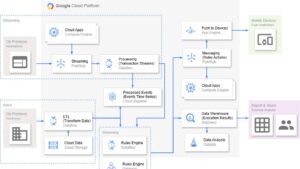
“Google Cloud Platform” architecture diagram with boxes for streaming, processing, messaging, data warehouse, and analytics.

How to Choose the Right Modeling Language for Requirements Engineering

When I work with complex systems, I need clarity and structure. Therefore, I use requirements modeling to express information in a clear way. I want to understand what the system must deliver and communicate this to all stakeholders. Because of this, I always choose the right modeling language with care. Although many diagram types exist, I begin with one guiding question: what is my purpose?

How to Choose the Right Modeling Language for Requirements Engineering Read More »

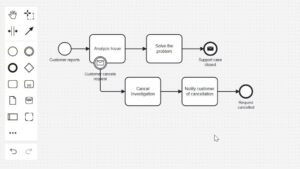
Diagram editor showing “Analyze Issue” with an attached envelope marker labeled “Customer cancels request” leading to “Cancel Investigation.”

BPMN Message Boundary Events Explained: Behavior and Use Cases

When a customer message changes a process, I need a clear BPMN response. That is when I use an attached message event in BPMN. It can interrupt a task or react without stopping the current work. This helps me model feedback, urgent updates, and alternative paths in a clean way. In this article, I explain the concept with a simple BPMN 2.0 example step by step.

BPMN Message Boundary Events Explained: Behavior and Use Cases Read More »

Diagram editor interface showing a timed start (“Start the task every Monday at 9:00 am.”) leading to reminder and logging steps.

BPMN 2.0 Message Events Explained: Types, Triggers, and Behavior

Communication drives every successful process. That’s why I rely on message events in BPMN when different participants need to exchange information. In this article, I’ll show you how message events work and how you can model them correctly using BPMN 2.0. Let’s explore each event type through a practical example. I’ll walk you through it step by step.

BPMN 2.0 Message Events Explained: Types, Triggers, and Behavior Read More »

Partial screenshot of a diagram editor showing tasks, gateways, and labeled compensation-style icons under two tasks.

BPMN Compensation Events Explained: Purpose, Behavior, and Use Cases

Sometimes, a business process must undo a completed action. A payment may be refunded, or a service may be canceled. In BPMN 2.0, I model this with the compensation event in BPMN. It helps me show how a process reacts when earlier work needs to be reversed. In this article, I explain what compensation events are, when I use them, and how they work with a simple example.

BPMN Compensation Events Explained: Purpose, Behavior, and Use Cases Read More »

Scroll to Top
WordPress Cookie Plugin by Real Cookie Banner