
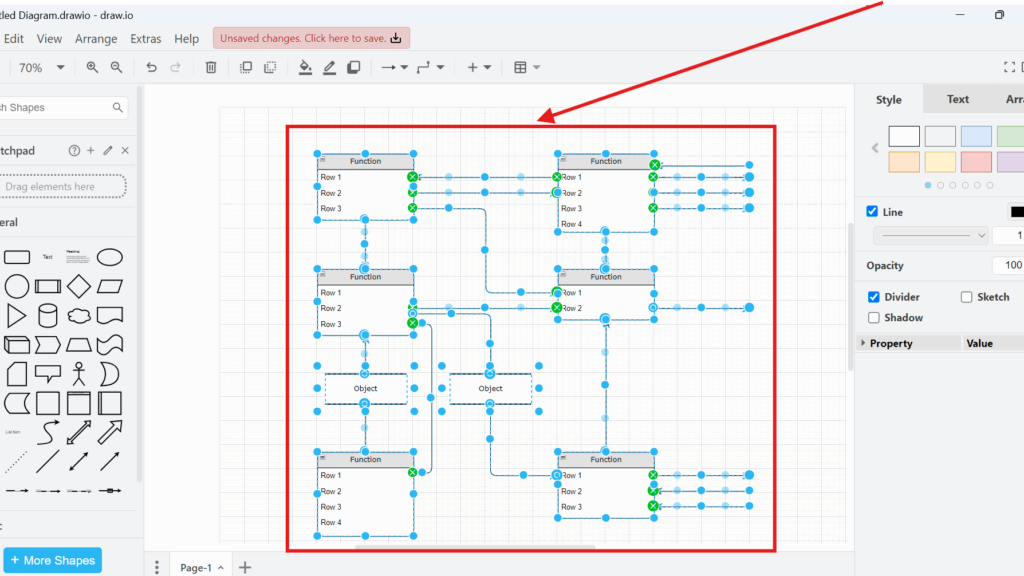
When working on complex diagrams, organizing elements can become a challenge. I’ve often found myself accidentally moving objects out of place. That’s frustrating and wastes time. Fortunately, draw.io makes it simple to keep everything organized. Grouping elements helps streamline your workflow. It ensures that related components stay together, even when making adjustments. Let me show you exactly how to do it!
Why I Group Elements in draw.io
I use groups when several diagram elements belong together logically in draw.io. For example, a group can contain several shapes, labels, and connectors that represent one part of a larger model.
Without grouping, I can accidentally move only one element. As a result, I may destroy the alignment or structure of the diagram. Grouping prevents this problem because I can manipulate the complete selection as one object.
Grouping does not permanently combine the individual elements; it only makes them behave as one unit until I ungroup them.
Therefore, grouping works particularly well when I want to:
- move several elements together;
- resize a complete section of a diagram;
- keep related elements aligned;
- reorganize larger diagrams;
- reduce accidental changes to individual elements.
How to Group Elements in draw.io
1. Select the Elements
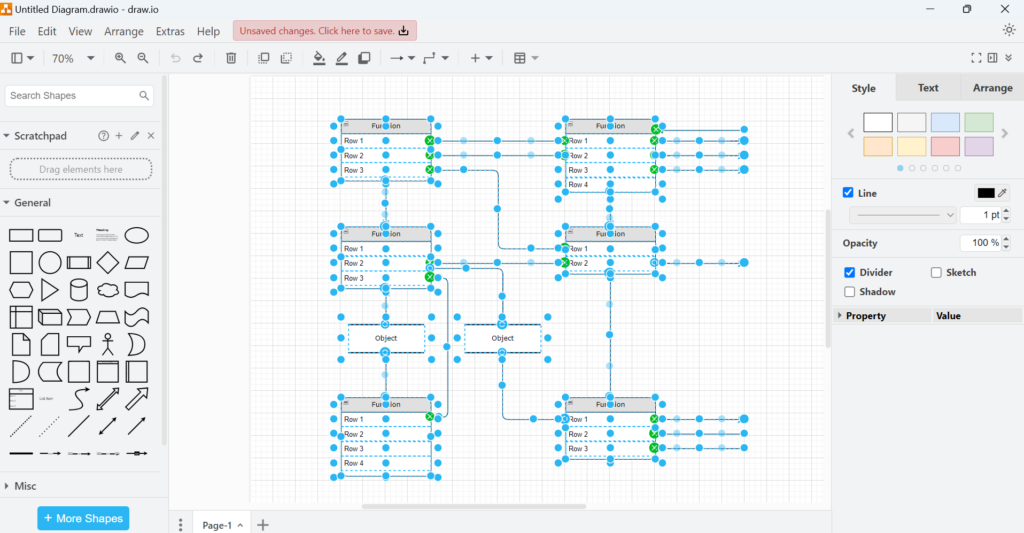
First, I select all elements that I want to group. I can drag a selection box around them. Alternatively, I can hold Shift and select individual elements.
I check the selection before I continue. This matters because draw.io includes every selected object in the new group.
2. Open the Group Command
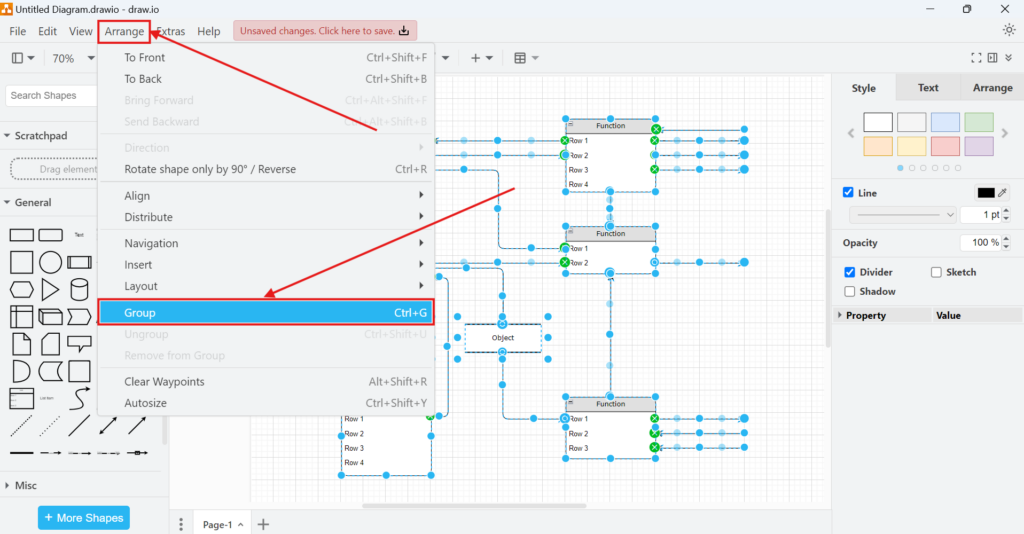
Next, I open the Arrange menu at the top of draw.io. Then, I select Group.
Alternatively, I can use the keyboard shortcut Ctrl+G.
As soon as I select Group, draw.io treats all selected elements as one object.
3. Check the New Group
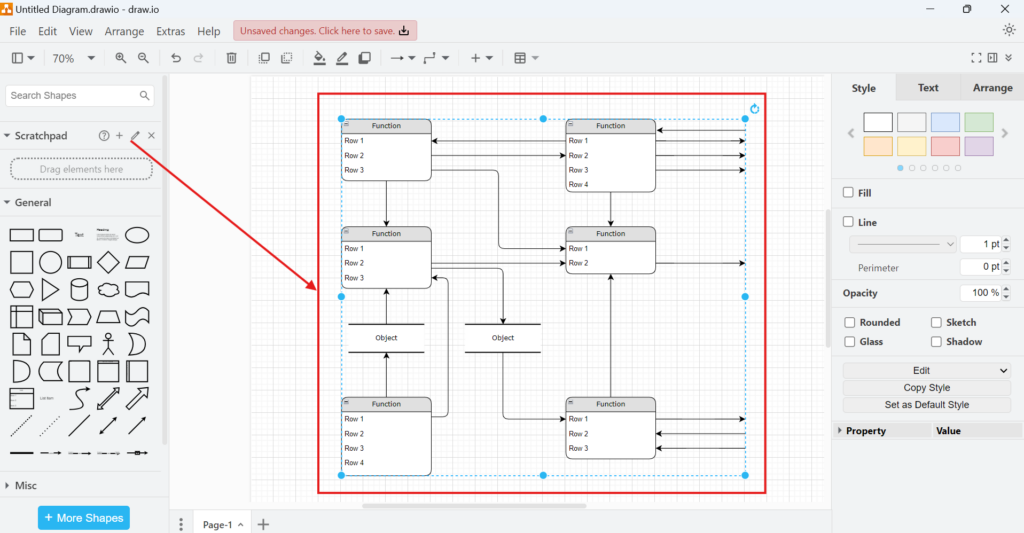
After grouping the elements, I see one selection boundary around the complete group. I no longer need to select every individual object when I want to reposition this section of the diagram.
4. Move or Resize the Group
I can now move the complete group by dragging it. I can also resize the group by using its selection handles.
The internal arrangement remains together while I make these changes. Therefore, I can restructure a diagram without repeatedly correcting individual positions.
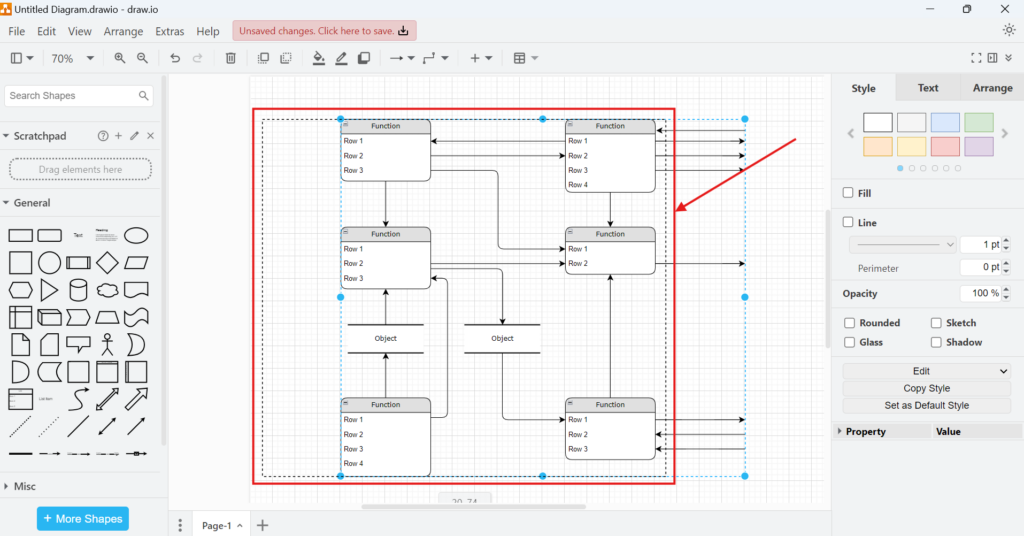
Grouping is especially useful when I need to reorganize a large diagram without disturbing the relationships inside one section.
How to Ungroup Elements in draw.io
Sometimes I need access to the individual elements again. In that case, I select the group and open Arrange. Then, I choose Ungroup.
Alternatively, I use Ctrl+Shift+U.
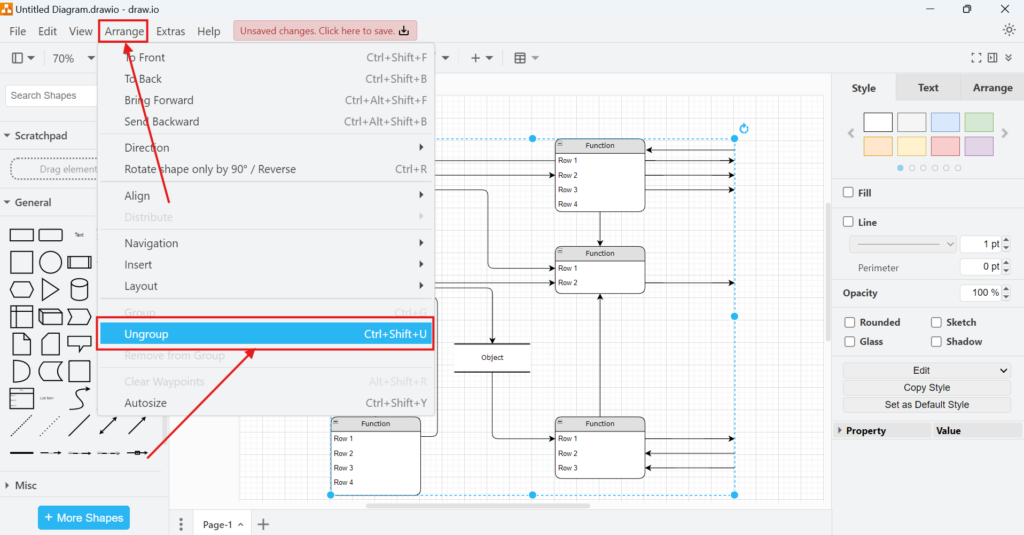
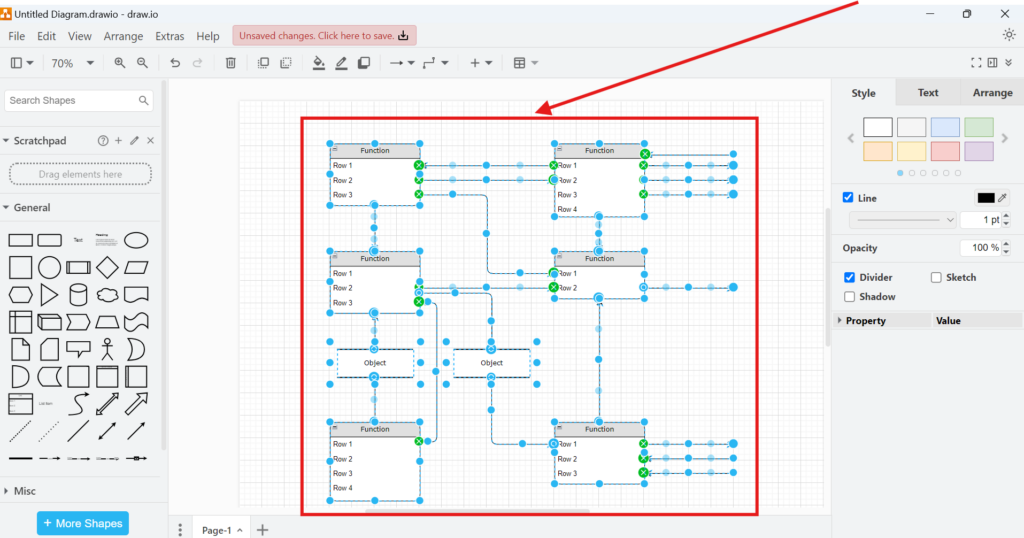
After ungrouping, I can select and edit every shape, connector, or label separately again. If necessary, I can group the elements again after making my changes.
When I Use Groups
I mainly use groups for sections that form a logical unit. For example, I may group the elements of one subsystem, process section, functional area, or repeated diagram structure.
However, I do not group everything automatically. Too many nested or unnecessary groups can make detailed editing more difficult.
Therefore, I use a simple rule: I group elements when I expect to move, resize, or manage them together.
This keeps the diagram flexible while protecting its structure.
Conclusion
Grouping gives me a simple way to control several draw.io elements as one object. I select the elements, choose Arrange and Group, and then move or resize the complete selection. If I need individual access again, I use Ungroup.
For larger diagrams, grouping helps me preserve alignment, reduce accidental changes, and reorganize related elements much more efficiently.