
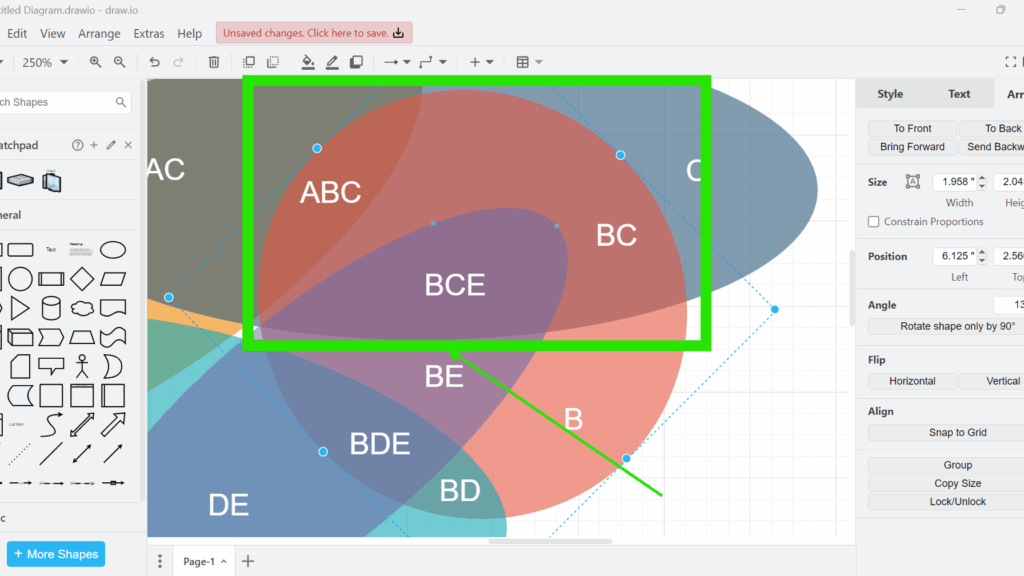
When working with diagrams, you often need to adjust the layering of shapes or connectors. In draw.io, the ability to bring elements forward or send them backward is crucial for creating clean, organized designs.< Whether you’re working with a Venn diagram, flowchart, or network diagram, controlling the layer order helps ensure everything is visible and well-structured.
What Bring Forward and Send Backward Do
draw.io places overlapping elements in a stacking order. An element higher in that order appears in front of elements below it.
I use two commands when I want to adjust that order gradually:
- Bring Forward moves the selected element one position toward the front.
- Send Backward moves the selected element one position toward the back.
This differs from To Front and To Back because those commands move an element directly to an end of the stacking order.
Therefore, Bring Forward and Send Backward give me more control when several elements overlap.
Example: Changing the Order in a Venn Diagram
I use a Venn diagram here because the effect is easy to see. Several transparent shapes overlap. First, I select the red circle that I want to move within the stacking order.
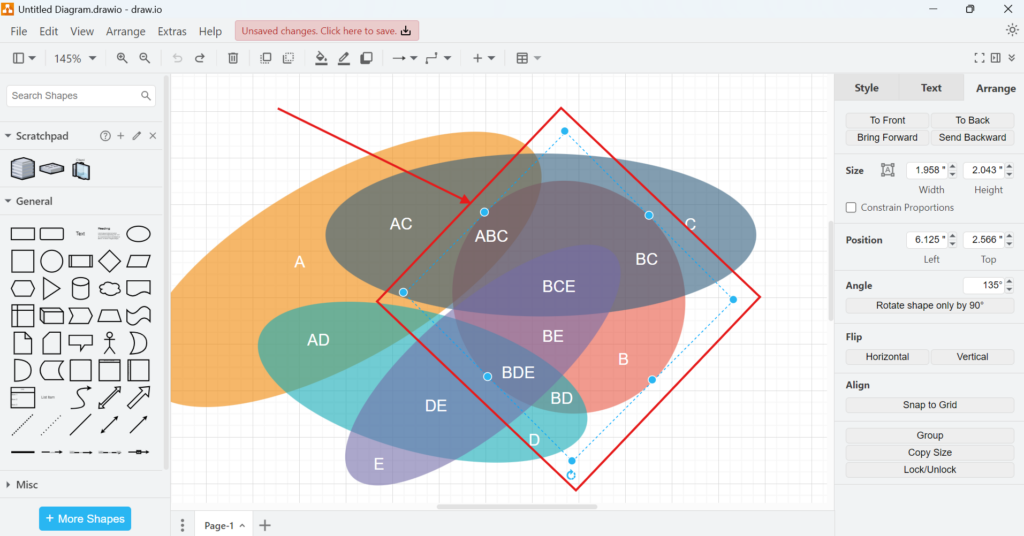
The selection handles confirm which element draw.io will change. This matters in diagrams with many overlapping shapes.
How to Bring an Element Forward One Layer in draw.io
After selecting the element, I can bring it forward in several ways.
Use the View menu
I open View and select Bring Forward.
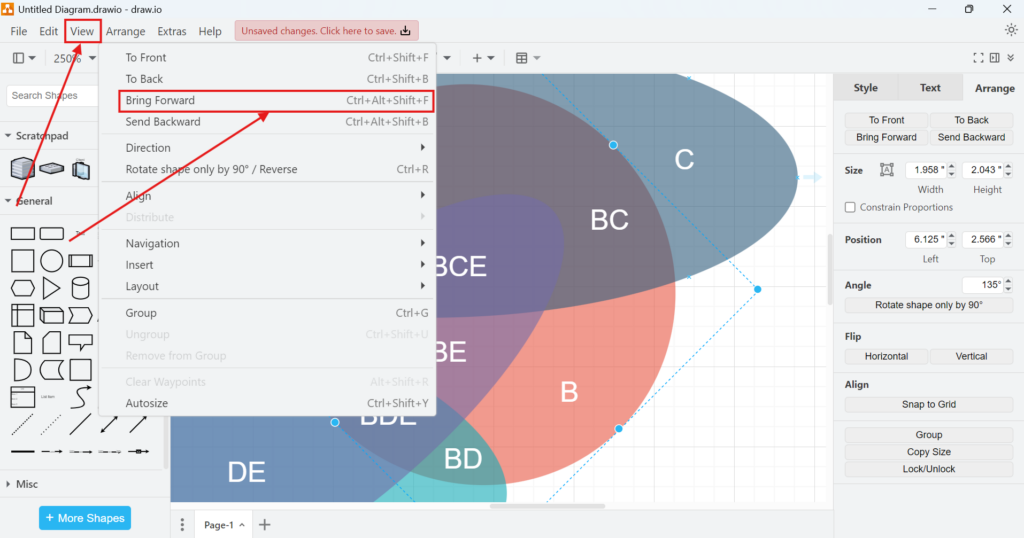
Bring Forward changes only the stacking order of the selected element. It does not change its size or position on the canvas.
Use the keyboard shortcut
Alternatively, I use:
Ctrl + Alt + Shift + F
The shortcut is useful when I adjust several overlapping elements and want to work quickly.
Use the Arrange sidebar
I can also open the Arrange tab in the right sidebar. Then I select Bring Forward.
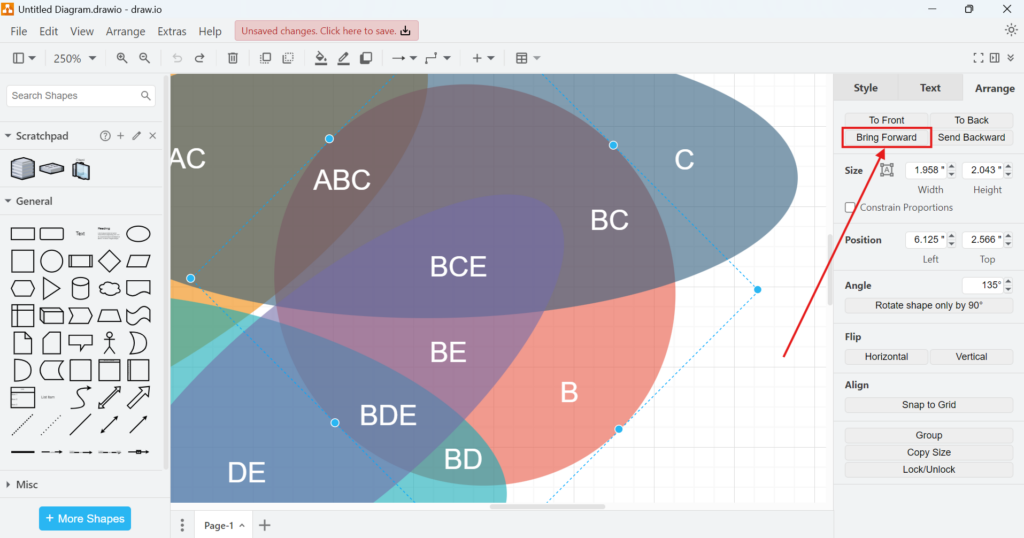
I can therefore use the menu, keyboard shortcut, or sidebar. All three methods perform the same basic action.
Check the result
After I use Bring Forward, the selected circle moves one step higher in the stacking order.
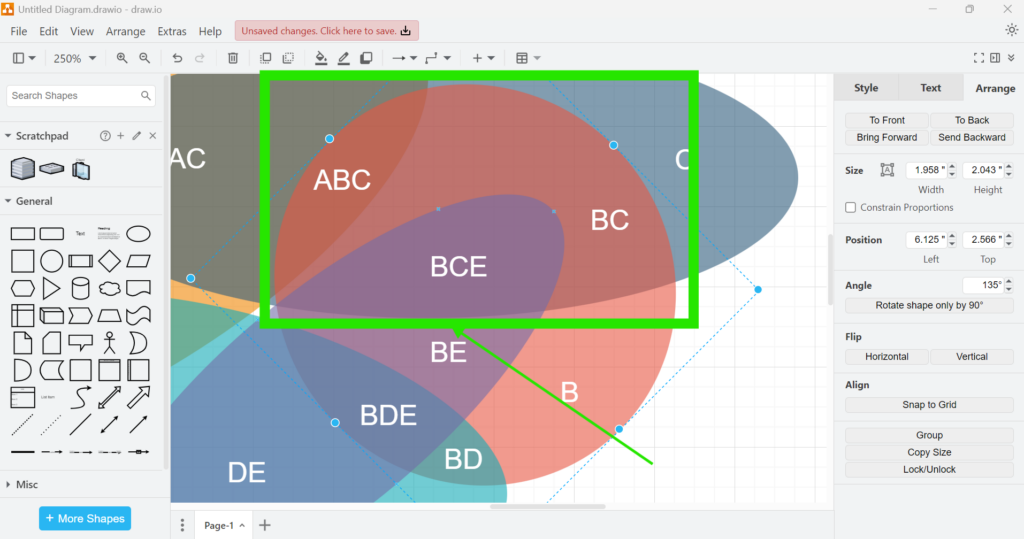
If the element still sits behind another shape, I can use Bring Forward again. In this way, I can move through the stacking order one step at a time.
How to Send an Element Backward One Layer in draw.io
Sometimes I need the opposite result. For example, one shape may cover information that I want to keep visible.
In that case, I select the element and use Send Backward.
Use the View menu
I open View and select Send Backward.
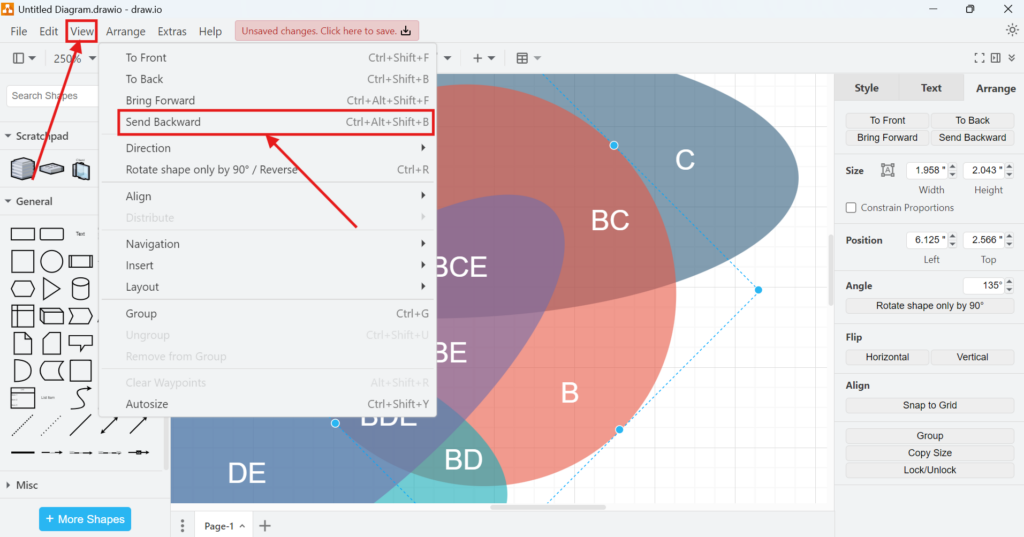
Use the keyboard shortcut
Alternatively, I use:
Ctrl + Alt + Shift + B
This gives me a fast way to correct the stacking order without leaving the canvas.
Use the Arrange sidebar
I can also select Send Backward in the Arrange tab on the right.
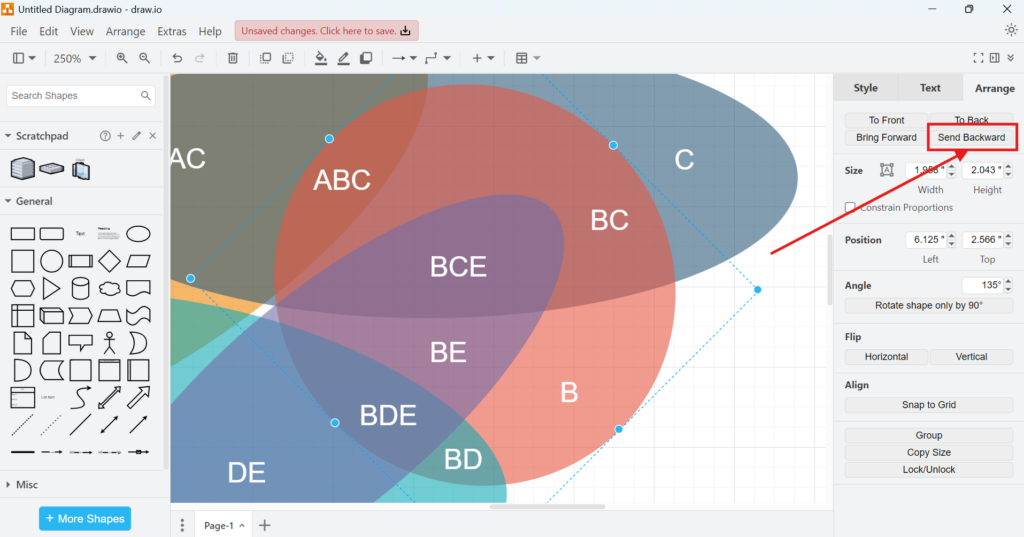
Again, the choice of interface does not change the result. I simply use whichever method is most convenient.
Check the new stacking order
After I use Send Backward, the selected circle moves behind one more element.
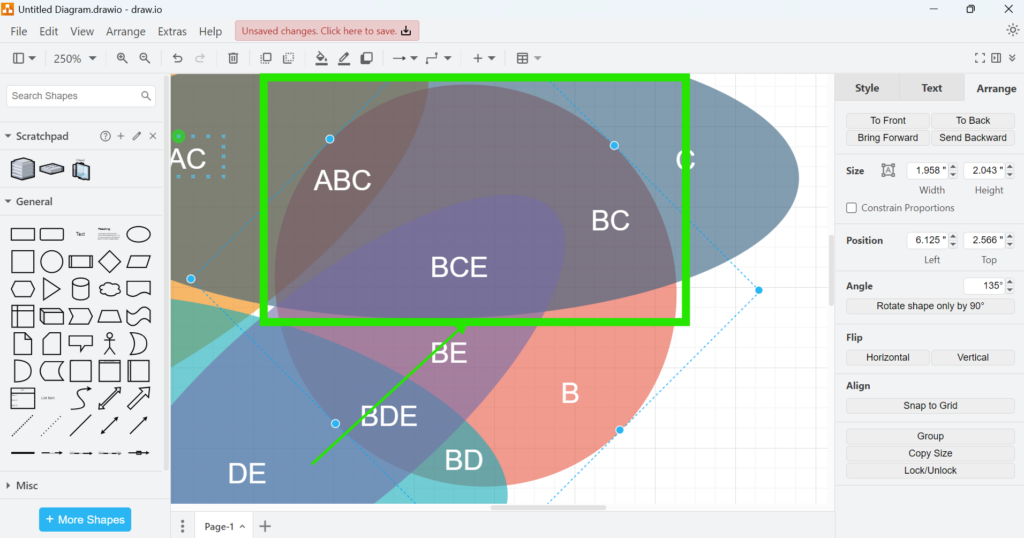
Because the command moves the element only one step, I can repeat it until I reach the required visual order.
When I Use Bring Forward or Send Backward
I use Bring Forward when another element hides too much of the selected shape. Conversely, I use Send Backward when the selected shape covers information that should remain visible.
This approach is especially useful when I work with:
- overlapping shapes
- Venn diagrams
- annotations
- background areas
- connectors and labels
- layered diagram structures
However, I do not need several incremental moves when I already know that an element belongs at the absolute front or back. In that case, I use To Front or To Back instead.
Bring Forward vs. To Front
The distinction is simple.
Bring Forward moves an element one step toward the front. To Front moves it above all other elements.
Likewise, Send Backward moves an element one step toward the back. To Back moves it behind all other elements.
I therefore use Bring Forward and Send Backward when the relative order between several overlapping elements matters.
Conclusion
Bring Forward and Send Backward give me precise control over overlapping elements in draw.io. I first select the element. Then I use the View menu, the Arrange sidebar, or the corresponding keyboard shortcut.
Because each command changes the stacking order by only one position, I can adjust complex overlaps without reorganizing the entire diagram. This makes Bring Forward and Send Backward particularly useful when I need fine control over which elements remain visible.