
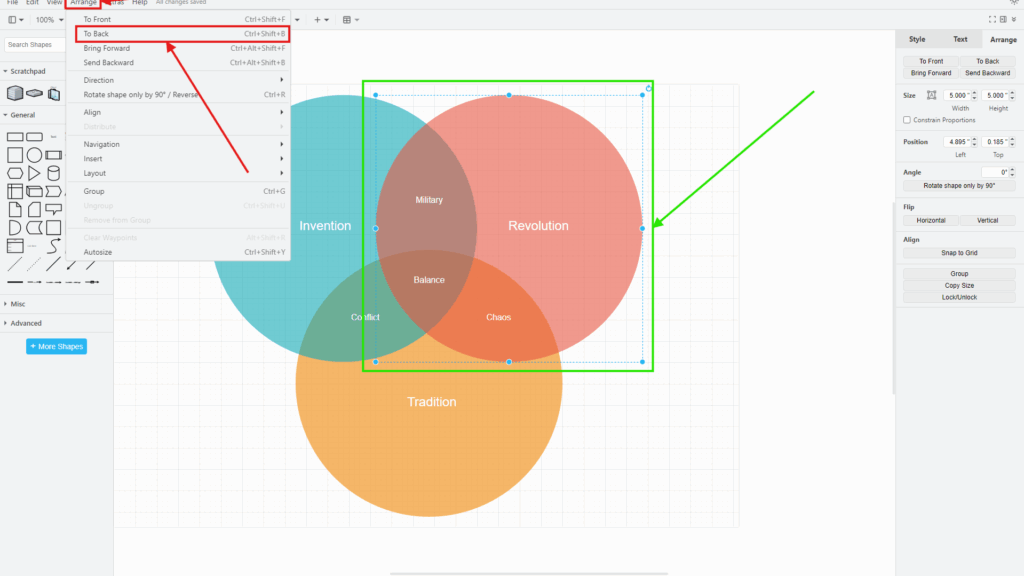
Working with diagrams in draw.io often means handling overlapping elements. Sometimes, I need specific shapes to appear above or below others. Fortunately, draw.io makes this easy with the “To Front” and “To Back” options. These features help me control the arrangement of elements, making my diagrams clear and visually appealing.
How the Stacking Order Works in draw.io
When two or more elements overlap, draw.io must decide which element appears on top. I can think of the diagram as a stack of transparent sheets. An element higher in the stack covers elements below it wherever they overlap.
This order does not change the position or size of a shape. Instead, it only changes its visual depth.
Therefore, I use the stacking order whenever I want to change which overlapping element remains visible without changing the diagram layout.
This becomes particularly useful with:
- overlapping shapes
- Venn diagrams
- background areas
- annotations
- connectors
- transparent shapes
- icons placed over larger shapes
- decorative elements
For example, my Venn diagram contains several overlapping circles. Changing their order immediately changes which circle, text, and overlapping area appears in front.
Bring an Element to the Front
When I want one element to appear above all other overlapping elements, I bring it to the front.
First, I select the element. Then, I open the Arrange menu. Finally, I select To Front.
The sequence is:
Arrange > To Front
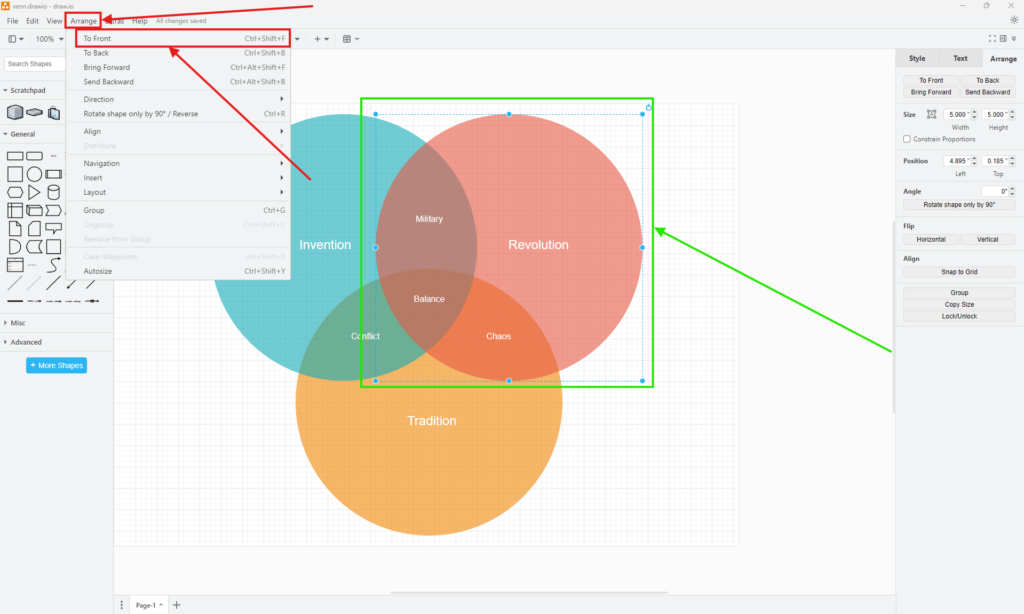
The selected element now appears above elements that previously covered it.
To Front changes the stacking order without changing the element’s location on the canvas.
This distinction matters. I am not moving the shape upward on the page. Instead, I am moving it forward in visual depth.
What Happens After I Bring an Element to the Front?
The result becomes especially clear when several shapes overlap.
In my example, the selected red circle overlaps the blue and orange circles. After I bring the red circle forward, draw.io renders it above elements that sit lower in the stacking order.
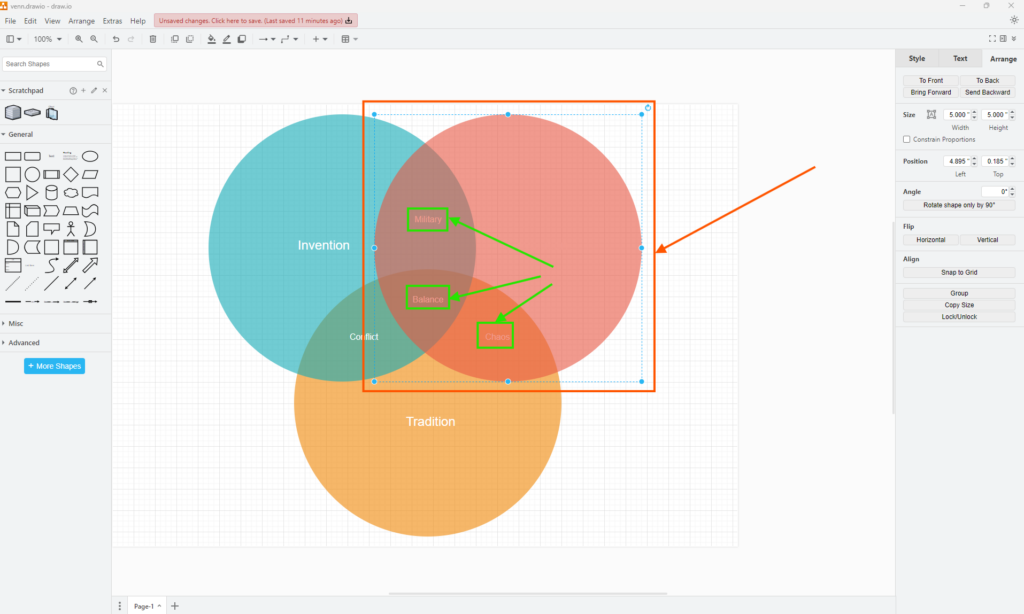
Because the circles use transparency, I can still see some of the underlying content. However, the stacking order still determines which object draw.io renders first.
Therefore, transparency does not remove the need for proper ordering. In fact, it often makes the order more important because several colors, labels, and shapes remain visible at the same time.
Send an Element to the Back
Sometimes I need the opposite result. For example, I may want a large shape to act as a background while smaller shapes and labels remain clearly visible above it.
In that case, I select the element and choose:
Arrange > To Back
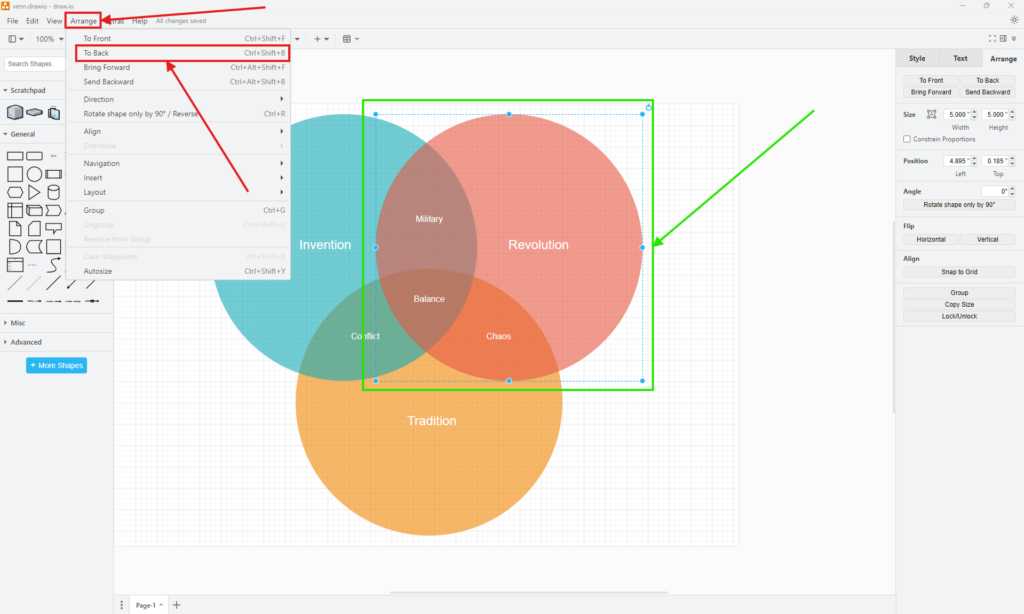
Draw.io then moves the selected element toward the back of the visual stack.
I use To Back when an element should provide context or background without covering more important diagram content.
Again, the shape keeps its original coordinates. Only its position in the stacking order changes.
What Happens After I Send an Element to the Back?
Once I send the selected element backward, elements above it become more prominent.
This can make labels, intersections, or smaller diagram objects easier to see.
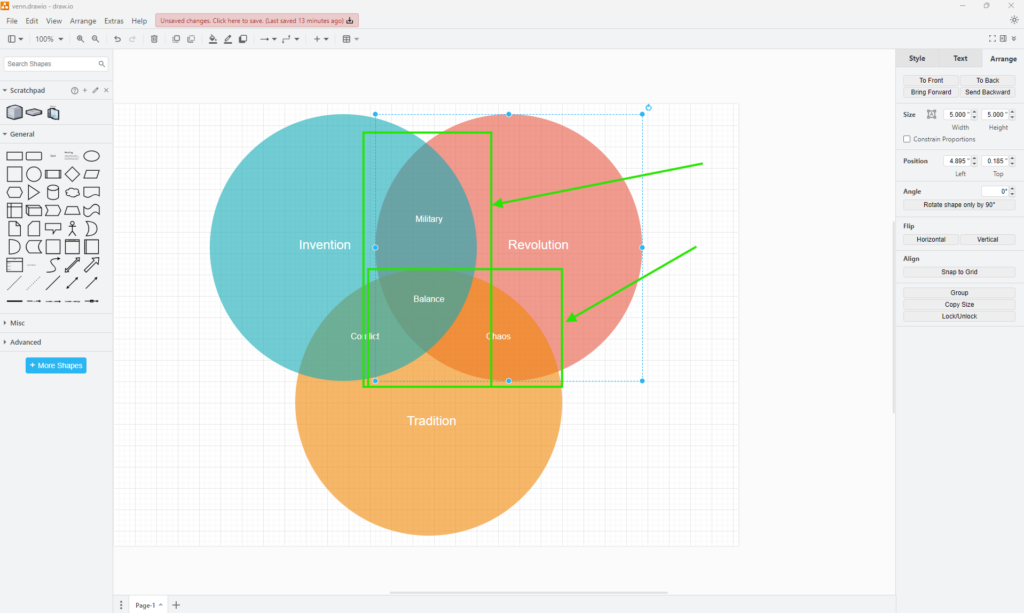
Again, draw.io does not move the circle on the page. It only changes its visual position within the stack.
Use Bring Forward and Send Backward for Smaller Changes
I do not always want to move an element completely to the front or back. Draw.io also provides:
- Bring Forward
- Send Backward
Bring Forward moves an element one level toward the front. Send Backward moves it one level toward the back.
Therefore, I use these commands when several objects overlap and I only need to change the relationship between two nearby elements.
I use To Front and To Back for large changes, while I use Bring Forward and Send Backward for precise adjustments.
I Can Also Use the Arrange Panel
The same commands appear in the Arrange tab on the right side of the draw.io interface.
This panel includes To Front, To Back, Bring Forward, and Send Backward. Therefore, I can adjust the stacking order without opening the main Arrange menu.
I find this useful when I am already working with size, position, rotation, or alignment settings.
Front and Back Are Different From Position
Stacking order and canvas position describe two different things.
If I drag a shape, I change its physical position.
If I choose To Front or To Back, I keep that position but change which overlapping element appears above the other.
This distinction helps me fix visual problems without disturbing an otherwise correct layout.
Final Thoughts
Draw.io gives me four simple commands for controlling overlapping elements. I use To Front when an element must appear above everything else. I use To Back when it should sit behind everything else. For smaller adjustments, I use Bring Forward or Send Backward.
The key rule is simple: if the position is correct but the wrong element appears on top, I change the stacking order instead of moving the shape.