Have you ever wanted to view your diagram in fullscreen mode while working in draw.io? Sometimes, a bigger view makes all the difference. Whether you’re presenting your diagram to a team or focusing on intricate details, fullscreen mode can help. Let me show you how to activate fullscreen in draw.io — it’s easier than you might think!
What Is Fullscreen in draw.io?
Fullscreen is a display option in draw.io. I use it when I want to give the diagram editor more space on my screen.
The function does not change my diagram. It only changes how I see and use the editor. Therefore, my shapes, connectors, formatting, and diagram structure remain unchanged.
Instead, fullscreen reduces the amount of surrounding interface that competes for screen space. As a result, I can concentrate more closely on the diagram.
Fullscreen in draw.io gives me a larger and more focused workspace without changing the diagram itself.
This becomes particularly useful when I work with larger models. For example, I may need to follow several connections across the diagram. Likewise, I may want to inspect the relationship between distant elements without constantly changing my view.
How I Activate Fullscreen in draw.io
I can activate fullscreen directly from the draw.io menu. Therefore, I do not need an extension, plugin, or special configuration.
1. I Open the View Menu
First, I open the diagram that I want to work with.
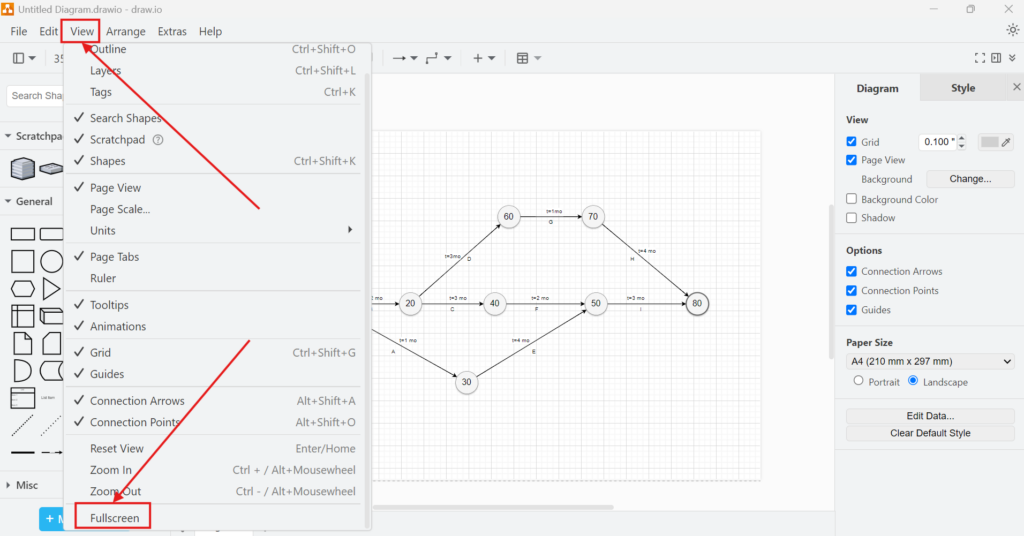
Then, I select View in the menu at the top of the draw.io editor. This opens the View menu.
The menu contains several options that control how draw.io displays the editor. I move toward the bottom of the menu until I find Fullscreen.
The fullscreen function is available directly in the View menu.
2. I Select Fullscreen
Next, I select Fullscreen.
draw.io then expands the editor and gives it more of the available screen area. I do not need to reload the diagram or confirm another setting.
Therefore, the switch happens immediately.
I activate fullscreen in draw.io by selecting View and then Fullscreen.
This simple menu path is the main procedure I need to remember:
View > Fullscreen
3. I Continue Working in the Expanded Editor
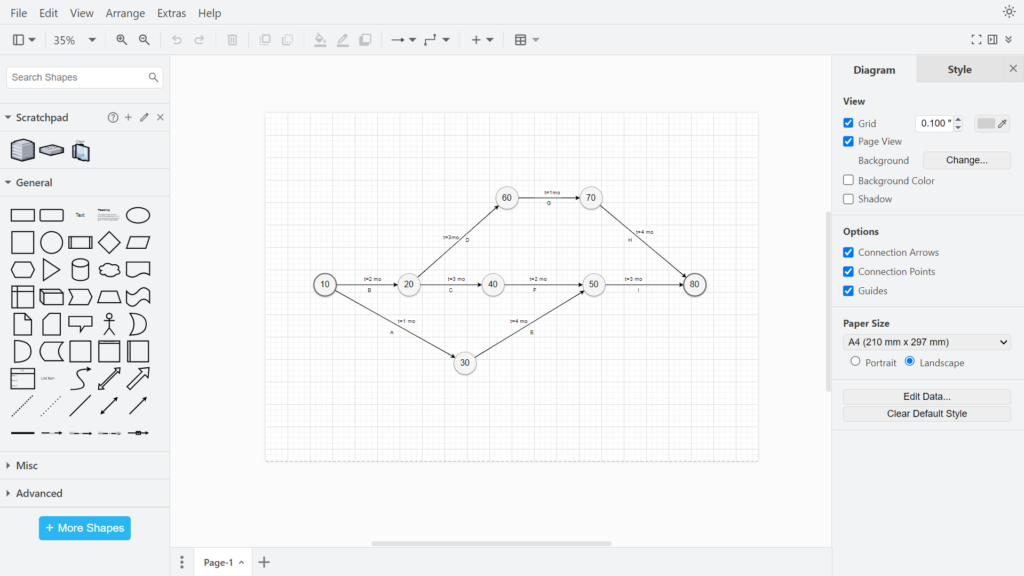
After I activate fullscreen, I continue working with the same diagram.
The diagram itself does not change. However, I now have more visual space around it. Consequently, I can use the available screen area more effectively.
For example, I can keep the shape library visible on the left while I work with the diagram in the center. At the same time, I can still use the diagram and formatting options on the right.
This is especially helpful when I work with larger diagrams. More available space can make relationships easier to follow and reduce the need to move continuously between different parts of the model.
Why I Use Fullscreen in draw.io
Fullscreen is a simple display feature. Nevertheless, it can improve how I work with diagrams.
I Get More Space for the Diagram
The most obvious advantage is the additional workspace.
When I create a small diagram, the normal editor often gives me enough room. However, larger models can contain many shapes, labels, and connectors. In that situation, every additional part of the screen can help.
Therefore, fullscreen becomes more useful as the visual complexity of the diagram increases.
More available workspace helps me keep a larger part of the diagram visible at the same time.
This does not replace zooming. Instead, both functions solve different problems.
I use zoom when I want to change how large the diagram appears. In contrast, I use fullscreen when I want to give the editor more of the available screen.
Therefore, I can also combine both functions.
I Reduce Visual Distractions
Fullscreen also helps me concentrate.
When I model a process, system, or other structure, I often need to follow relationships between several elements. Unnecessary visual distractions can make this harder.
Therefore, I use fullscreen when I want to focus more closely on the diagram.
This becomes particularly useful during reviews. For example, I may check whether connectors follow the intended logic. I may also compare several diagram areas or inspect labels and relationships.
Fullscreen helps me focus on the model instead of the surrounding interface.
I Can Review Complex Diagrams More Easily
Complex diagrams often require me to consider both individual details and the overall structure.
For example, I may inspect one connector while also checking how the connected elements relate to the rest of the diagram. A restricted workspace can make this more difficult.
Fullscreen gives me additional room. Consequently, I can often keep more context visible while I work.
This is useful for many diagram types. For example, I can use it with flowcharts, process models, architecture diagrams, mind maps, or other structured diagrams.
However, the benefit does not depend on the diagram type. Instead, it depends mainly on how much visual information I need to manage.
I Use Fullscreen for Presentations and Discussions
I also use fullscreen when I show a diagram to other people.
During a presentation or review, I want the audience to focus on the model. Therefore, reducing unnecessary surrounding elements can make the presentation clearer.
A larger editor view can also make individual diagram elements easier to recognize.
However, fullscreen does not automatically enlarge every shape or label. If the content still appears too small, I also adjust the zoom level.
Fullscreen gives the diagram more screen space, while zoom controls how large the diagram itself appears.
That distinction is important.
Fullscreen and Zoom Serve Different Purposes
I do not treat fullscreen as a replacement for zoom.
Fullscreen changes the amount of screen space available to the editor. In contrast, zoom changes the visual scale of the diagram inside that editor.
For example, I can activate fullscreen and still zoom in when I want to inspect a specific area. Likewise, I can zoom out if I want to see more of the complete diagram.
Therefore, I often use both functions together.
Fullscreen gives me the workspace. Zoom helps me decide how much of the diagram I want to see within that workspace.
When I Find Fullscreen Most Useful
I do not need fullscreen for every task. However, I find it particularly useful in several situations.
I use it when a diagram contains many connected elements. In this case, the additional workspace helps me understand relationships between different areas.
I also use it during diagram reviews. A larger working area makes it easier to compare elements and follow connections.
Furthermore, I use fullscreen when I present a diagram. The cleaner view helps me direct attention toward the model.
Finally, I use it when I simply want to concentrate. Even with a relatively small diagram, reducing distractions can make focused work more comfortable.
I find fullscreen most valuable when I need more visual context, fewer distractions, or a clearer presentation.
How I Leave Fullscreen Again
I do not have to keep fullscreen active permanently.
When I finish the task that requires the larger workspace, I return to the normal editor view. Therefore, I can treat fullscreen as a temporary working mode.
This makes the feature practical. I can activate it when I need more space and leave it when the standard interface suits my work better.
As a result, I do not need to choose one display mode for every situation.
Conclusion
Fullscreen in draw.io gives me a simple way to increase the available working area. I activate it through the View menu and can continue working with the same diagram immediately.
I mainly use the function when I work with complex diagrams, review relationships, or present a model. In addition, I combine fullscreen with zoom when I need both more workspace and a different diagram scale.
When the normal draw.io workspace feels too restricted, fullscreen gives me a fast and practical way to create a clearer working environment.