
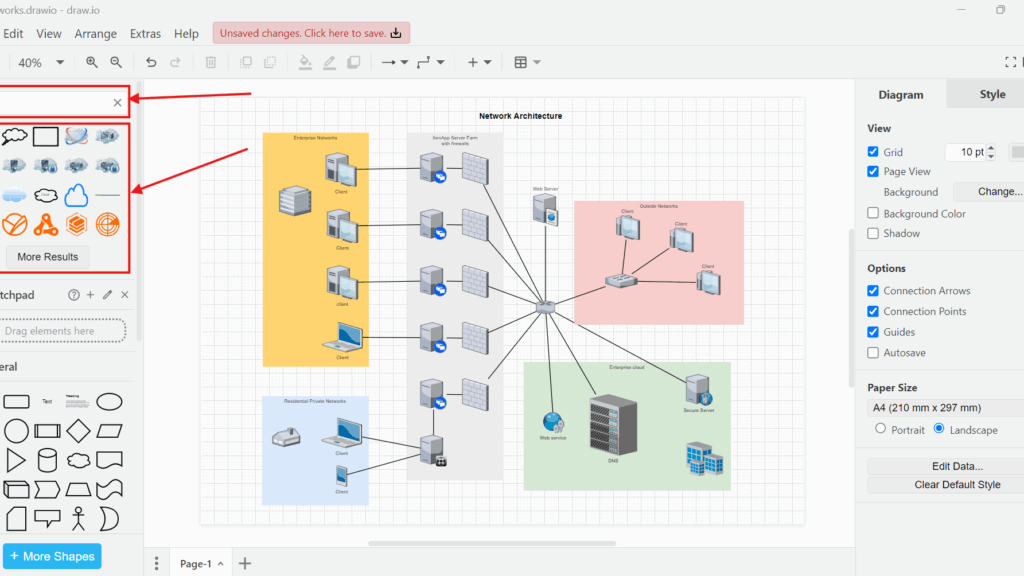
Quick shape access keeps my diagram workflow smooth. When the Search Shapes view disappears, finding the right element takes longer. In this guide, I explain How to activate the Search Shapes view in draw.io. You’ll learn how to bring the search panel back, find shapes faster, and continue building diagrams without wasting time.
What is the Search Shapes view in draw.io?
The Search Shapes view adds a search field to the top of the draw.io Shapes sidebar. I enter a term such as “cloud,” and draw.io displays matching shapes below the field.
Therefore, I do not need to know the exact shape library in advance. I can search first and then choose the element that best represents what I want to model.
The Search Shapes view helps me find a suitable diagram element by meaning instead of manually browsing through shape libraries.
This becomes especially useful when I work with specialized diagrams. For example, network diagrams can contain servers, databases, cloud services, clients, firewalls, switches, and many other technical elements.
How to activate the Search Shapes view in draw.io
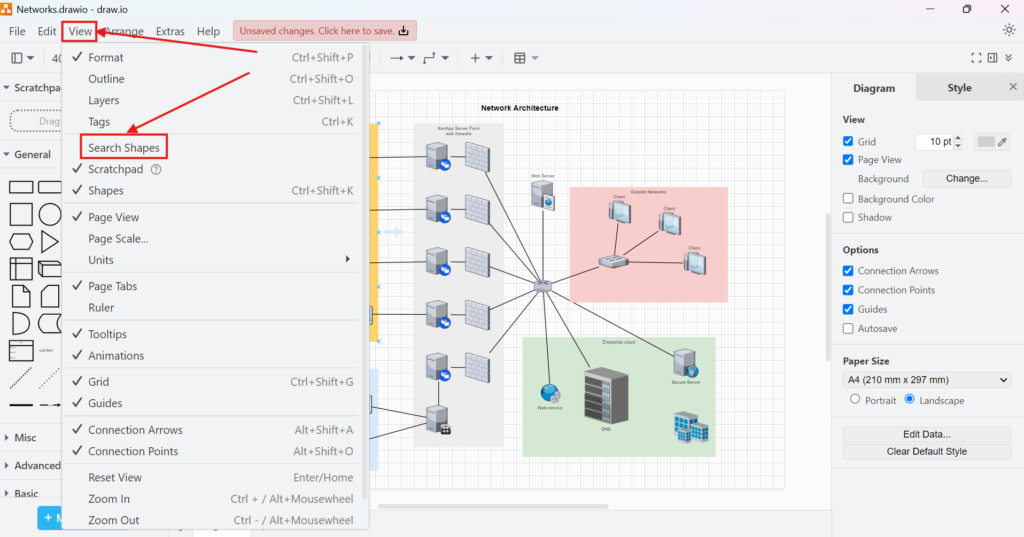
I start with the diagram that I want to edit. Then, I open the View menu in the main menu bar.
Next, I select Search Shapes.
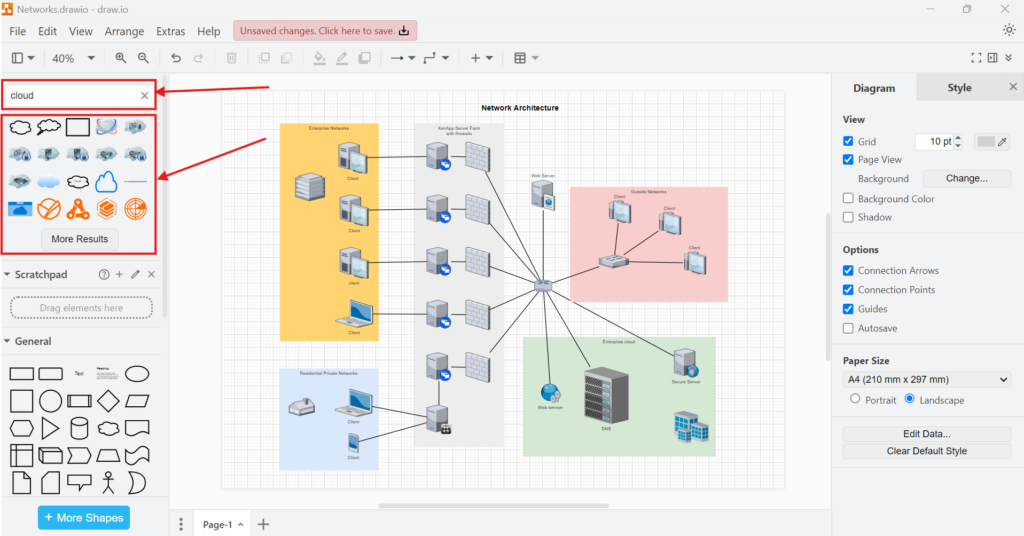
Once I select the option, draw.io adds the search field to the upper part of the Shapes sidebar on the left.
I can activate or deactivate the Search Shapes field from View > Search Shapes.
This distinction is useful. Search Shapes does not open a separate floating window. Instead, it becomes part of the existing Shapes sidebar.
How I search for shapes
After I activate the view, I click inside the search field and enter a descriptive term.
For example, I can search for:
- cloud
- server
- database
- user
- router
- firewall
I normally start with a short and general term. Then, I make the search more specific if the first results do not contain the element I need.
For example, entering “cloud” displays several cloud-related symbols. I can review the results and drag a suitable shape directly onto my diagram.

Depending on the search, draw.io may show several possible representations of the same concept. Therefore, I do not simply choose the first result. Instead, I select the symbol that matches the visual language of my diagram.
A consistent shape style usually matters more than finding the most detailed symbol available.
For example, if I use simple infrastructure icons throughout a network diagram, I also choose a simple cloud symbol. Mixing highly detailed icons with basic diagram shapes can make the model harder to read.
Search Shapes or shape libraries?
I use Search Shapes when I know the concept that I need but do not know where to find the corresponding shape.
However, I still use shape libraries when I work repeatedly with the same notation or technology. A dedicated library gives me a structured collection of related elements. Search Shapes gives me faster access when I need an individual element.
Therefore, the two approaches complement each other.
I use Search Shapes for fast discovery and shape libraries for systematic access to a defined set of symbols.
What I check if Search Shapes does not appear
If the search field does not appear after I select Search Shapes, I first check whether the Shapes sidebar itself is visible. The search field belongs to this sidebar, so hiding the entire Shapes panel also removes the place where the search field normally appears.
Next, I open View again and toggle Search Shapes off and on.
If the interface still looks incorrect, I can use the available view controls to restore the workspace layout. Finally, if I use draw.io in a browser, I can reload the application. If I use the desktop application, I can restart it.
I would not clear the browser cache as a normal first step. In most cases, checking the sidebar and toggling the view provides a more targeted solution.
Using Search Shapes efficiently
The Search Shapes view solves a small but frequent problem in draw.io: finding an element when I know what it represents but not where draw.io stores it.
I activate it through View > Search Shapes, enter a descriptive keyword, review the results, and drag the required shape onto the canvas.
For diagrams with many specialized symbols, Search Shapes reduces unnecessary browsing and helps me stay focused on the model itself.
What’s Next?
Now that I know how to activate the Search Shapes view in draw.io, I can find diagram elements faster. However, I may also want to reuse my own shapes and diagram parts. That is where the Scratchpad view becomes useful. In the next article, I’ll explain How to Use the “Scratchpad” View in draw.io. You’ll learn how the scratchpad helps you store, reuse, and organize custom diagram elements. Click below to continue and make your draw.io workflow even faster.
Choose Tools That Support Clear Requirements Work
Requirements engineering becomes stronger when I use tools that support visual thinking, documentation, task management, and process modeling. Therefore, I use draw.io to create diagrams, Confluence to organize knowledge, Jira to manage work, and Camunda to model business processes. Each tool helps me reduce complexity in a practical way. As a result, I can connect ideas, requirements, decisions, and workflows more clearly. In the main article on Requirements Engineering Tools, I show how these tools work together and support a better requirements engineering workflow.
| Read more about draw.io |
|---|
| PDF Export VSDX Export HTML Export URL Export XML Export |