

I often reuse the same elements in draw.io. Searching for custom shapes every time slows me down. That is why I rely on the Scratchpad view. In this guide, I explain how to use the Scratchpad view in draw.io. You’ll learn how to store, organize, and reuse frequent diagram elements so your workflow becomes faster and more consistent.
What Is the Scratchpad View in draw.io?
The draw.io Scratchpad is a personal collection of reusable diagram elements. I use it for shapes or combinations of shapes that I need repeatedly.
For example, I may create a specific server symbol for network diagrams. Instead of finding and configuring that symbol again, I save it once in the Scratchpad.
The Scratchpad helps me turn frequently used diagram elements into reusable building blocks.
This approach saves time. More importantly, it also helps me keep diagrams visually consistent.
How to Activate the Scratchpad View
If I cannot see the Scratchpad, I open the View menu. Then, I select Scratchpad.
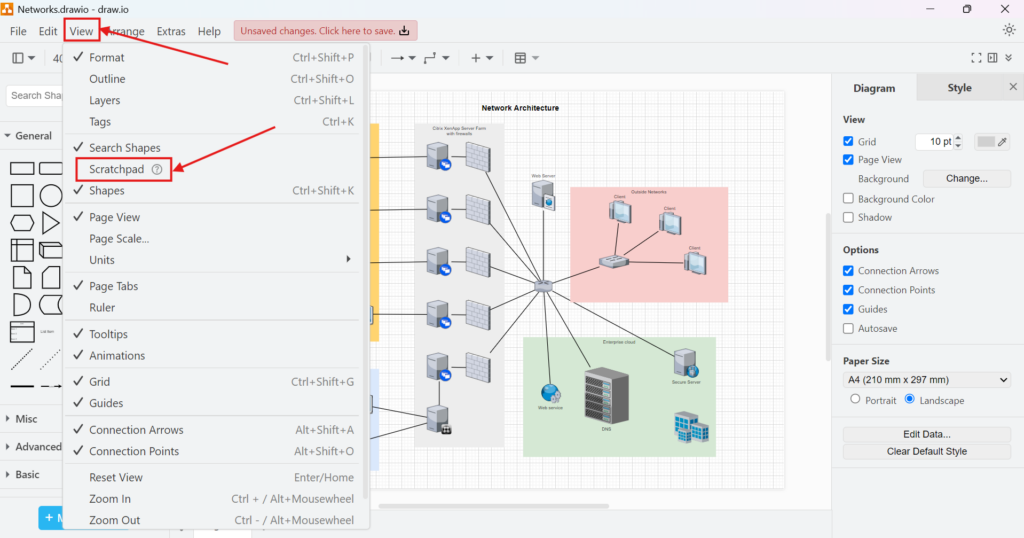
The Scratchpad then appears in the left sidebar above the regular shape libraries.
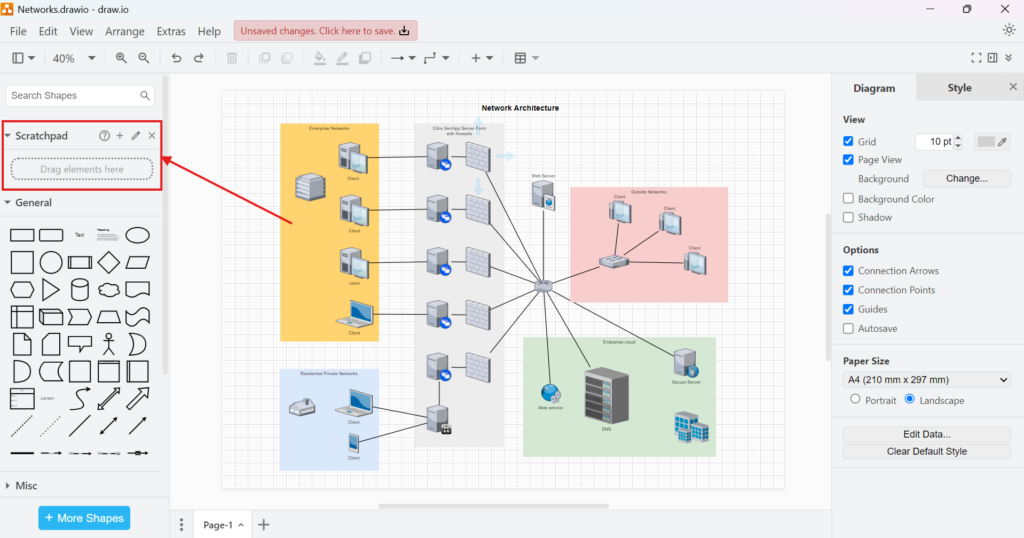
Once the Scratchpad is visible, I can start adding my own reusable elements.
How to Add an Element to the Scratchpad
First, I select the element that I want to reuse. In this example, I use a server symbol from a network diagram.
Then, I drag the selected element toward the Scratchpad.
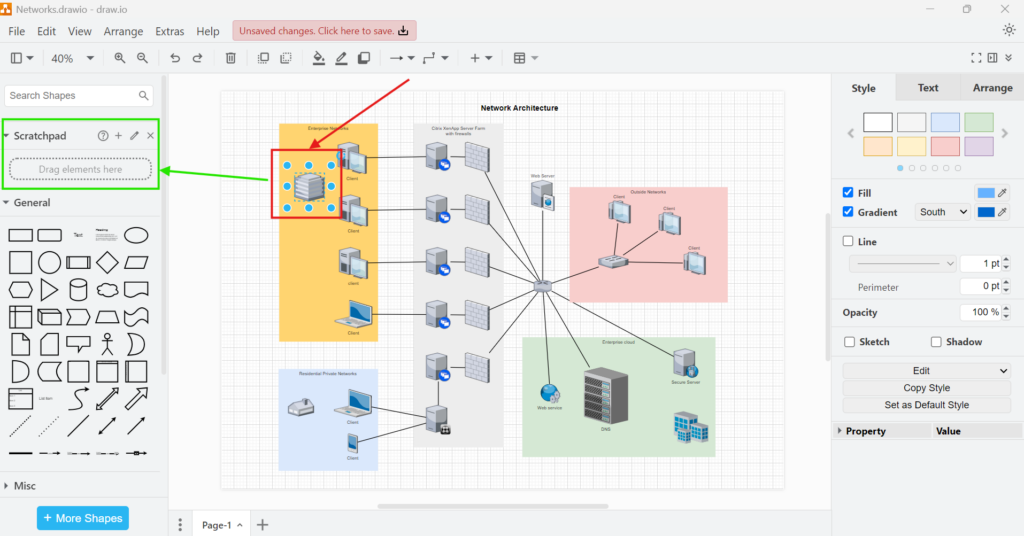
As I move the element over the Scratchpad, draw.io indicates where I can drop it.
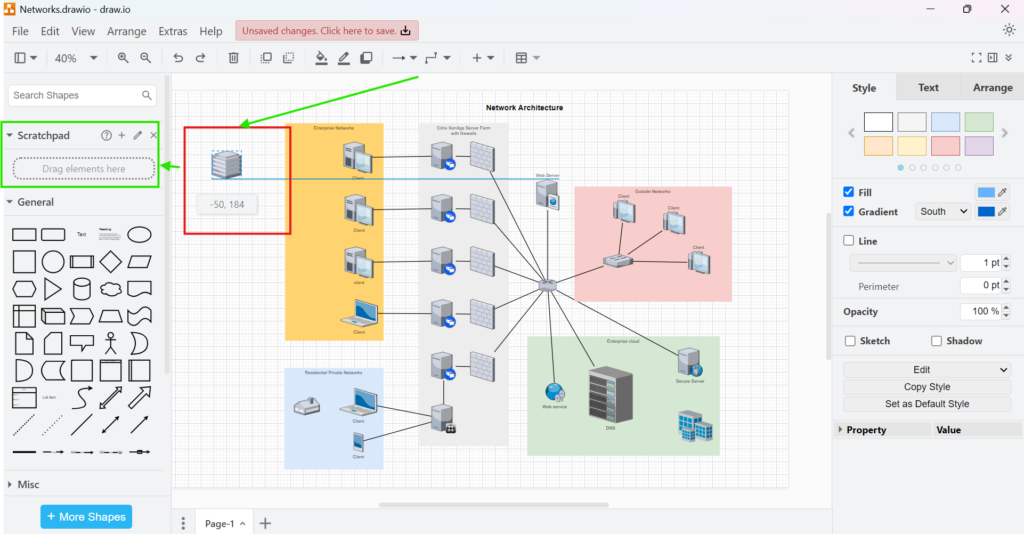
After I drop the element, it appears as a reusable entry in the Scratchpad.
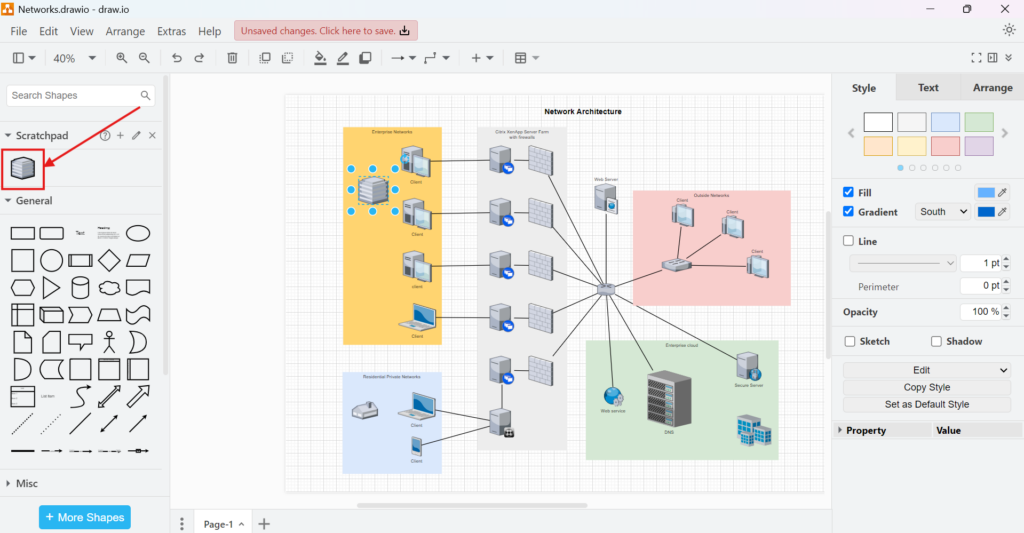
I now have a reusable copy without changing the original element in my diagram.
This is useful not only for individual shapes. I can also use the Scratchpad for customized elements that would otherwise take time to recreate.
How to Reuse a Scratchpad Element
When I need the saved element again, I drag it from the Scratchpad onto the canvas.
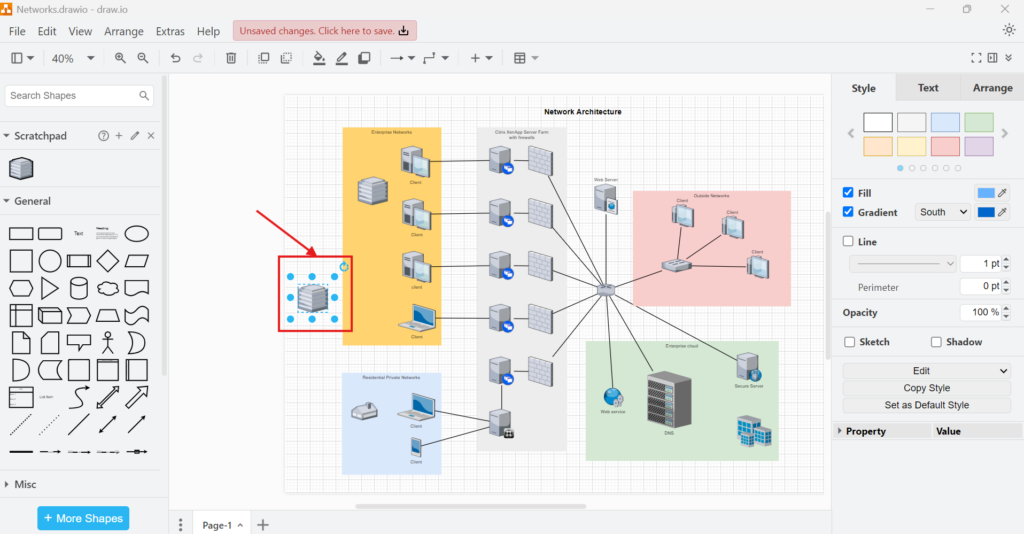
I can then position and edit the new copy like any other diagram element.
Therefore, the Scratchpad works particularly well for components that recur across several diagrams. Examples include servers, application components, process elements, standardized labels, or predefined combinations of shapes.
How to Manage Scratchpad Elements
As the Scratchpad grows, meaningful names become more important.
To manage its contents, I click the pencil icon in the Scratchpad header.
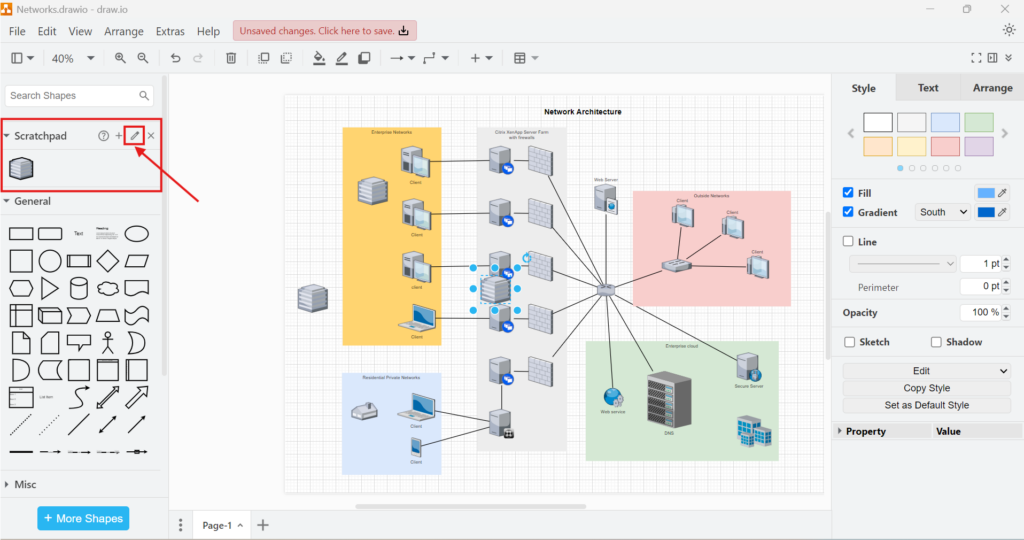
Draw.io then opens the Scratchpad management window. Here, I can review the elements stored in the library.
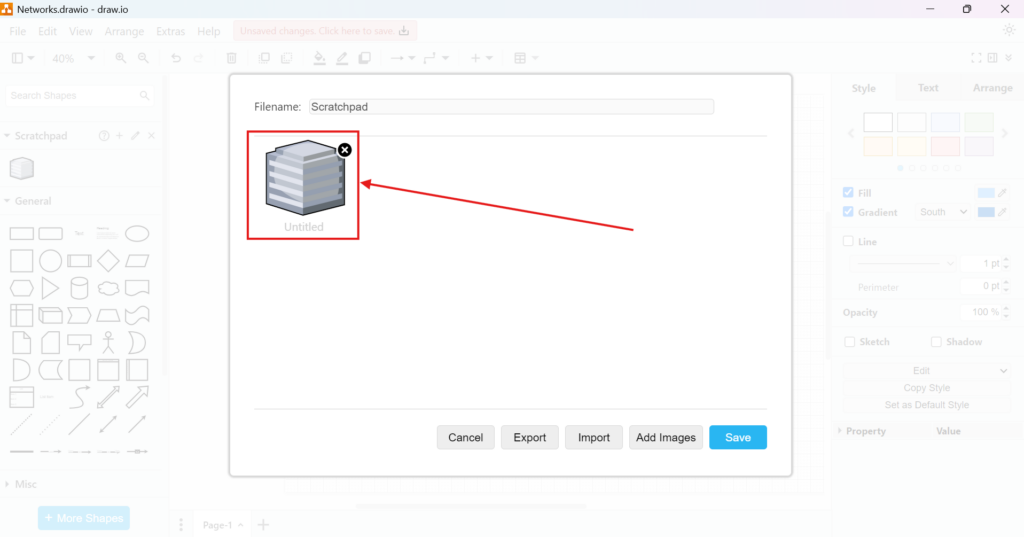
For example, an element may initially have the generic name Untitled. I can replace that name with something meaningful, such as Server. Then, I click Save.
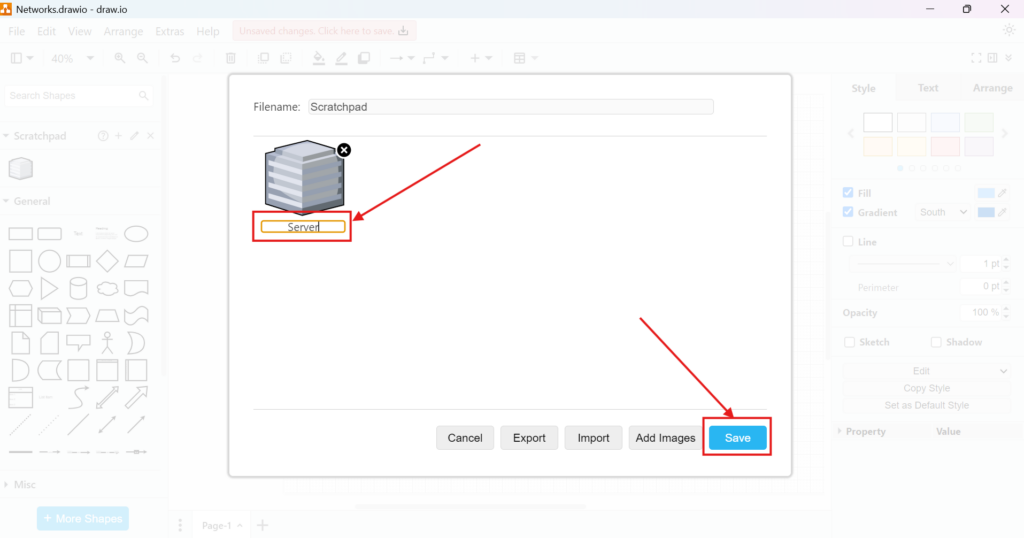
Clear names make larger Scratchpad libraries much easier to understand and maintain.
Exporting and Importing a Scratchpad
The management window also gives me options to export and import Scratchpad content.
I use Export when I want to preserve my collection or transfer it to another environment. Conversely, I use Import when I want to load an existing Scratchpad library.
This can also support teams that use the same diagram components. For example, I can prepare a standardized collection and share the exported library with colleagues.
However, I treat the Scratchpad primarily as a reusable personal palette rather than as a substitute for formal diagram standards or centrally managed libraries.
Adding Images to the Scratchpad
The same management window includes an Add Images option.
This allows me to add graphics that I want to reuse. For example, I could store a company logo, product icon, or another frequently required image.
Therefore, the Scratchpad is not limited to standard draw.io shapes.
I can use it as a compact library for both diagram elements and reusable graphics.
When I Use the Scratchpad
I find the Scratchpad most useful when an element appears repeatedly but does not belong in one of the standard shape libraries.
Typical examples include:
- customized infrastructure symbols
- recurring application components
- standardized process elements
- company-specific graphics
- frequently used combinations of shapes
For elements that I use only once, adding them to the Scratchpad creates unnecessary clutter. Therefore, I reserve it for components with genuine reuse value.
Conclusion
The Scratchpad view in draw.io gives me a simple way to reuse diagram elements without rebuilding or searching for them each time. I can drag elements into the Scratchpad, insert them into other diagrams, rename them, add images, and export or import the collection when necessary.
For recurring custom elements, the Scratchpad reduces repetitive work while helping me keep my diagrams consistent.
What’s Next?
Now that I know how to use the Scratchpad view in draw.io, I can reuse important diagram elements faster. However, larger diagrams also need better navigation. That is where the outline view helps. In the next article, I’ll explain How to Activate the Outline View in draw.io. You’ll learn how the outline gives you a structured overview and helps you move through complex diagrams more easily. Click below to continue and navigate your draw.io diagrams with more control.
Turn Requirements Work into a Clear Tool Workflow
Requirements engineering becomes easier when I use tools that support each step of the work. Therefore, I use draw.io to visualize ideas, Confluence to document knowledge, Jira to manage requirements-related tasks, and Camunda to model business processes. Each tool helps me reduce complexity and improve collaboration. As a result, I can connect diagrams, documentation, tasks, and workflows more clearly. In the main article on Requirements Engineering Tools, I show how these tools work together and support a stronger requirements engineering workflow.