
Opening existing diagrams should feel simple. In this article, I show how to open an existing diagram in draw.io. You’ll learn two clear methods: opening a file when draw.io starts and opening it later through the menu. As a result, you can return to your diagrams, review your work, and continue editing without confusion.
Prefer watching instead of reading? Here is the quick video walkthrough:
What is draw.io?
First, let’s cover what draw.io (opens in new tab) is. draw.io is a free diagramming tool used by individuals and businesses to create flowcharts, wireframes, and more. It’s intuitive, widely compatible, and ideal for visualizing complex information. I’ve used it for designing workflows and brainstorming sessions, and it never disappoints.
Now, let’s dive into the steps for opening an existing diagram.
Two Ways to Open an Existing Diagram
I can open a diagram directly after starting draw.io. Alternatively, I can use the File menu while another diagram is open.
Both methods let me access an existing diagram and continue editing its content.
Open an Existing Diagram When I Start draw.io
Step 1: Open draw.io
I open the draw.io application on my device. Then, I wait until the start screen appears.
Step 2: Select Open Existing Diagram
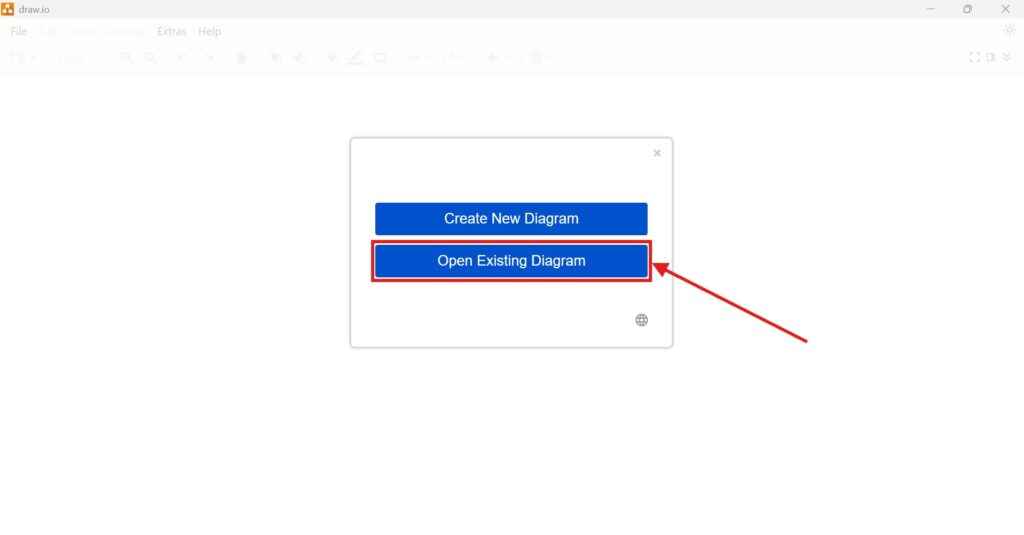
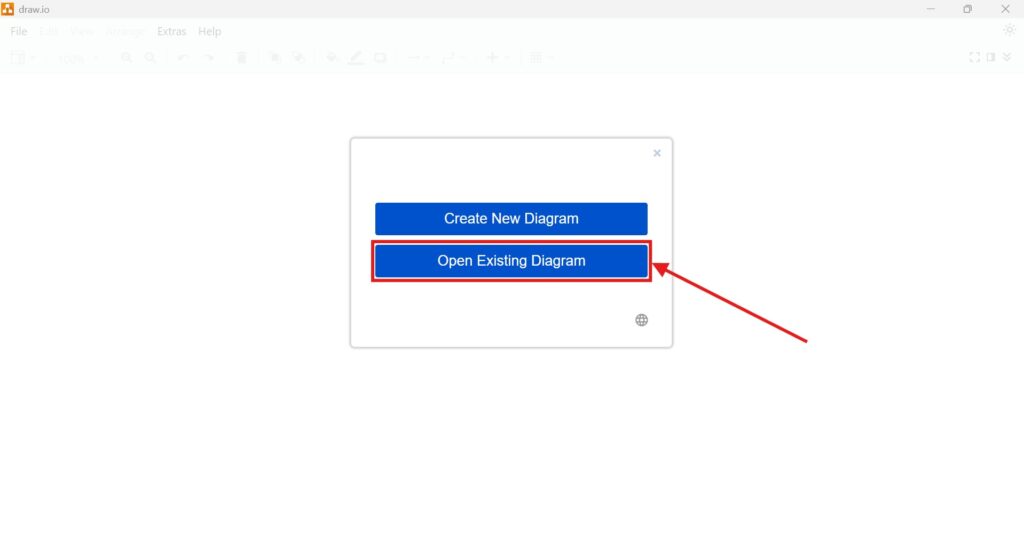
I select Open Existing Diagram on the start screen. This option lets me choose a diagram that I already saved.
I use this method when I start draw.io specifically to continue earlier work.
Step 3: Select the Diagram File
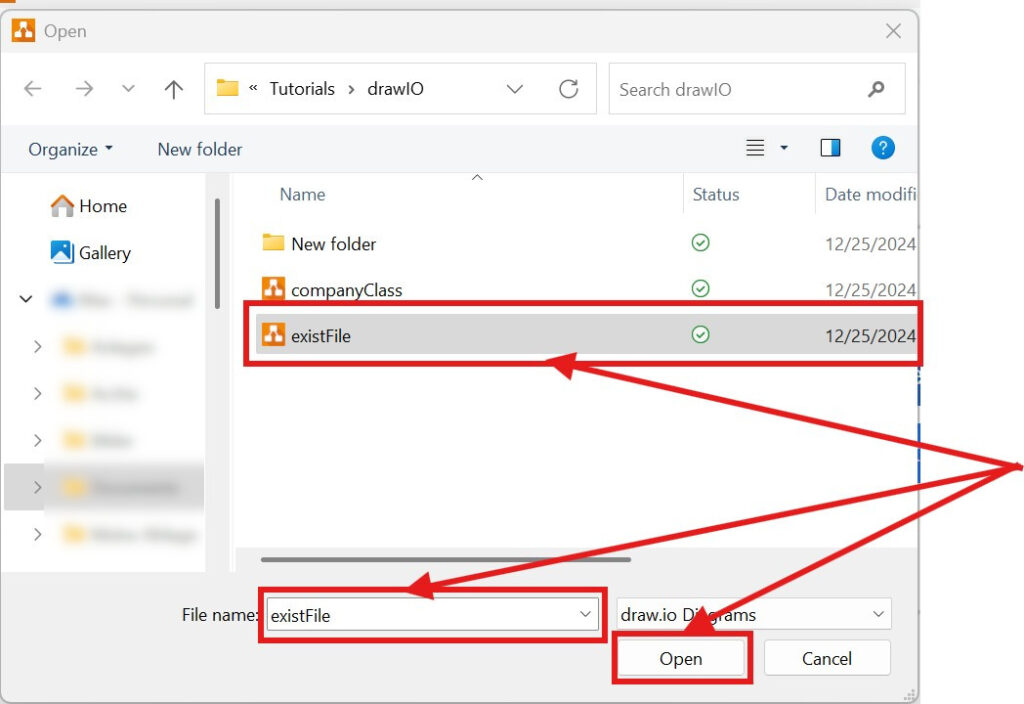
A file selection window opens. I navigate to the folder that contains my diagram.
Then, I select the correct file and confirm my choice. Before I continue, I check the filename carefully.
Step 4: Continue Working in the Editor
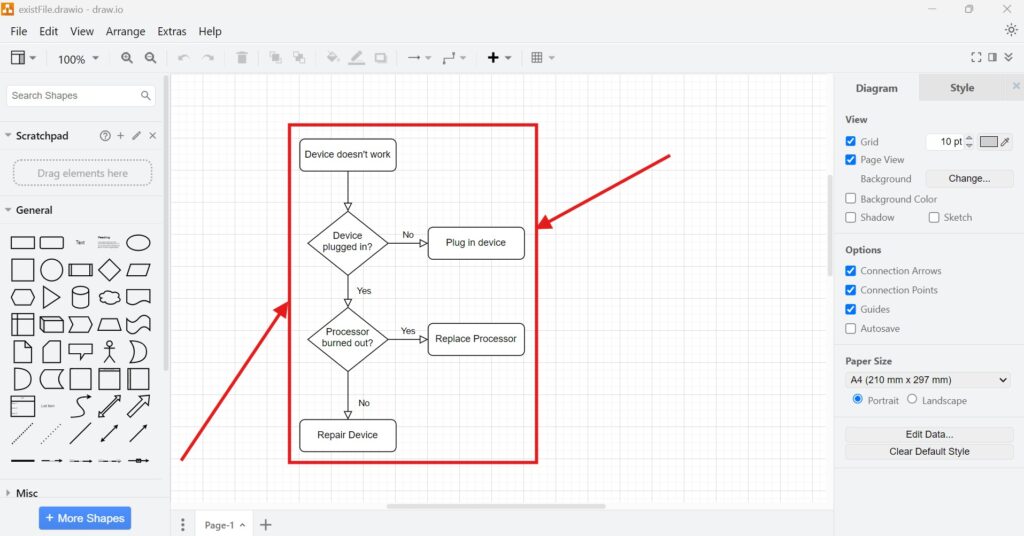
draw.io opens my selected diagram in the main editor. I can now review its content or make changes.
For example, I can edit labels, move shapes, or add connectors. The existing diagram remains my starting point, so I do not rebuild its structure.
Open an Existing Diagram Using the Menu
Step 1: Open the File Menu
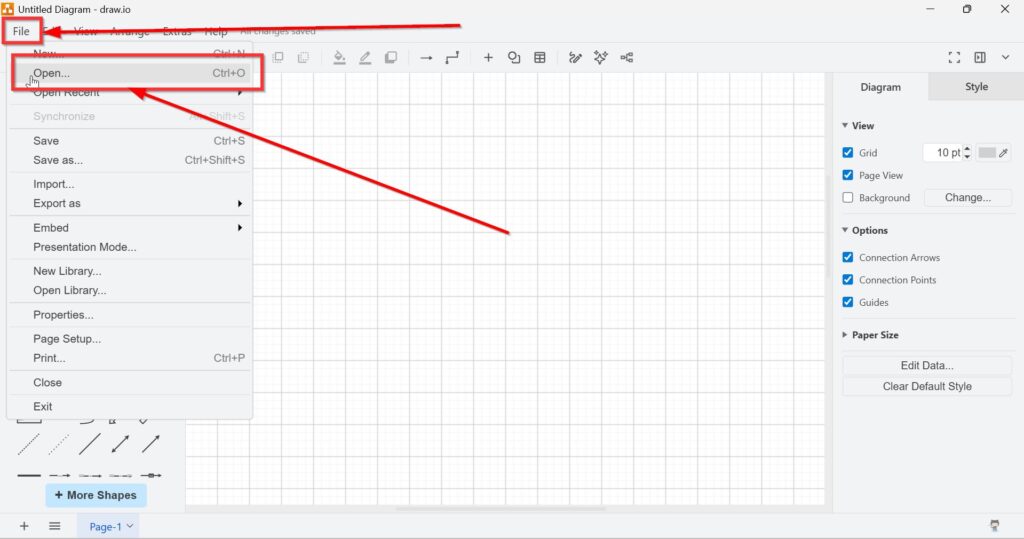
I select File in the upper-left corner of the draw.io editor. I use this method when I already have another diagram open.
Step 2: Select Open
I select Open from the File menu. As a result, draw.io lets me choose another diagram file.
The Open command gives me access to saved diagrams without restarting draw.io.
Step 3: Choose the Diagram File
I navigate to the storage location of the required diagram. Then, I select the file and confirm my choice.
I check the filename before opening it. Therefore, I reduce the risk of selecting the wrong version.
Step 4: Work with the Opened Diagram
draw.io displays the selected diagram in the editor. I can now review, edit, or extend its contents.
I can continue working from the exact structure stored in the selected file.
Which Method Should I Use?
I use the start screen when no diagram is currently open. However, I use the File menu during an active draw.io session.
Both methods lead to the same result. Therefore, I choose the method that best matches my current workflow.
Final Thoughts
Opening an existing diagram lets me continue previous modeling work without creating a replacement. First, I locate the correct file. Then, I open it through the start screen or File menu.
To open an existing diagram in draw.io, I only need to select the file and load it into the editor.
What’s Next?
Now that I know how to open an existing diagram in draw.io, I need to save my work correctly. Saving protects my changes and helps me continue later without stress. In the next article, I’ll explain How to Save Files in draw.io. You’ll learn where to save your diagram, how to keep your progress, and how to avoid losing important work. Click below to continue and save your draw.io files with confidence.
Use the Right Tools for Better Requirements Work
Requirements engineering becomes more effective when I use tools that support clear thinking and practical collaboration. Therefore, I use draw.io to visualize ideas, Confluence to document knowledge, Jira to manage requirements-related tasks, and Camunda to model business processes. Each tool helps me structure work in a different way. As a result, I can explain needs, connect decisions, track progress, and improve communication with stakeholders. In the main article on Requirements Engineering Tools, I show how these tools work together in a clear requirements workflow.