
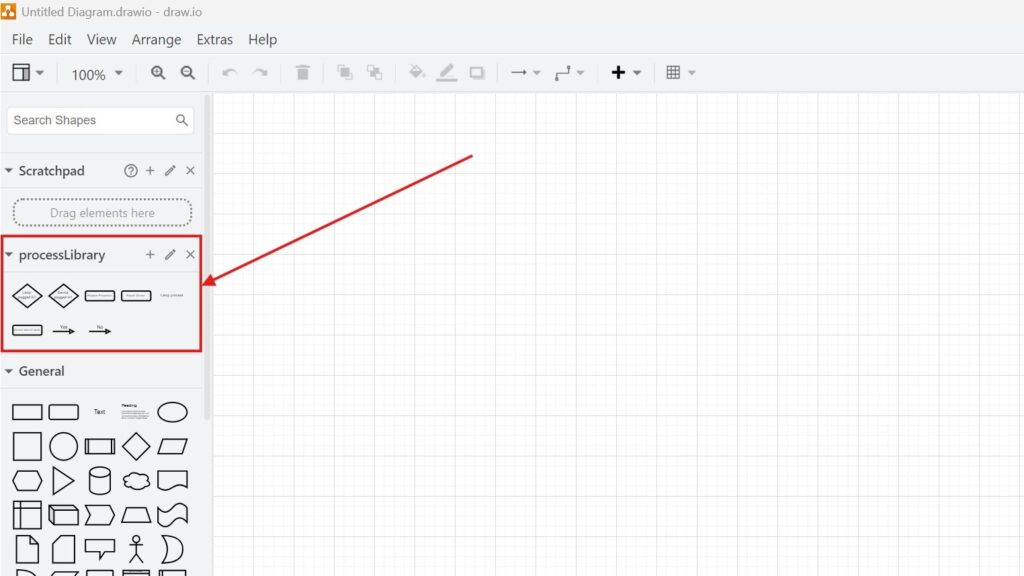
When I first used draw.io, I wasn’t sure how to unlock its full potential. One feature I now rely on is libraries. They help me access, organize, and reuse shapes faster. If you’re new to this, don’t worry—I’ll guide you through How to open a library in draw.io, share practical examples, and explain why libraries can seriously boost your productivity. Let’s get started!
Prefer watching instead of reading? Here is the quick video walkthrough:
What is Draw.io?
If you’ve never heard of draw.io (open in a new tab), let me introduce you. It’s a powerful and free online diagramming tool. Whether you’re sketching out workflows, creating network diagrams, or designing UML diagrams, draw.io has you covered. What makes it truly standout, though, is its flexibility.
For example, let’s say you’re working on a team project and need to create consistent designs across multiple diagrams. Using libraries in draw.io makes it simple to standardize elements like shapes, icons, or reusable templates. You save time, reduce errors, and stay consistent.
Why Use a Library in Draw.io?
Now, let’s dive into why libraries matter.
Libraries in draw.io store reusable shapes, components, or templates. Think of them as a collection of pre-designed building blocks. They’re ideal for teams working on IT architecture diagrams, software design schematics, or even organizational charts.
Here’s a quick business case: imagine you’re an IT manager creating a series of network diagrams for a client. Without libraries, you’d need to redraw each router, switch, or server icon repeatedly. With a library, you can simply drag and drop the necessary elements into your diagram. It’s faster, more accurate, and less frustrating.
Additionally, libraries can store industry-standard elements, ensuring everyone on the team uses the same symbols and conventions. This keeps your designs consistent and professional-looking.
How to Open a Library in Draw.io
Now, let’s walk through the process of opening a library step by step. It’s simpler than you might think.
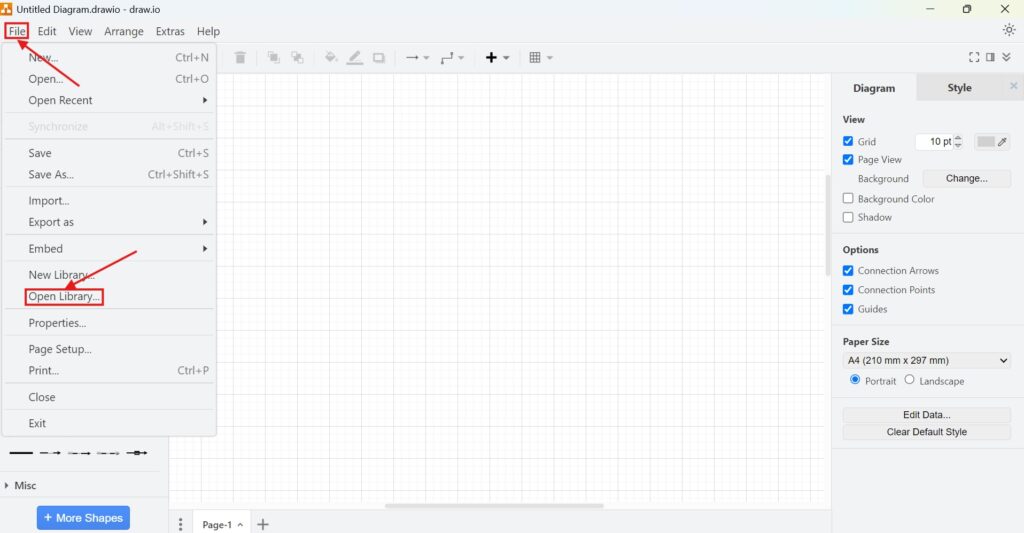
1. Step: Start by navigating to “File” > “Open Library.” Open draw.io, and at the top menu, click on “File.” From there, choose the “Open Library” option.
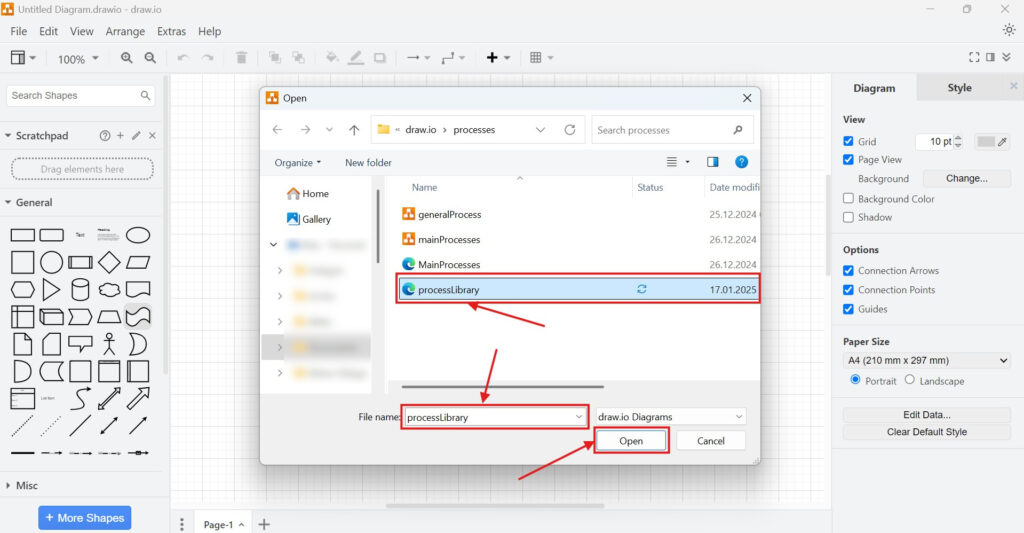
2. Step: Choose your drive or file system. Next, decide where your library is stored. It could be on your computer, in your company’s shared drive, or even in the cloud. Simply locate the file and select it.
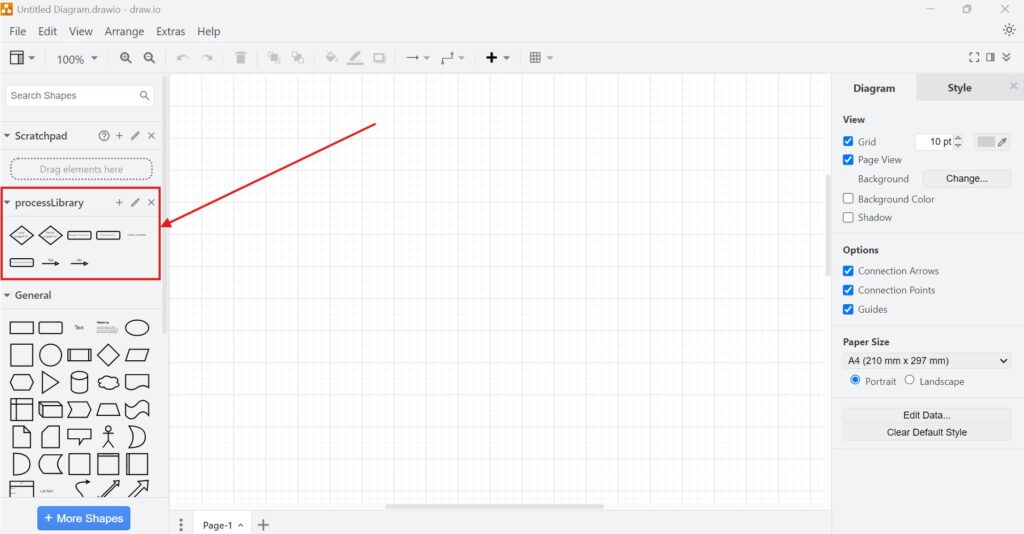
3. Step: Access your library and start creating. Once opened, you’ll see your library in the left-hand panel. Drag and drop elements directly into your workspace, and you’re good to go!
Final Thoughts
Libraries in draw.io are a game-changer for anyone working on complex diagrams. They save time, keep designs consistent, and ensure your work stays professional. Whether you’re an IT manager, a project planner, or a developer, mastering libraries is an essential skill.
So, if you haven’t already, give it a try. Follow the steps above on how to open a library in draw.io, and see the difference it makes in your workflow. Trust me, once you start using libraries, you’ll wonder how you ever managed without them.
What’s Next?!
Now that you know how to open and manage libraries in draw.io, you’re ready to build diagrams even faster with a solid starting point. Templates combine perfectly with libraries because you get an instant structure and can drop your favorite shapes into place right away. If you want to speed up your workflow and create consistent, professional diagrams in minutes, head over to my next guide: How to Create a Diagram using Templates in draw.io.
| Read more about Confluence and How to |
|---|
| Format Text in Confluence Make Lists in Confluence Change the Headings in Confluence Create a Blog Post in Confluence Align Text in Confluence |
| Read more about UML |
|---|
| 4 Practical Tips for UML Modeling – Making Your Diagrams Speak for Themselves What are UML Aggregation and Composition? How to Determine Simple UML Relationships with Heuristics Mastering Simple UML Modeling Relationships |