

When I work on complex diagrams in draw.io, I sometimes lose track of the overall picture. Zooming in and out, moving shapes around—suddenly, everything looks messy. I need to reset the view quickly. Luckily, draw.io offers a simple way to fix this. In this article, I explain how to reset the view in draw.io and share a helpful example.
What is draw.io
draw.io is a free, web-based diagramming tool. I use it to create flowcharts, network diagrams, and organizational charts. It helps me visualize complex processes. Because it runs in my browser, I can access it from anywhere. Furthermore, it works without installation. Most importantly, it saves my files locally or in cloud storage.
How to Reset the View in draw.io
Sometimes, I zoom in too much or move my canvas too far. Everything seems out of place. When that happens, I reset the view in draw.io. Here is how:
Option 1: Click “View” in the top menu, then select “Reset View.”
Option 2: Press “Enter” on your keyboard.
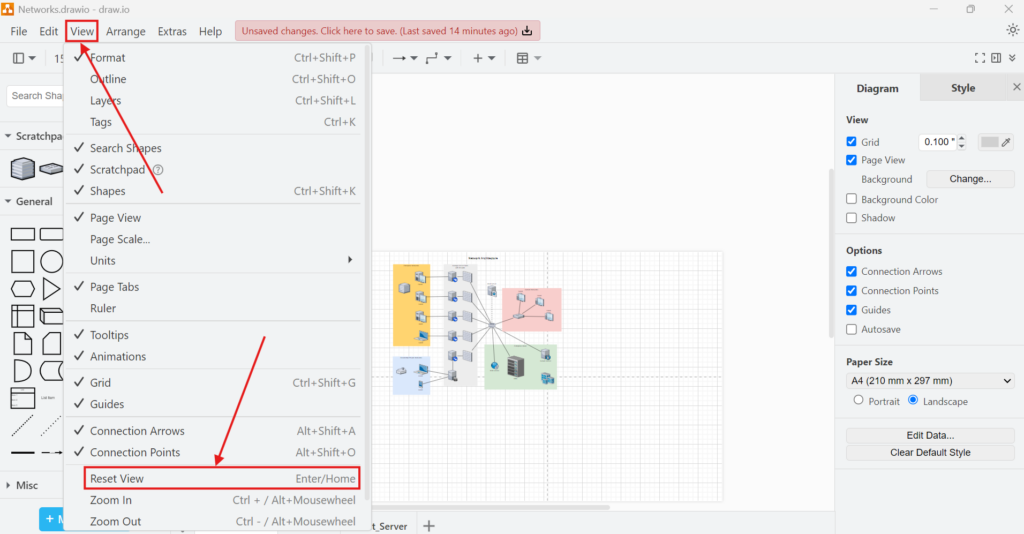
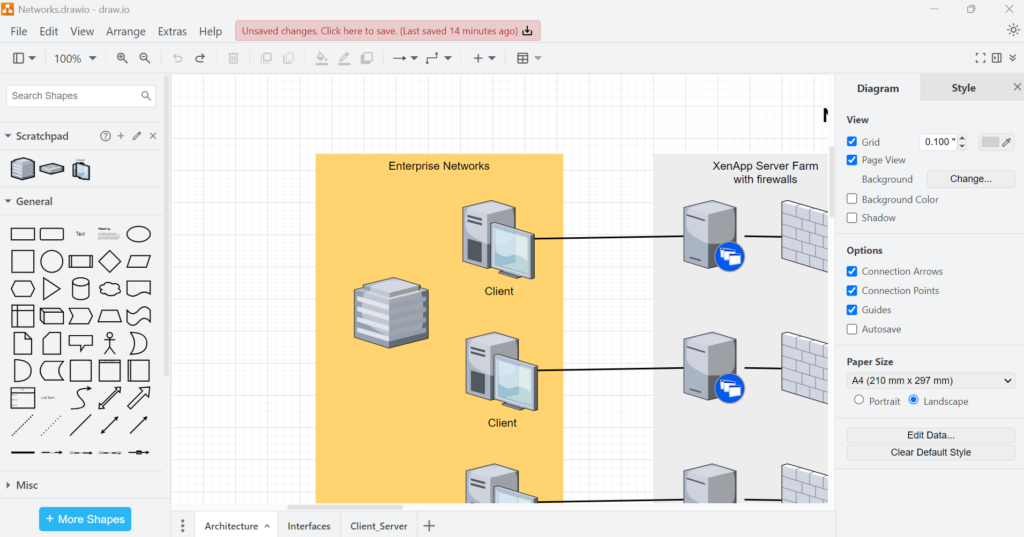
Both methods instantly bring the canvas back to its default position:
Business Case Example: Visualizing a Simple Workflow Let’s say I map out a hiring process in draw.io. First, I add a rectangle labeled “Job Application.” Next, I connect it to another rectangle called “Interview.” Finally, I link it to a third rectangle, “Offer.”
While adjusting the diagram, I zoom in to align the shapes. Then, I scroll too far to the right. Suddenly, I lose sight of my entire workflow. I need to reset the view in draw.io to get back on track.
I click “View” in the menu and choose “Reset View.” Instantly, my workflow appears centered again. I continue building my diagram with ease. I could also press “Enter” for the same result.
Using reset view often saves me time. It prevents frustration. Furthermore, it helps me focus on my content, not on navigation.
Final Thoughts
When I work with draw.io, I sometimes lose my place on the canvas. However, resetting the view solves the problem in seconds. I can use the “View” menu or simply press “Enter.” Both options work fast and effectively. Because this trick keeps my workflow smooth, I use it regularly. I recommend every draw.io user master this feature. It keeps diagramming stress-free and efficient.
| Read more about draw.io |
|---|
| Model UML Class Attributes in draw.io Syntax and Semantics of UML Classes in draw.io Draw UML Use Case Diagrams with draw.io: A Hands-on Example How to Create a Flowchart Example with draw.io How to Build a UML Class Diagram with draw.io |