
Software modeling needs clear structure. UML helps me show classes, attributes, operations, and relationships visually. However, I also need to understand what each element means. In this post, I explain Syntax and semantics of UML classes in draw.io. You’ll learn how UML class notation works and how it helps you create clearer software models.
Understanding UML Class Notation
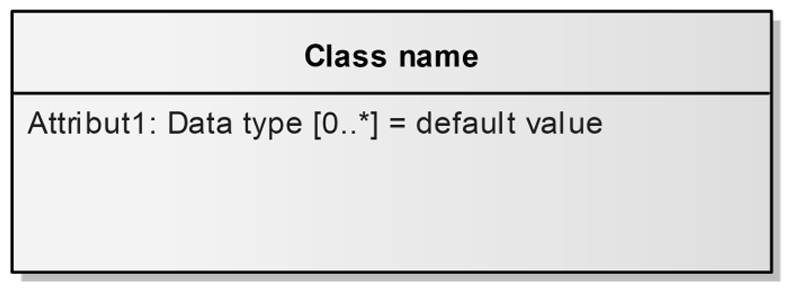
A UML class represents a type of object in a system. I normally show it as a rectangle with separate compartments. The upper compartment contains the class name. The next compartment contains attributes. An additional compartment can contain operations.
The notation inside a UML class has a defined meaning, so I do not treat the class shape as a simple text box.
For an attribute, UML supports the following general structure:
[visibility] [/] name [: type] [multiplicity] [= default value] [{property modifiers}]
I do not need to use every element. However, the attribute name is essential. The other elements add information when the model requires it.
Attribute Name
The name identifies the property. For example, a Car class can contain an attribute named modelName.
I choose names that describe the property clearly. In addition, I use consistent naming conventions throughout the model.
Data Type
The data type defines the kind of value that the attribute can contain. For example:
modelName: String
Other common types include Integer, Boolean, Date, or domain-specific types.
A data type explains what kind of information the attribute represents.
Multiplicity
Multiplicity defines how many values an attribute can have. I place it in square brackets after the type.
Common examples include:
- [1] means exactly one value.
- [0..1] means zero or one value.
- [0..*] means zero or many values.
- [1..*] means one or many values.
For example, a vehicle may have exactly one vehicle identification number. In contrast, another property may contain several values.
If I omit the multiplicity, UML normally assumes one value.
Default Value
I can also define a default value:
modelName: String [1] = Standard
The default value defines the initial value that applies when no different value has been assigned.
Derived Attributes
A slash before the attribute name marks a derived attribute:
/age: Integer
In this case, I calculate the value from other information instead of storing it independently. For example, I can derive age from a date of birth.
Visibility
If visibility matters, I can add a symbol before the attribute name:
- means public.
- means private.
- means protected.
- means package visibility.
However, I only add this information when it supports the purpose of the model.
I include notation because it communicates relevant information, not because UML provides a symbol for it.
How I Create a UML Class in draw.io
draw.io provides UML shapes that already contain the standard class compartments. Therefore, I do not need to construct the class manually.
Step 1: Add a UML Class Shape
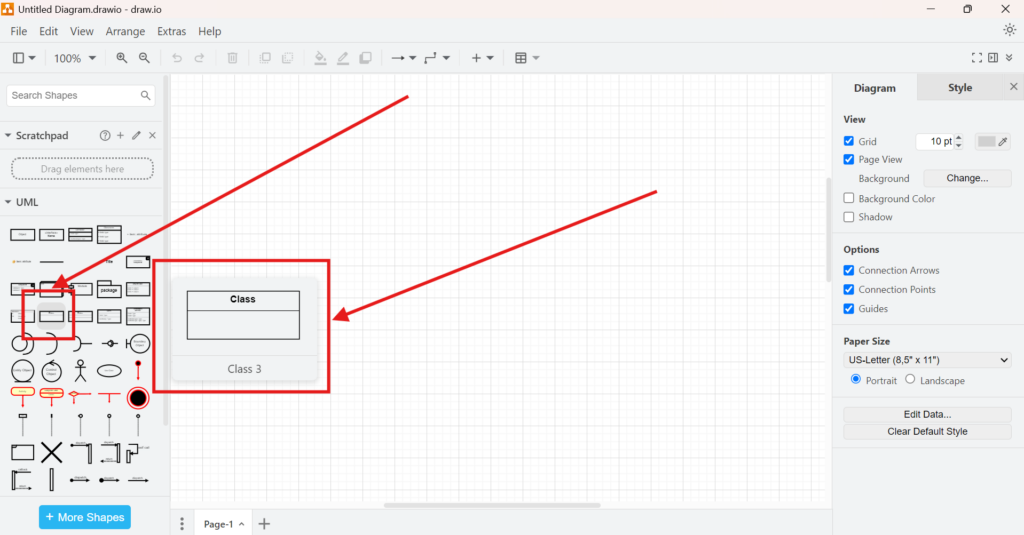
First, I open the UML shape library in draw.io. Then, I select the class shape that contains separate compartments for the class name and its features.
I drag the shape onto the drawing area.
Using an existing UML class shape helps me keep the visual structure consistent.
Step 2: Select the Class
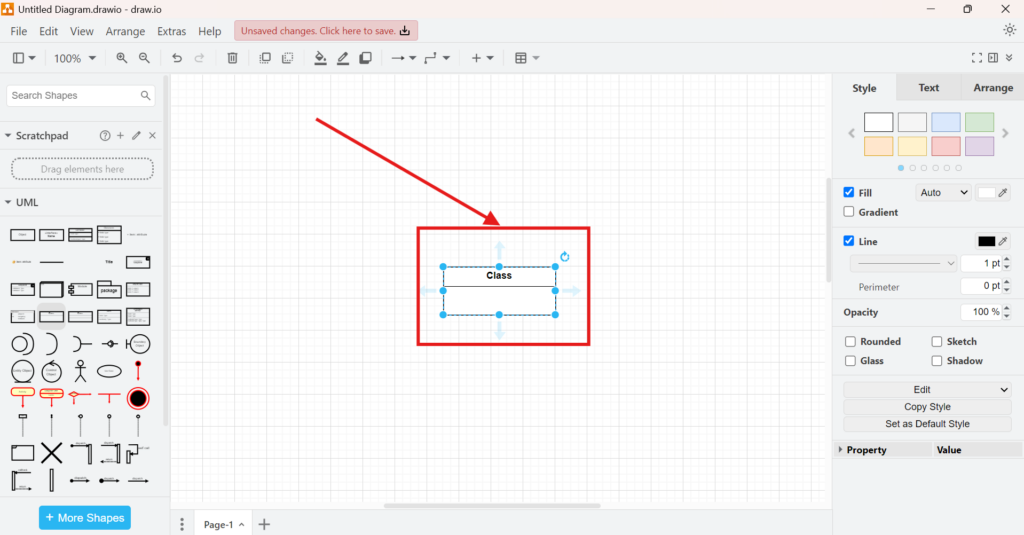
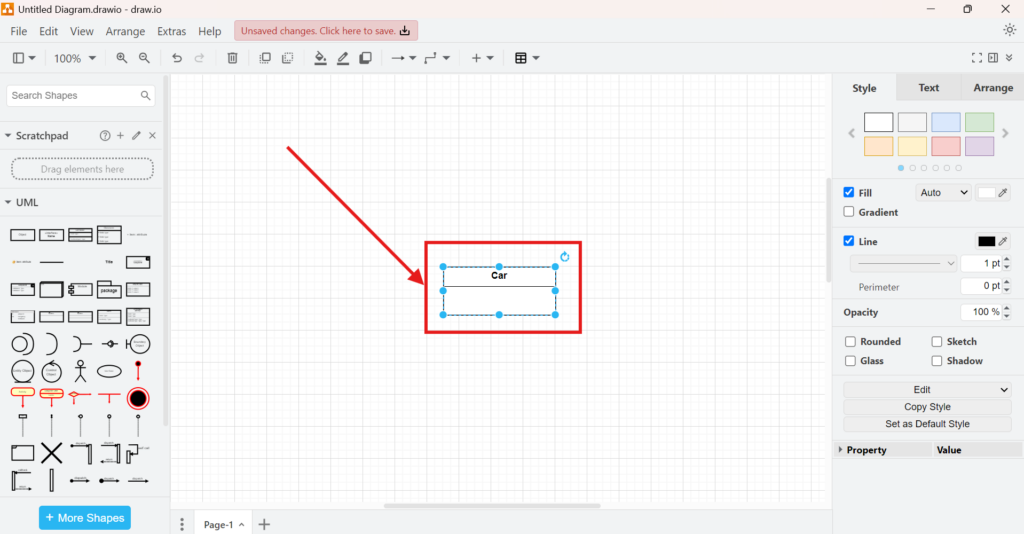
Next, I select the class on the canvas. draw.io displays the selection handles around the shape.
I can now edit the individual compartments.
Step 3: Define the Class Name
Next, I edit the upper compartment. In this example, I name the class Car.
A UML class name normally describes a concept or type in the domain. Therefore, I use a singular noun rather than the name of one specific object.
Car represents a class of objects, not one individual car.
Step 4: Add an Attribute
Finally, I edit the attribute compartment.
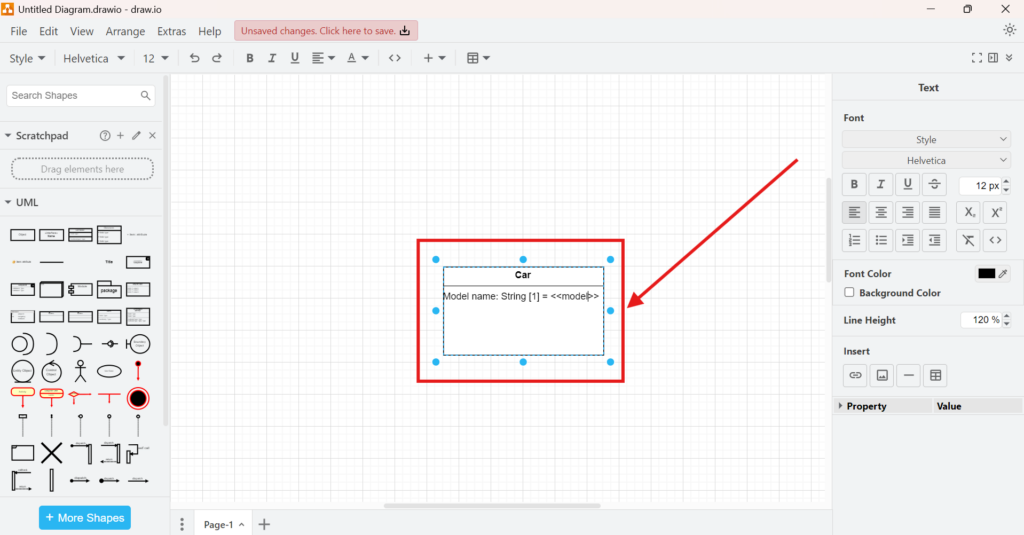
For example, I can describe the model name of a car as:
modelName: String [1]
This notation states three things. The attribute is called modelName. Its type is String. In addition, every Car has exactly one value for this attribute.
If the model requires a meaningful default value, I can add it after an equals sign.
I only define a default value when the domain actually specifies one.
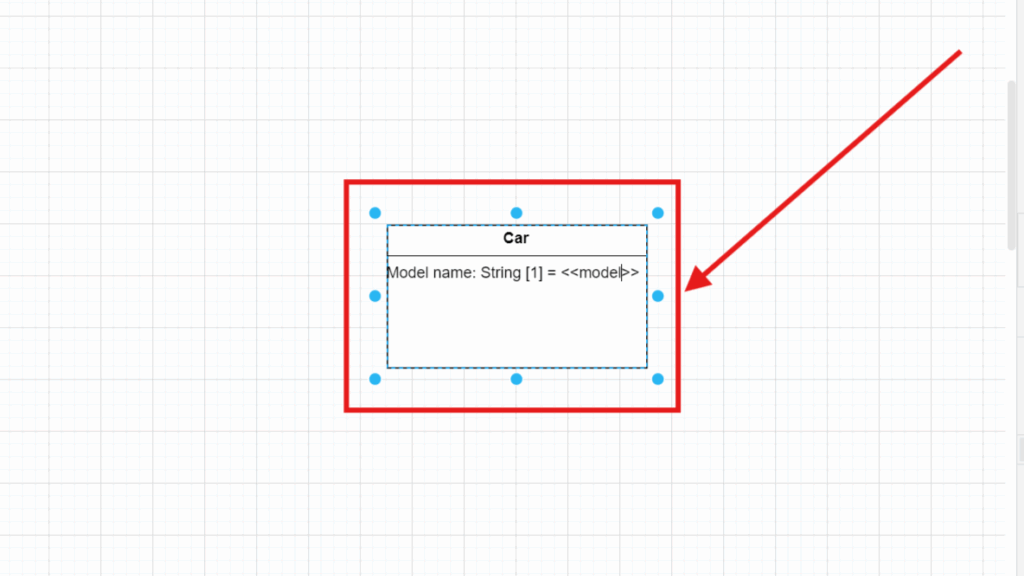
The screenshot below shows the editing process and the position of the attribute inside the class. It uses <<model>> as an example placeholder. However, I would not use this notation as a normal UML default value in a final model. Double angle brackets usually indicate a stereotype or another UML keyword notation. Therefore, I would either enter a real default value or omit the default value.
Syntax and Semantics Must Work Together
When I model UML classes in draw.io, I distinguish between syntax and semantics.
Syntax defines how I write the information. For example, the colon separates an attribute name from its type, while square brackets identify multiplicity.
Semantics defines what that information means. For example, [1] states that the property has exactly one value.
Correct UML notation requires both correct syntax and a clear meaning in the modeled domain.
Therefore, I do not add types, multiplicities, default values, or visibility symbols without a reason. Instead, I use enough notation to make the model precise.
A Compact UML Class Example
For a simple Car class, I could model:
Car
modelName: String [1]
This small model already communicates important structural information. It identifies the class, the attribute, its type, and its multiplicity.
If I need more detail, I can extend the class with additional attributes or operations. I can also connect it to other classes with UML relationships.
Conclusion
I use UML classes in draw.io to represent system structure in a standardized and understandable form. First, I define the class. Then, I add attributes with meaningful names and types. When necessary, I also specify multiplicity, default values, visibility, or derived properties.
The goal is not to use as much UML notation as possible. The goal is to express the required structure as precisely and clearly as possible.
draw.io gives me the visual elements. UML gives those elements their meaning. By combining both correctly, I can create class models that support analysis, communication, and system design.
What’s Next?
Now that I understand the syntax and semantics of UML classes in draw.io, I can start modeling classes more practically. Knowing the notation helps, but applying it in a real diagram makes the concept much clearer. In the next article, I’ll explain Model UML Classes in draw.io. You’ll learn how to create UML class elements, structure them clearly, and use draw.io to build more understandable software models. Click below to continue and model UML classes in draw.io step by step.
Discover How Requirements Modeling and Tools Make Complex Systems Easier to Understand
If I want to understand requirements in a clear and practical way, I need more than text alone. I need models that show how concepts, processes, and structures relate to each other. In the main article on Requirements Modeling, I explore Modeling Concepts, Process Modeling with BPMN, and UML to connect these perspectives in one place. As a result, I can visualize workflows, explain relationships, and build a stronger foundation for analysis, communication, and system design.
In addition, I also recommend the main article on Requirements Engineering Tools. There, I show how draw.io, Confluence, Jira, and Camunda help me create diagrams, document knowledge, manage work, and model processes in a practical tool workflow.
This article covers concepts that are also included in the CPRE certification syllabus.