
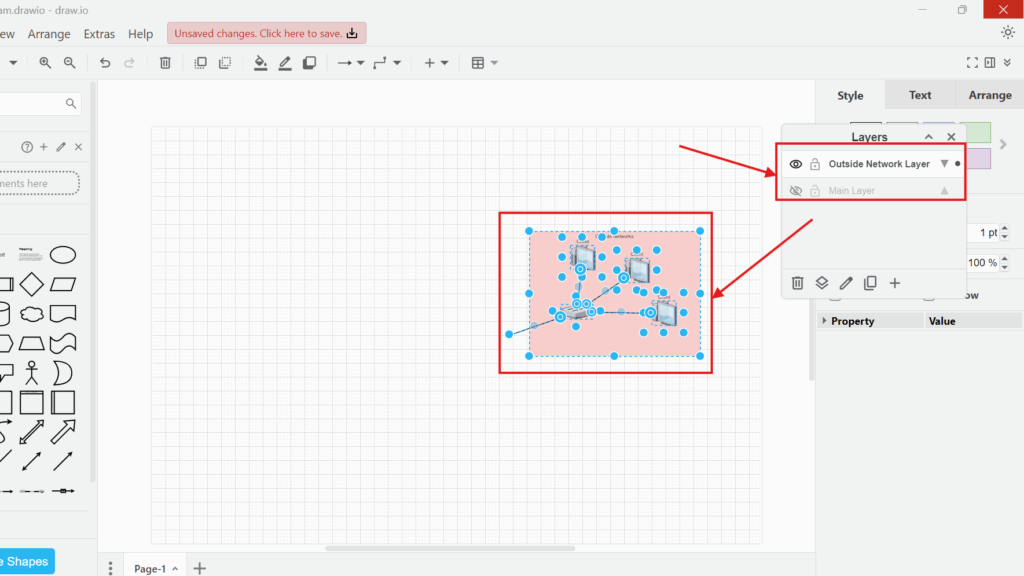
Layers help me organize complex diagrams in draw.io. They let me show, hide, and separate different parts of a diagram. In this guide, I explain how to use layers in draw.io with a practical example. You’ll learn how layers improve visibility, support focus, and make larger diagrams easier to understand.
What Are Layers in draw.io?
I use layers to divide a draw.io diagram into logical sections. Each layer can contain its own shapes, connectors, and other elements.
As a result, I can decide which parts of a diagram I want to display. For example, I can place external network components on one layer and the main network structure on another.
When I hide a layer, draw.io keeps its elements in the diagram but removes them from my current view.
Therefore, I can reduce visual complexity without deleting information.
Layers also help me maintain one detailed diagram for several purposes. Instead of creating several copies, I can show or hide specific sections as needed.
How to Use Layers in draw.io
For this example, I use a network architecture template. The specific template is not important. I only need a diagram with several elements that I can separate logically.
Step 1: Create a New Diagram
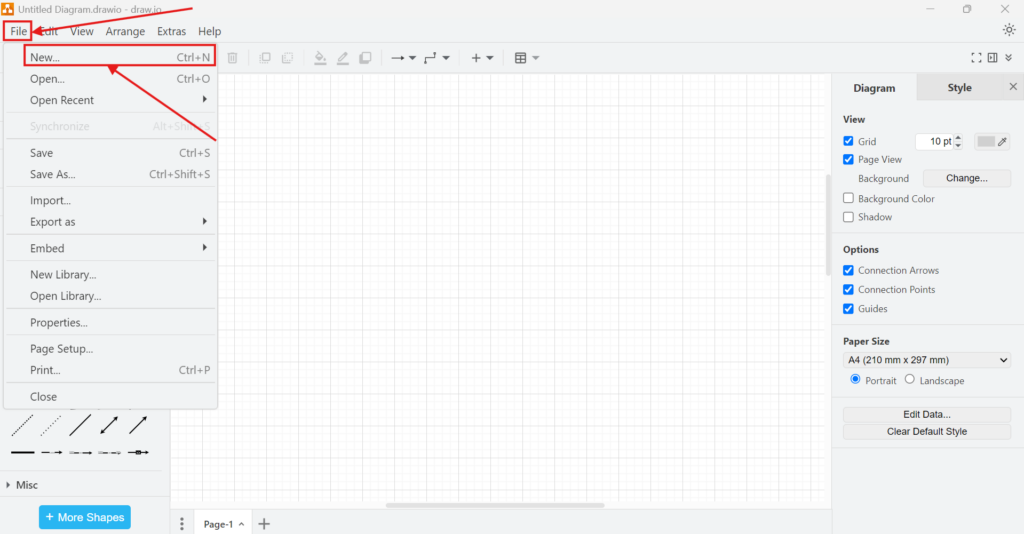
First, I open the File menu and select New. Alternatively, I can use Ctrl+N.
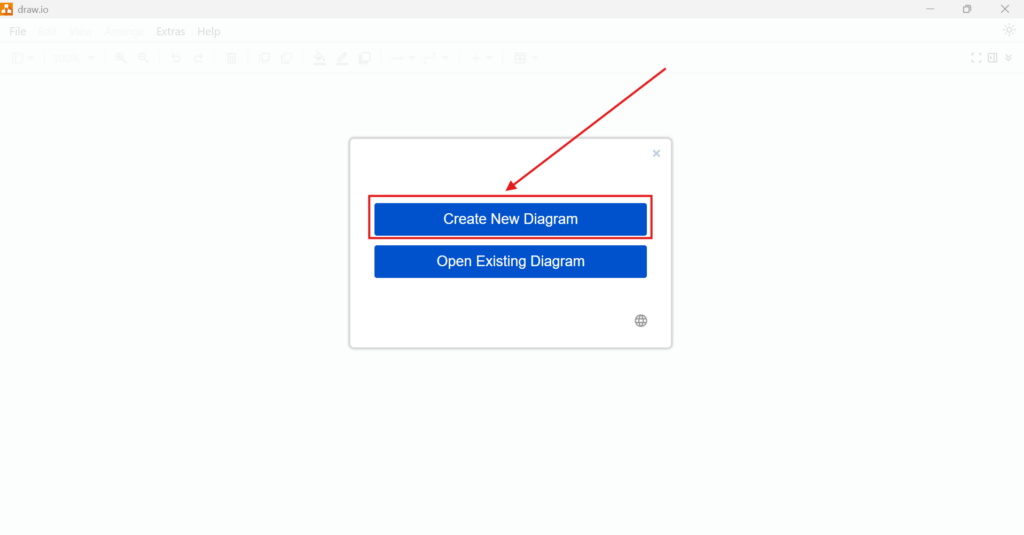
Next, I select Create New Diagram.
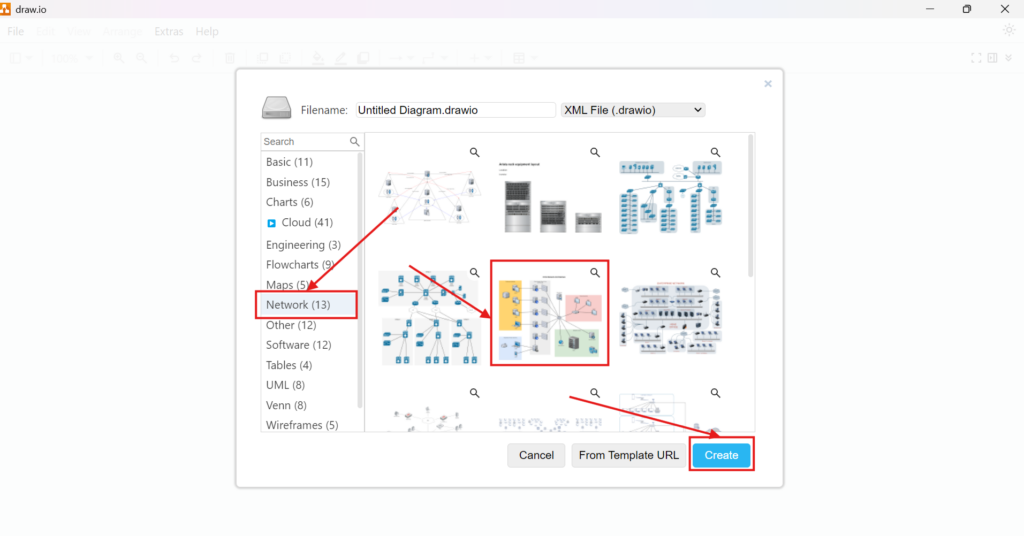
Then, I select the Network category and choose the Citrix Network Architecture template.
The exact template does not matter. However, this example works well because it contains several clearly separated network areas.
Step 2: Open the Layers Panel
Next, I open the View menu and select Layers.
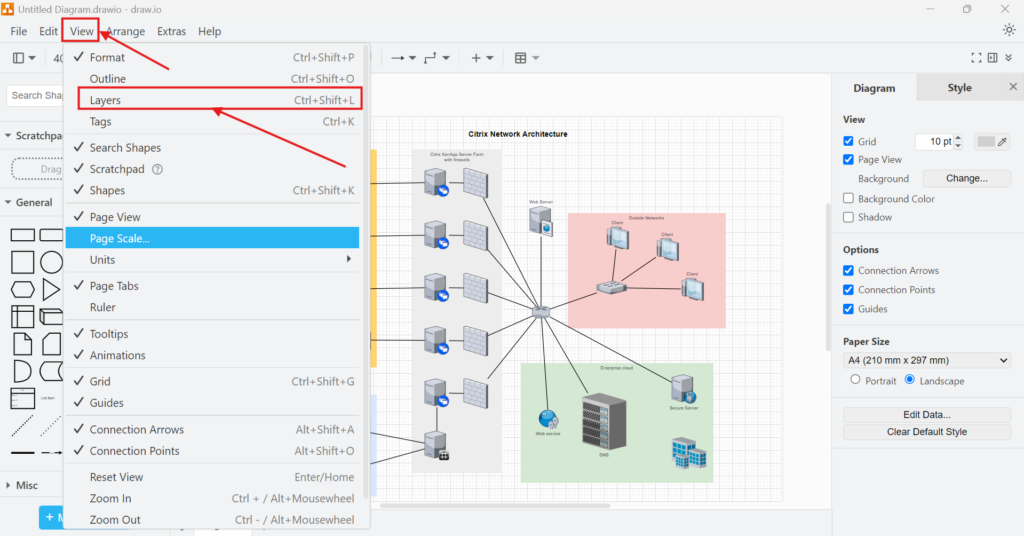
The Layers panel now appears on the right side of the editor.
From this panel, I can create layers, select them, rename them, and control their visibility.
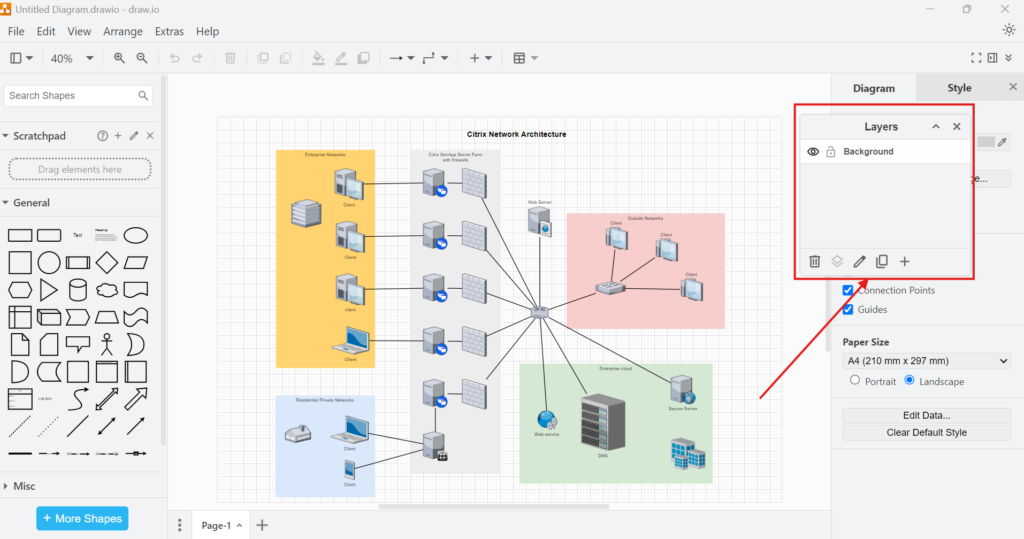
The Layers panel gives me one central place to manage the structural sections of my diagram.
Step 3: Rename and Hide the Existing Layer
The example diagram initially contains one layer called Background.
That name does not describe its role very well. Therefore, I rename it Main Layer.
Clear layer names become increasingly important when a diagram contains several layers. They help me understand the structure immediately.
Next, I use the eye icon to hide Main Layer.
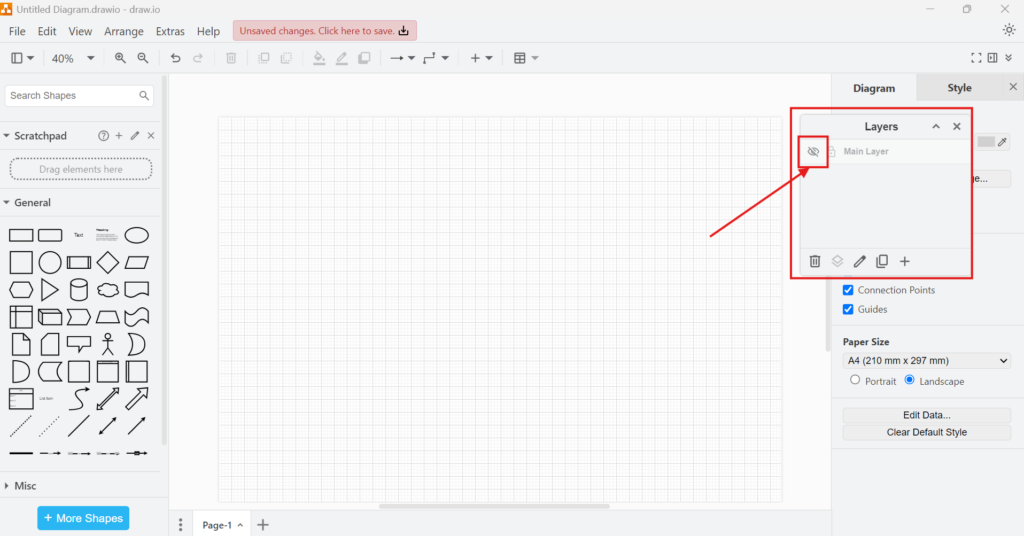
The canvas becomes empty because all existing diagram elements belong to that layer.
However, draw.io has not deleted anything.
Hiding a layer changes visibility, not the underlying diagram content.
Step 4: Create Another Layer
Now I create a second layer for the external network section.
I click the plus icon in the Layers panel. Then, I name the new layer Outside Network Layer.
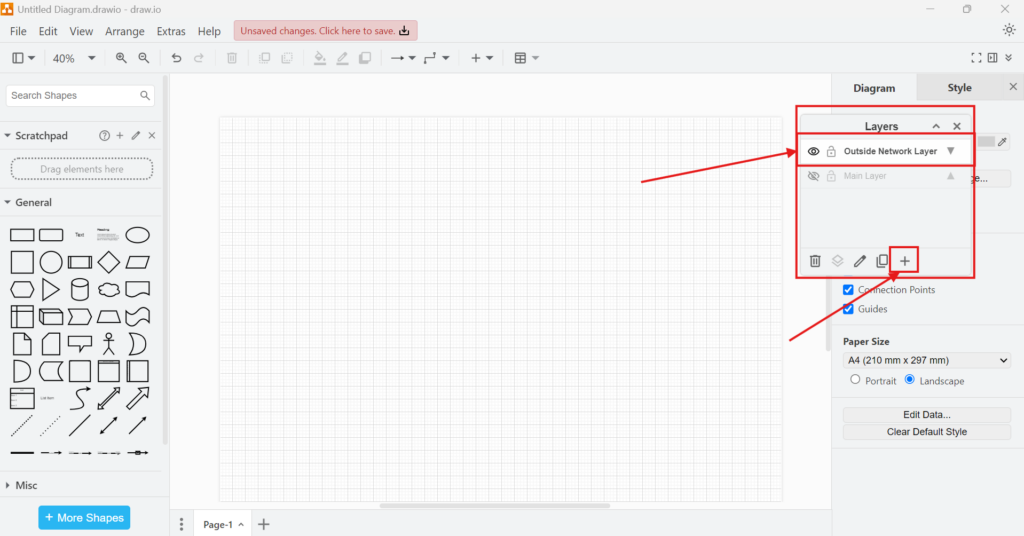
I now have two logical sections:
- Main Layer for the core diagram
- Outside Network Layer for the external network section
I prefer descriptive names because they make the diagram easier to maintain.
Step 5: Select the Elements I Want to Move
Next, I make Main Layer visible again so that I can access its contents.
Then, I select the group of elements that represents the outside network.
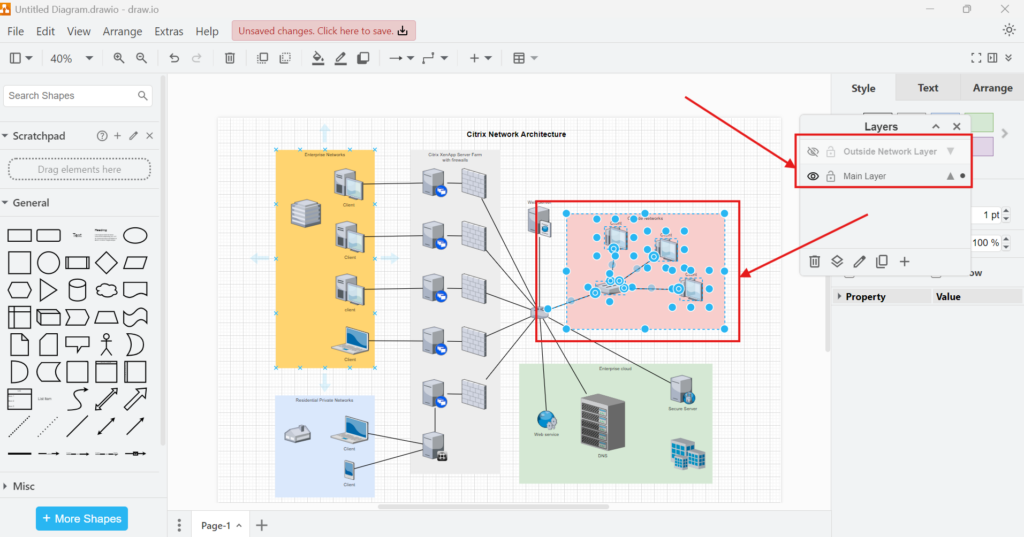
At this point, those elements still belong to Main Layer.
Therefore, I need to move them to Outside Network Layer.
Step 6: Cut the Selected Elements
I press Ctrl+X to cut the selected elements.
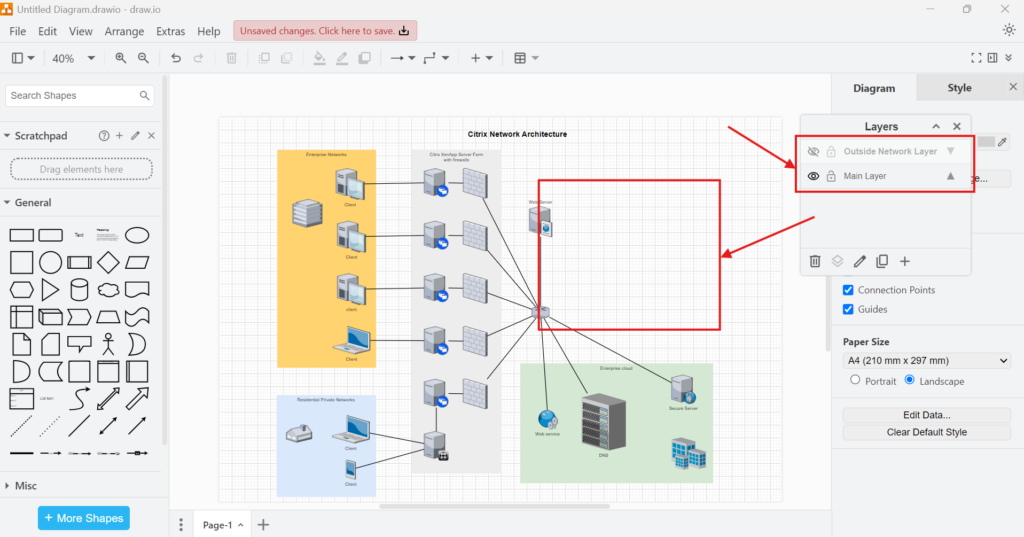
The elements disappear from Main Layer. However, they remain available on the clipboard.
Next, I can place them on the correct layer.
Step 7: Paste the Elements Into the New Layer
I select Outside Network Layer. Then, I paste the elements that I cut before.
The external network section now belongs to its own layer.
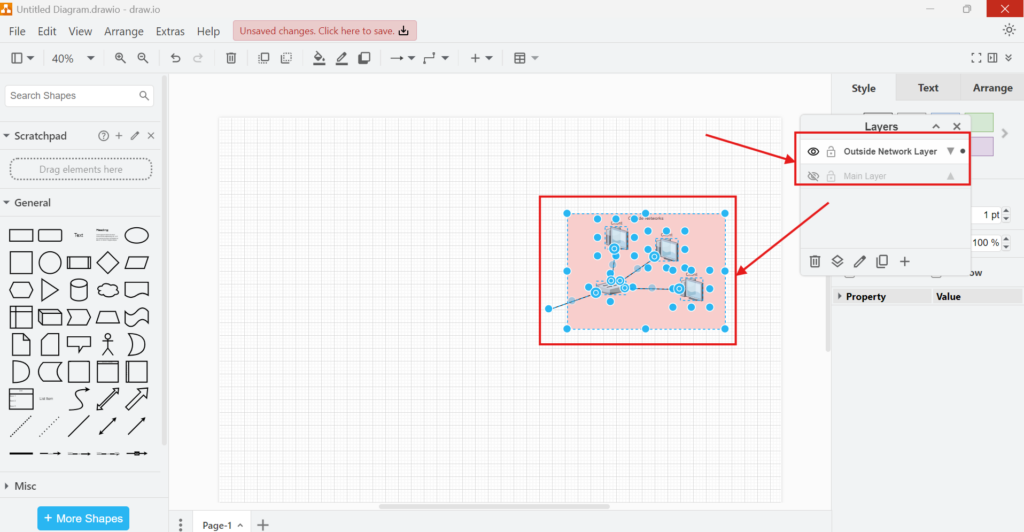
Moving related elements to a separate layer allows me to control that part of the diagram independently.
For example, I can now show the external network without displaying the main architecture.
Step 8: Show Both Layers
Next, I make both layers visible.
The complete network architecture appears again because draw.io displays the contents of Main Layer and Outside Network Layer together.
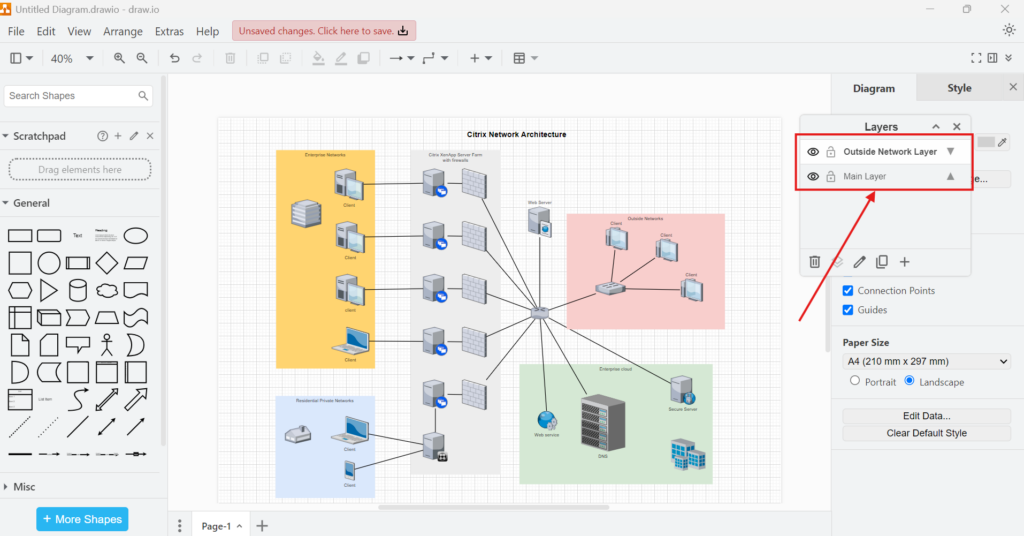
Although the diagram looks complete again, its internal structure has changed. The external network now belongs to a separate layer.
This distinction matters because I can control it independently.
Step 9: Hide One Layer
Finally, I hide Outside Network Layer.
The external network section disappears while the remaining network architecture stays visible.
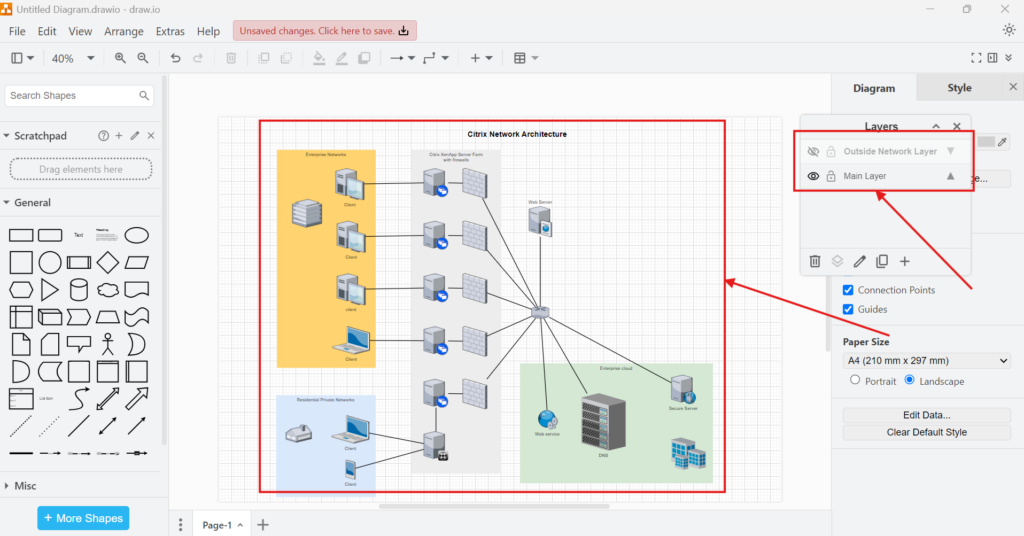
I can restore the complete diagram at any time by making the layer visible again.
Layers let me change the information that I see without changing the information that the diagram contains.
Why I Use Layers in Complex Diagrams
Layers become valuable when a diagram contains several types of information.
For example, a network architecture may contain internal systems, external networks, servers, security components, and infrastructure details. Showing everything at the same time can make the diagram difficult to read.
Therefore, I can separate meaningful sections into layers.
A technical specialist may need the complete architecture. In contrast, another stakeholder may only need the core network. I can support both views without maintaining separate diagrams.
As a result, I reduce duplication and make updates easier.
One well-structured diagram can support several views when I organize its contents with layers.
When Layers Are Useful
I mainly use layers when parts of a diagram need independent visibility.
For example, layers can help me separate:
- internal and external systems
- technical details and high-level information
- current and planned architecture
- different infrastructure areas
- optional annotations or supporting information
However, I do not create a new layer for every small group of shapes.
Too many layers can make the structure harder to understand. Therefore, I only create a layer when the separation has a clear purpose.
I create a separate layer when I need to manage or display a meaningful part of the diagram independently.
How I Name Layers
I use simple and descriptive layer names.
Names such as Main Layer or Outside Network Layer tell me what the layer contains. In contrast, generic names such as Layer 1 or Layer 2 become difficult to understand in larger diagrams.
Therefore, I name layers according to their purpose rather than their position.
This becomes especially important when I return to a diagram after several weeks or share it with another person.
Conclusion
Layers in draw.io give me a simple way to organize complex diagrams. I can create separate layers, rename them, move existing elements between them, and control their visibility.
Most importantly, I can reduce visual complexity without deleting information. Therefore, I can focus on the relevant section while keeping the complete model available.
I use layers when one diagram contains several meaningful sections that I want to organize or display independently.
What’s Next?
Now that I know how to use layers in draw.io, I can organize complex diagrams with more control. However, I may also want to classify related elements across my diagram. That is where tags become useful. In the next article, I’ll explain How to Use the Tags View in draw.io. You’ll learn how tags help you group elements, find diagram parts faster, and manage larger diagrams more clearly. Click below to continue and structure your draw.io diagrams with tags.
Connect Requirements Work with Practical Tools
Requirements engineering becomes clearer when I use tools that support visual thinking, documentation, task management, and process modeling. Therefore, I use draw.io to create diagrams, Confluence to organize knowledge, Jira to manage requirements-related work, and Camunda to model business processes. Each tool helps me structure a different part of the workflow. As a result, I can connect ideas, decisions, requirements, and processes more effectively. In the main article on Requirements Engineering Tools, I show how these tools work together and help me build a stronger requirements engineering workflow.