
In my search for a more efficient workflow, I’ve found Confluence to be an essential tool for collaboration and documentation. Its powerful features and structured layout make project management smoother and more organized. In this guide, I’ll show you how to use Confluence optimally to boost productivity, improve teamwork, and simplify daily tasks. Learn practical ways to get the most out of Confluence and make your workspace work smarter for you.
What is Confluence?
Confluence is a team collaboration platform that centralizes information, making it easy to create, share, and manage content. It’s designed to bring together project documentation, meeting notes, and knowledge in one organized space. Teams can collaborate in real time, comment directly on pages, and track updates effortlessly. With its structured yet flexible setup, Confluence helps teams stay aligned, improve communication, and work more efficiently across all projects.
Getting Started: Spaces and Pages
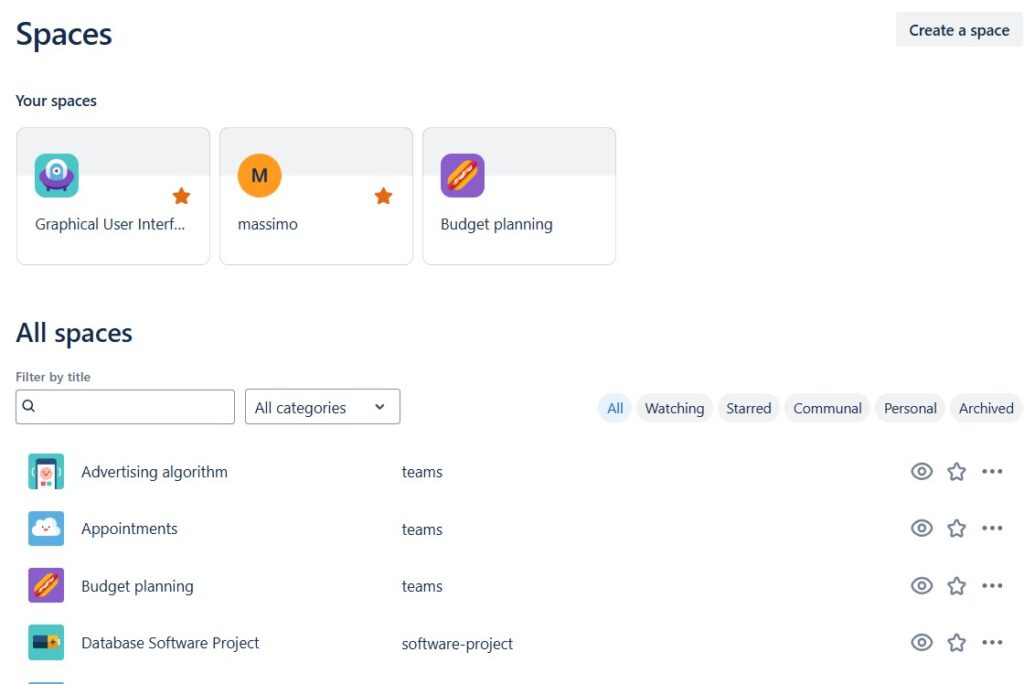
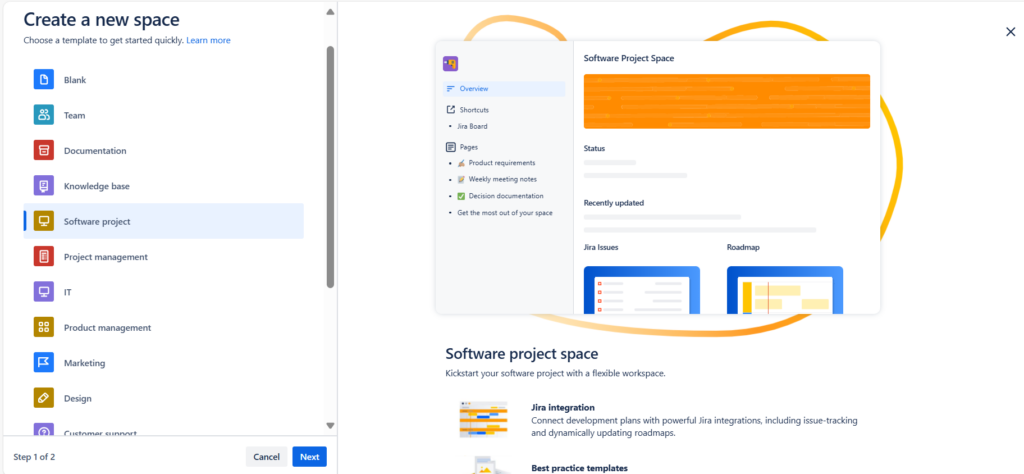
First and foremost, I set up Spaces. Spaces act as the overarching structure within Confluence, and I create separate spaces for each team, project, or major initiative. This keeps everything organized and ensures that related content is grouped together. For instance, our marketing team has its own space, while each client project has a dedicated space.
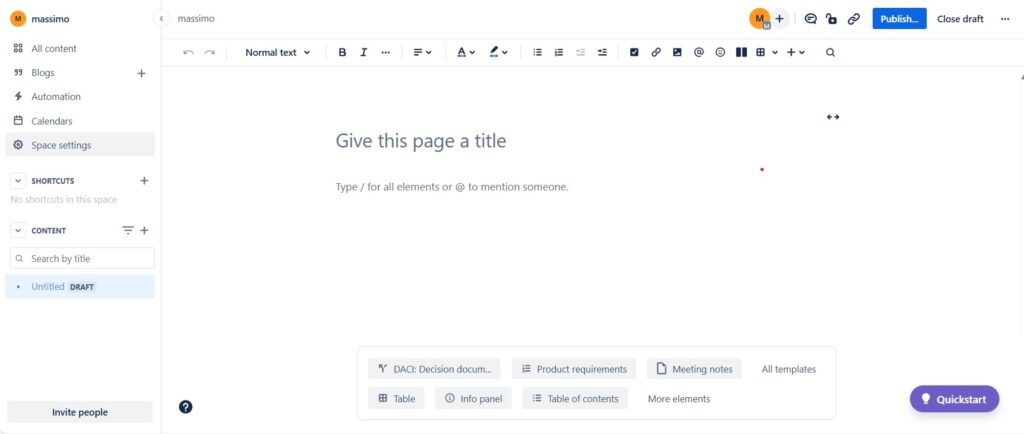
Within each space, I use Pages and Blogs to create content. Pages are like documents or web pages where I can add and edit information. They can be nested hierarchically, making it easy to create a structured and navigable knowledge base. For example, in our marketing space, I have a main page for our quarterly strategies, with sub-pages for each campaign.
Collaboration: Comments and Mentions
Effective collaboration is at the heart of Confluence. I rely heavily on Comments and Mentions to facilitate discussions and get quick feedback. When working on a page, I can highlight text and leave inline comments, which my team members can respond to directly. This keeps our discussions contextual and focused.
Mentions are another powerful feature. By using the “@” symbol followed by a team member’s name, I can draw their attention to specific content. This is particularly useful for tasks that require input from multiple stakeholders. For example, if I need input from our graphic designer on a new campaign idea, I simply mention them in the relevant section.

Content Creation: Templates and Macros
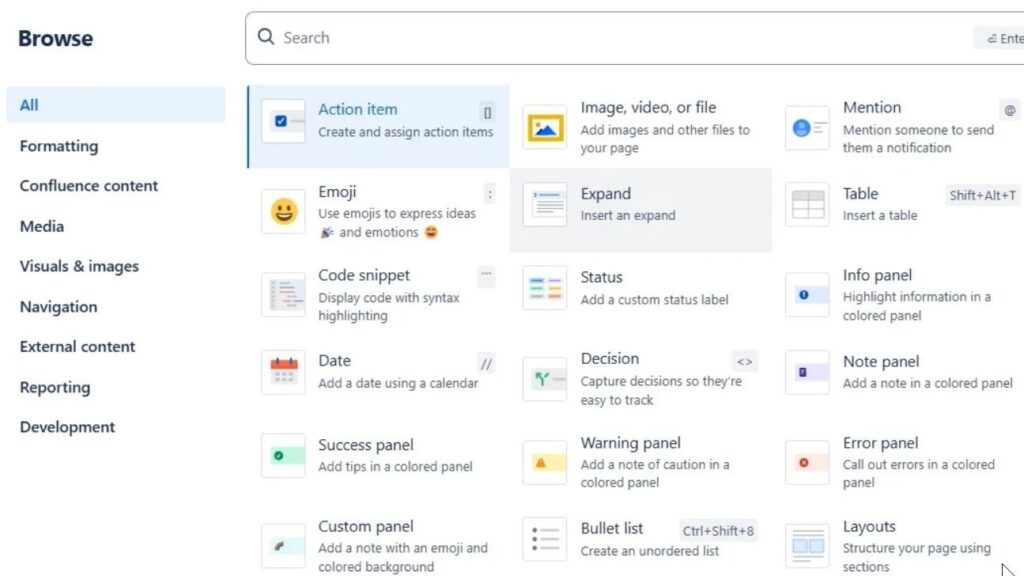
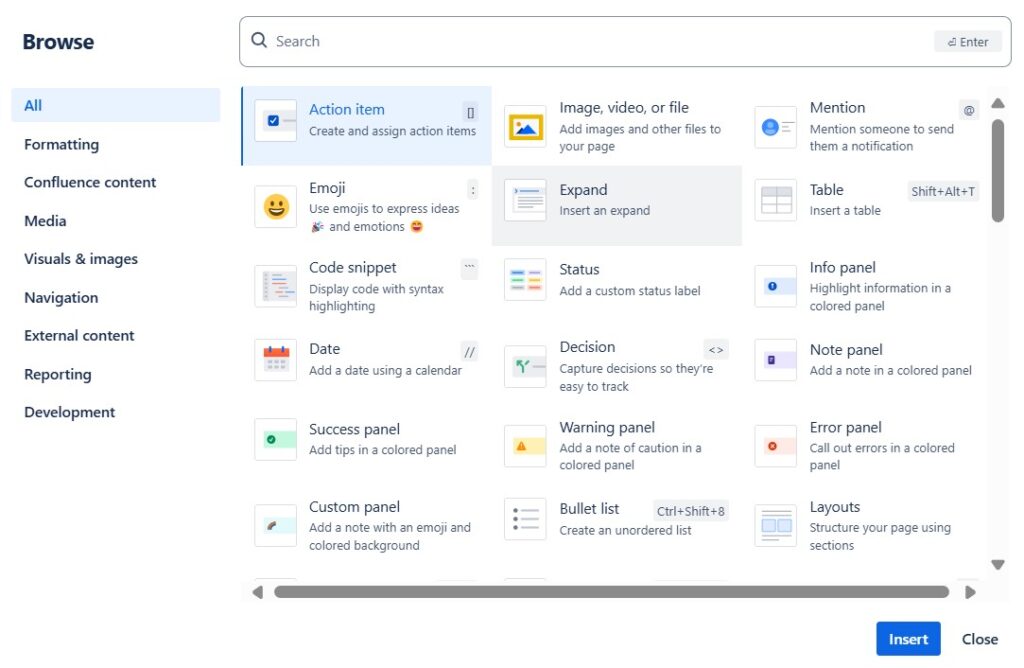
Creating content from scratch can be time-consuming, but Confluence’s Templates and Macros streamline this process. Templates provide a pre-defined structure, ensuring consistency across our documentation. I often use templates for meeting notes, project plans, and status reports. This not only saves time but also ensures that all necessary information is captured.

Macros extend the functionality of pages by adding dynamic content and features. For instance, I frequently use the task list macro to create actionable to-do lists directly within a page. Macros can also embed multimedia, display data from Jira (which we use for task management), and much more. This makes our pages more interactive and informative.
Integrations: Confluence and Jira
Speaking of Jira, the integration between Confluence and Jira is one of the standout features. I can link Jira issues directly within Confluence pages, providing a seamless connection between project documentation and task management. This integration ensures that all relevant information is accessible in one place.
For example, when we kick off a new project, I create a project plan in Confluence and link all related Jira issues. This way, anyone viewing the project plan can see the current status of tasks, assigned team members, and any related comments or updates.
Search and Organization: Labels and Search
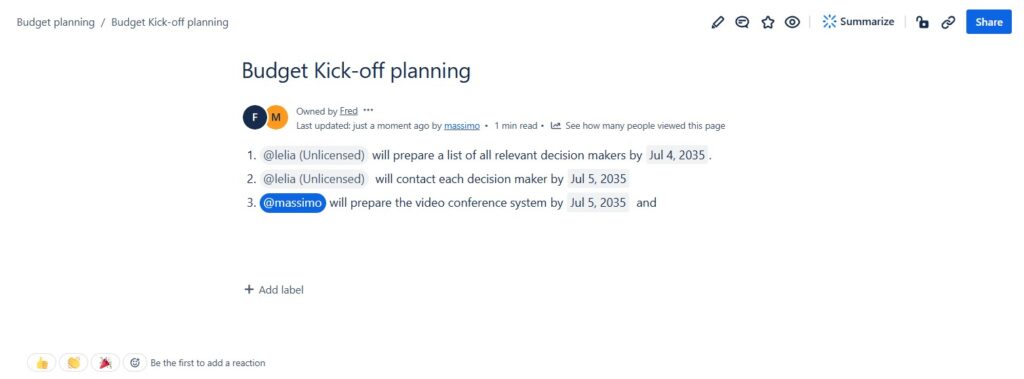
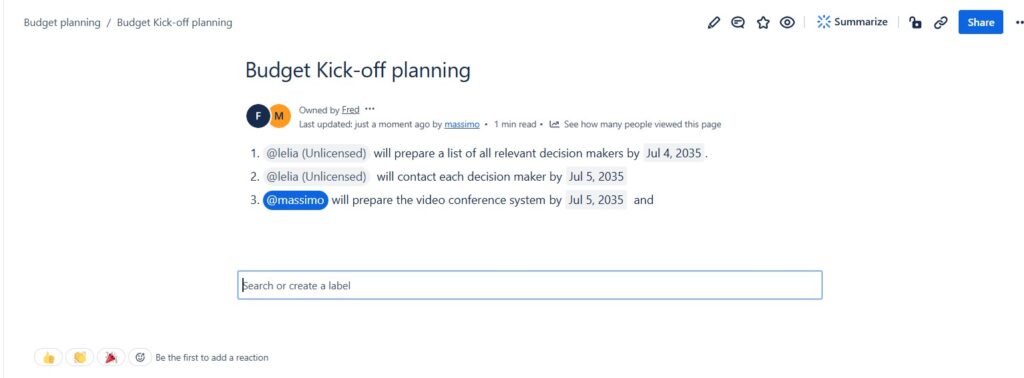
As our content grows, finding specific information quickly becomes crucial. Confluence’s Labels and Search functionalities are lifesavers in this regard. I apply labels to pages to categorize them based on topics, departments, or any other criteria relevant to our workflow. This makes it easy to filter and locate pages on a specific topic.
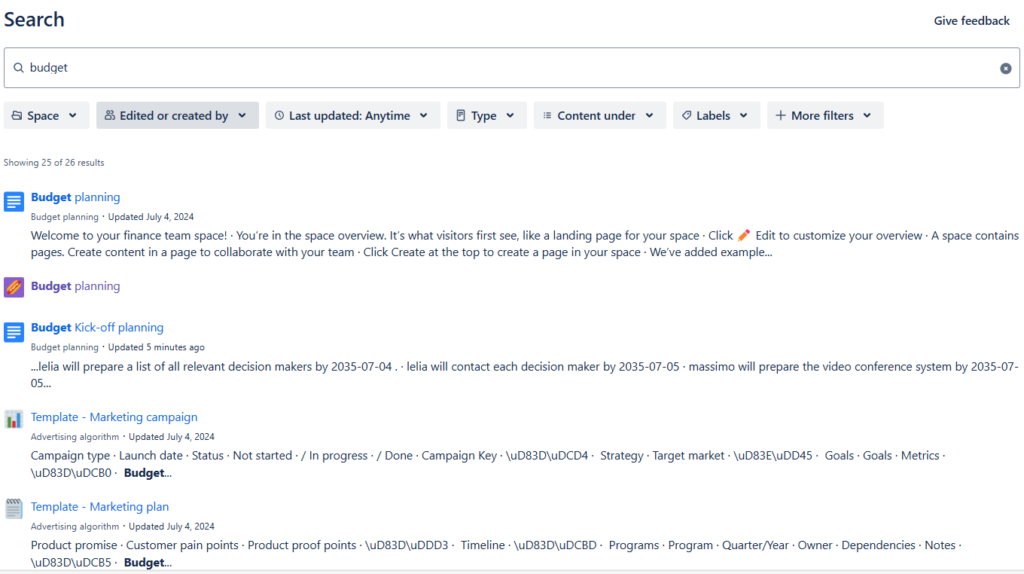
The search feature in Confluence is robust, allowing me to find content based on keywords, labels, or even within attachments. The search results are presented with snippets of the content, making it easy to identify the relevant page.
Conclusion
By leveraging the diverse features and functional areas of Confluence, I have been able to create a cohesive and efficient workflow. From organizing content in spaces and pages to facilitating collaboration with comments and mentions, and from enhancing content creation with templates and macros to integrating with Jira for seamless project management, Confluence has transformed the way my team and I work.
The key to using Confluence optimally lies in understanding how these features complement each other and integrating them into your daily routines. This way, you can harness the full potential of Confluence to improve productivity, collaboration, and knowledge sharing within your team.
What’s Next?!
Now that you understand what Confluence is and how it supports collaboration, it’s time to work even faster and smarter. In my next article, How to Use Shortcuts in Confluence, I’ll show you how keyboard shortcuts can save time, simplify navigation, and boost productivity. Discover how mastering a few simple key combinations can make your Confluence experience smoother, more efficient, and far more enjoyable.