
When working with diagrams, flowcharts, or mind maps in draw.io, maintaining a clear view is essential. Whether I need to focus on intricate details or get a broader perspective, zooming in and out helps me adjust the view quickly. In this article, I will explain how to zoom in and zoom out in draw.io effortlessly.
What is draw.io?
draw.io is a powerful and free online diagramming tool. I use it to create flowcharts, network diagrams, UML diagrams, and more. Since it runs in a web browser, I don’t need to install anything. It also integrates well with platforms like Google Drive and GitHub, making collaboration seamless. With its simple interface and extensive features, draw.io is an excellent choice for visualizing complex ideas.
Why Zoom in and Zoom out in draw.io?
Zooming in and out helps me navigate large diagrams efficiently. When I need to focus on small details, I zoom in. When I want to see the overall structure, I zoom out. This ability is crucial when working on intricate designs, especially when collaborating with a team. Without zooming, I might miss essential connections or layout issues.
How to Zoom in and Zoom out in draw.io
Zooming in and out in draw.io is straightforward. Here are the best ways to do it:
Option 1: Use the Menu
Click on the View menu at the top. Select Zoom In to increase the view. And select Zoom Out to decrease the view.
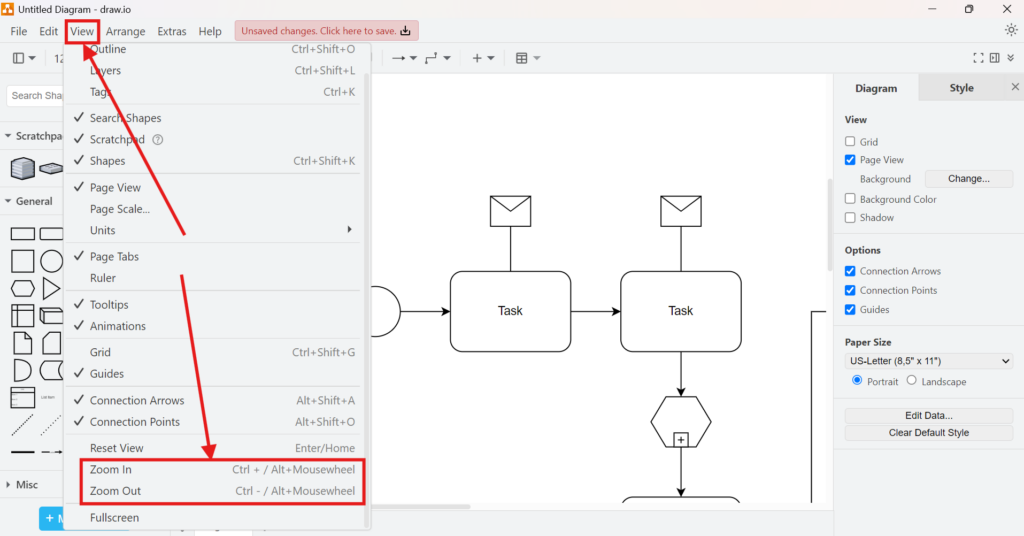
This method works well when I prefer using the interface rather than keyboard shortcuts.
Option 2: Use Keyboard Shortcuts
I find keyboard shortcuts faster and more convenient. In draw.io, I use:
- Ctrl + Mouse Wheel Up (Windows/Linux) or Cmd + Mouse Wheel Up (Mac) to zoom in.
- Ctrl + Mouse Wheel Down (Windows/Linux) or Cmd + Mouse Wheel Down (Mac) to zoom out.
Alternatively, I can press:
- Ctrl + Plus (+) to zoom in.
- Ctrl + Minus (-) to zoom out.
Using shortcuts allows me to adjust the zoom level instantly without breaking my workflow.
Option 3: Use the Toolbar
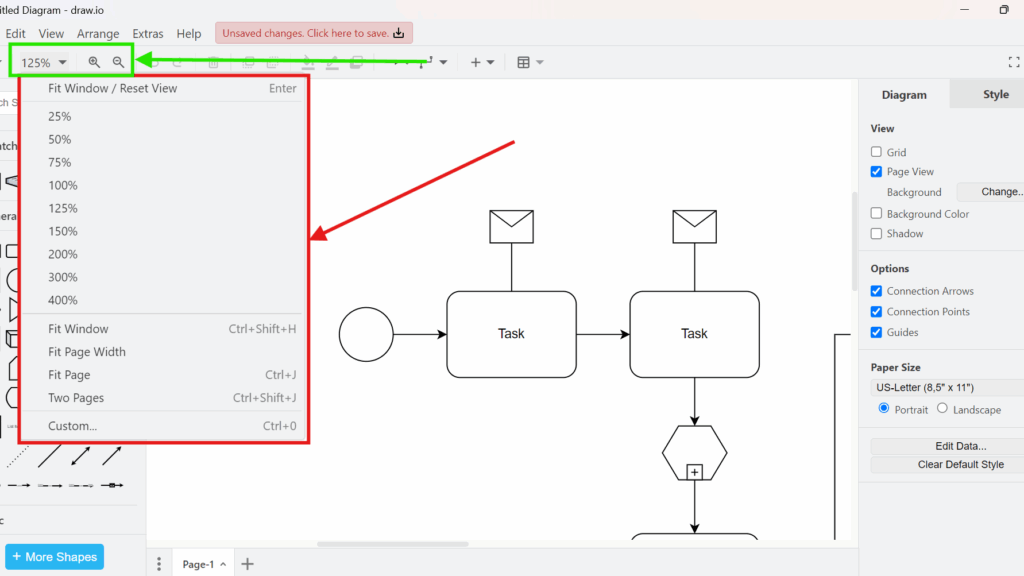
The toolbar above the grid offers another option with manual input. I can:
- Click on the percentage to enter a specific zoom level.
- Use the buttons next to it with a + magnifying glass and – magnifying glass to make incremental adjustments.

This option is useful when I need to control the zoom level precisely.
Final Thoughts
Knowing how to zoom in and zoom out in draw.io makes my diagramming experience smoother. Whether I use the menu, shortcuts, or toolbar, I can quickly adjust my view to match my needs. By mastering these zooming techniques, I can work more efficiently and focus on what truly matters—creating clear and effective diagrams.