
I rename files in draw.io whenever I want clear structure. I also rename files when I share diagrams with others. A good file name saves time. It reduces mistakes. It also makes my diagram library easier to manage. In this guide, I show you how I rename a diagram file inside the draw.io editor. I keep every step short and clear. Therefore, you can follow along fast. Moreover, you can apply the same workflow to many projects.
What is draw.io
draw.io is a diagramming tool that I use to create flowcharts, BPMN diagrams, UML diagrams, and many other visuals. I can use it online at app.diagrams.net. I can also use it offline with the desktop app.
Because draw.io focuses on diagrams, it fits many use cases. For example, I use it for process maps and system overviews. In addition, I use it for quick sketches during workshops. The editor stays simple. However, it still offers powerful features.
Why rename files in draw.io
I rename files in draw.io to keep control over my work. Clear names help me find the right diagram fast. As a result, I waste less time searching. I also avoid opening the wrong file.
Renaming also helps when I collaborate. A descriptive name makes the purpose obvious. Therefore, teammates understand the diagram faster. In addition, consistent names support better versioning. For example, I can track changes with a date, a sprint number, or a version tag.
Finally, renaming reduces export confusion. If I export images later, a clean base name helps. Consequently, my PNG, SVG, or HTML outputs stay organized.
How To rename a file in the draw.io editor
I start inside the draw.io editor. Then I follow a simple path through the menu. The workflow stays short. However, it makes a big difference in daily work.
Step 0: Take a first look
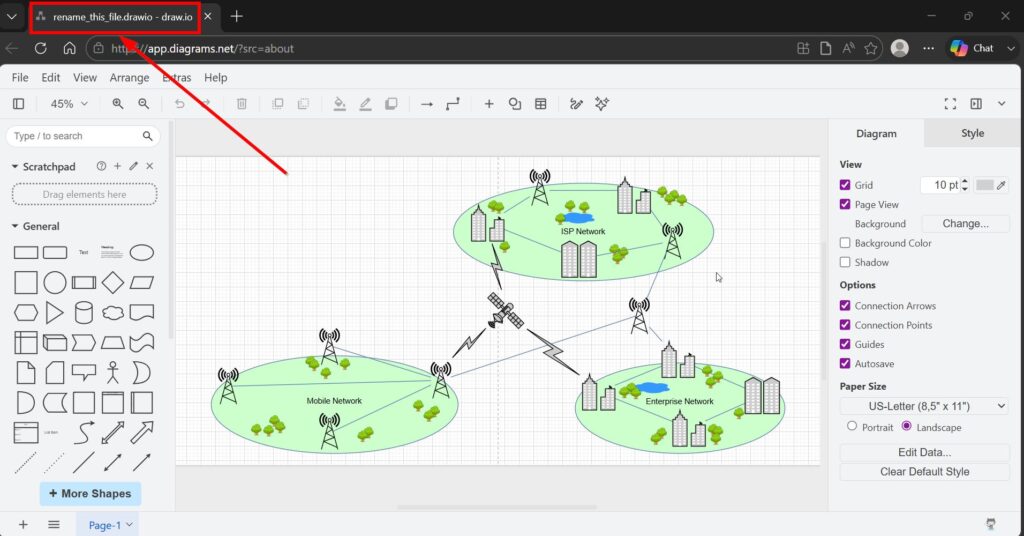
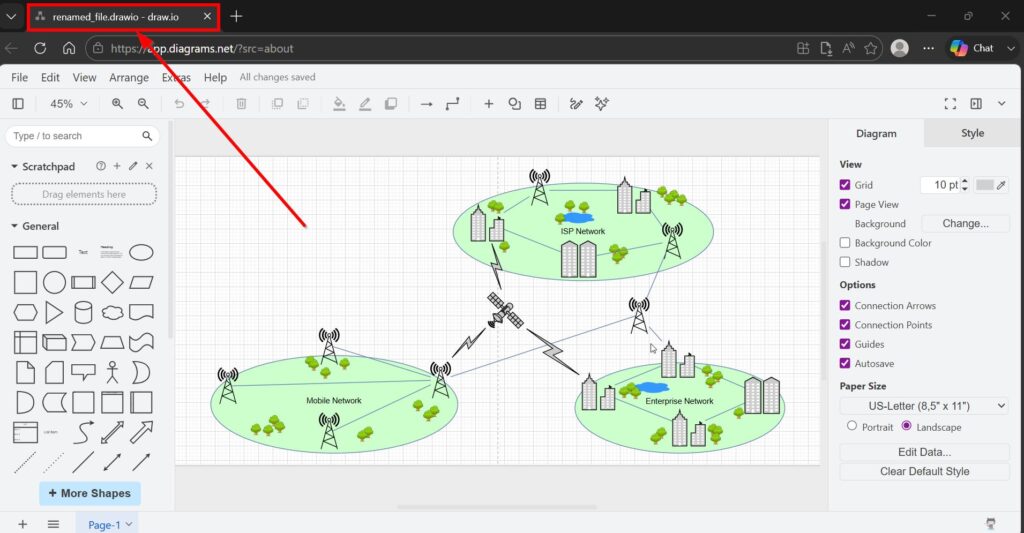
Before I start renaming my file, I’ll look at the current filename. You can find it at the top in the title bar of draw.io.
Step 1: I open the File menu
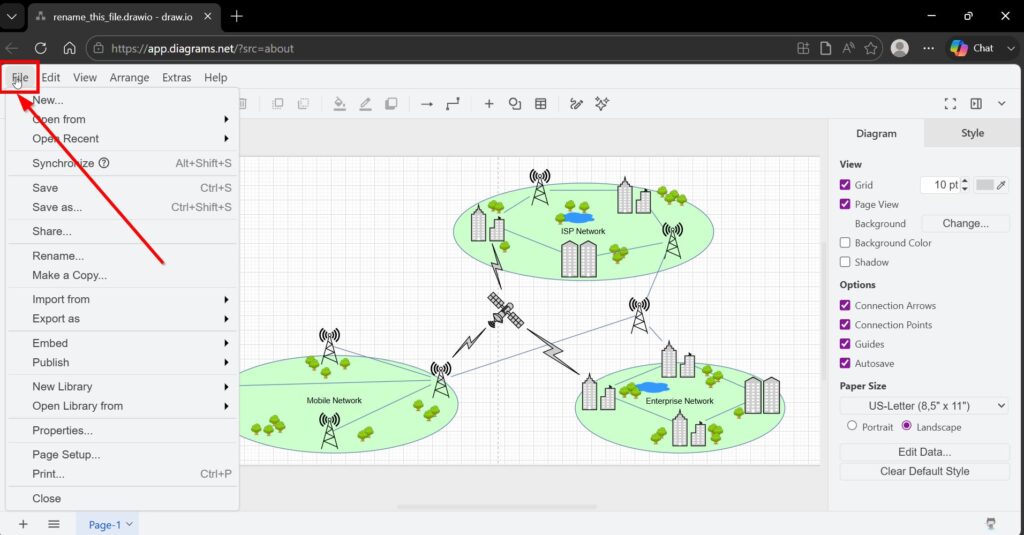
First, I look at the top menu bar. Then I click File. I do this while I keep my diagram open. Therefore, I do not lose context.
Tip: I rename early. For example, I rename right after I create a new diagram. That way, I never forget.
Step 2: I click Rename
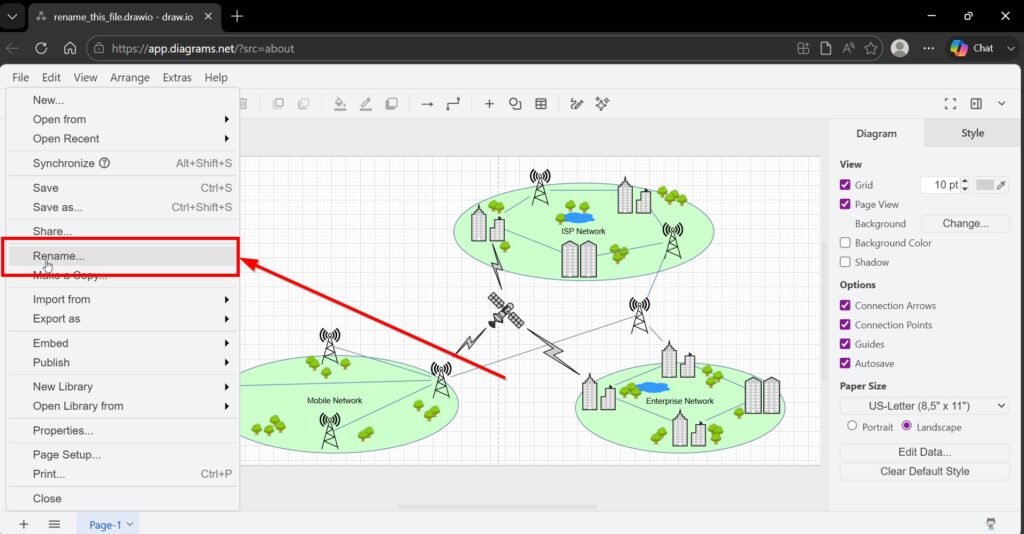
Next, I choose Rename from the File menu. This action opens the rename workflow inside draw.io. In many setups, you will see File > Rename exactly like this.
Step 3: I use the dialog window
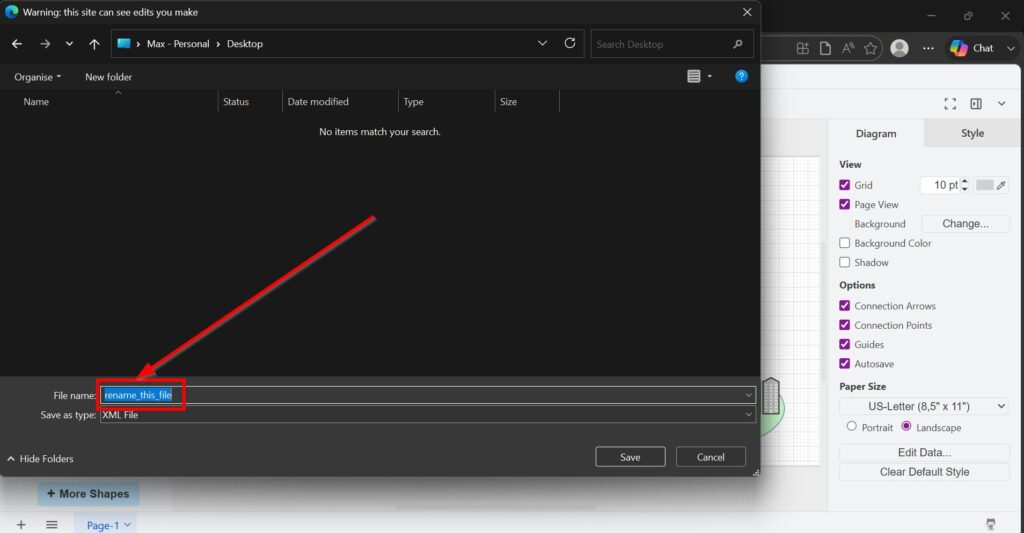
Then a dialog window appears. It shows the current file name. It also gives me a place to change it. Therefore, I can edit the name directly without leaving the editor.
At this point, I focus on clarity. I keep names short. However, I also keep them meaningful.
Here are file naming patterns I often use:
- topic-action-version, for example payments-process-v2
- date-topic, for example 2026-02-24-bpmn-order-flow
- customer-project-diagram, for example acme-onboarding-swimlanes
Because these patterns stay consistent, I find files faster later.
Step 4: I change the file name
Now I type the new name in the dialog field. I remove unnecessary words. I also avoid special characters. Instead, I use hyphens. Therefore, the name stays readable across systems.
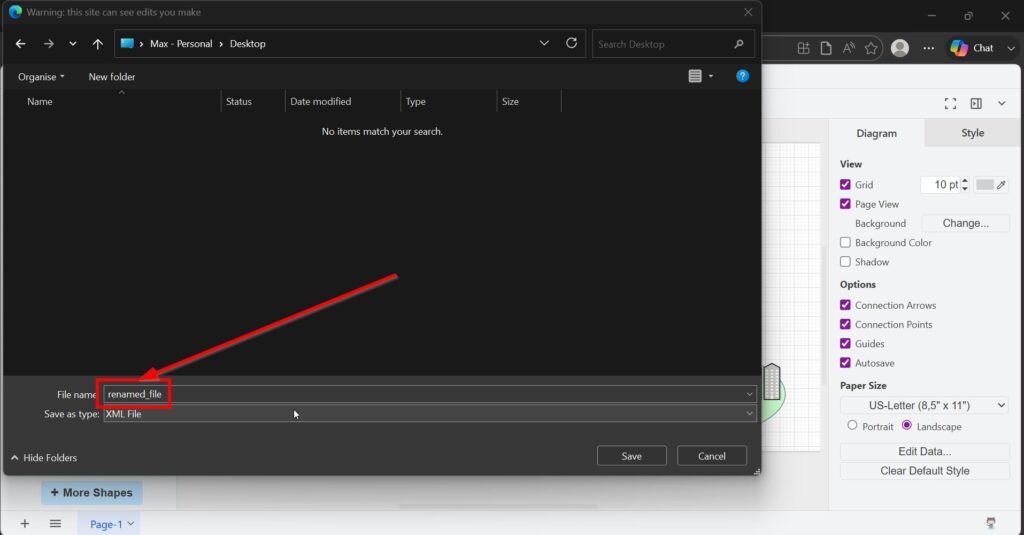
Good examples:
- user-registration-bpmn
- system-context-diagram
- incident-flow-v3
Less helpful examples:
- diagram final final really final
- new diagram 123
- test2
Step 5: I check the Type dropdown to adjust the file type
In my rename dialog, I also see a Type dropdown. This dropdown lets me change the file type while I rename. I can select .drawio, .png, .svg, or .html.
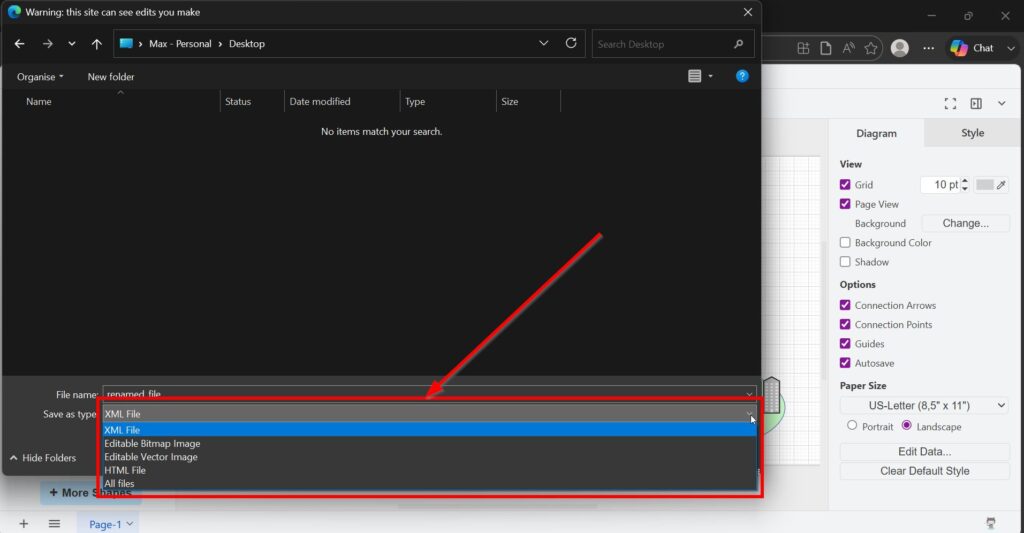
This matters because each type supports a different goal.
XML File | .drawio
I choose .drawio when I want the best editor compatibility. This format keeps the diagram as a pure diagram file.
Editable Bitmap Image |.png and Editable Vector Image | .svg
I choose .png or .svg when I want an image for sharing. Moreover, draw.io can store diagram data inside PNG and SVG. That means I can often reopen and edit the image later in draw.io.
Hypertext Markup Language | .html
I choose .html when I want a shareable file that can open in a browser. This can help for distribution. In addition, it can support interactive viewing in some workflows.
Important note: Your exact options can depend on where you store your file and how you opened it. For example, if you store diagrams in Google Drive, draw.io provides a clear rename flow through the File menu. If you do not see a Type dropdown in your environment, you can still change formats via export. For example, draw.io supports exporting to formats like PNG, SVG, and HTML from the File menu.
Step 6: I confirm with Rename
Finally, I click Save in the dialog. Then draw.io updates the file name. As a result, I see the new name in my storage location and in the editor context.
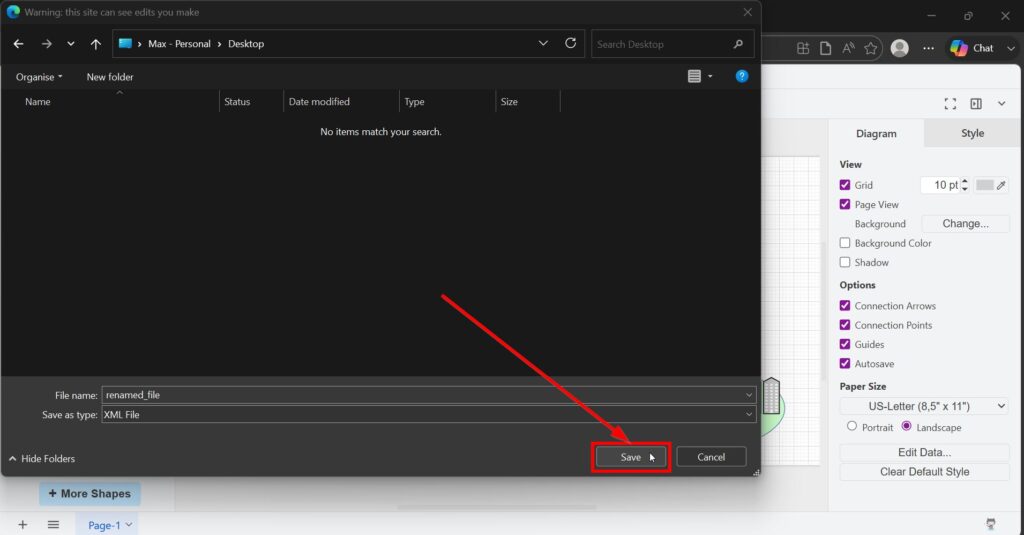
After that, I continue working as normal. Therefore, I keep momentum. Moreover, I reduce the risk of messy file libraries later.
As a result, a new filename now appears in the title bar.
Common problems and how I avoid them
Even with a simple rename flow, small mistakes happen. However, I prevent most of them with a few habits.
I avoid unclear names
I do not use “final” as a naming strategy. Instead, I use version numbers. For example, v1, v2, v3. Therefore, I can compare changes.
I keep the same base name across related outputs
If I create an image export, I keep the same base name. For example:
- order-process.drawio
- order-process.png
- order-process.svg
As a result, I can group files easily. This helps in folders and search results.
I choose the right type for the job
If I want editing, I keep .drawio. If I want distribution, I pick PNG, SVG, or HTML. However, I still think about future edits. Therefore, I prefer formats that keep diagram data when possible.
I use export when I need more control
Sometimes I want more export options. Then I use File > Export as. This path gives me format choices and settings. Consequently, I can tune quality, size, and embedding behavior.
Final Thoughts
Renaming a file in draw.io takes only a minute. First, I open File. Then I click Rename. Next, I update the name in the dialog. After that, I check the Type dropdown when I want a different file type. Finally, I confirm with Rename.
Because I use consistent names, I stay organized. Moreover, I collaborate more easily. Therefore, renaming becomes a small habit with a big payoff.