
Jira offers many features, but I do not want to lose time clicking through menus. In this guide, I show how to use jira shortcuts to move faster, manage tasks, and navigate Jira with less effort. You will learn which shortcuts matter most, how they support daily work, and how small keyboard commands can improve productivity.
What is Jira
Jira is a project management and issue-tracking tool developed by Atlassian, designed to help teams plan, organize, and monitor their work efficiently. It’s especially popular among agile teams for managing sprints, tracking bugs, and monitoring progress. Jira allows users to create tasks, assign responsibilities, and visualize workflows using boards and reports. With its flexibility and integration options, Jira supports collaboration, transparency, and continuous improvement across projects.
Why Use Shortcuts?
Shortcuts in Jira allow me to:
- Save Time: I quickly navigate through projects, issues, and boards without excessive clicking.
- Improve Workflow Efficiency: I perform actions faster, which is crucial when managing large projects with numerous tasks.
- Enhance User Experience: I reduce the cognitive load by minimizing the repetitive actions you need to perform.
Global Shortcuts
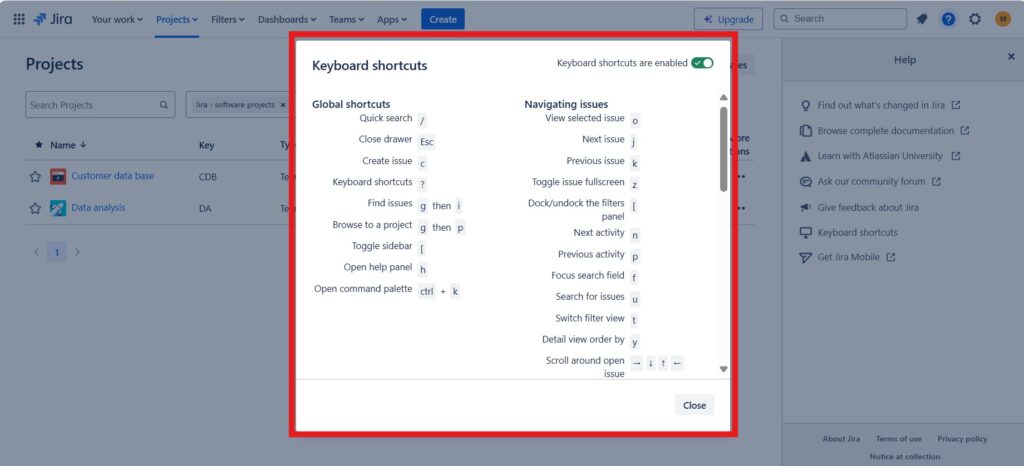
Understanding the global shortcuts is the first step to mastering Jira. Here are the global shortcuts:
| Quick search | / |
| Close drawer | Esc |
| Create issue | c |
| Keyboard shortcuts | ? |
| Find issues | g then i |
| Browse to a project | g then p |
| Toggle sidebar | [ |
| Open help panel | h |
| Open command palette | ctrl + k |
Navigating on Issues
Jira allows me to perform a range of navigating issues using shortcuts:
| View selected issue | o |
| Next issue | j |
| Previous issue | k |
| Toggle issue fullscreen | z |
| Dock/undock the filters panel | [ |
| Next activity | n |
| Previous activity | p |
| Focus search field | u |
| Search for issues | u |
| Switch filter view | t |
| Detail view order by | y |
| Scroll around open issues | ← ↑ → ↓ |
| Share search criteria | s |
Issue actions shortcuts
I use the following shortcuts to perform actions on my issues:
| Assign issue | a |
| Comment on issue | m |
| Watch issue | w |
| Edit issue labels | l |
| Actions menu | . |
| Assign to menu | i |
| Change status | d |
| Log work | q |
| Share | shift + s |
Plans Shortcuts
I use the following plans shortcuts in my plans:
| Set timespan to weeks | w |
| Set timespan to months | m |
| Set timespan to quarters | q |
| Set timespan to years | y |
| Set timespan to custom range | x |
| Go to today | t |
| Review changes | r |
| Add fields | a |
| Change between timeline and list views | l |
Board shortcuts
I use the board shortcuts to work efficiently with my boards:
| Backlog | 1 |
| Active sprints/Kanban board | 2 |
| Reports | 3 |
| Hide/show menus | z |
| Next column | p |
| Previous column | p |
| Hide/show detail view | t |
| Toggle epic panel | e |
| Toggle version panel | v |
| Toggle all swimlanes | – |
| Sent to top | s then t |
| Send to bottom | s then b |
Navigate to Shortcuts
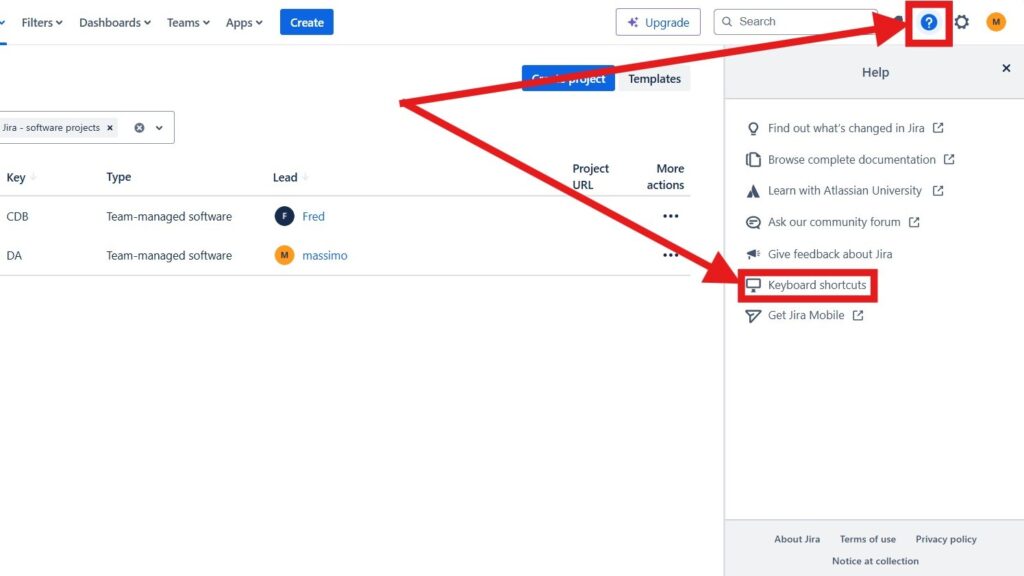
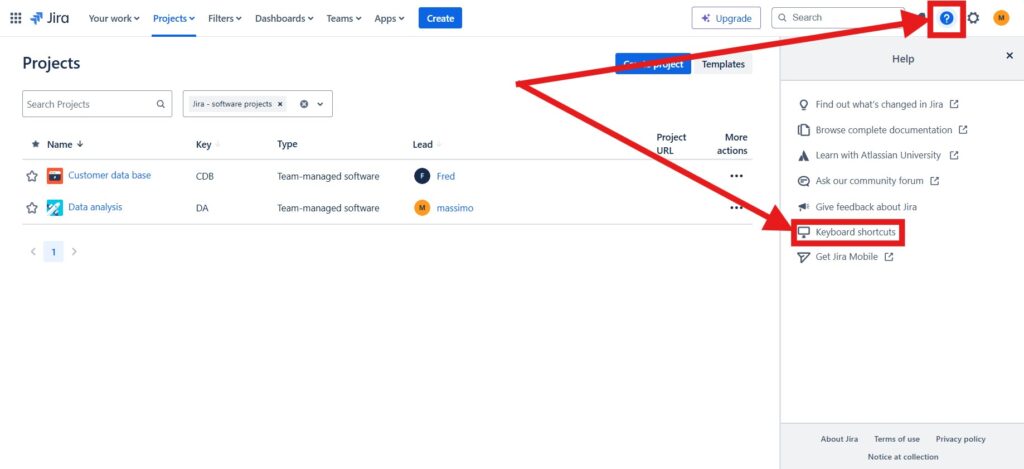
To access the shortcuts manually, I click on the help symbol with the “?” sign in the top right. The help menu opens and I can click on “Keyboard shortcuts” to display the shortcuts.
Customizing Shortcuts
Jira allows for some customization of shortcuts, although it may be limited compared to other software. However, I can create custom keyboard shortcuts using browser extensions like Vimium for Chrome or similar tools that let you navigate and interact with web pages using keyboard shortcuts.
Tips for Mastering Shortcuts
- Start Slow: I begin by incorporating a few shortcuts into my daily routine rather than trying to learn them all at once.
- Practice Regularly: Consistency is key. I regular use will help solidify my memory of the shortcuts.
- Use Cheat Sheets: I keep a printed or digital cheat sheet of the most common shortcuts at your workspace for quick reference.
- Encourage Team Adoption: If everyone on my team uses shortcuts, overall efficiency and consistency in workflows will improve.
Conclusion
Shortcuts in Jira are a game-changer for anyone looking to streamline their workflow and increase productivity. By incorporating these shortcuts into my daily usage, I will find navigating Jira to be faster and more intuitive, allowing me to focus more on my projects and less on the tool itself. So, start using these shortcuts today and transform the way you manage your projects!
What’s Next?!
Now that I know how Jira shortcuts can speed up daily work, I want to shape Jira more clearly around my project needs. Therefore, the next step is How to Create a New View in a Jira Project.
In that article, I explain how Jira views help me organize project information in a more useful way. You will learn how a new view can make tasks easier to scan, filter, and understand. In addition, you will see how better views support focus, transparency, and smoother teamwork.
Click the next article to learn how to create a new view in a Jira project and make your workspace easier to manage.
Requirements Engineering Tools: Improve Your Workflow from Idea to Delivery
Requirements engineering needs clear thinking, strong documentation, visible tasks, and understandable processes. Therefore, I use draw.io to create diagrams, Confluence to structure knowledge, Jira to manage project work, and Camunda to model workflows. Together, these tools help me connect requirements with real collaboration and delivery. In the main article on Requirements Engineering Tools, I show how this toolset supports better communication, traceability, planning, and process understanding. Click through to learn how draw.io, Confluence, Jira, and Camunda can strengthen your requirements engineering workflow.