
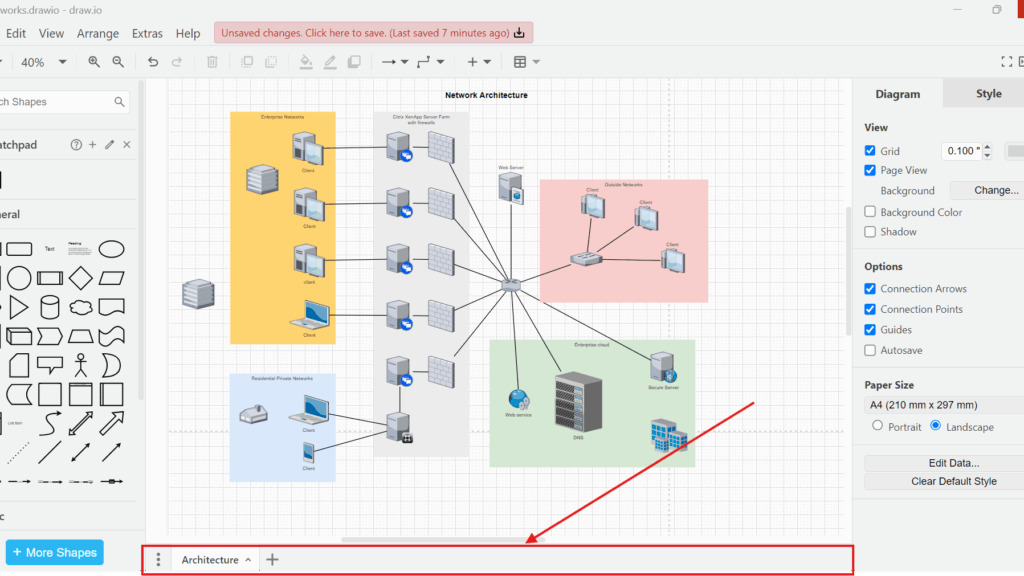
Complex diagrams need clear structure. That is why I use page tabs in draw.io. They help me separate topics, versions, or diagram parts inside one file. In this guide, I explain how to add and use a new page tab in draw.io. You’ll learn the steps and see how page tabs can make your diagram workflow easier to manage.
What Are Page Tabs in draw.io?
A draw.io file can contain more than one diagram page. Each page has its own canvas and content. The page tabs at the bottom of the editor let me move between these pages.
Therefore, I can keep related diagrams together without placing everything on one large canvas.
For example, I can use separate pages for:
- a system overview and detailed diagrams
- different business processes
- different parts of an architecture
- AS-IS and TO-BE models
- supporting diagrams that belong to the same project
I use page tabs when several diagrams belong together logically but should remain visually separate.
This distinction matters. A page is not simply another visible area of the current canvas. It gives me a separate workspace within the same draw.io file.
How to Display Page Tabs in draw.io
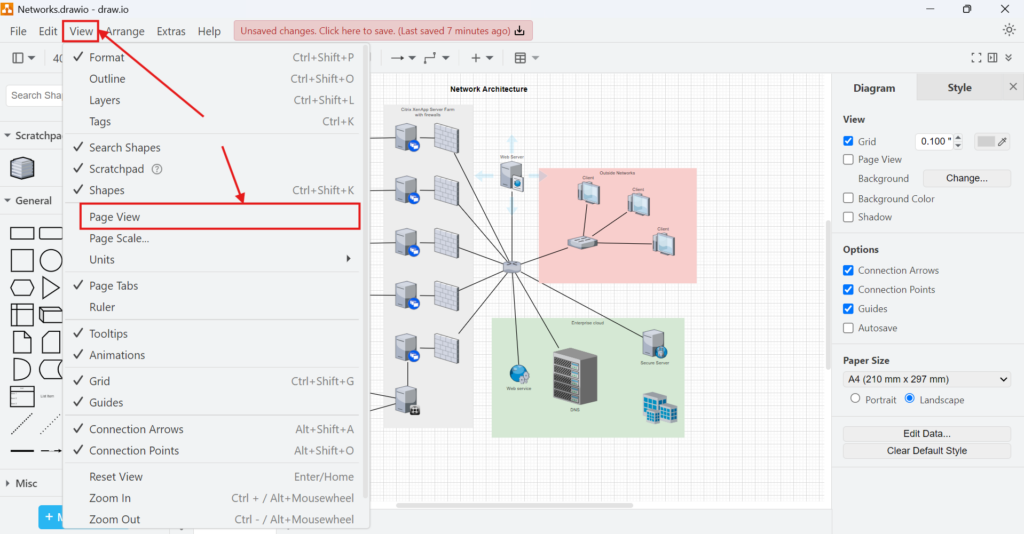
If I cannot see the page tabs, I first open the View menu.
Then, I select Page Tabs. Once this option is active, draw.io displays the page tab bar at the bottom of the editor.
After I activate the option, I can see the existing page at the bottom of the workspace. In my example, the page is named Architecture.
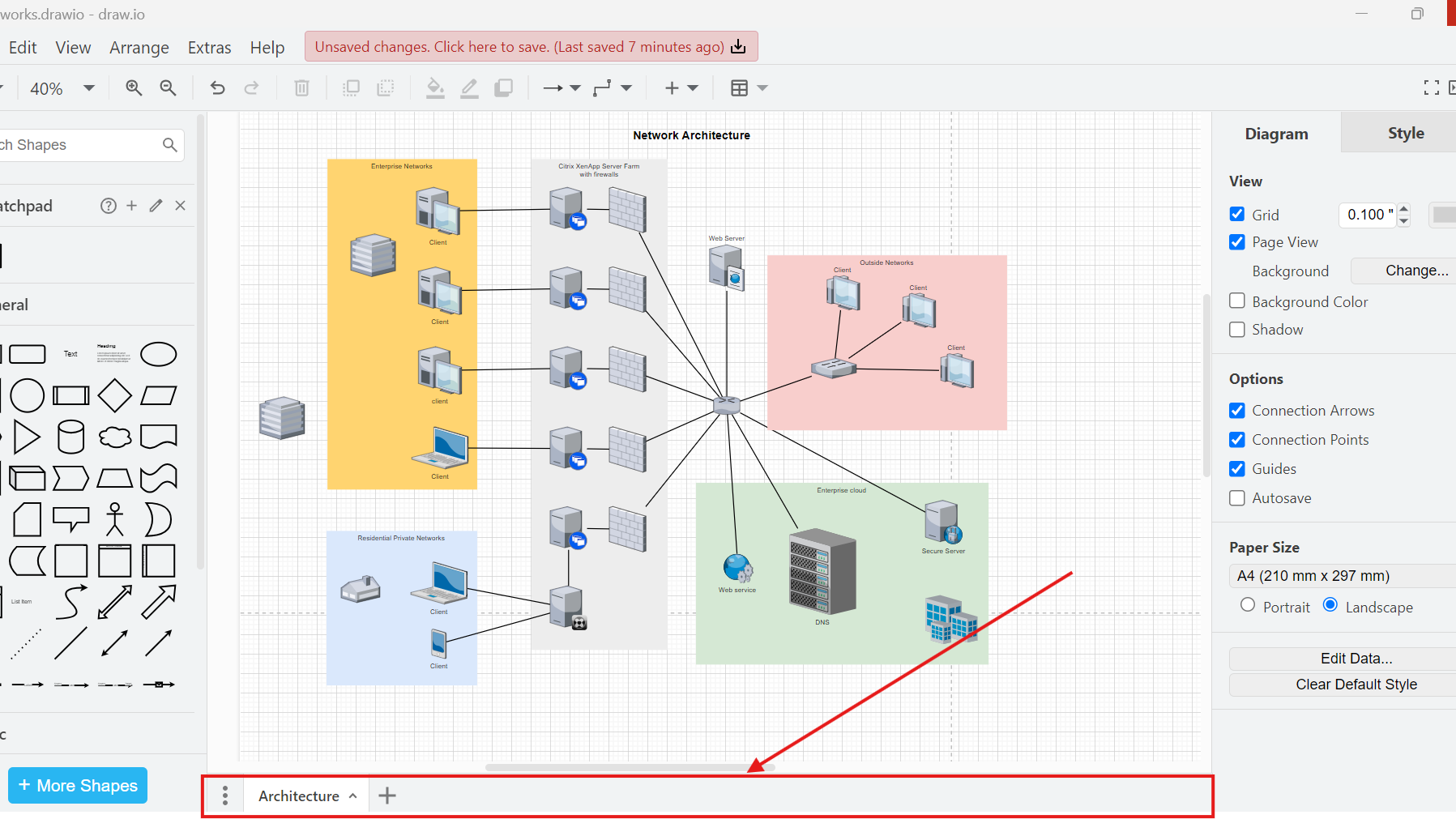
The page tab bar gives me direct access to every page stored in the diagram file.
How to Add a New Page in draw.io
Creating another page only takes one action.
I locate the plus button next to the existing page tabs. Then, I click it.
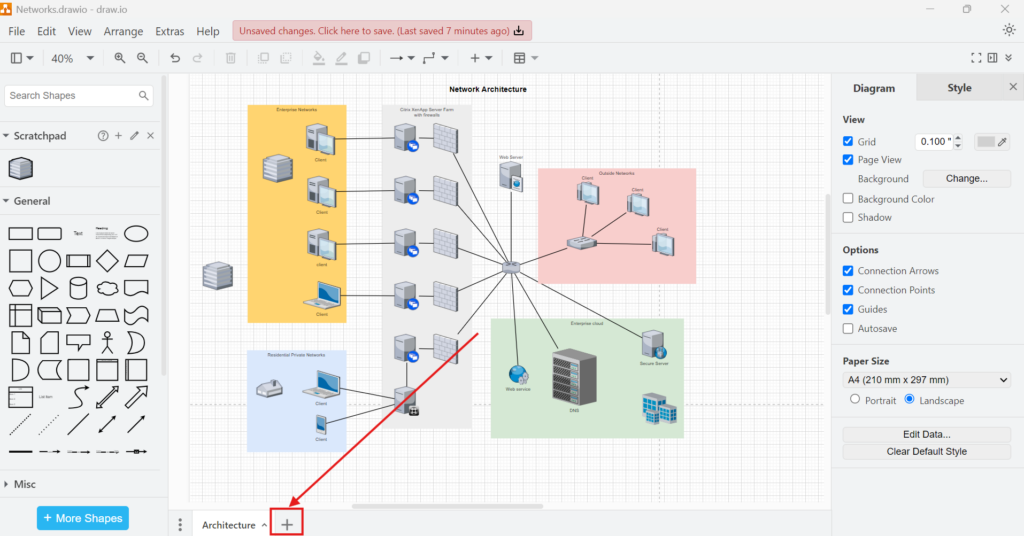
Draw.io then creates a new page and opens it automatically.
The new page starts with an empty canvas. Therefore, I can build another diagram without changing the content of the existing Architecture page.
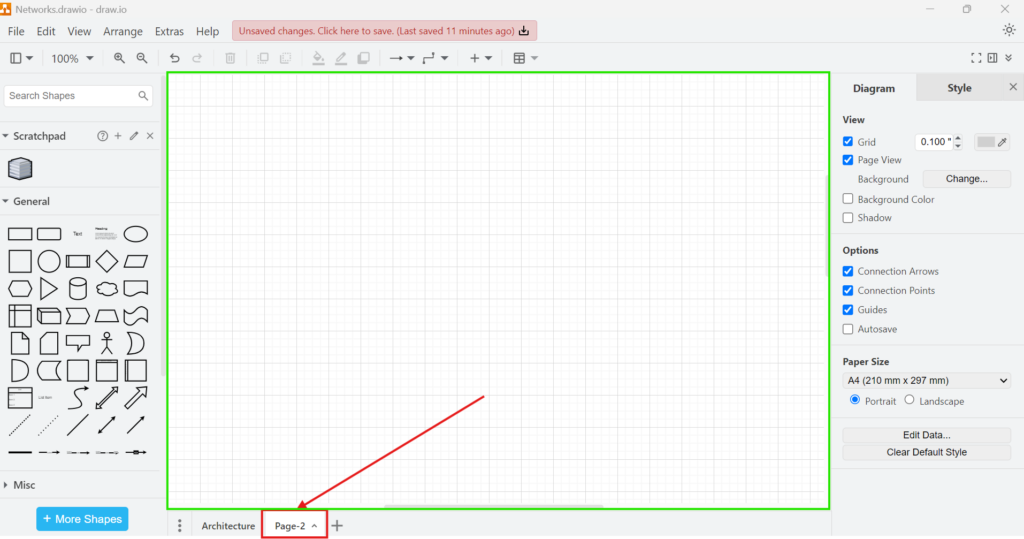
Each page remains separate, while all pages stay inside the same draw.io file.
I can now click the page tabs to move between the Architecture diagram and the new page.
How I Organize Multiple Pages
Adding pages is easy. However, useful page structures require clear names.
Therefore, I replace generic names such as Page-2 with names that describe the content. For example, I might use:
- Overview
- Network Architecture
- Application Architecture
- Business Process
- Interfaces
Clear names become increasingly important as the number of pages grows.
I also use a consistent structure. For example, I place the overview first and detailed diagrams after it. As a result, another person can understand the file without opening every page individually.
A clear page structure should explain how the diagrams relate to each other before someone studies their individual content.
When I Use Page Tabs
I mainly use page tabs when diagrams form one coherent model or document.
For example, a network architecture may need an overview page and several detailed views. Likewise, a process model may need one page for the end-to-end process and additional pages for subprocesses.
Page tabs also make sharing easier. I can send one draw.io file instead of several loosely connected files.
However, I do not put unrelated diagrams into one file simply because page tabs make it possible. That approach creates another form of clutter.
If diagrams have different owners, access rights, release cycles, or purposes, I usually keep them in separate files.
I use page tabs to structure related content, not to turn one draw.io file into a general storage location for unrelated diagrams.
Conclusion
Page tabs in draw.io give me a simple way to divide a complex subject into separate diagrams while keeping them in one file. I can display the page tab bar through View > Page Tabs, add another page with the plus button, and switch between pages from the bottom of the editor.
For larger models, I also use meaningful page names and a logical order. This makes the file easier to navigate, maintain, review, and share.
When several diagrams describe the same system, process, or project, page tabs let me separate the views without separating their context.
What’s Next?
Now that I know how to add and use a new page tab in draw.io, I can control the layout even more precisely. Page tabs help me organize content, but page scale helps me adjust how the diagram fits on the page. In the next article, I’ll explain How to Change the Page Scale in draw.io. You’ll learn how scaling affects your diagram and how it helps you prepare cleaner results for editing, printing, or exporting. Click below to continue and adjust your page scale in draw.io.
Explore Tools That Make Requirements Engineering Clearer
Requirements engineering becomes more practical when I use tools that support each important step. Therefore, I use draw.io to create visual models, Confluence to document knowledge, Jira to manage requirements-related tasks, and Camunda to model business processes. Each tool helps me bring more structure into complex work. As a result, I can explain ideas, organize decisions, track progress, and improve communication with stakeholders. In the main article on Requirements Engineering Tools, I show how these tools work together and support a clearer requirements workflow.