
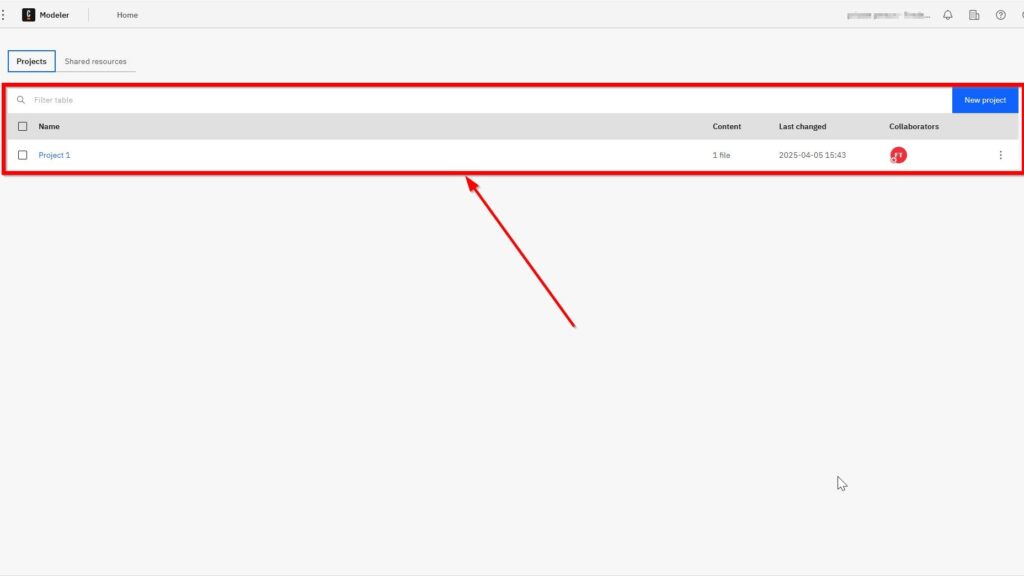
Are you new to the Camunda Home User Interface? In this guide, I show you the essential areas of Camunda Modeler’s home screen. You will learn how to navigate projects, manage processes, and find key options faster. As a result, you can start working with Camunda with more confidence and less confusion.
What is Camunda?
First, let’s quickly discuss what Camunda (opens in a new tab) actually is. Camunda is an open-source platform designed for automating workflow and decision-making processes. In other words, it helps businesses streamline their workflows using powerful process automation tools. It supports scalability and is highly flexible, making it a favorite among developers and business analysts alike.
What is BPMN?
Next up, what exactly is BPMN? BPMN stands for Business Process Model and Notation. Basically, it’s a graphical language for modeling business processes. It makes complex processes easy to understand, even for non-technical users. With BPMN, you can visualize and improve your workflows efficiently.
Exploring the Camunda Home User Interface
Now, let’s look closely at the Camunda Home User Interface.

Here, you can access various Camunda components quickly. No matter where you navigate, clicking “Home” always brings you back to this central view. Convenient, right?
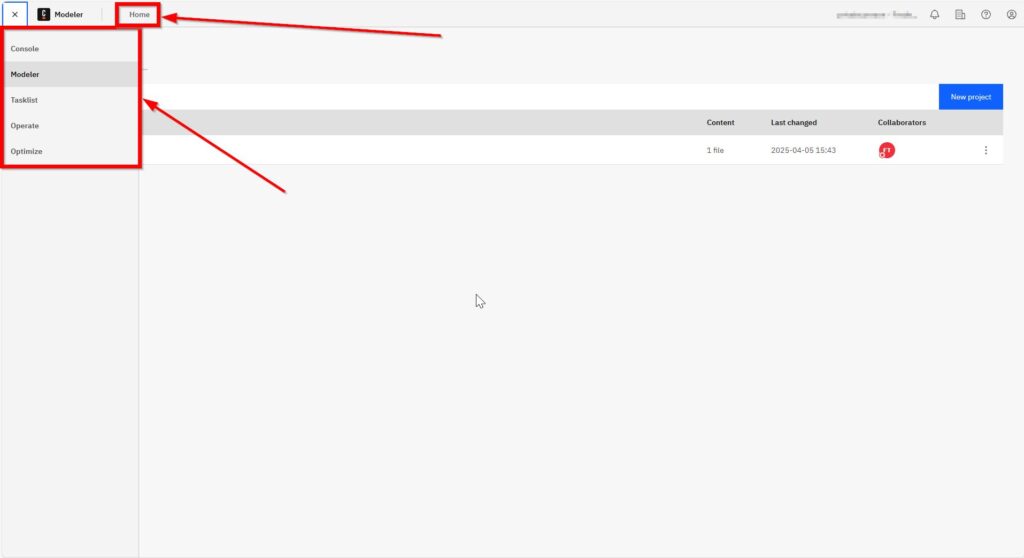
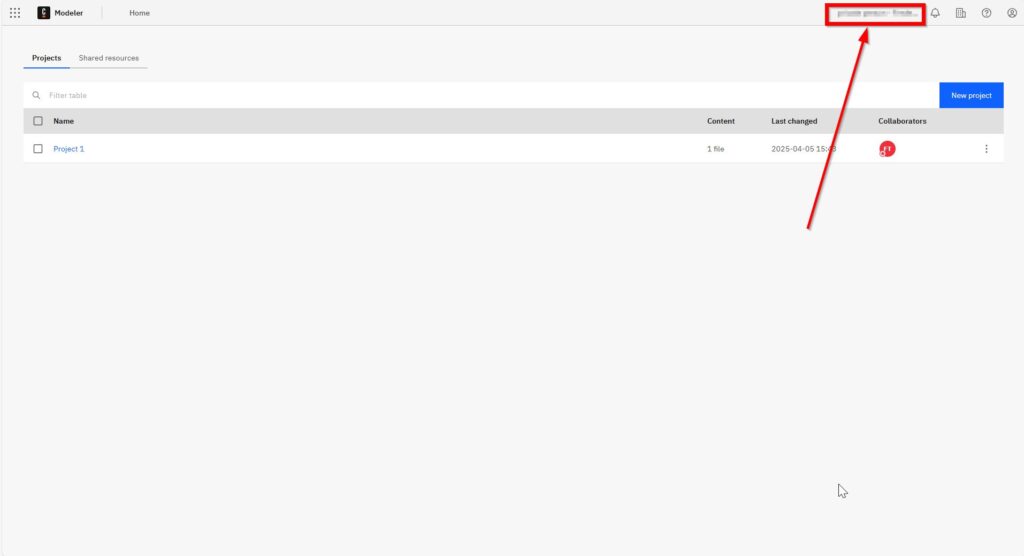
On the left side, you’ll notice your name or organization displayed clearly (obscured here).
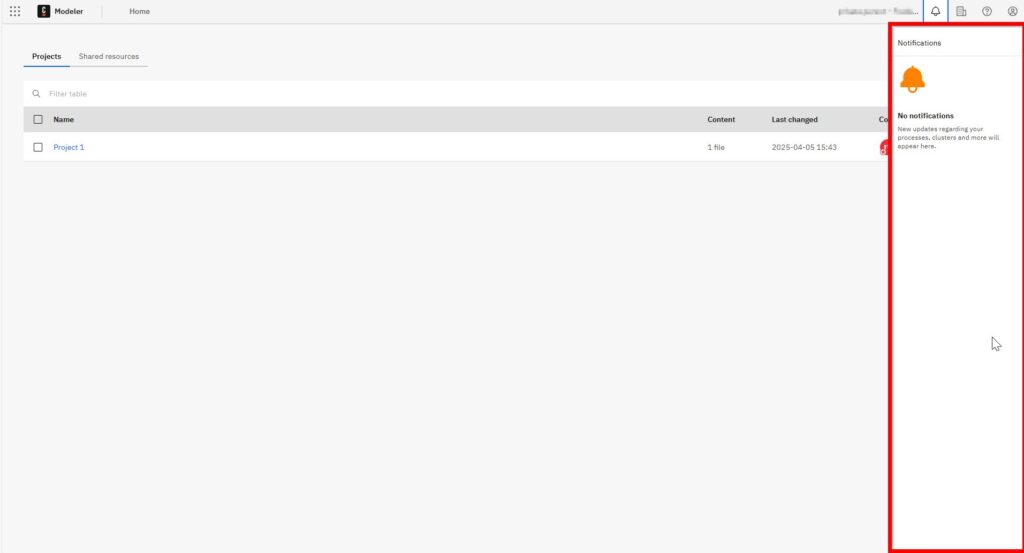
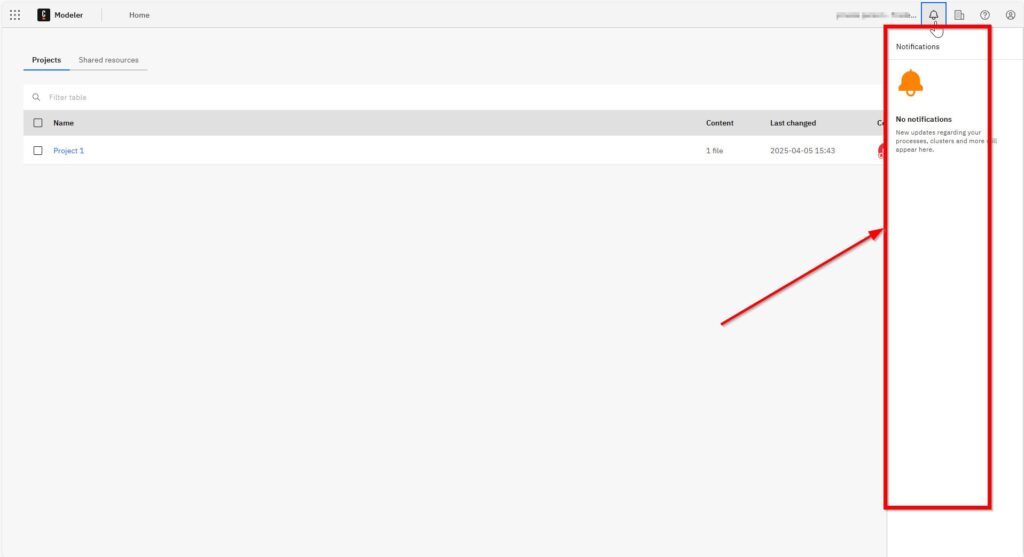
Next to it, your notifications pop up, keeping you updated instantly.
A little further to the right follows information about your organization.
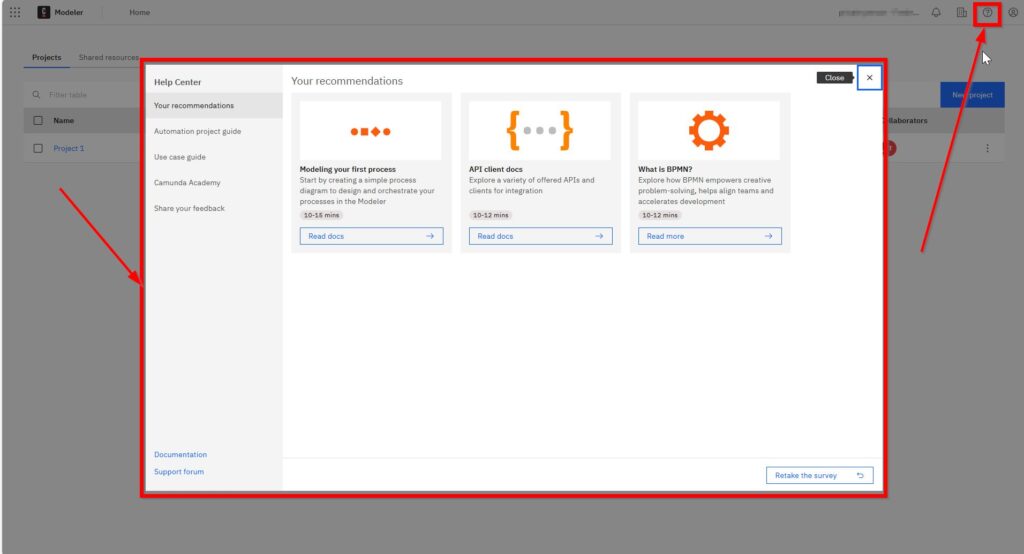
The Help Center opens second from the right!
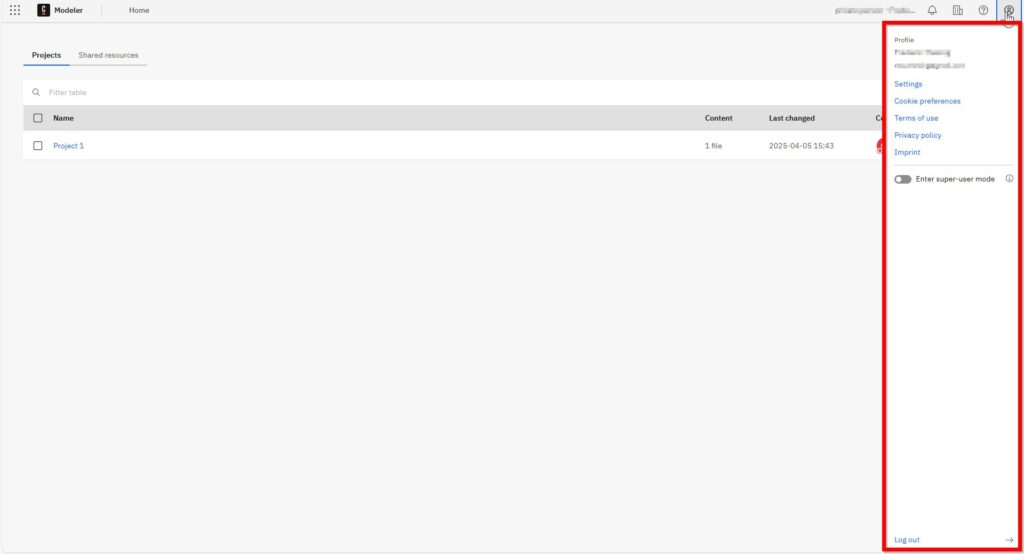
Above this area, in the top left menu, you can expand your profile options easily.
Below this, you have two navigation options: “Projects” or “Shared resources.” In this example, I don’t have any shared resources, but it’s handy if you’re collaborating with others.

However, I do have a project named “Project 1.” Under each project, details are neatly organized. You’ll see the project’s “Name,” the quantity of “Content”—which includes your processes and diagrams—your latest changes, collaborators, and various options for management.

The three-dot menu allows you to delete the project.

Need to create a new project? Simply click the blue button labeled clearly for this purpose. The Camunda Home User Interface is designed to keep things simple and intuitive.

Final Thoughts
All in all, mastering the Camunda Home User Interface is straightforward once you grasp these basics. By understanding Camunda and BPMN, you’ll maximize your efficiency in managing workflows. With the user-friendly interface, navigating projects and shared resources is easier than ever. Now you’re ready to explore the powerful capabilities of the Camunda Home User Interface.
What’s Next?
Now that I understand the Camunda Home User Interface, I can take the next practical step. I need a clear place to organize my models, files, and process work.
Therefore, the next article shows me How to Create a New Project in Camunda. I will learn how to set up a project and prepare my workspace for real BPMN modeling.
This step helps me move from orientation to action. As a result, I can start building process models in a structured way. Click the next article and continue your Camunda journey with your first project.
Explore Requirements Engineering Tools and Processes
Requirements engineering works best when I combine clear thinking with practical tools. In my main article on Requirements Engineering Tools, I explain how draw.io, Confluence, Jira, and Camunda support different parts of the work. I use draw.io to visualize ideas, Confluence to document knowledge, Jira to manage tasks, and Camunda to model processes. Therefore, this overview helps me build a stronger toolset for better requirements work.
With these insights, I can also take the next step into the main article on Processes. There, I explore Process Management, BPMN, and Camunda as a practical tool for BPMN modeling. Therefore, I can see how process thinking turns workflows into clear structures and better improvement decisions. Click through to learn how Processes help me understand work, improve collaboration, and create stronger business value.