

Complex diagrams can make me lose the overall picture. After zooming, moving shapes, and navigating around, the workspace may feel messy. In this article, I explain How to reset the view in draw.io. You’ll learn how to return to a clear view, regain orientation, and continue working with more control.
What Reset View Does in draw.io
Reset View controls how I see the diagram on the draw.io canvas. For example, I may have zoomed into one section or moved far away from the main content. Instead of correcting the position and zoom manually, I can reset the view.
Reset View changes my view of the diagram, but it does not change the diagram itself.
Therefore, my shapes, connectors, labels, and other diagram content remain unchanged. The command also does not undo my edits. It simply helps me regain orientation in the workspace.
How to Reset the View in draw.io
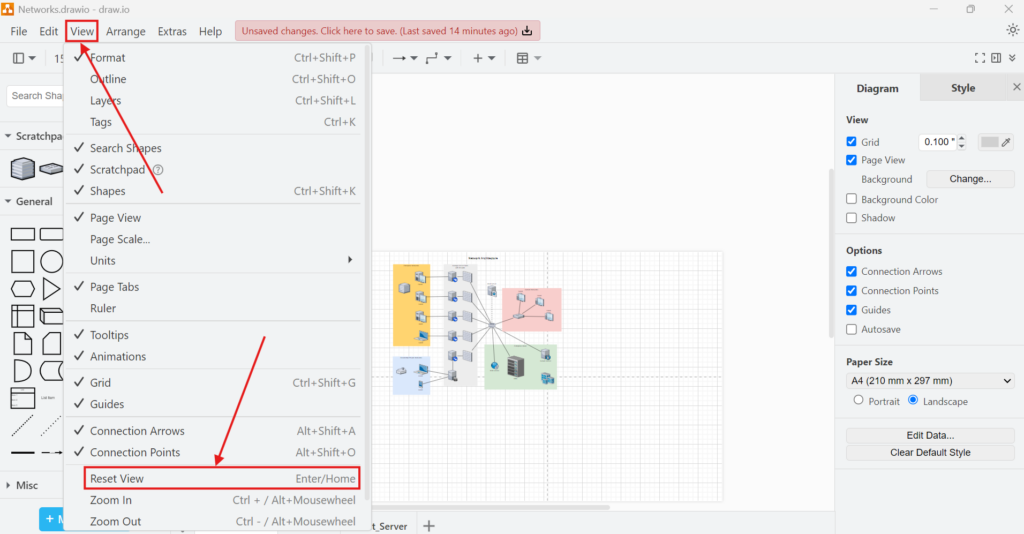
I can reset the view directly from the main menu:
- I open View in the top menu.
- I select Reset View.
- draw.io immediately adjusts the canvas view.
The menu also displays the keyboard shortcut as Enter/Home. Therefore, I can use the shortcut when I want to reset the view without opening the menu.
The fastest method is the keyboard shortcut, while the View menu makes the command easier to find and understand.
What Happens After I Reset the View
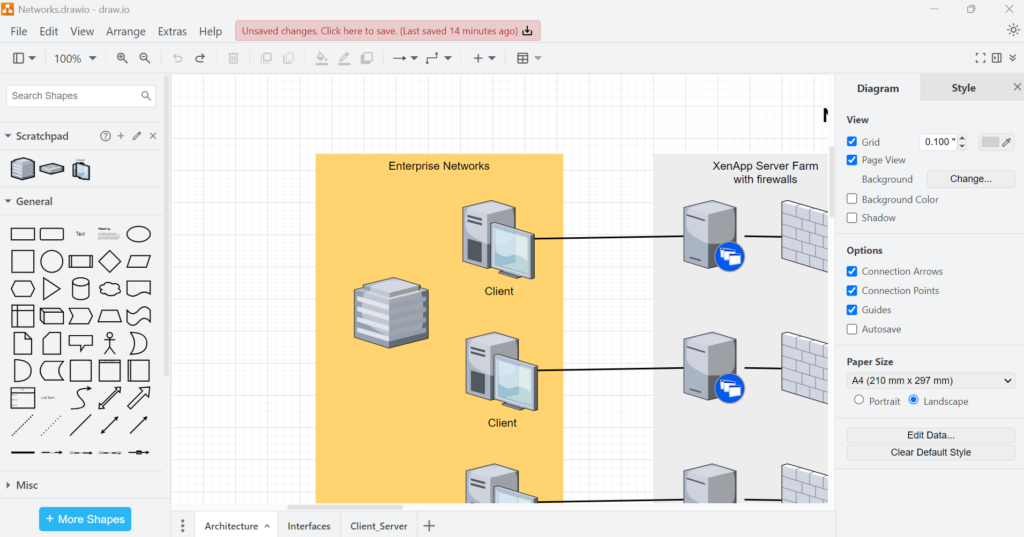
After the reset, I can see the diagram from a more useful starting position again. This makes it easier to understand the overall structure before I continue working on individual elements.
For example, a network diagram may contain several groups, servers, clients, connectors, and other components. After working closely on one section, I may lose sight of how these parts relate to each other. Resetting the view helps me return to the broader context.
When I Use Reset View
I mainly use Reset View after extensive zooming or panning. However, it also helps when I open a complex diagram and want to establish a clear starting view before editing.
In particular, I find it useful when I:
- lose my position on a large canvas;
- zoom too far into one section;
- move away from the main diagram;
- switch between detailed editing and an overall review.
In contrast, if I only want to make the diagram slightly larger or smaller, I use the normal zoom controls. Reset View is more useful when I want to recover a practical overall workspace view.
Reset View Does Not Reset the Diagram
The name can sound broader than the actual function. Therefore, I make an important distinction.
Reset View does not reset my diagram, delete changes, rearrange shapes, or restore an earlier version.
It only affects my current view of the canvas. As a result, I can use it without changing the structure or content I created.
Conclusion
Reset View is a small draw.io feature, but I find it valuable when I work with large or detailed diagrams. I can open View and select Reset View or use the displayed Enter/Home shortcut. In both cases, I quickly regain a useful overview of the canvas.
Whenever zooming and panning make navigation difficult, I use Reset View to recover orientation without altering my diagram.
What’s Next?
Now that I know how to reset the view in draw.io, I can return to a clear workspace whenever I lose orientation. However, a finished diagram often needs to leave the editor. That is where exporting becomes important. In the next article, I’ll explain How to Export a Diagram as PNG in draw.io. You’ll learn how PNG export works and why it helps you use diagrams in documents, websites, and presentations. Click below to continue and export your draw.io diagram as a PNG image.
Turn Requirements Work into a Practical Tool Workflow
Requirements engineering becomes clearer when I use tools that support visual thinking, documentation, coordination, and process modeling. Therefore, I use draw.io to create diagrams, Confluence to organize knowledge, Jira to manage requirements-related work, and Camunda to model business processes. Each tool helps me handle a different part of the workflow. As a result, I can connect ideas, decisions, tasks, and processes more effectively. In the main article on Requirements Engineering Tools, I show how these tools work together and help me build a stronger requirements engineering process.